Setup Automatic Reminders
Learn how to enable automatic email and SMS reminders for your form. Configure reminder settings, set event times, and customize reminder messages.
You can enable automatic reminders for your form. Reminders can be sent via email and/or SMS (Premium + Boost plan required for SMS). This guide shows how to setup Automatic Reminders. NOTE: Reminders are sent on or slightly before the reminder time that is set. Our system checks for upcoming reminders multiple times per hour and sends them. We send ahead of schedule in most cases to ensure reminders are not missed and that we have multiple attempts to check for upcoming reminders.
Sections in This Guide
- CONFIGURE REMINDER SETTINGS: You can send automatic reminders to form respondents by configuring Automatic Reminders on the Form Options page.
- Using Time/Date fields with Reminders: If you added time/date settings on your options when setting up your form, those settings will be used in Reminders. NOTE: Using Time/Date fields is not required for setting up reminders.
- ADD A CUSTOM MESSAGE ON REMINDER EMAILS: You can add a custom message that will be included in reminder emails.
- WHAT'S IN A REMINDER EMAIL: The details each respondent gets, including the option's date and description.
- SEND A TEST REMINDER: Preview the reminder for any option before it goes out.
CONFIGURE REMINDER SETTINGS
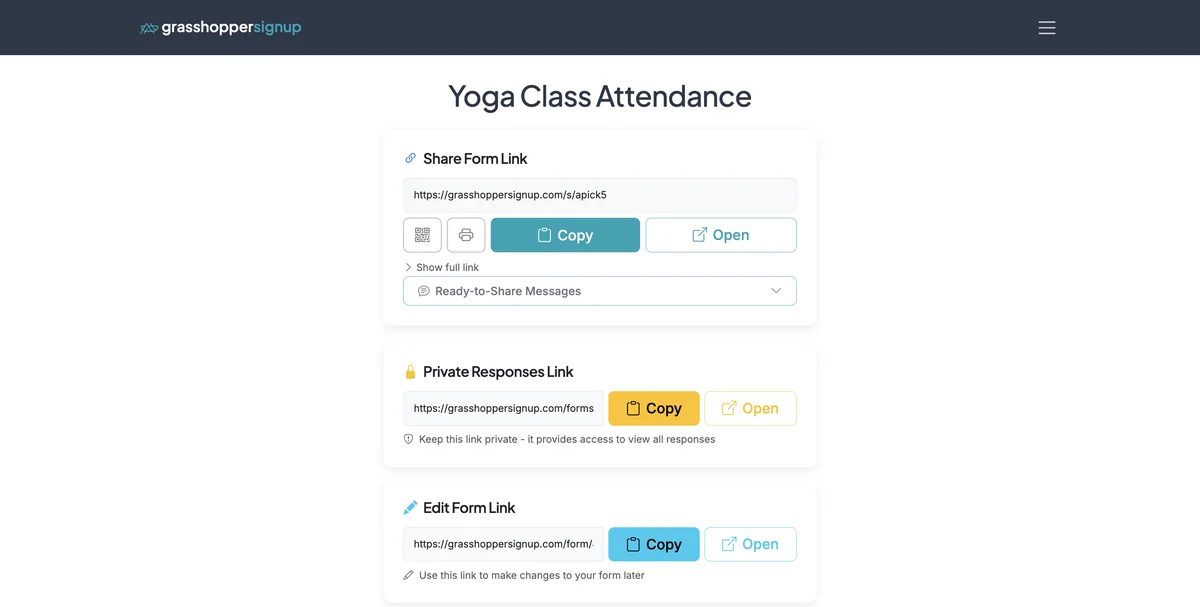
You can send automatic reminders to form respondents by configuring Automatic Reminders on the Form Options page.
Step 1
Start on the Form Options page.
Step 2
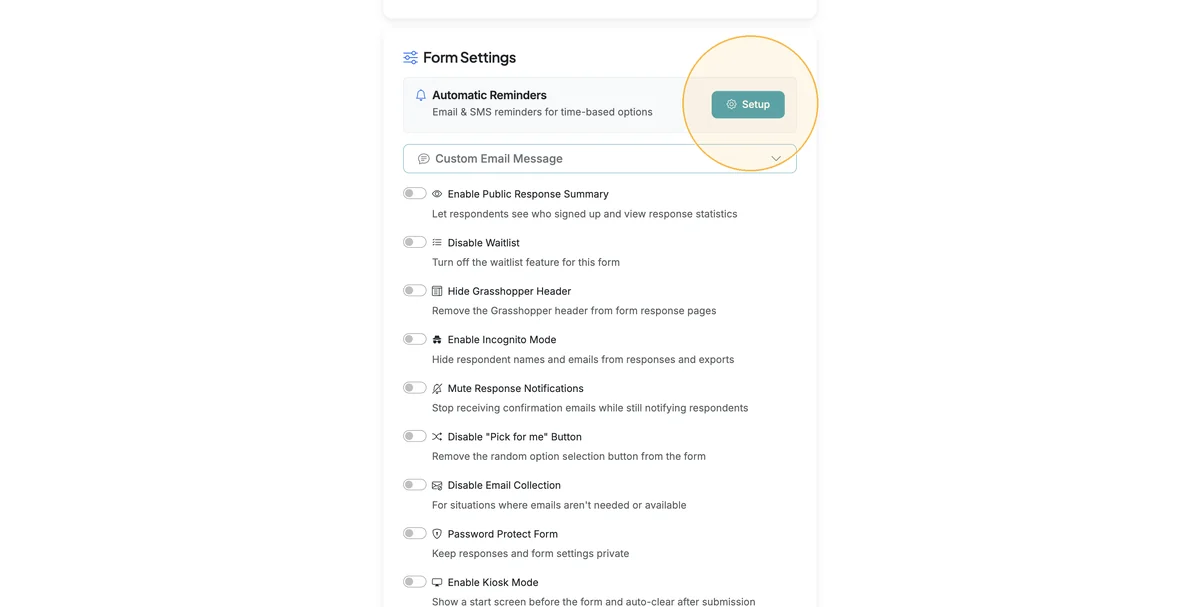
Scroll down to the Form Settings. Click 'Setup' on Automatic Reminders.
Step 3
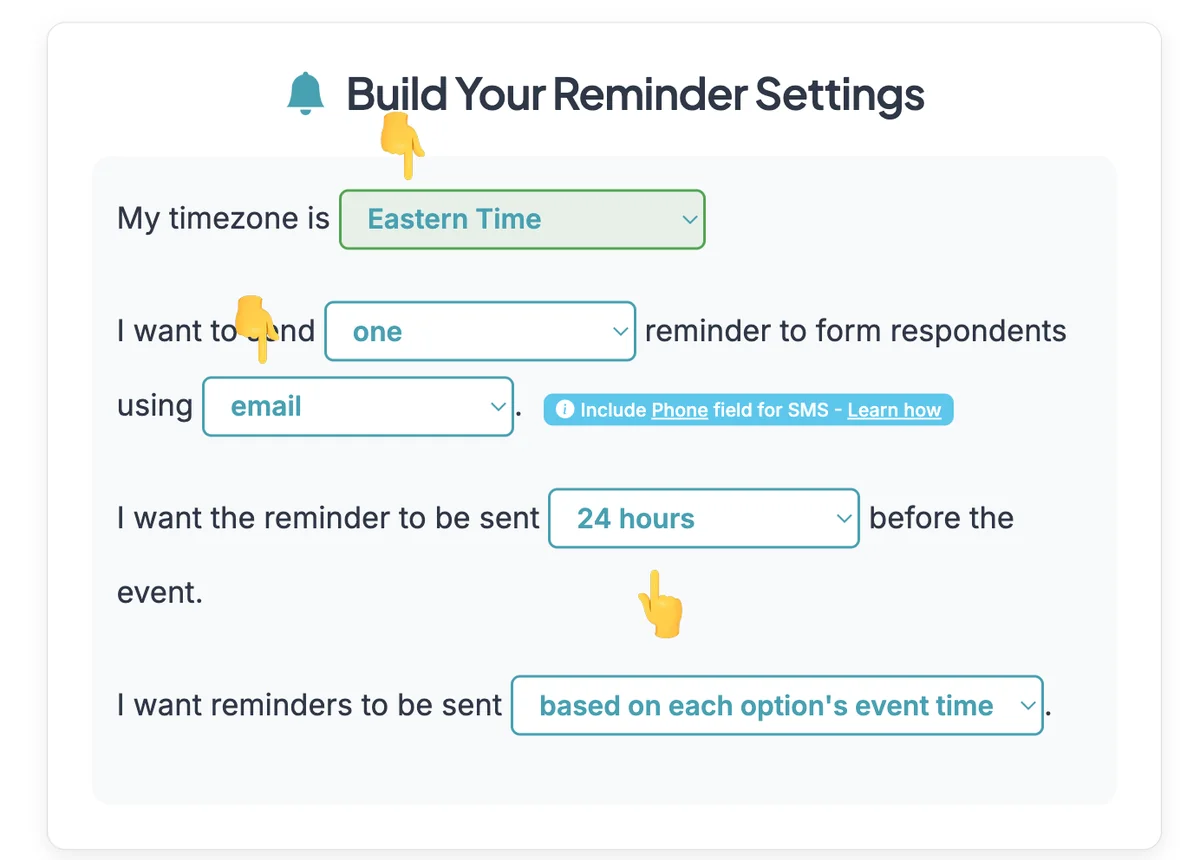
Go through each option on the Reminder Settings to setup your key reminder settings. SMS reminders are available on our Premium + Boost plans.
Step 4
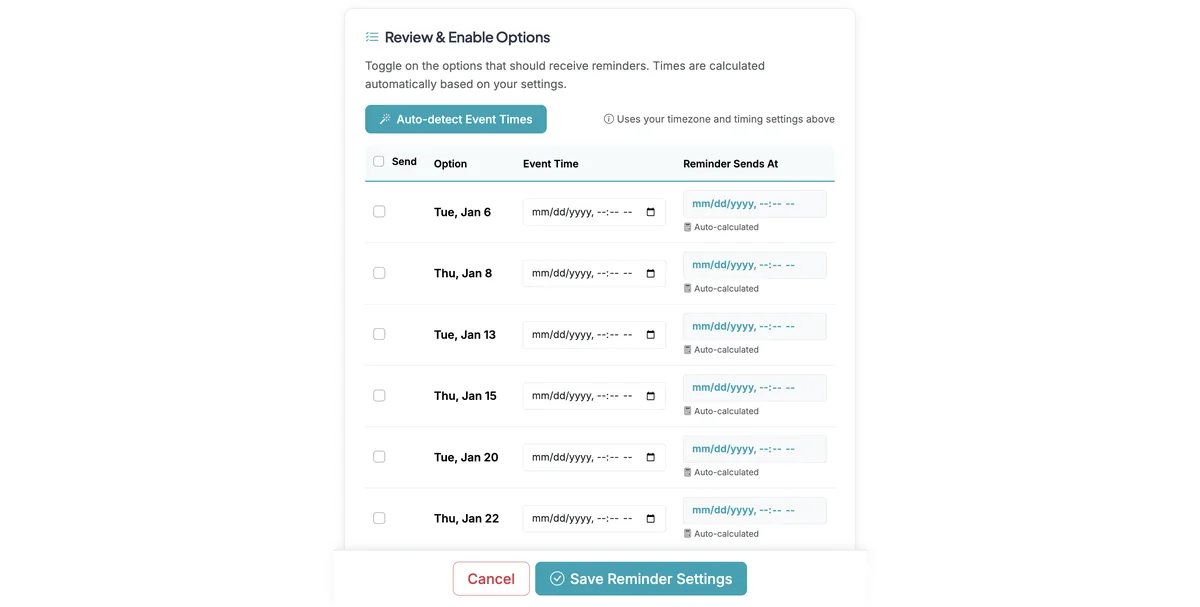
Scroll down to enable reminders on the options you want to send reminders for.
Step 5
Enable ALL options for reminders, or choose which options you want to send reminders for.
Step 6
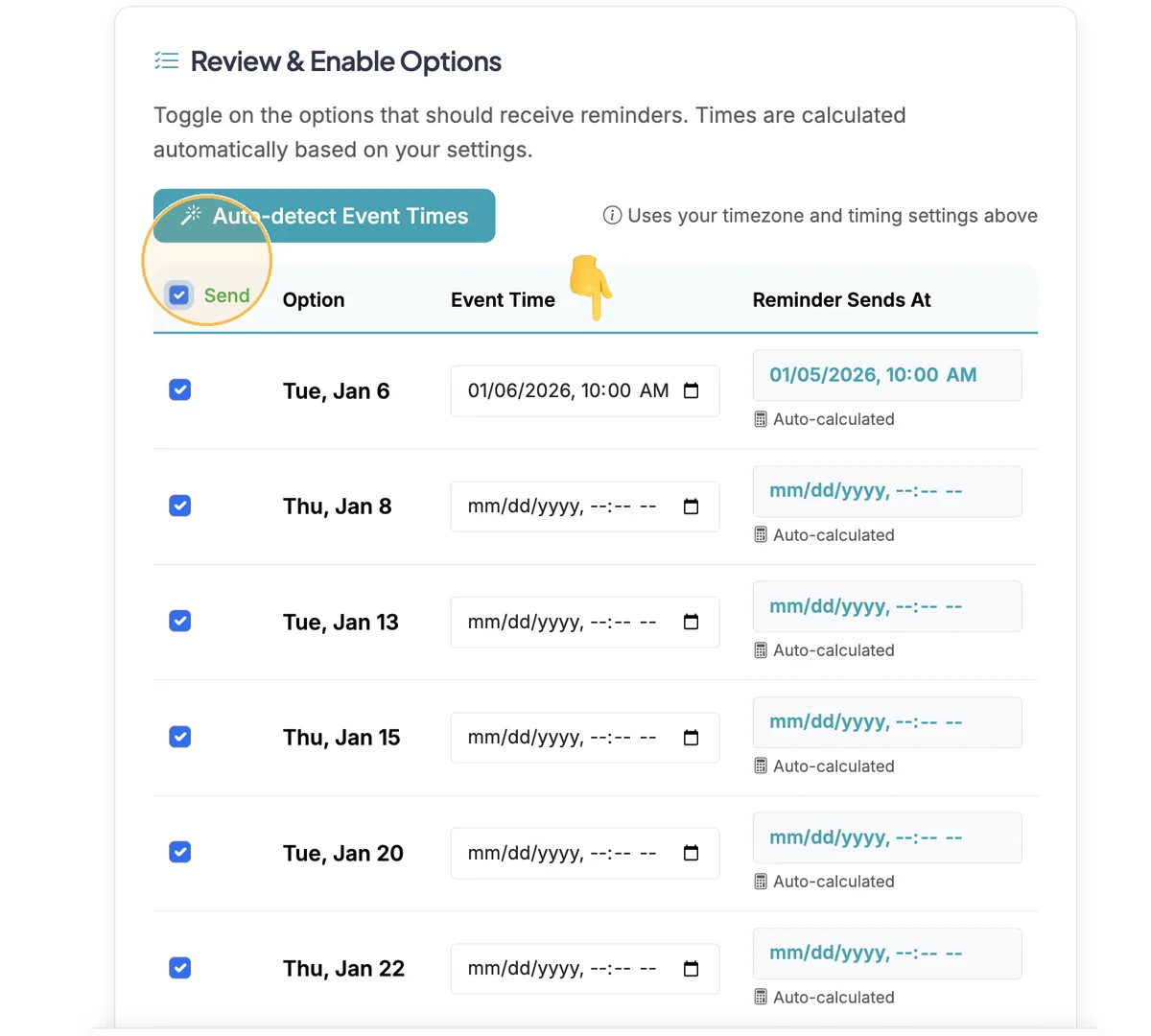
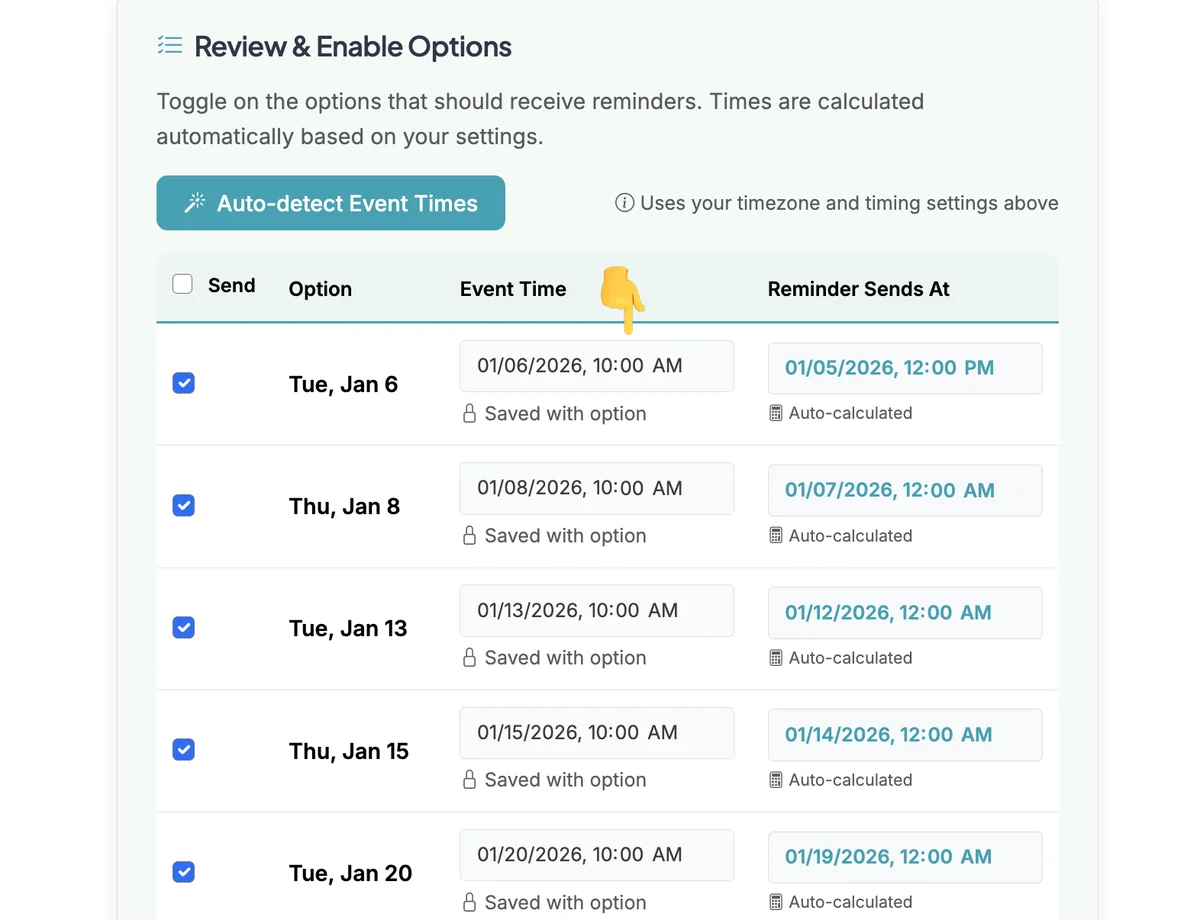
EVENT TIME is the setting you MUST configure or check to make sure it is accurate. The Reminder Sends At time is auto-calculated from your Reminder Settings above (Step 3) using the EVENT TIME.
Step 7
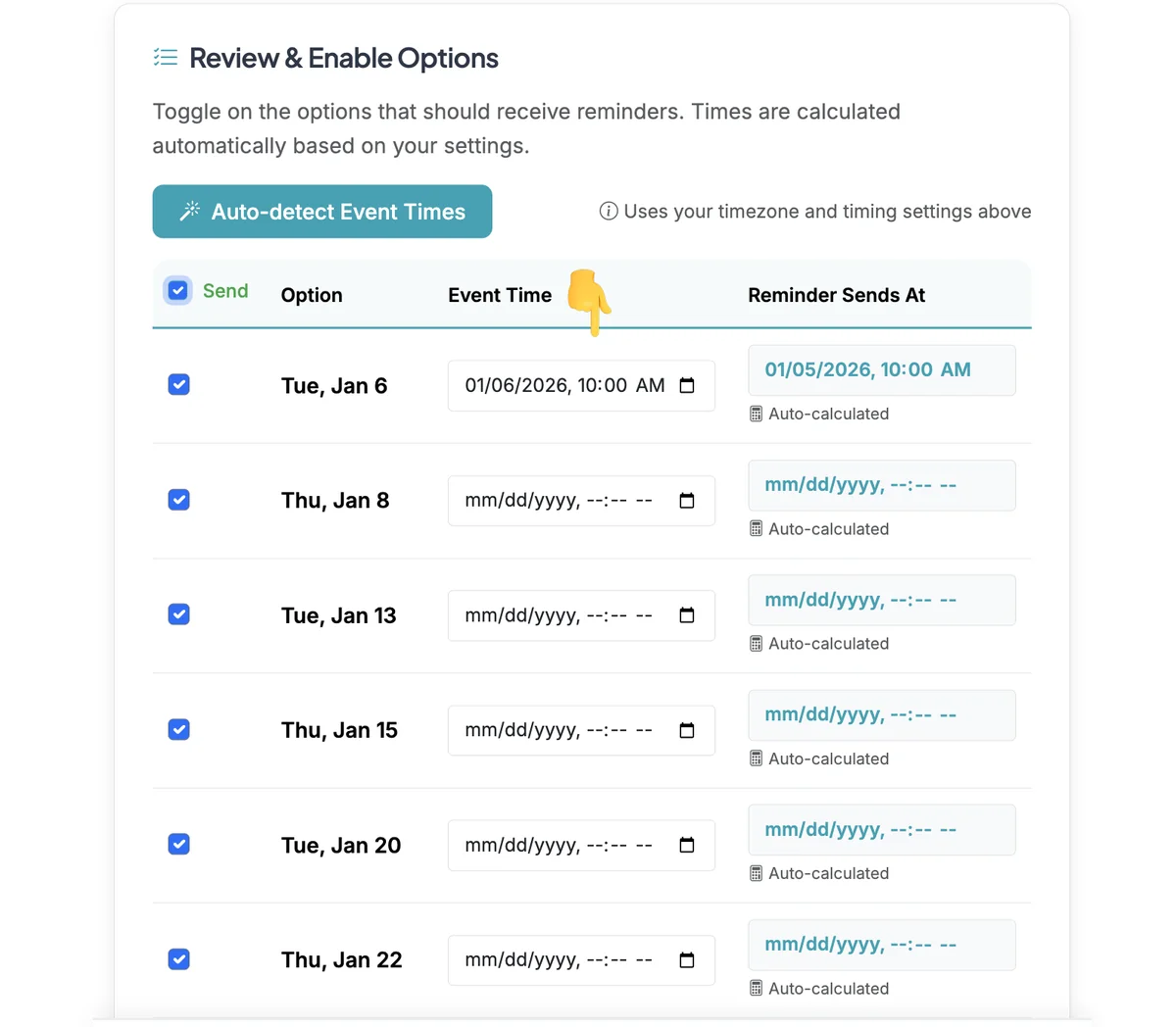
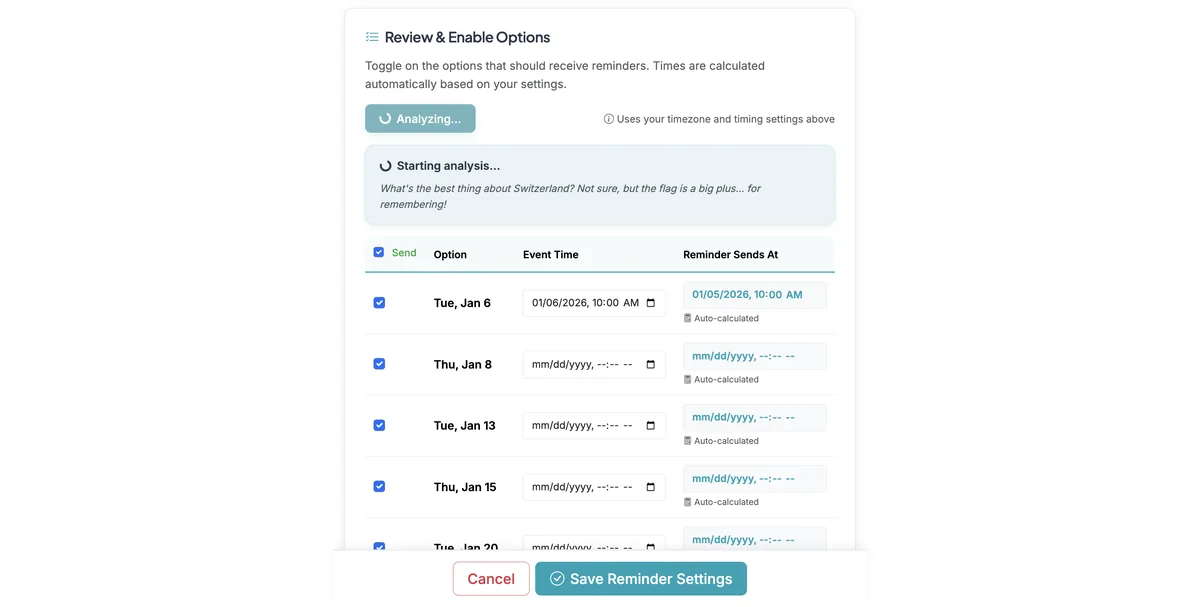
You can manually set Event Time for each option or Auto Detect Event Times. Auto-detection will scan each reminder option and propose an Event Time if it finds any info to help it suggest one (you should check these and edit as needed).
Step 8
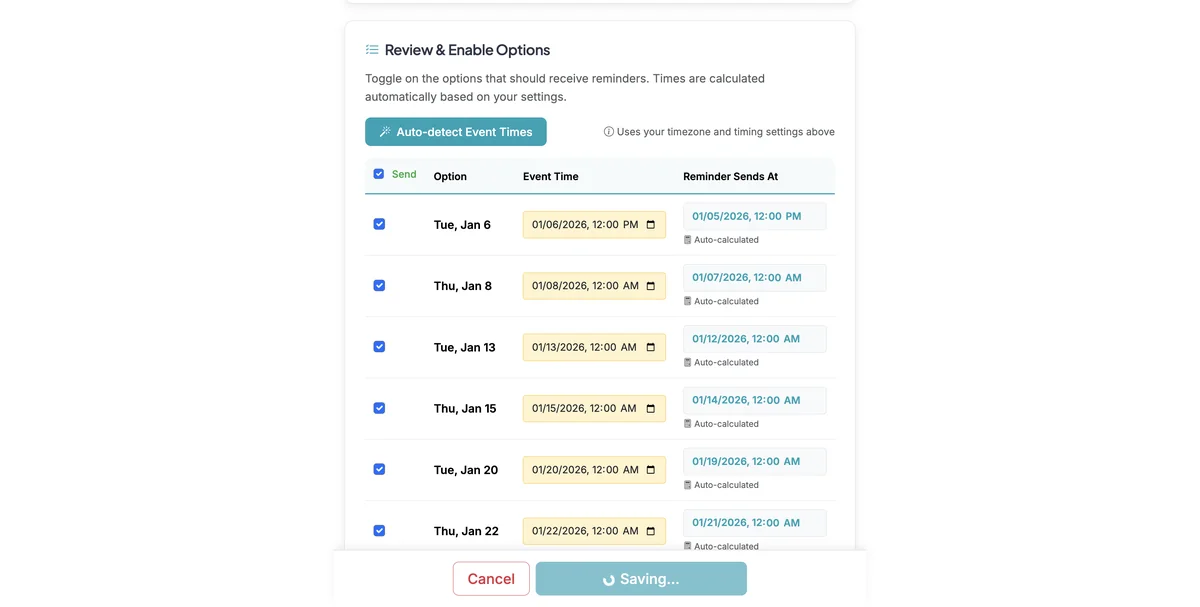
Once you have enabled reminders for options, and set Event Times, click 'Save Reminder Settings' to create the reminders. Reminders will be sent on or slightly before the Reminder Sends At time for each option.
Using Time/Date fields with Reminders
If you added time/date settings on your options when setting up your form, those settings will be used in Reminders. NOTE: Using Time/Date fields is not required for setting up reminders.
Step 1
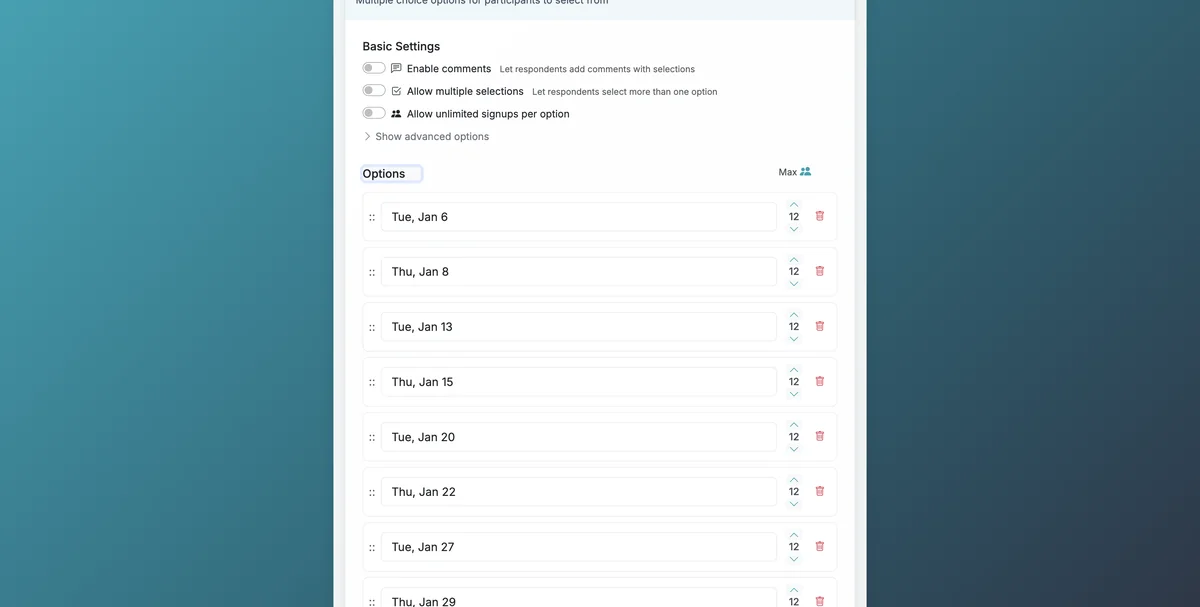
Go to the Edit page for your form.
Step 2
Expand 'Advanced Options'. Enable "Assign dates/times to options'. This will allow you to configure a date field that is associated with each option. You can Analyze Options for Dates/Times to have AI suggest dates/times or manually configure them by clicking the calendar icon on each option.
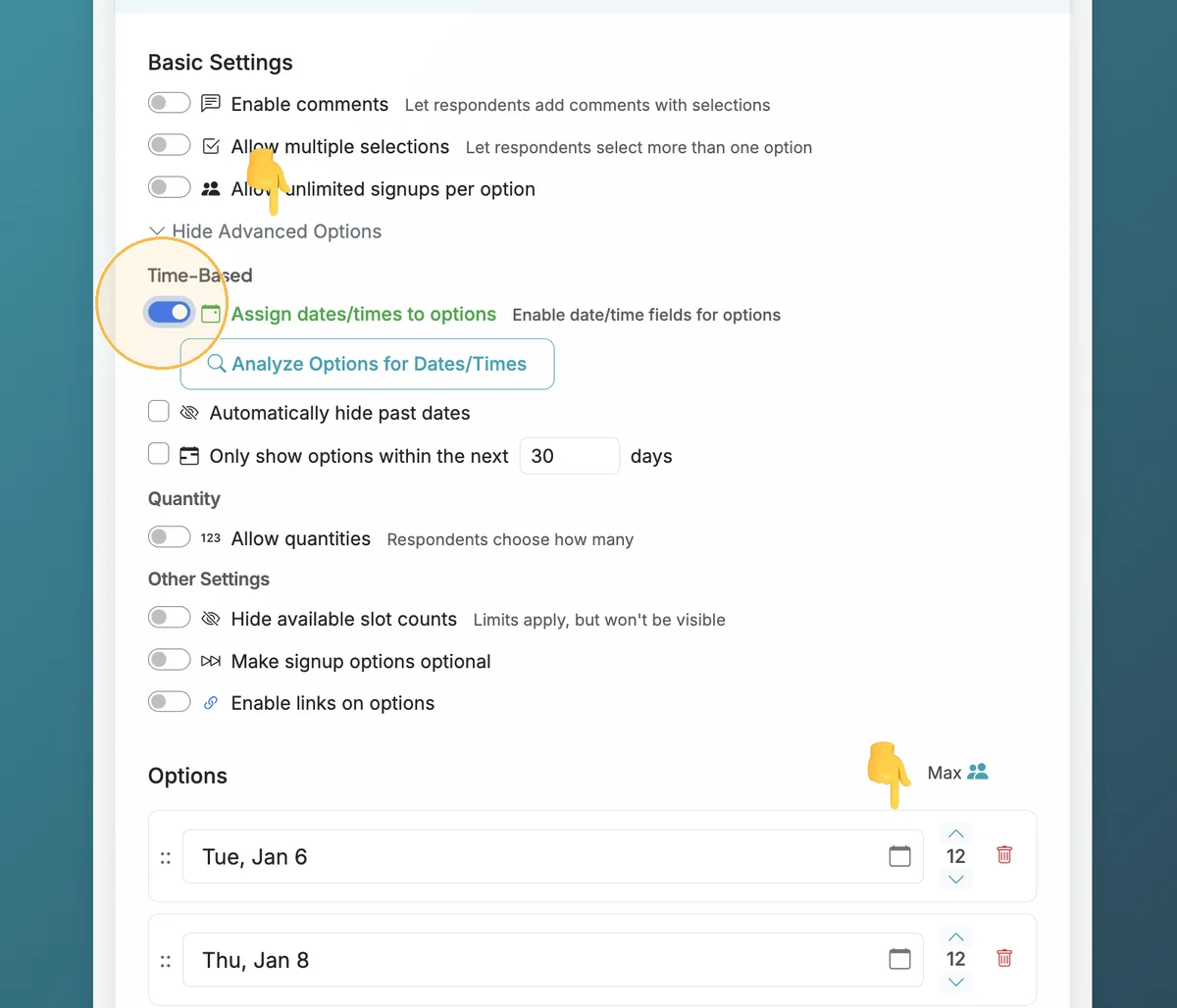
Step 3
Clicking 'Analyze Options for Dates/Times' will parse each option and suggest a date/time if it can find one.
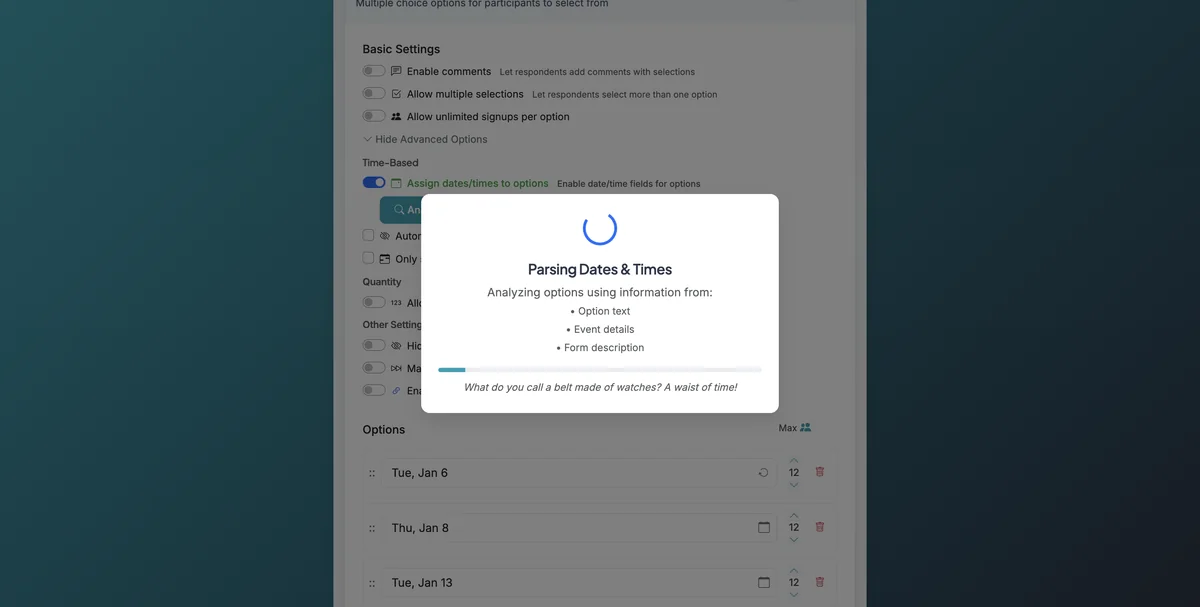
Step 4
When dates/times are found or set, the calendar icon will turn teal with a check.
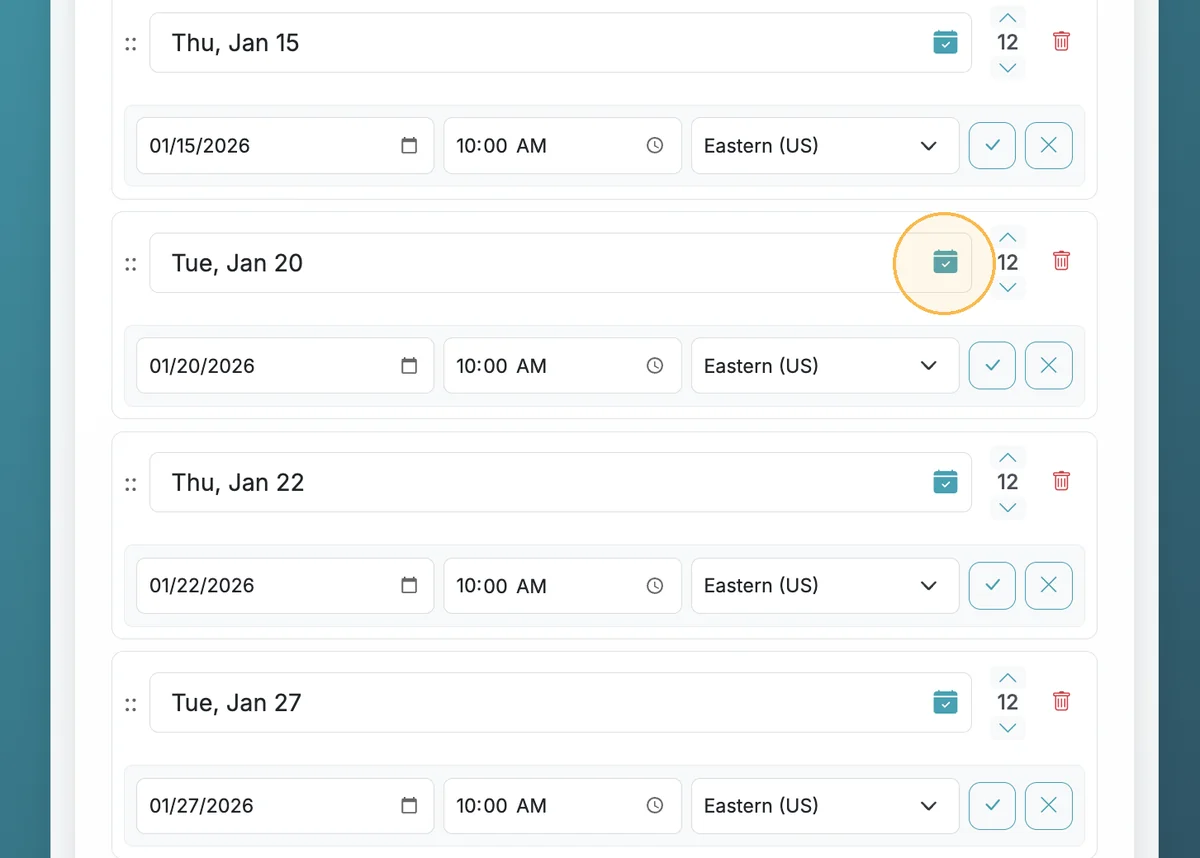
Step 5
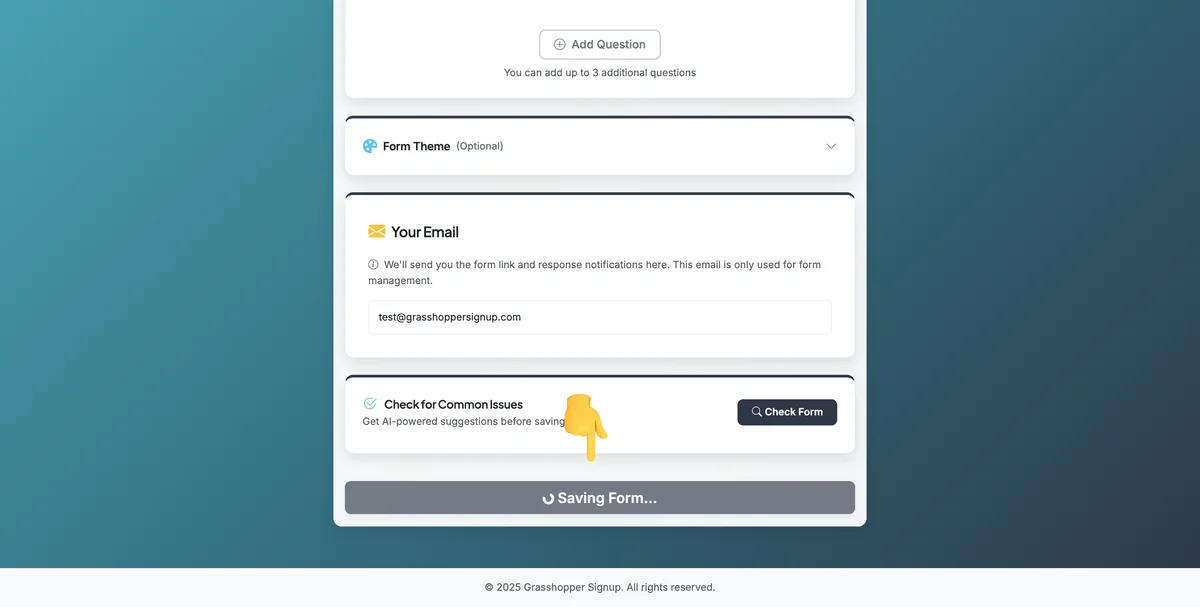
Save your form to save dates to your options. The saved dates will be used as the Event Time in Reminder settings.
Step 6
When a form has dates/times saved on each option, Event Time will be locked and must be changed directly on the form.
ADD A CUSTOM MESSAGE ON REMINDER EMAILS
You can add a custom message that will be included in reminder emails. This is a reminder-only override: if you've already saved a custom message (in the Personalize Emails section) on the form's Form Options page, that message is used in both confirmation emails and reminder emails by default. Anything you enter here will replace it for reminders only. Confirmation emails still use the form-level message.
Step 1
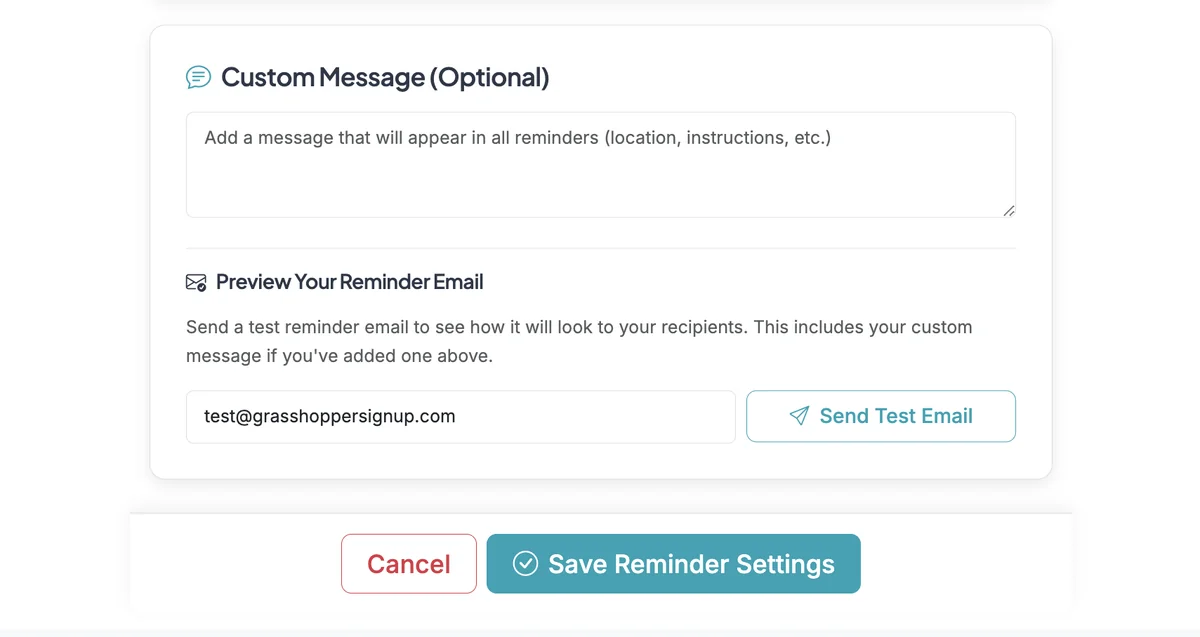
At the bottom of the Reminder Settings page, you can add a Custom Message to be sent in the reminder emails.
For full details on customizing both confirmation and reminder messages (including how URLs are auto-linkified), see Customize Confirmation and Reminder Email Messages.
WHAT'S IN A REMINDER EMAIL
Each reminder email is titled Reminder: [your form title] and includes:
- Event Details from your form, if you filled them in: when, duration, and where (a meeting link is clickable).
- Your Selection: the option the person signed up for. If they signed up for several options, one email lists them all, with the quantity when they took more than one spot.
- The option's date and time, when your form shows dates on its options.
- The option's description, if it has one, such as "Bring a dish for 8" or "Meet at the north gym door". It appears in grey under the option, the same way it does in the confirmation email.
- Their comment, if they left one when signing up.
- Additional Information: your custom message, if you've added one.
- View or Update Your Submission: a link where they can see what they signed up for, change it, or cancel.
Emails you send after an event (thank-you and follow-up messages) leave out the event details, dates and descriptions, since the event is over.
SEND A TEST REMINDER
You can send yourself a sample reminder to check how it looks before any go out.
Step 1
At the bottom of the Reminder Settings page, find Preview Your Reminder Email.
Step 2
In Preview the reminder for, choose the option you want to see. The test shows that option's text, date and description exactly as a real reminder would.
Step 3
Check the email address (it starts with yours) and click Send Test Email. The test includes the custom message you've typed on this page, even before you save it.
The test uses "Test User" as the name and leaves out the View or Update Your Submission link, since there's no real signup behind it. Sending a test doesn't create or change any reminders.
Key features of automatic reminders:
- Multiple delivery options: Send via email, SMS, or both (SMS requires Premium + Boost plan)
- Flexible timing: Set reminders to send at specific intervals before events
- Auto-detection: AI can detect dates and times from your option text
- Custom messages: Add personalized messages to reminder emails
- Option details: Each reminder shows the option's date and description, so people get the details they need before the event
- Test before sending: Preview the reminder for any option with a test email
- Reliable delivery: System checks multiple times per hour to ensure timely delivery
Total Steps: 15
Steps generated by StepHopper, a product of Grasshopper Signup - Create interactive step-by-step guides