Automatic Waitlists - How they work
Learn how to enable automatic waitlists and automatically notify people when spots become available on your signup form.
Automatic Waitlists allow you to automatically manage signups when a form reaches capacity. When someone tries to sign up for a form that is already full, they can choose to join a waitlist. If a spot later becomes available, Automatic Waitlists can either send an email notification to people on the waitlist or automatically fill the open spot with the next person in line. Automatic Waitlists require a Boost subscription.
- Basic Waitlists - the default free waitlist with manual follow-up
- Option-Specific Waitlists - let respondents waitlist for individual full options while signing up for available ones (Boost)
- Waitlists Overview - compare all three types side by side
Sections in This Guide
- HOW AUTOMATIC WAITLISTS WORK - INVITE MODE: TLDR; When slots open, waitlisters are emailed in priority order. For forms where waitlisters may have specific preferences, this is a great option.
- HOW AUTOMATIC WAITLISTS WORK - AUTO-FILL MODE: TLDR; When slots open, waitlisters automatically fill those slots. This method is ideal for simpler forms where waitlisters are waiting for any available option.
- ENABLE AUTOMATIC WAITLIST
- JOINING AN AUTOMATIC WAITLIST
- VIEWING WAITLIST RESPONSES
HOW AUTOMATIC WAITLISTS WORK - INVITE MODE
TLDR; When slots open, waitlisters are emailed in priority order. For forms where waitlisters may have specific preferences, this is a great option.
Step 1
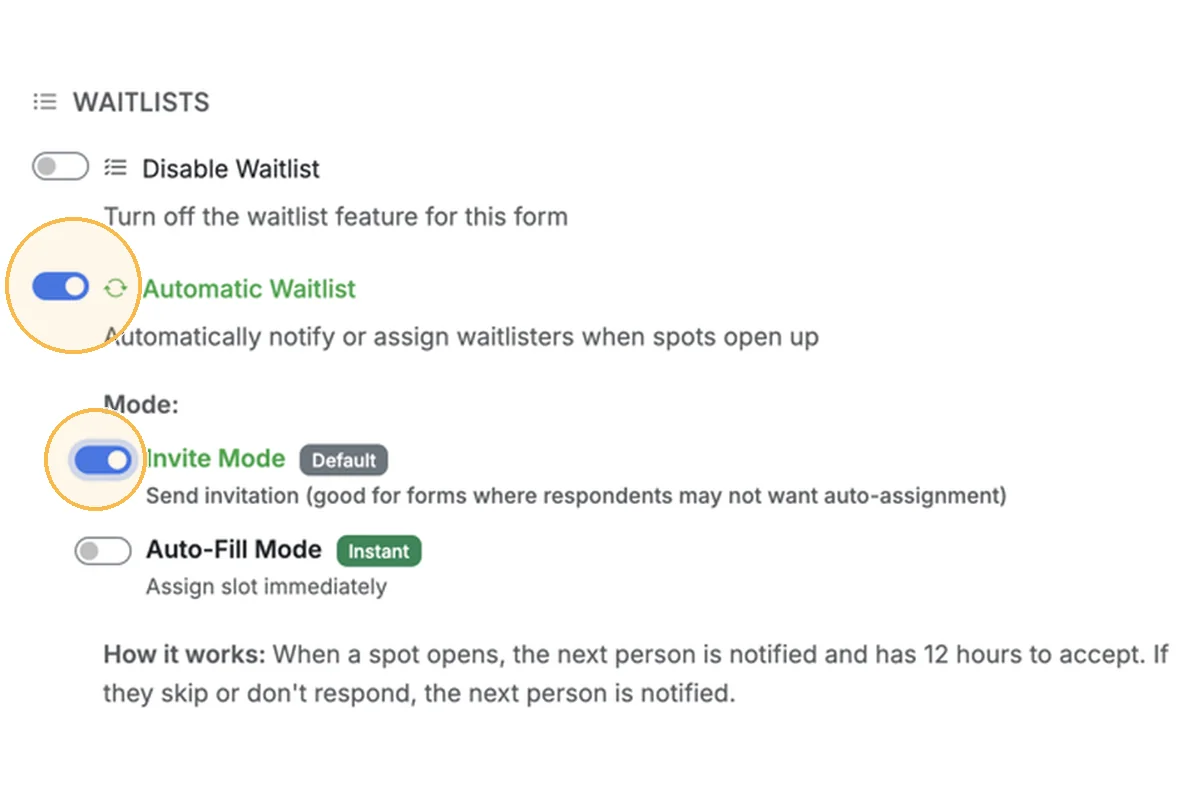
The following description explains how automatic waitlists work when Invite Mode is used.
Step 2
When someone joins a waitlist, and Invite Mode is enabled, they will receive a notification if any slots become available.
Step 3
Slots can become available if a respondent deletes their response, or the form creator adds additional options or increases capacity for existing options.
Step 4
Waitlist members are notified of available slots in the order they joined the waitlist (first in, first out). If 1 slot is made available, a waitlist notification will be sent and will wait 12 hours before notifying the next person on the waitlist. The notification will provide a link to the form so they can take the available slot, and a link to "Skip me" which will allow the next person on the waitlist to be notified of the available slot.
Step 5
Every 30 minutes, forms with active Automatic Waitlists are checked to see if slots are available, and the next waitlist member(s) are notified if slots are available.
Step 6
IMPORTANT: Slots are NOT "HELD" for waitlist members. If any other respondent visits the form, they may take any available slot. The automatic waitlist system is designed to notify the waitlist in order, when slots become available. If they are notified of an available slot, and has been taken by the time they visit the slot, their waitlist position is not preserved, and they would need to sign up for the waitlist again to be notified when a new slot is made available.
Step 7
If someone from the waitlist signs up for a slot on your form, their original waitlist entry is NOT automatically removed. Once waitlist members have been invited to an open slot, they will not be automatically invited again.
HOW AUTOMATIC WAITLISTS WORK - AUTO-FILL MODE
TLDR; When slots open, waitlisters automatically fill those slots. This method is ideal for simpler forms where waitlisters are waiting for any available option.
Step 1
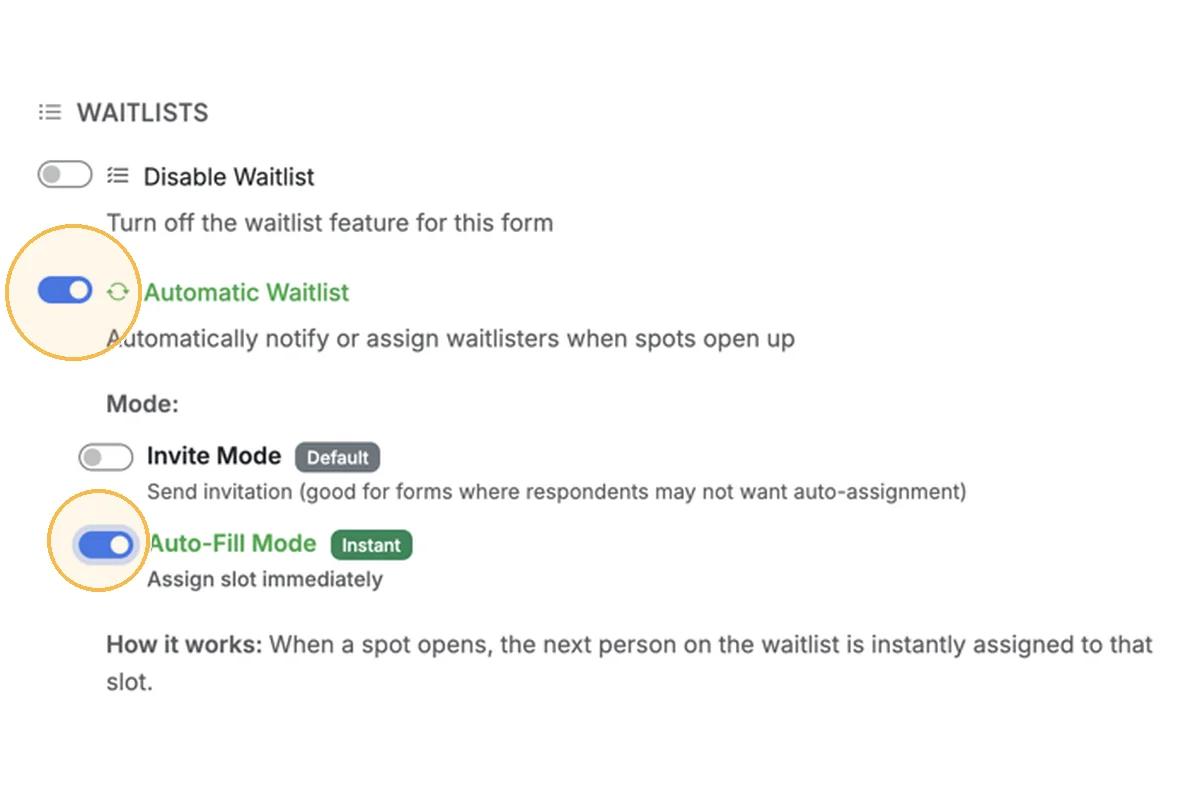
The following description explains how automatic waitlists work when Auto-Fill Mode is used.
Step 2
When someone joins a waitlist, and Auto-Fill Mode is enabled, they will automatically be assigned to open slots if any become available. Waitlisters and form creators will receive email confirmations when slots are auto-filled.
Step 3
Slots can become available if a respondent deletes their response, or the form creator adds additional options or increases capacity for existing options.
Step 4
If a slot opens due to a deletion of a response, the first person on the waitlist will immediately fill that slot automatically. Email notifications are sent to the waitlister and form creator. If a slot is added by the form creator, those slots will be automatically filled by waitlisters within 30 minutes (a process runs every thirty minutes checking for available slots).
Step 5
When waitlisters auto-fill an open slot, their waitlist entry is removed from the Responses page.
ENABLE AUTOMATIC WAITLIST
Step 1
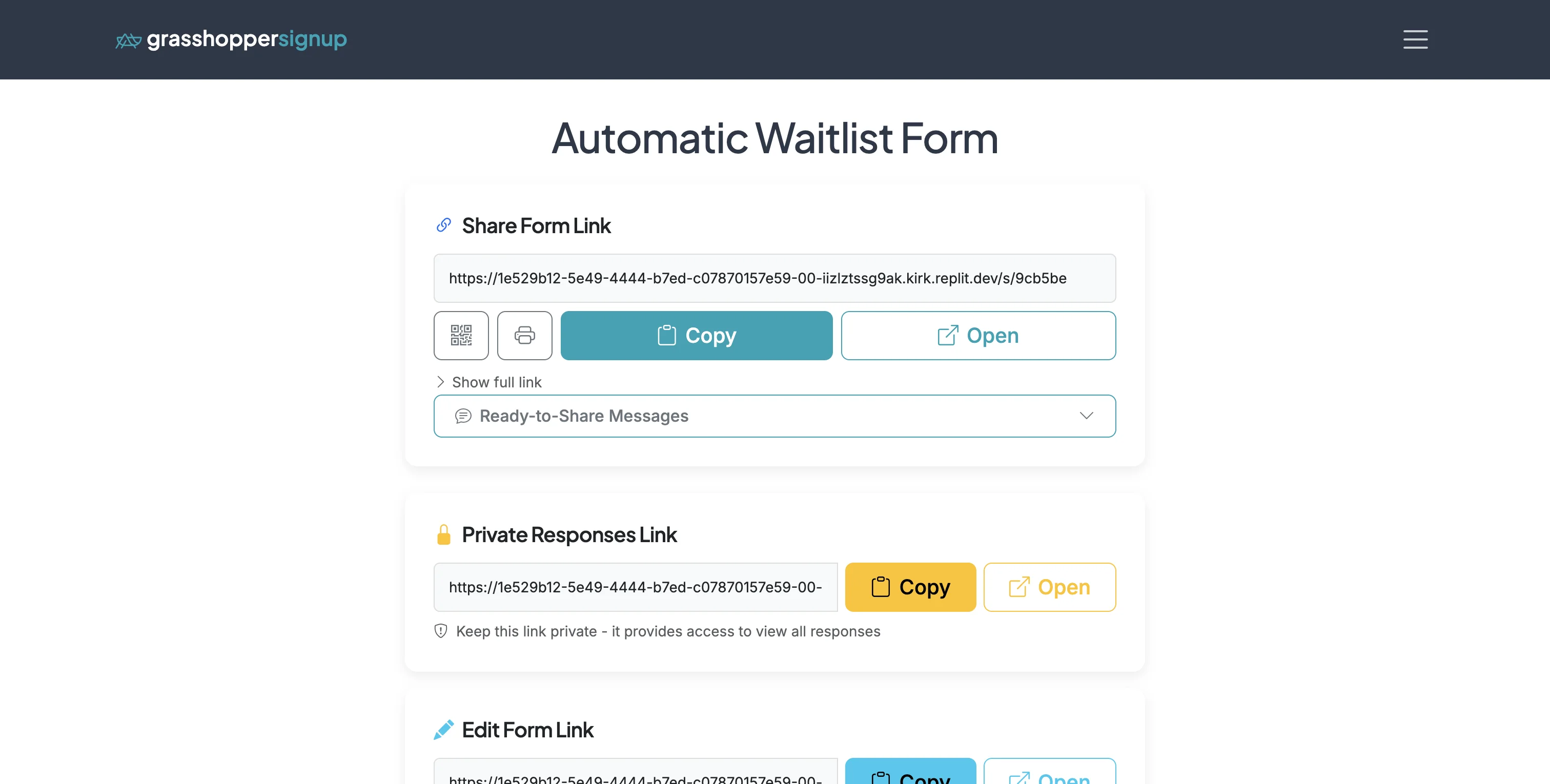
Start on the Form Options page. Scroll down to the Form Settings.
Step 2
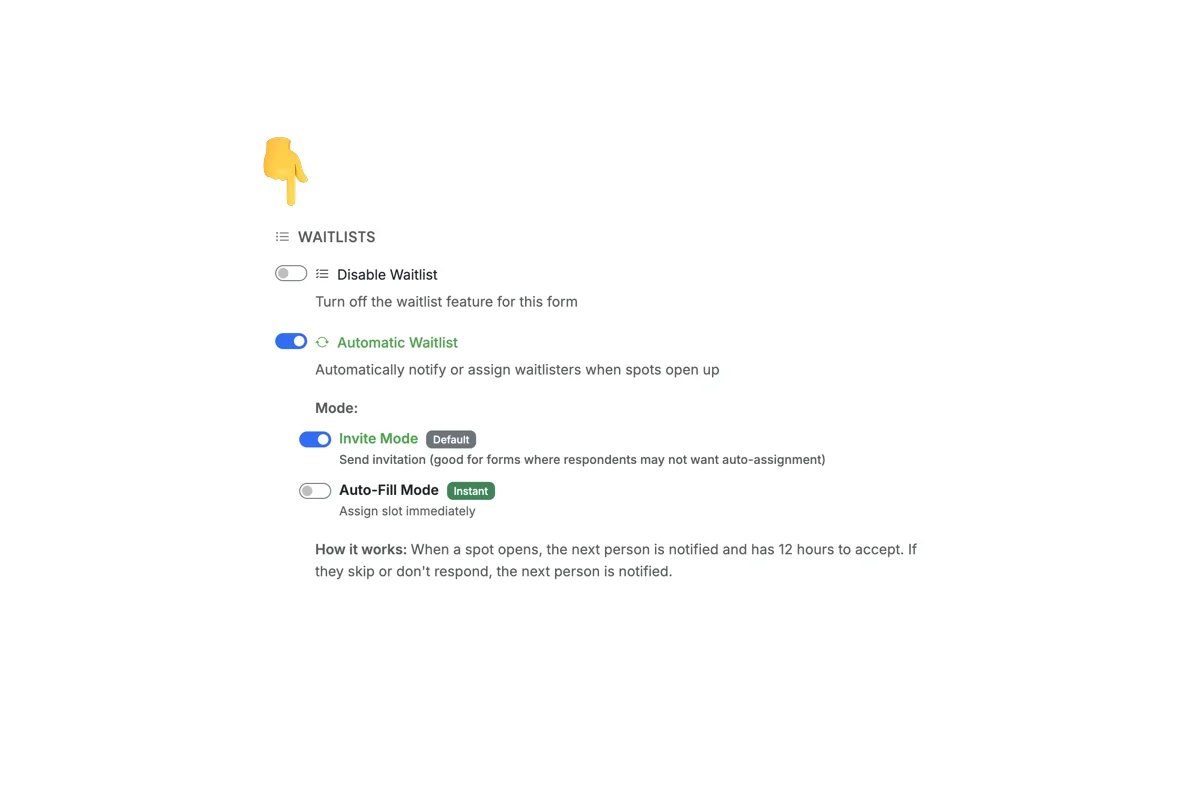
In the 'Waitlists' section, enable 'Automatic Waitlist'. Choose the type of waitlist you would like to enable. Auto-Fill Mode is not available for all form types.
JOINING AN AUTOMATIC WAITLIST
Step 1
When a form has all options taken, new respondents will see the option to join the waitlist.
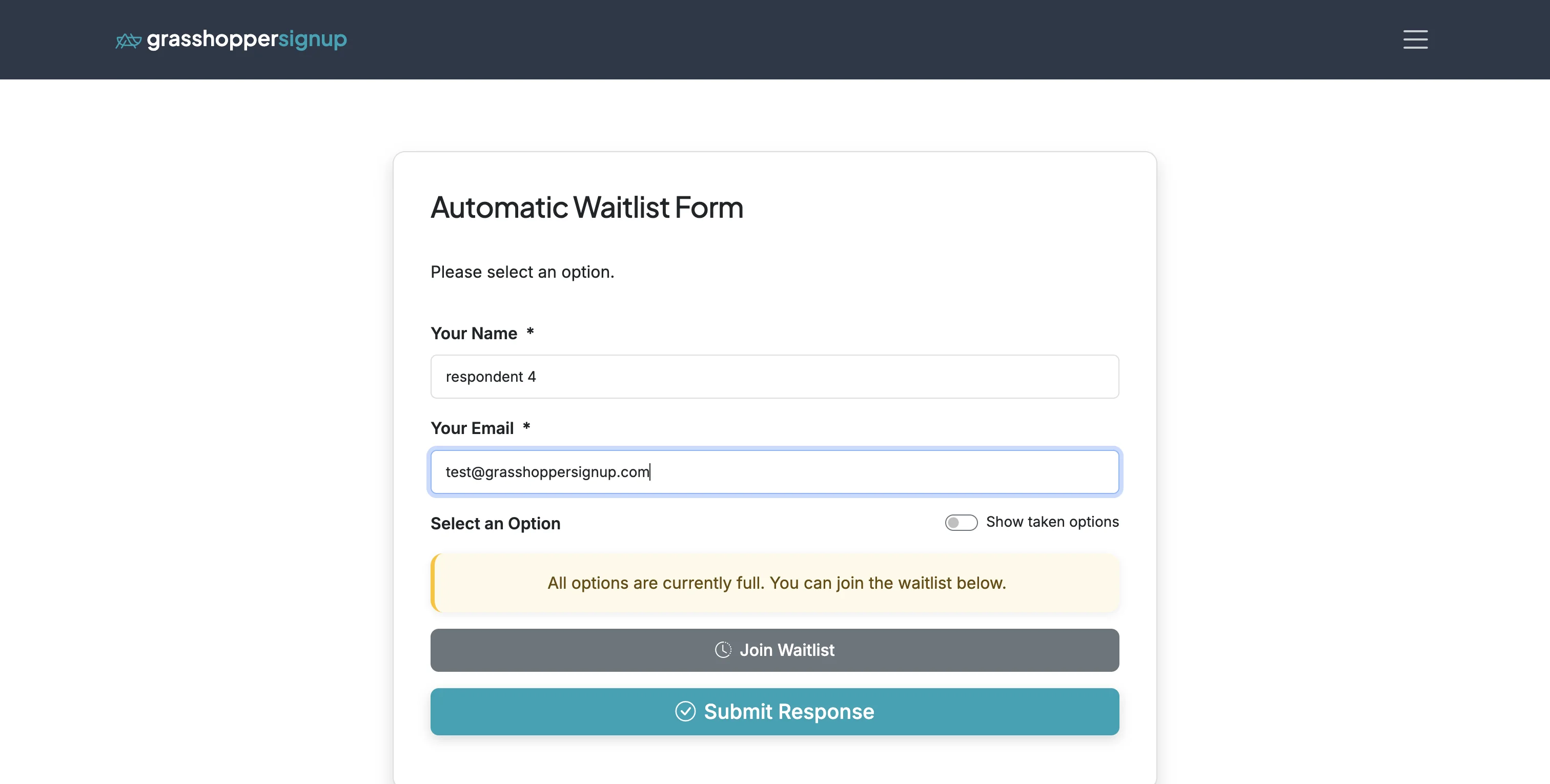
Step 2
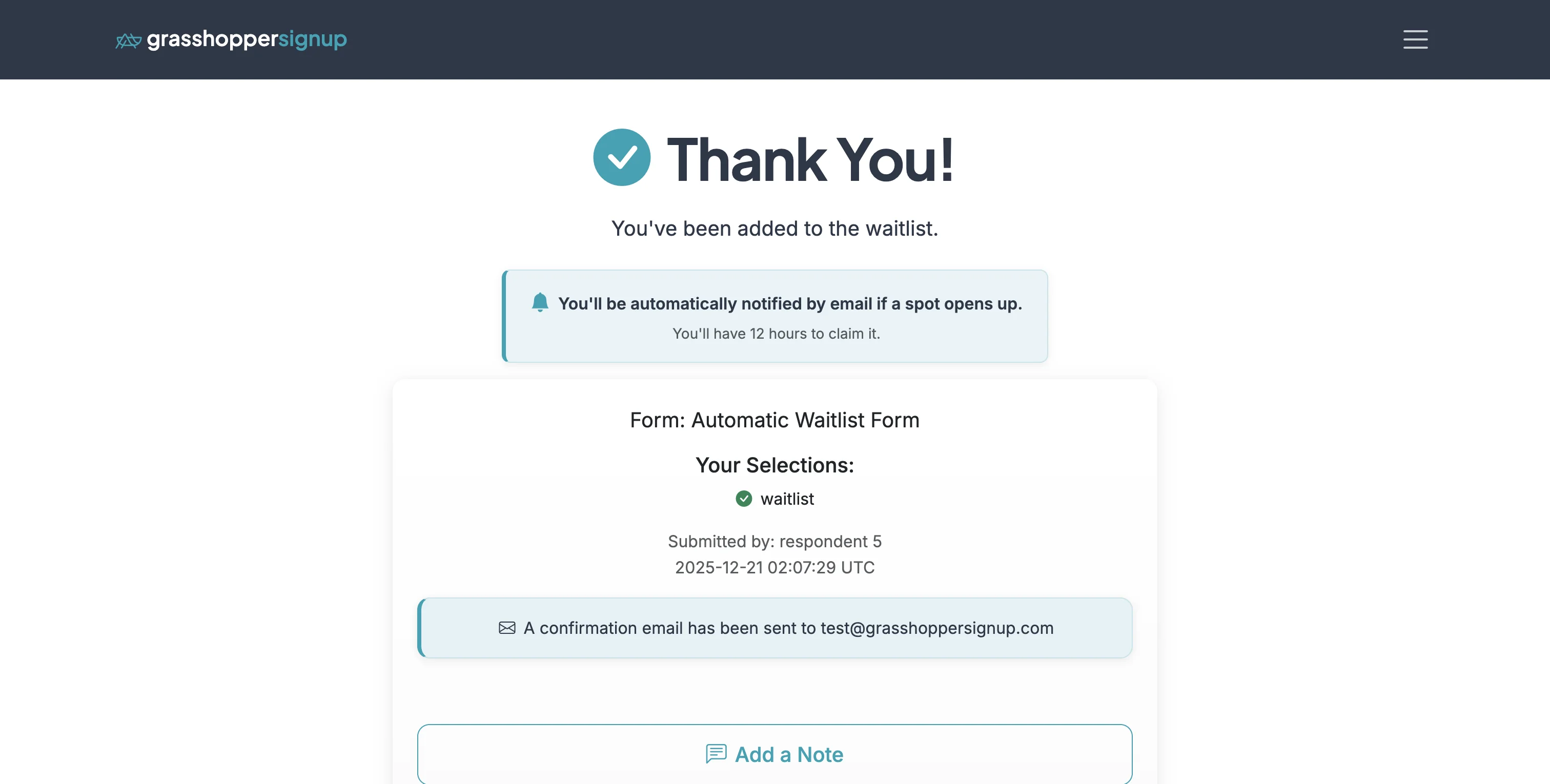
When respondents submit the form and join an INVITE MODE waitlist, they will see a thank you page and receive a confirmation email.
Step 3
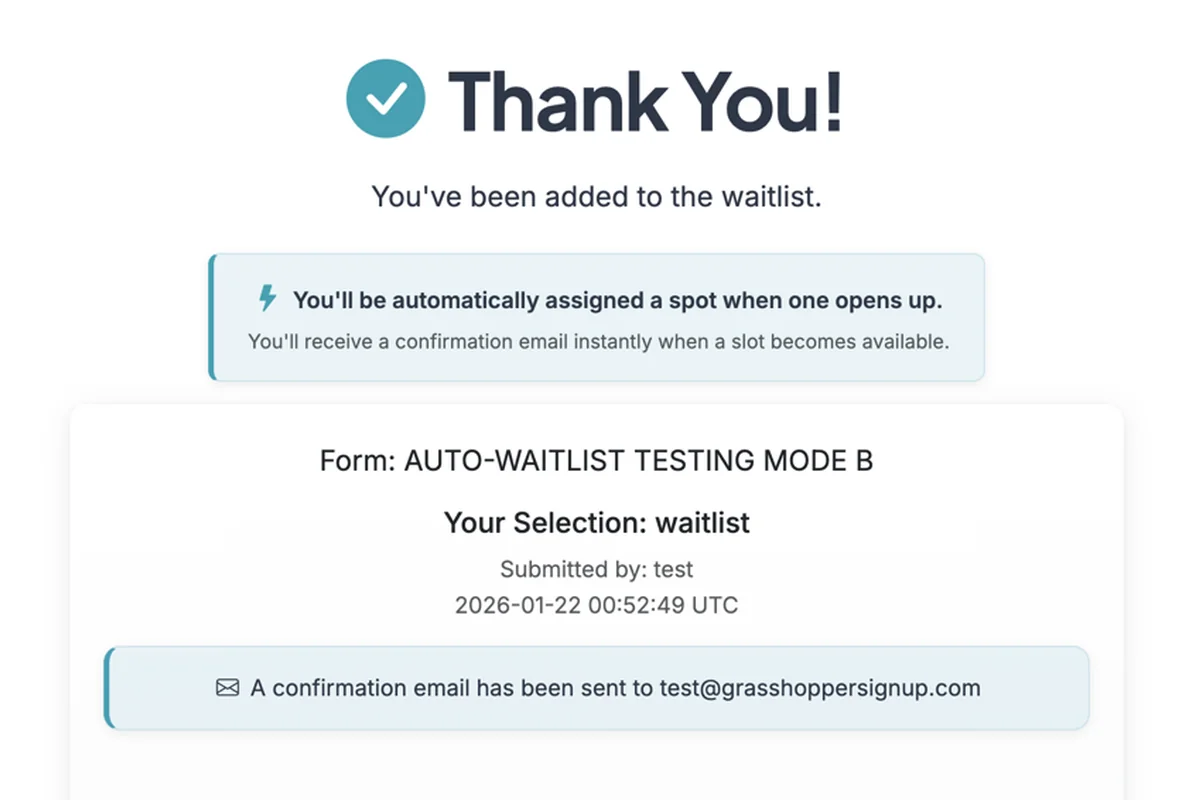
When respondents submit the form and join an AUTO-FILL MODE waitlist, they will see a thank you page and will automatically fill a slot if one opens up.
VIEWING WAITLIST RESPONSES
Step 1
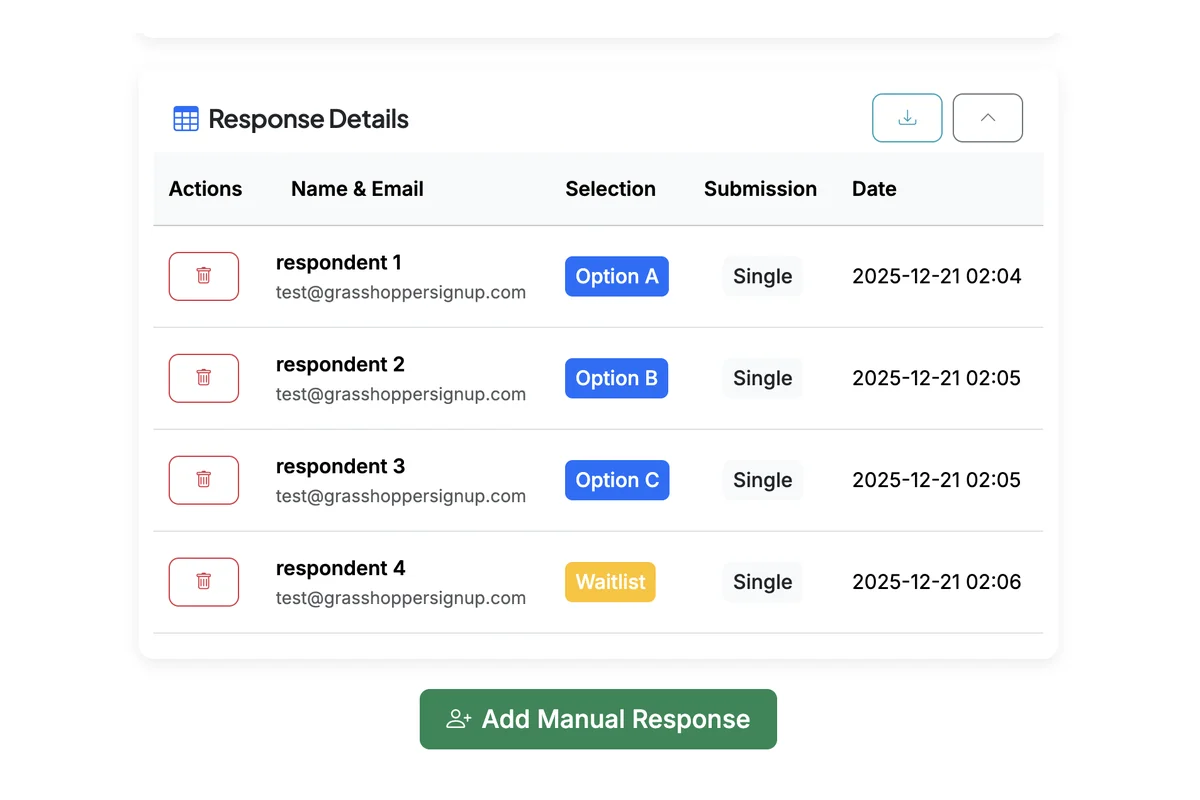
You can view waitlist responses alongside other responses on the Responses page in the 'Response Details' section.
Step 2
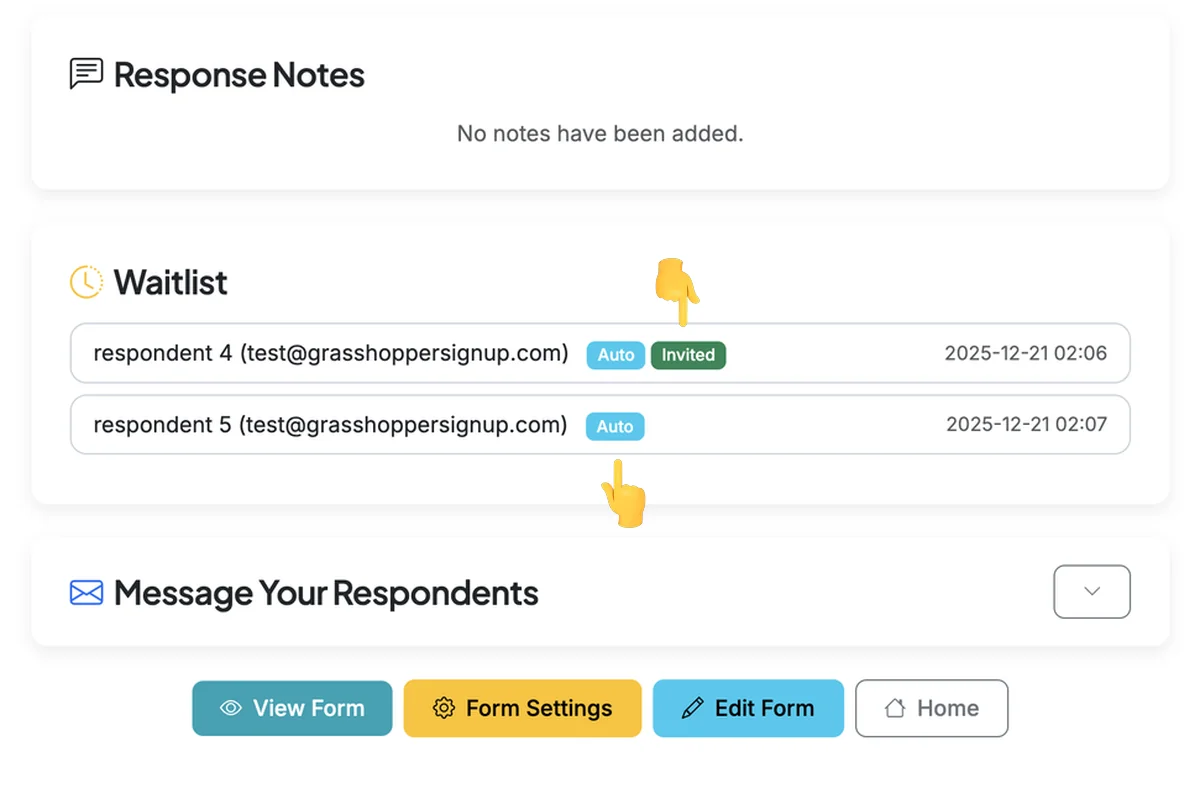
At the bottom of the Responses page, there is a special section for 'Waitlist' that shows the state of waitlist entries when Automatic Waitlist is enabled. Waitlist responses marked with "Auto" will be automatically notified (or will auto-fill, depending on the waitlist type) if slots open up. When someone has been notified that a slot is available, they are marked with "Invited". When someone auto-fills a spot, they are removed from the waitlist.
Total Steps: 19
Steps generated by StepHopper, a product of Grasshopper Signup - Create interactive step-by-step guides