How to View Your Responses
Log in to your Dashboard to see every response to your forms in one place. Here is how to find, search, and manage them.
View Your Responses
Your Dashboard is the central hub for managing all of your forms. From there you can view responses, copy your shareable link, edit your form, and more.
Step 1: Log in to your account
Go to Log in and sign in with the email address you used when you created your form. If you see a icon in the top-right corner of the page, you can click that to get to the login page as well.
Step 2: Find your form on the Dashboard
After logging in you will land on your Dashboard. All of your forms are listed here. If you have many forms, use the search bar at the top to find the one you are looking for.
Step 3: View responses
On your form's card, click the Responses button to open the private Responses page. This page shows all submissions, respondent details, and response counts for each option.
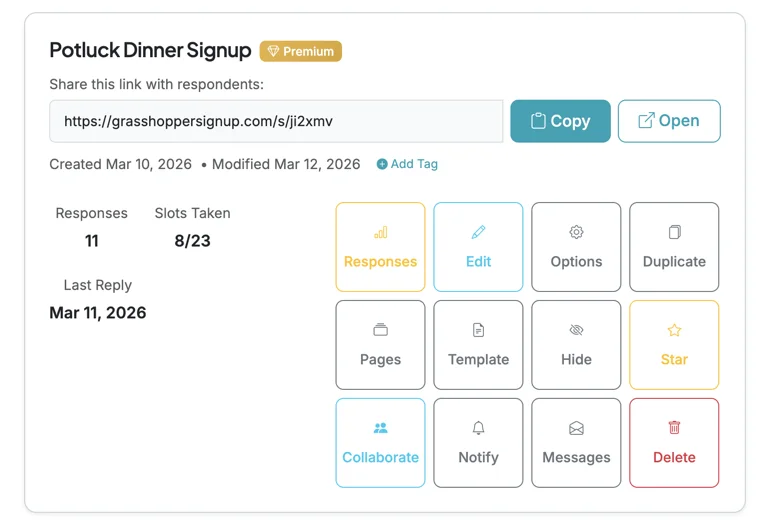
Other actions available on the form card
Each form card on the Dashboard also gives you quick access to:
- Copy / Open -- copy the shareable link or open your form in a new tab
- Edit -- update your form's title, description, and options
- Options -- configure form settings like reminders, waitlists, and privacy
- Duplicate -- create a copy of your form
- Pages -- manage branded pages that group multiple forms together
- Collaborate -- invite others to help manage your form
- Notify -- send a notification to all respondents
- Messages -- send and view messages with respondents