Add and Update Options in Bulk with AI or Spreadsheet Mode
Add, edit, reorder, and bulk-update many form options at once using AI (Add with AI and AI Form Adjustments) or Spreadsheet mode.
You can add, edit, and reorder many options at once in two ways: with AI (Add with AI and AI Form Adjustments), or with Spreadsheet mode, a fast grid editor for your options.
Sections in This Guide
- ADD OPTIONS IN BULK USING ADD WITH AI: Use Add with AI to add additional options to your form.
- ADJUST OPTIONS IN BULK: Use AI Form Adjustments to make bulk updates to form options.
- ADD AND MODIFY OPTIONS WITH SPREADSHEET MODE: Edit all of your options at once in a spreadsheet-style grid.
ADD OPTIONS IN BULK USING ADD WITH AI
Use Add with AI to add additional options to your form.
Step 1
Start on the Edit page for your form.
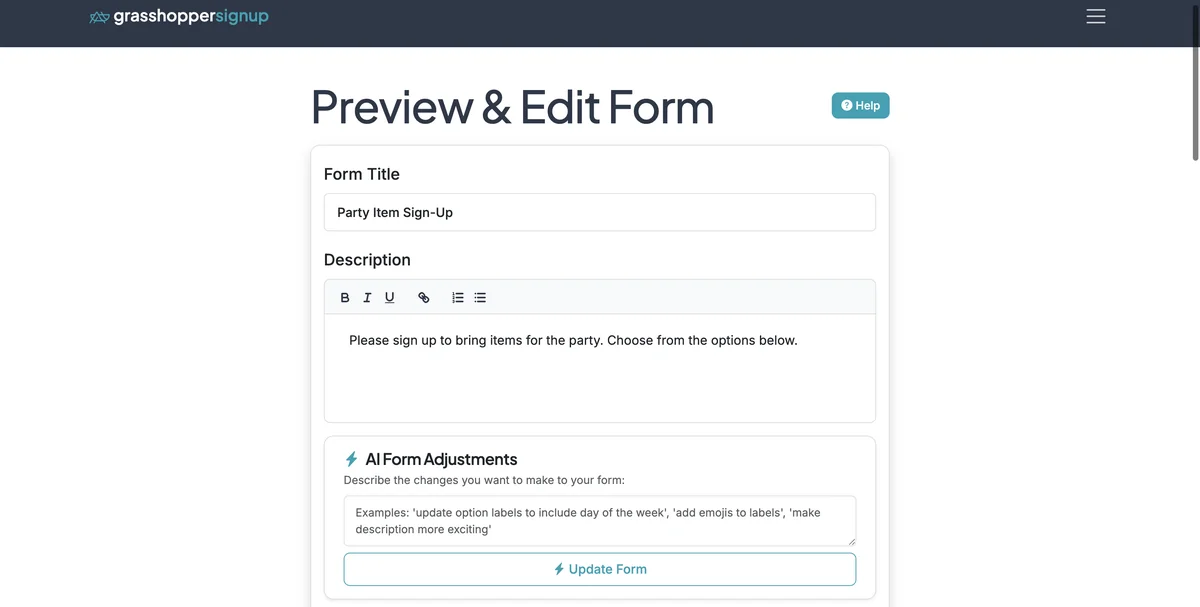
Step 2
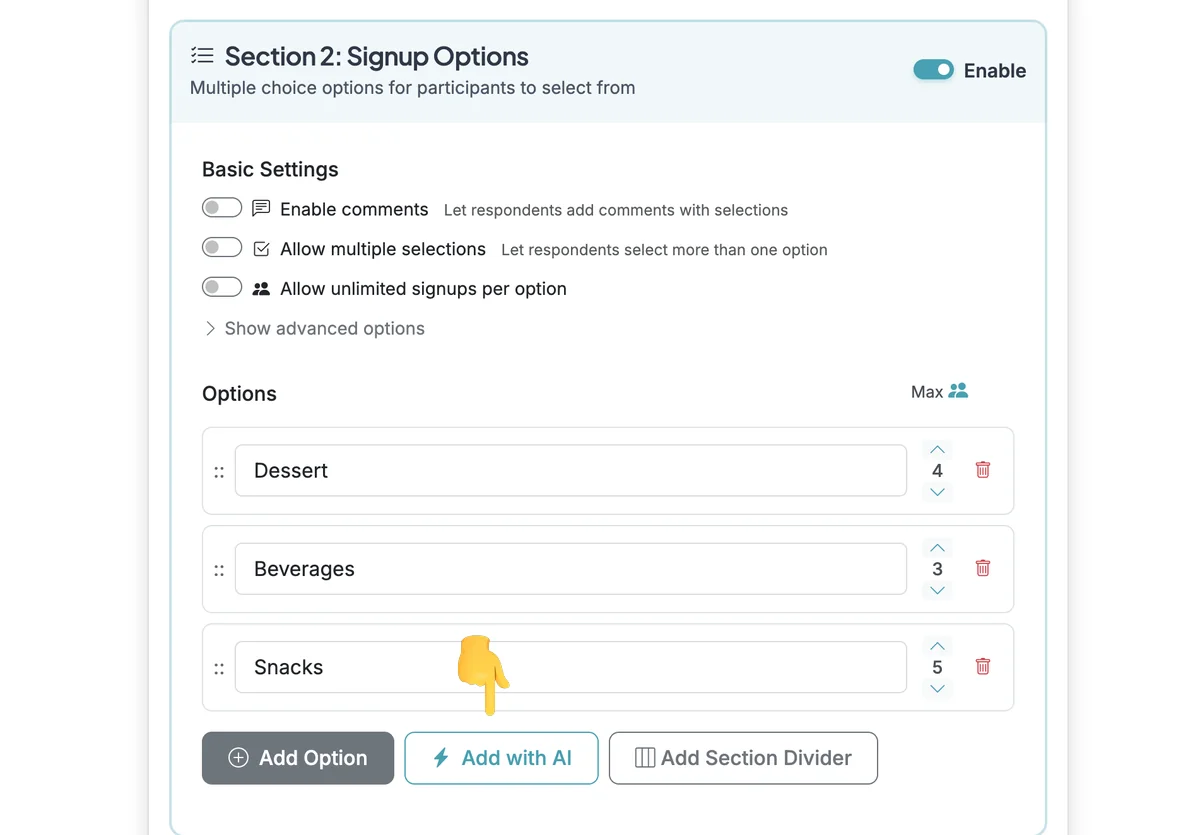
Scroll down to Signup Options and click 'Add with AI'
Step 3
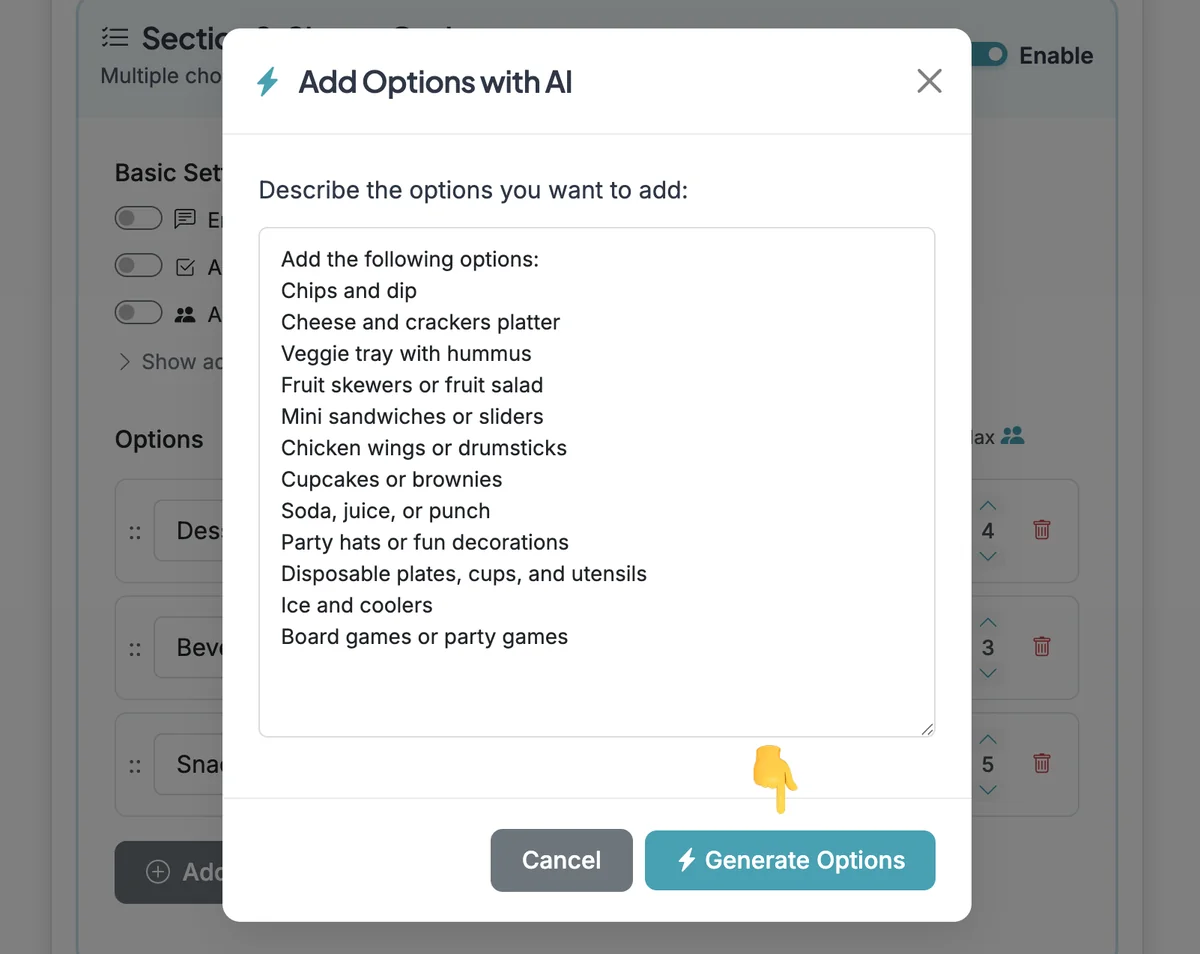
Type or paste in the options you want to add. You can try to add a very long list, but you may need to break the list up into multiple parts if the AI has timeout issues and is unable to add all options at once.
Step 4
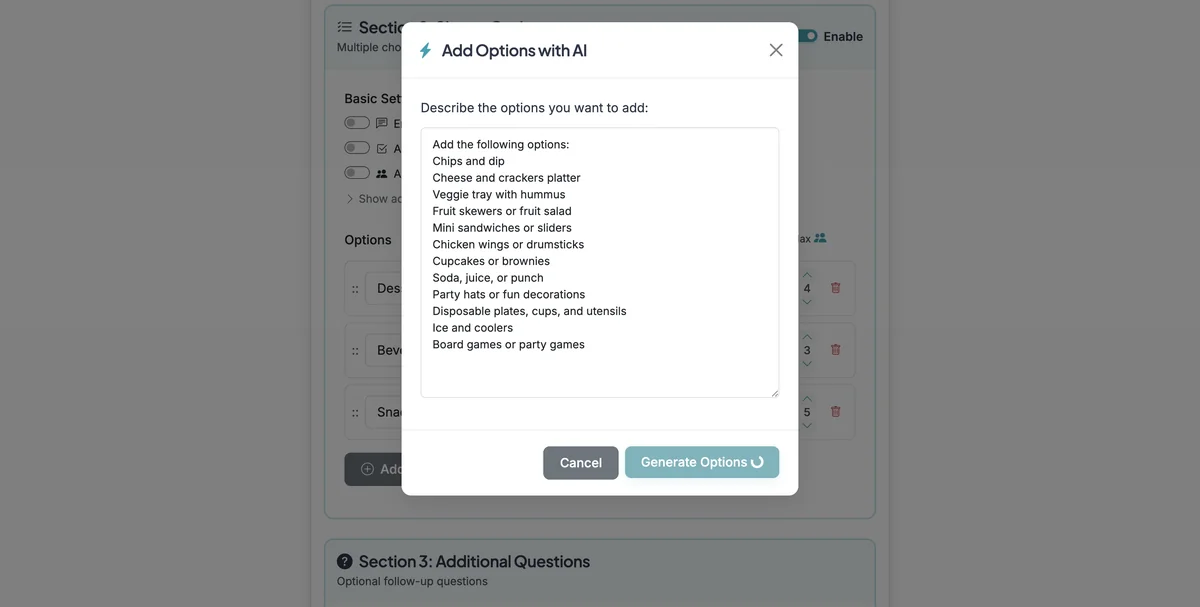
Click on 'Generate Options'
Step 5
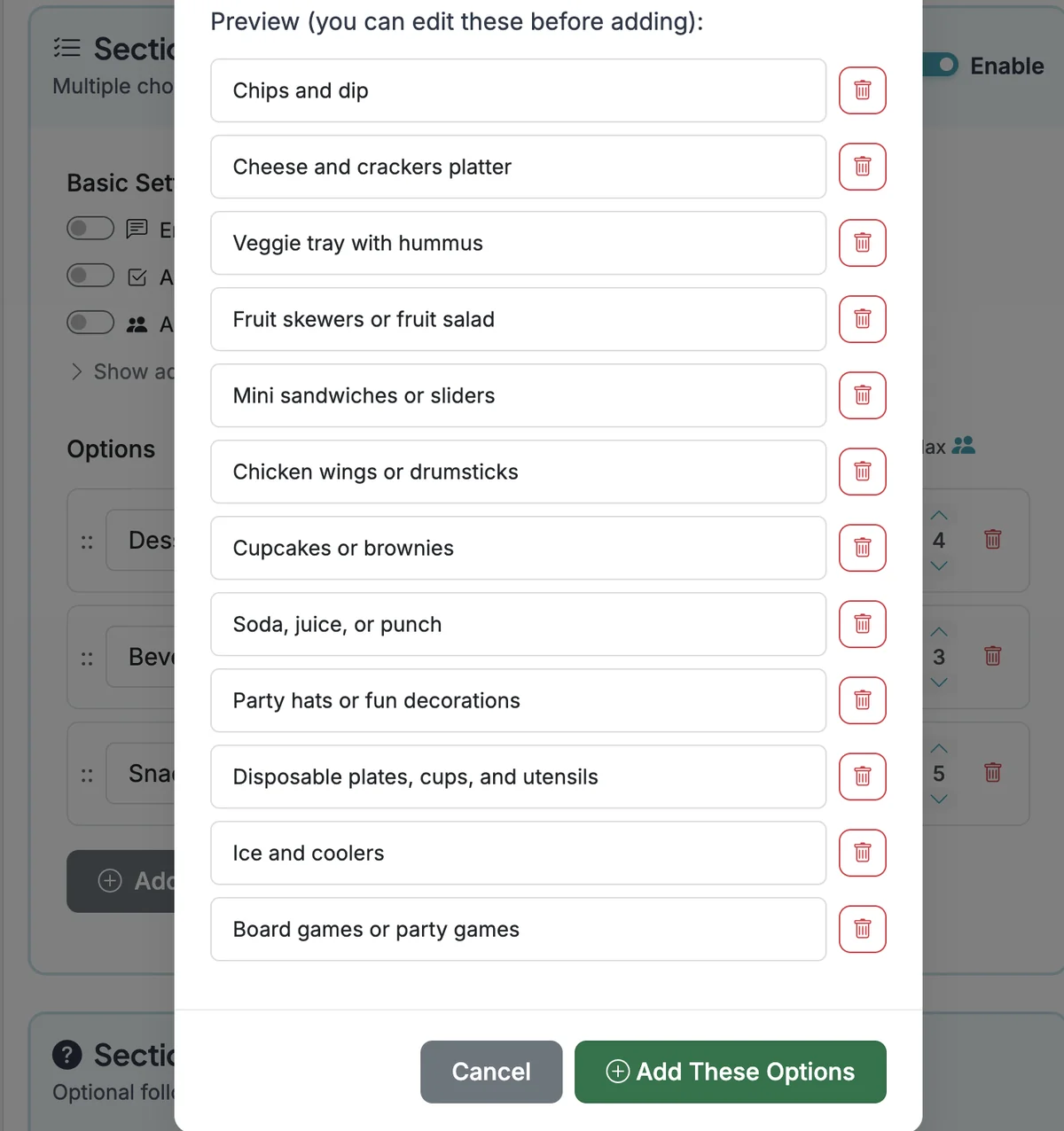
The AI will generate options and provide a preview you can add to your form.
ADJUST OPTIONS IN BULK
Use AI Form Adjustments to make bulk updates to form options.
Step 1
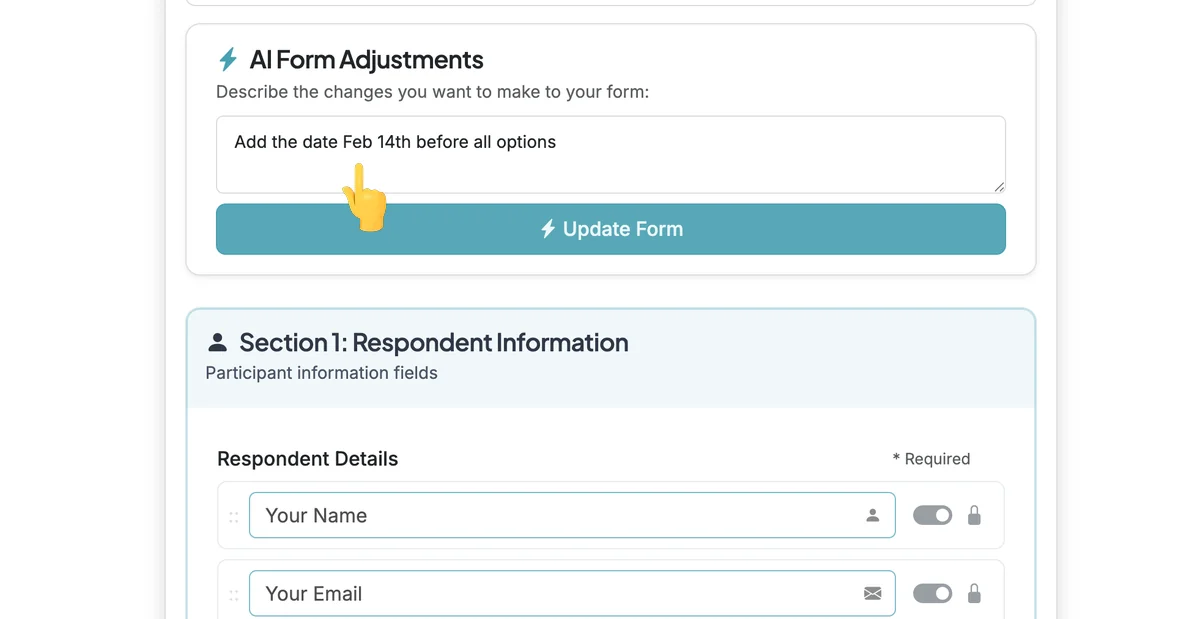
Scroll to the AI Form Adjustments section on the Edit page of your form. Type in a clear description of what you want to update for your form options.
Step 2
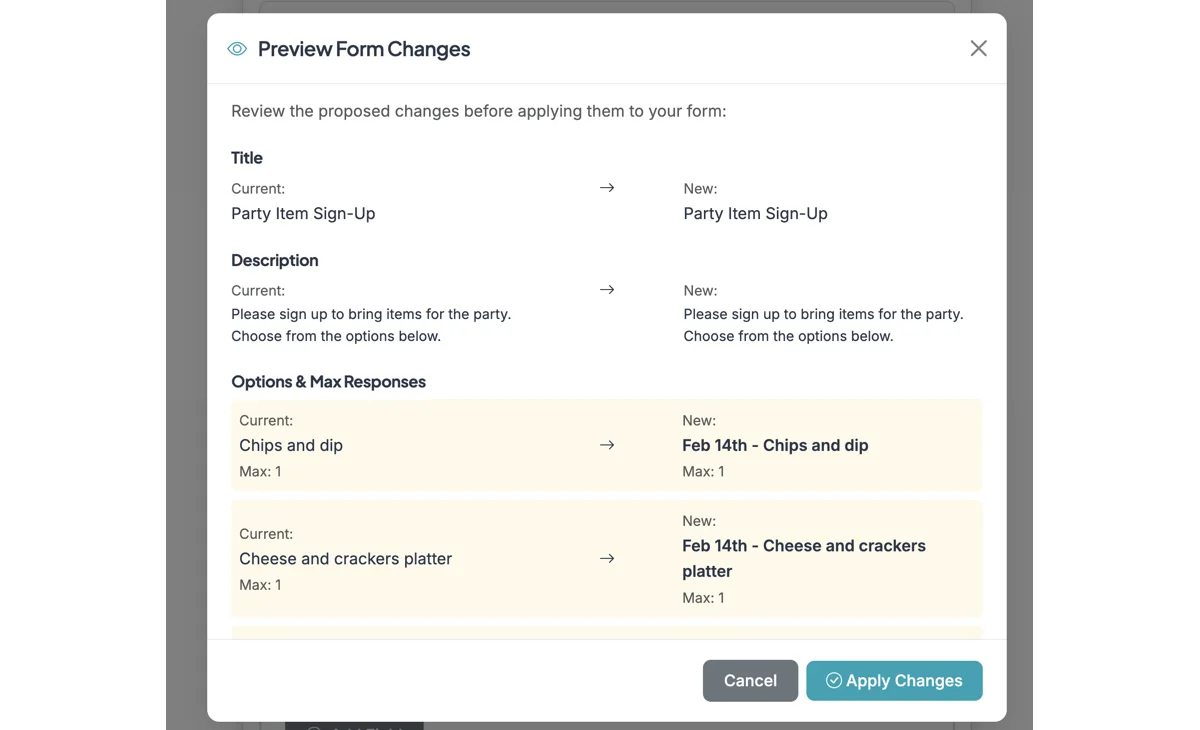
The AI will provide a preview of changes to your form to review before applying to your form.
Step 3
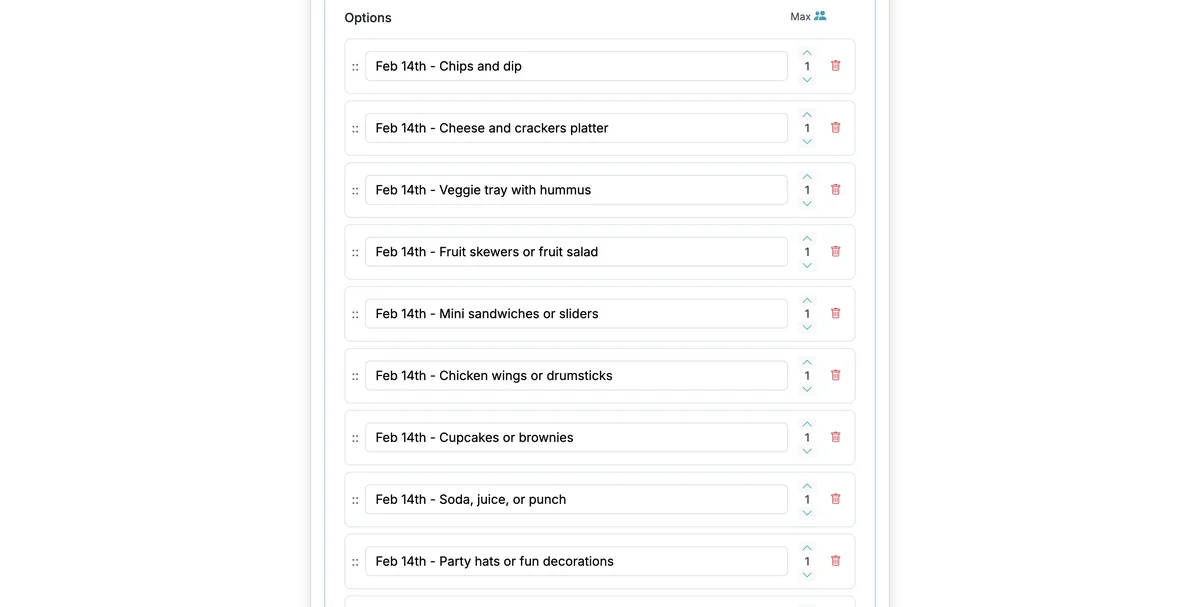
After applying, all of your options will be replaced with the new adjustments. NOTE: Options are replaced (not edited) with new ones, so be cautious if you have existing responses on your form since they will no longer be connected to the new set of options.
Benefits of using bulk AI features:
- Time-saving: Add or modify dozens of options at once instead of manually typing each one
- Consistency: AI maintains consistent formatting and structure across all options
- Pattern recognition: AI understands sequences, dates, and time patterns automatically
- Preview before applying: Always review changes before they're applied to your form
ADD AND MODIFY OPTIONS WITH SPREADSHEET MODE
Spreadsheet mode lets you edit all of your form's options at once in a fast, grid-style editor, similar to a spreadsheet. It's the quickest way to add a lot of options, adjust capacity, reorder items, or move content back and forth between Grasshopper and a spreadsheet like Excel or Google Sheets.
Where to find it
Open the Edit page for your form and scroll to your Signup Options. You can open spreadsheet mode from two places.
From the compact toolbar at the top of your options, click the grid icon:

Or from the buttons just below your options, click Spreadsheet:

What it looks like
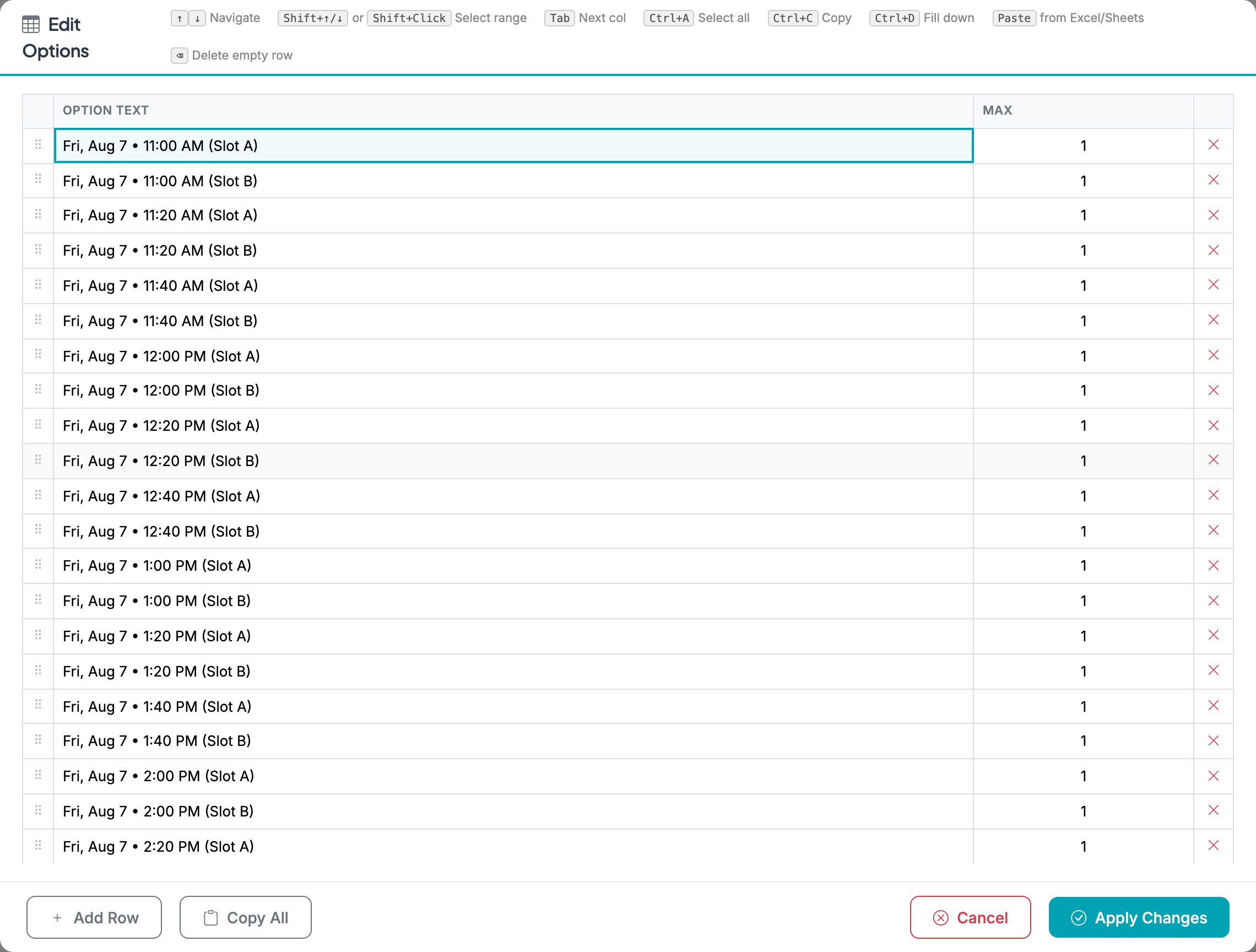
Spreadsheet mode opens an Edit Options grid with a row for each option. You can edit the option text and Max (capacity), navigate with the arrow keys or Tab, select a range with Shift+click, copy with Ctrl/Cmd+C, and fill a selection down with Ctrl/Cmd+D. When you're done, click Apply Changes (then save your form), or Cancel to discard.
Things to know
- It is not a full spreadsheet. Spreadsheet mode is a fast editor for your options: it does not have the full functionality of Google Sheets or Excel. Use it to edit option text, capacity, and (when enabled) dates, times, and descriptions.
- Be careful on live forms and forms that already have responses. Deleting or replacing an option that has responses can disassociate those responses from the option and cause problems. Rows that already have responses are flagged with an indicator, and changing them asks you to confirm first. Review those carefully before applying.
- Sort by date. When your options have dates and times, use the Sort by Date button to reorder them chronologically, earliest first.
- It works with external spreadsheets. You can copy content out of spreadsheet mode into Excel or Google Sheets (use Copy All, or select cells and press Ctrl/Cmd+C), and you can paste content from those spreadsheets back into spreadsheet mode.
- Add in bulk by appending. To add many options at once, click Add Row to create a new empty row at the bottom, then paste your list from a spreadsheet to append it. Be careful not to paste over existing rows: if those options already have responses, overwriting them can break the connection to those responses. Watch for the response indicators to avoid this.
- Reorder by dragging. Drag the handle on the left of a row to move it. You can rearrange rows one at a time, or select several and drag them as a group.
- Larger forms can lag. On forms with a lot of options, rows can take a moment to shift when you reorder or paste. On very long forms, work a little more slowly and let it catch up.
Steps generated by StepHopper, a product of Grasshopper Signup - Create interactive step-by-step guides