Submission Deadline & Auto-Close Form
Learn how to set a submission deadline for your form and configure it to auto-close after the deadline passes.
You can set a submission deadline for your form in event details. You can also set your form to auto-close (stop accepting responses) at the submission deadline.
Step 1
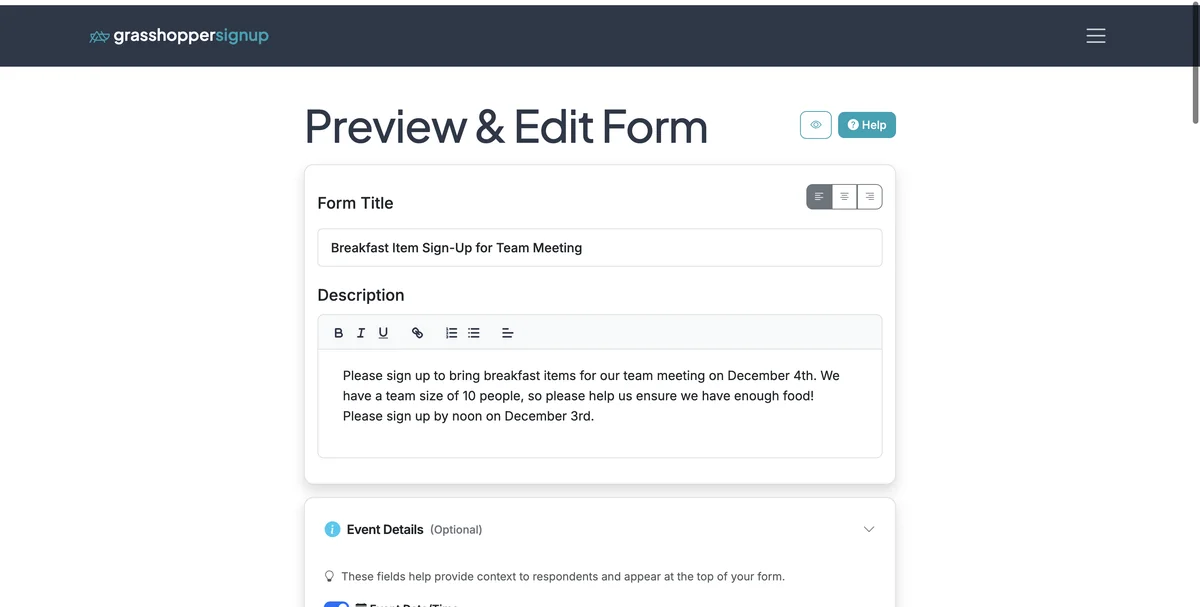
Start on the Edit page for your form.
Step 2
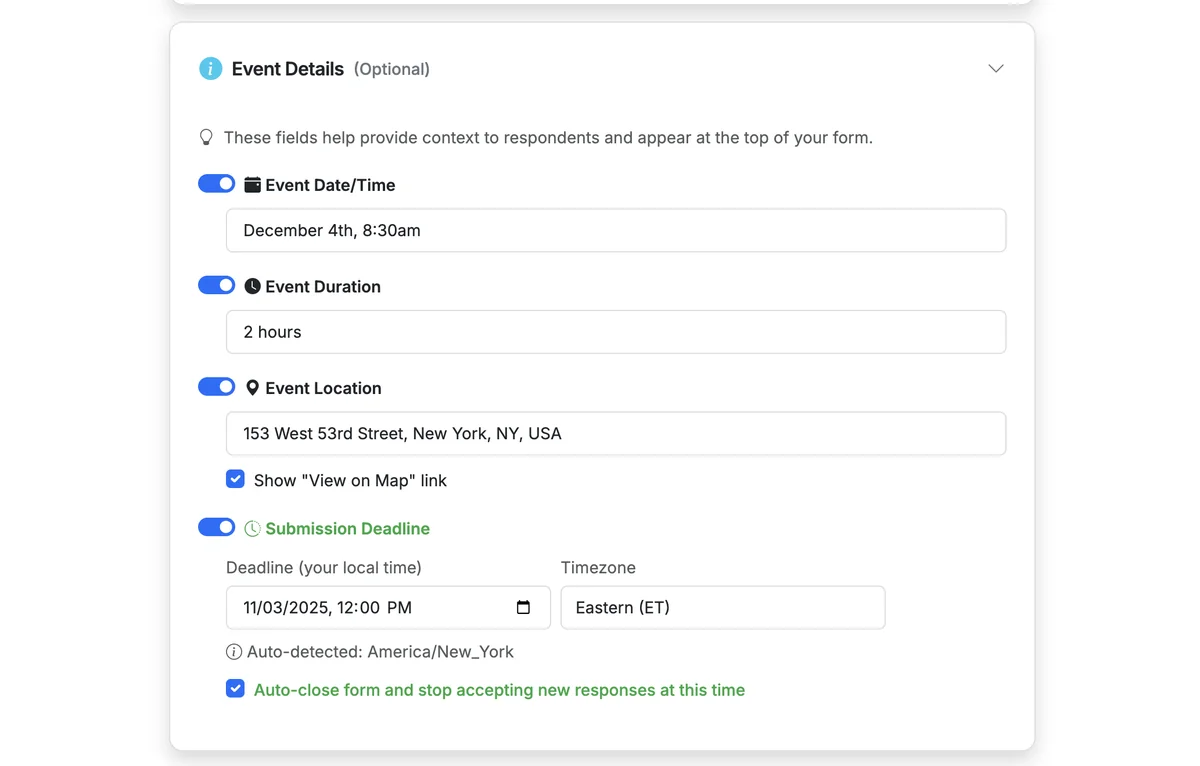
Expand the 'Event Details' section. Enable 'Submission Deadline' and provide a date and time. If you want your form to stop accepting responses after the submission deadline, check the 'Auto-close ...' checkbox.
Step 3
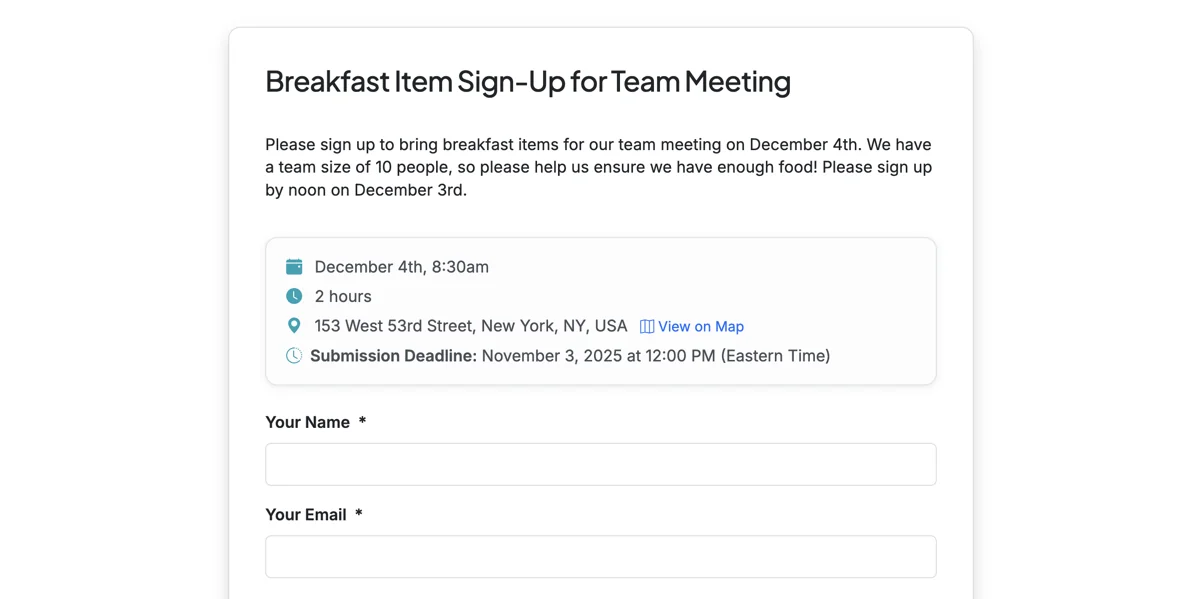
When the Submission Deadline feature is enabled, it will be displayed on your form for respondents.
Step 4
If your form is set to auto-close after the submission deadline, it will auto-close within ~20 minutes after the submission deadline. Form creators will receive an automated email when the form auto-closes.
Step 5
To re-activate your form, you can go to the Edit page of your form and uncheck "Auto-close ..." in the Event Details. Then Save your form. Then in form settings, disable the Close Form toggle to make the form accessible again. If you do not uncheck the "Auto-close ..." setting on the form, it will auto-close again if the submission deadline has passed.
Key features of submission deadlines:
- Visible to respondents: The deadline appears on your form so people know when responses are due
- Automatic closure: Forms can automatically stop accepting responses after the deadline
- Email notifications: Form creators receive an automated email when the form auto-closes
- Timezone support: Set deadlines in your local timezone for accuracy
- Easy reactivation: Quickly re-open a form by adjusting settings if needed
Total Steps: 5
Steps generated by StepHopper, a product of Grasshopper Signup - Create interactive step-by-step guides