Set a Custom Page URL
Premium feature: replace the auto-generated /p/title-abc12345 URL with a clean custom URL like /p/my-event. Your original URL keeps working as a permanent redirect.
Premium feature. Custom Page URLs let you replace the auto-generated URL (something like /p/grasshopper-gallery-54984ed4) with a short, branded URL of your choice (like /p/my-event). Your original URL keeps working forever — it 308-redirects to your new custom URL — so anyone who already has the old link, QR code, or embedded iframe is unaffected.
You can change a Page's custom URL up to 3 times over its lifetime. Each old URL stays reserved and continues to redirect to the current one.
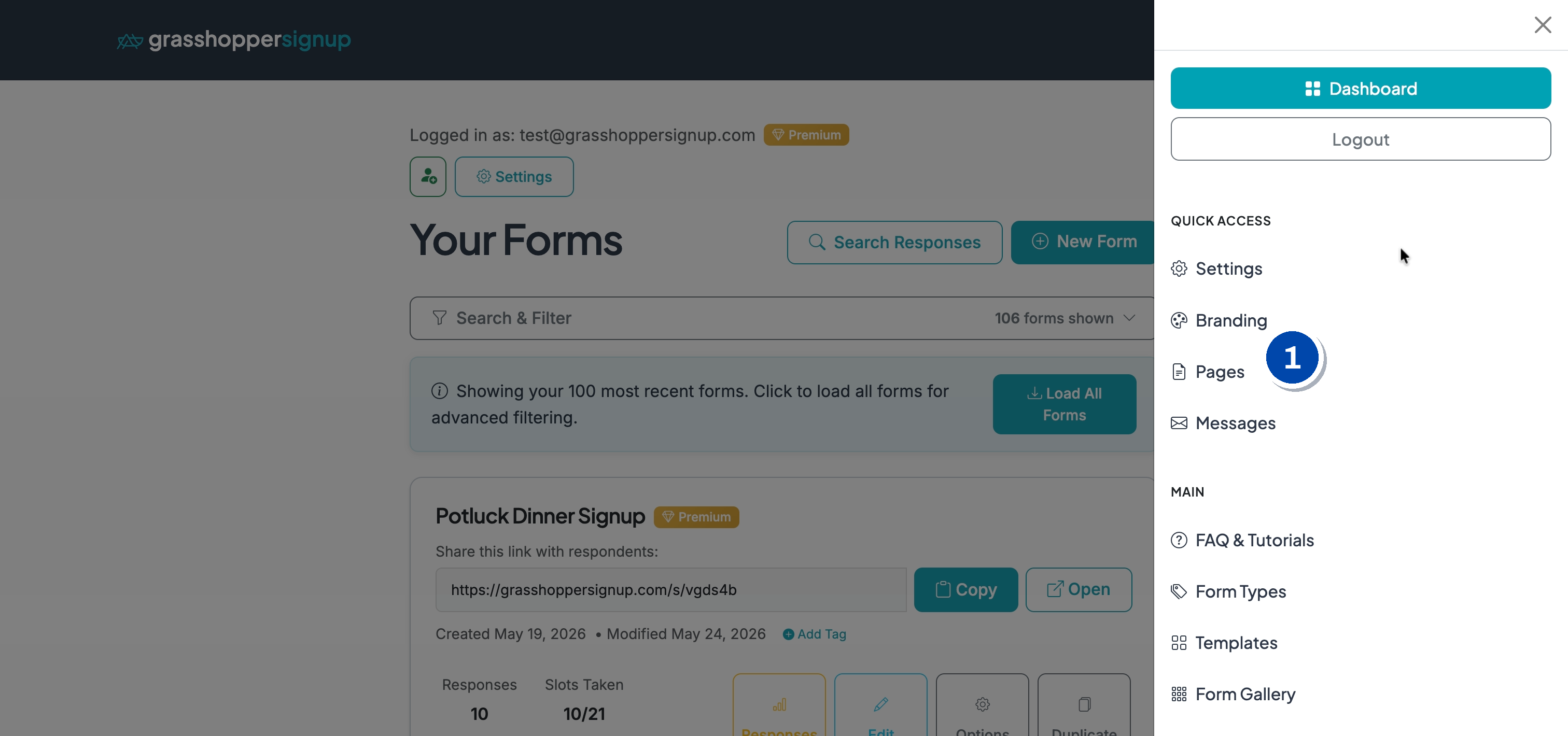
Step 1: Open Pages from the menu
From your Dashboard, open the hamburger menu (top right) and click Pages.
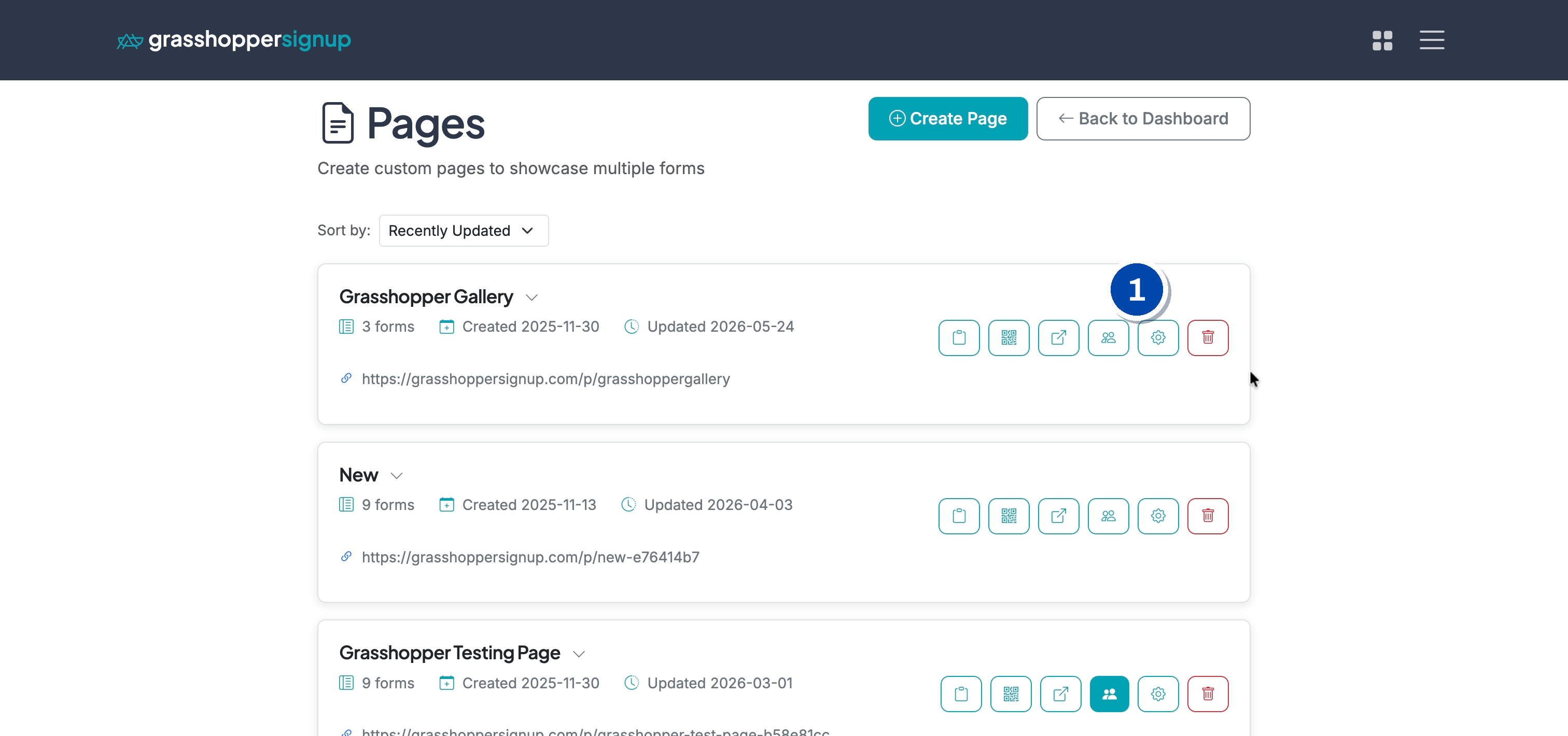
Step 2: Open page settings
Find the Page you want to customize and click the settings icon on its card to open the Page Settings modal.
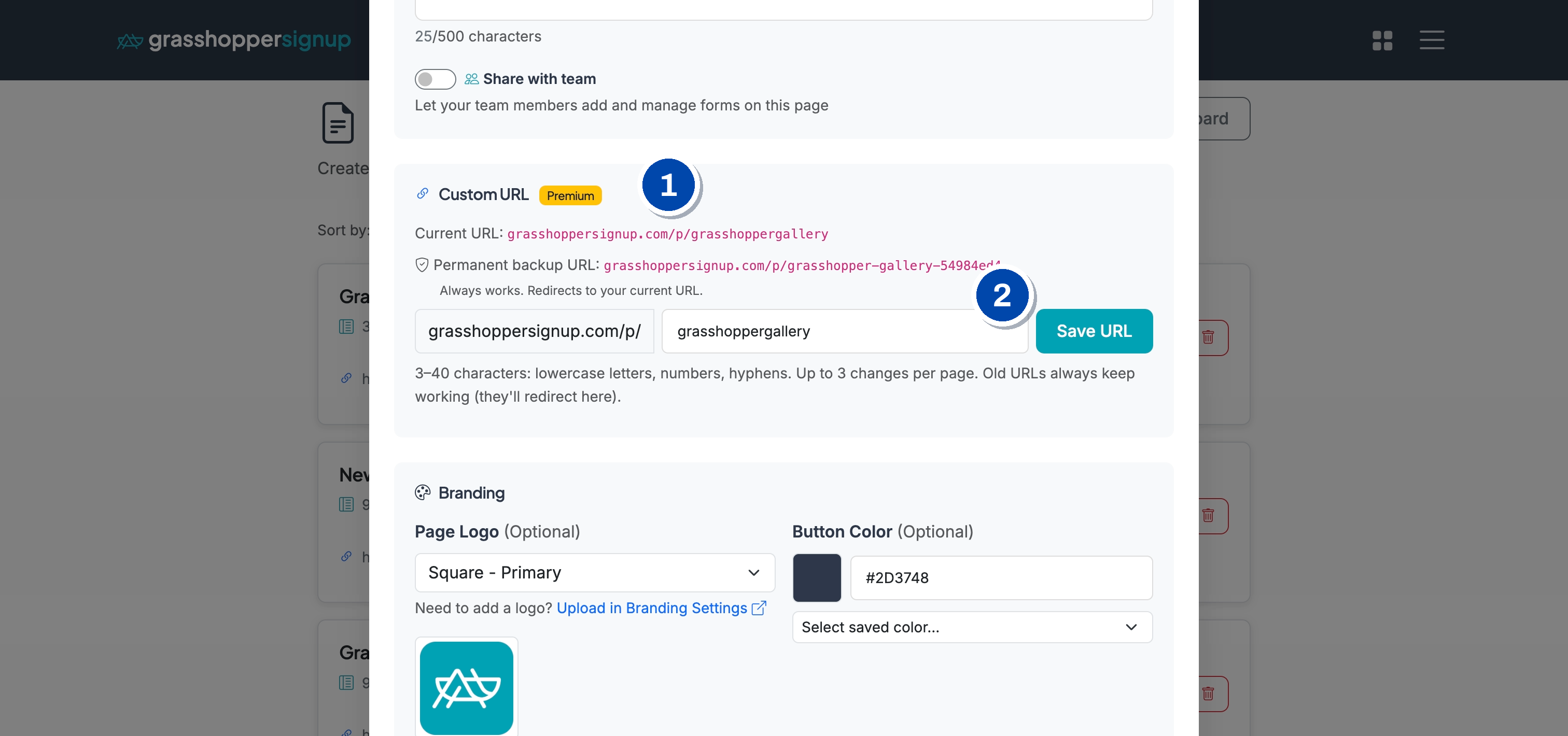
Step 3: Enter your custom URL and save
Scroll to the Custom URL section. Type the slug you want after grasshoppersignup.com/p/ (3–40 characters, lowercase letters, numbers, and hyphens only) and click Save URL. Your new URL becomes the canonical one immediately, and your original auto-generated URL starts redirecting to it.
What happens after you save
- Page card, copy-link button, QR code, view link, and embed code on Pages all switch to the new custom URL.
- The original auto-generated URL keeps working as a permanent redirect. You'll see it listed in the settings modal as the Permanent backup URL.
- Existing embedded iframes on external sites keep rendering through the redirect — no action needed on the embedding site.
Custom QR codes (optional)
Every Page already has a QR code you can grab from the Pages list. If you want a custom-branded QR code with analytics, dynamic destinations, and more design control, we recommend TangoQR.
Made with Cobalt Capture.