How to Save and Reuse Your AI Prompts
Save the wording you use to create or update forms with AI and reuse it in one click, from the create page, the editor's AI Assistant, or your account.
Save and Reuse Your AI Prompts
If you use the same wording again and again to create or update forms with AI, you can save that wording as a reusable prompt and drop it back into the box with one click. It's handy when you run similar events on a schedule, for example a weekly class or a recurring volunteer sign-up, and want to start from the same description each time. Saved prompts are private to your account.
You'll need to be logged in. The saved-prompts controls only appear when you're signed in to your free Grasshopper account. Signed-out visitors won't see them.
Where to find it
Saved prompts show up in three places, always tucked just under the AI text box so they stay out of the way:
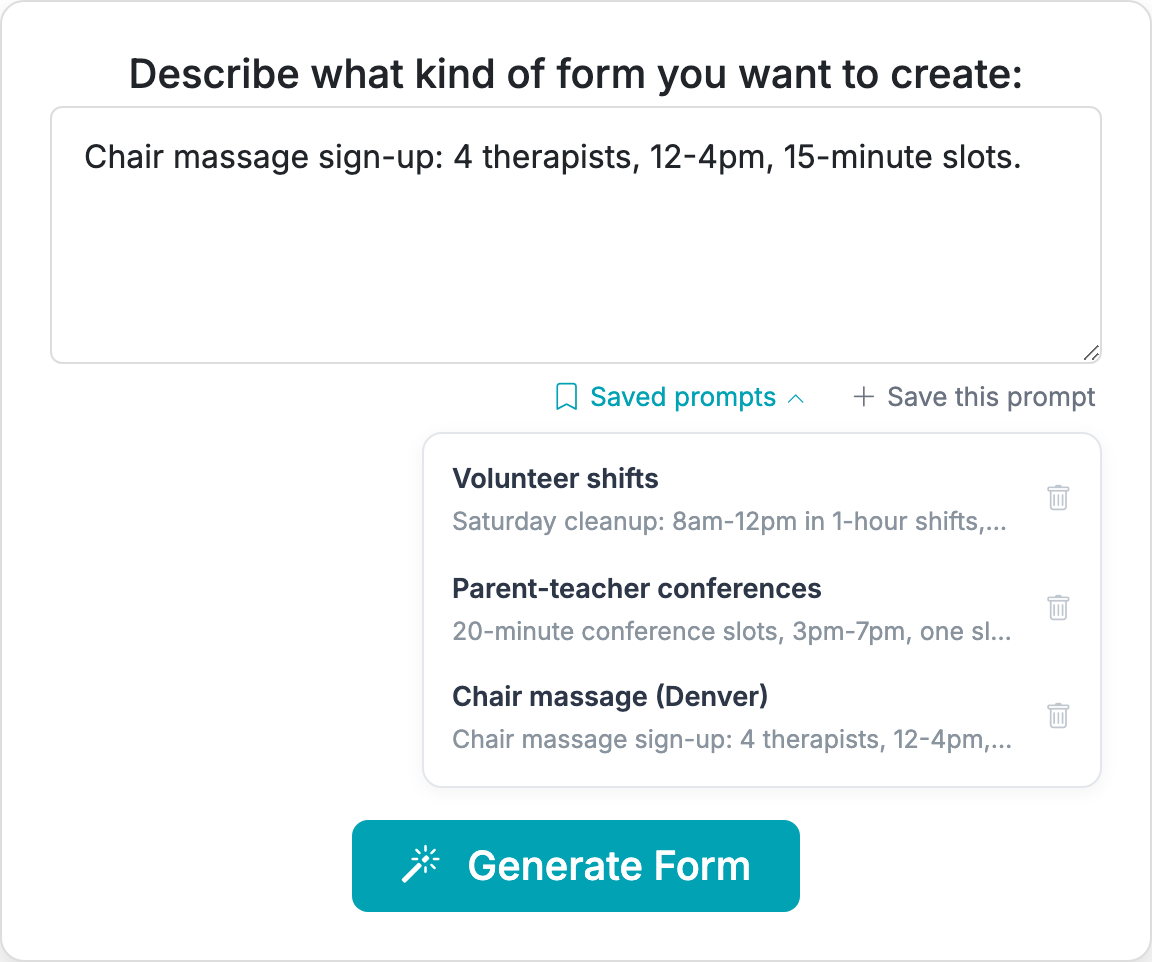
- On the Create a form page, under the "Describe what kind of form you want to create" box.
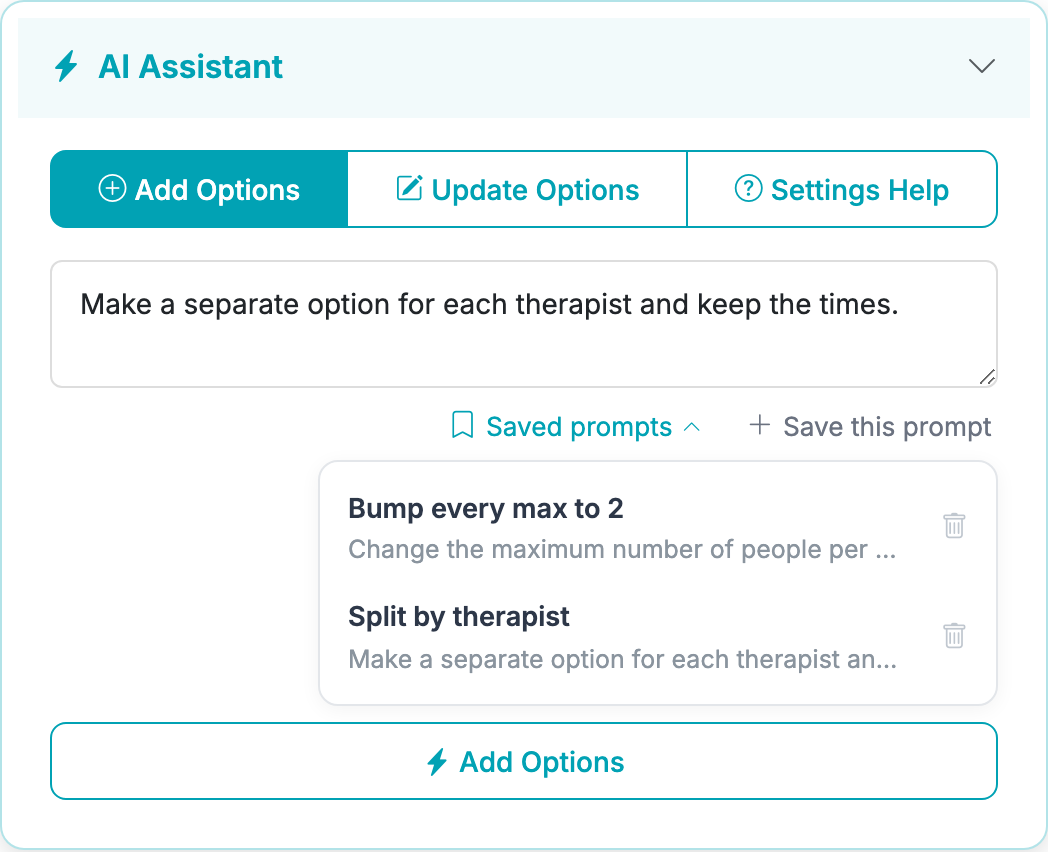
- In a form's editor, inside the AI Assistant panel, under the prompt box.
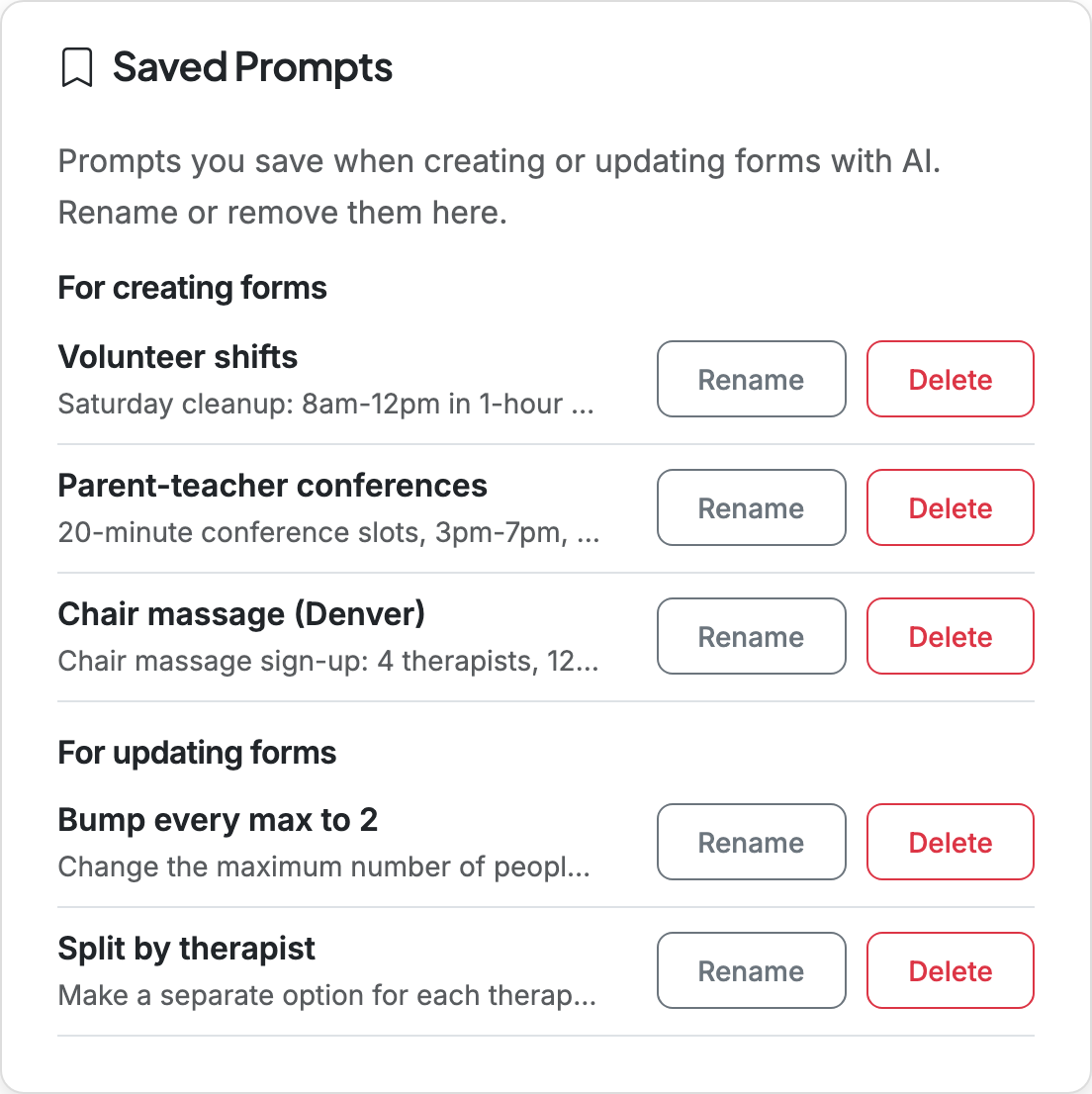
- On your Account page, in the Saved Prompts card, where you can rename or delete them.
Save a prompt while creating a form
On the Create a form page, type your description as usual, then click Save this prompt just below the box. Give it a short name and click Save. (Save this prompt only appears once you've typed something, since there's nothing to save on an empty box.)
Reuse a saved prompt
Click Saved prompts to open your list, then click the one you want. It drops straight into the text box, where you can edit it before generating, for example to change the date or location for this week's version. Use the trash icon next to any prompt to remove it.
Use it when updating a form with AI
Open your form's Edit page from your Dashboard, then open the AI Assistant panel. The same Saved prompts and Save this prompt controls sit under the prompt box there, so you can save and reuse the update instructions you type most often, like "make a separate option for each therapist".
A note on the two lists
Prompts you save while creating a form and prompts you save while updating a form are kept in separate lists. The Create page shows only your creating prompts, and the editor shows only your updating prompts, so each place shows only what's relevant.
Rename or delete your prompts
Go to your Account page and find the Saved Prompts card. Your prompts are grouped under For creating forms and For updating forms, each with Rename and Delete buttons.