Require selection and highlight option
Learn how to require respondents to select a specific option, and how to visually highlight options on your form.
You can require that respondents select a specific option on multi-select forms. This can be helpful for forms where respondents must select that they are attending an event, but also may want to select other options. You can also highlight an option to help it visually stand out.
Require Respondents to Select a Specific Option
This feature requires that respondents select a specific option in order to submit a form. This is helpful for forms where ALL respondents who complete a form must select a specific signup option like "Yes I will attend". Do NOT use this feature if ALL respondents should not be required to pick a specific option.
Step 1
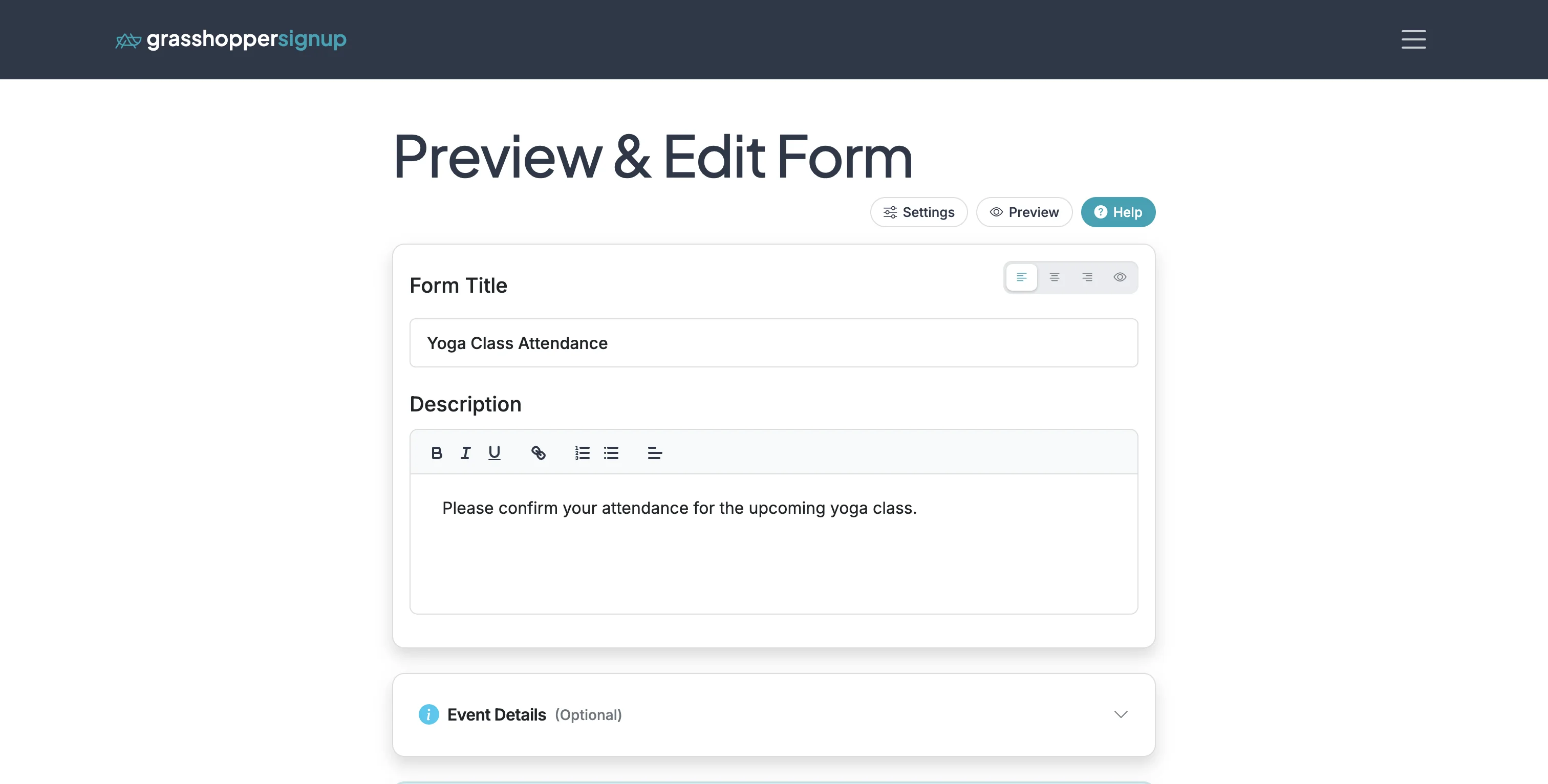
Start on the Edit page of your form.
Step 2
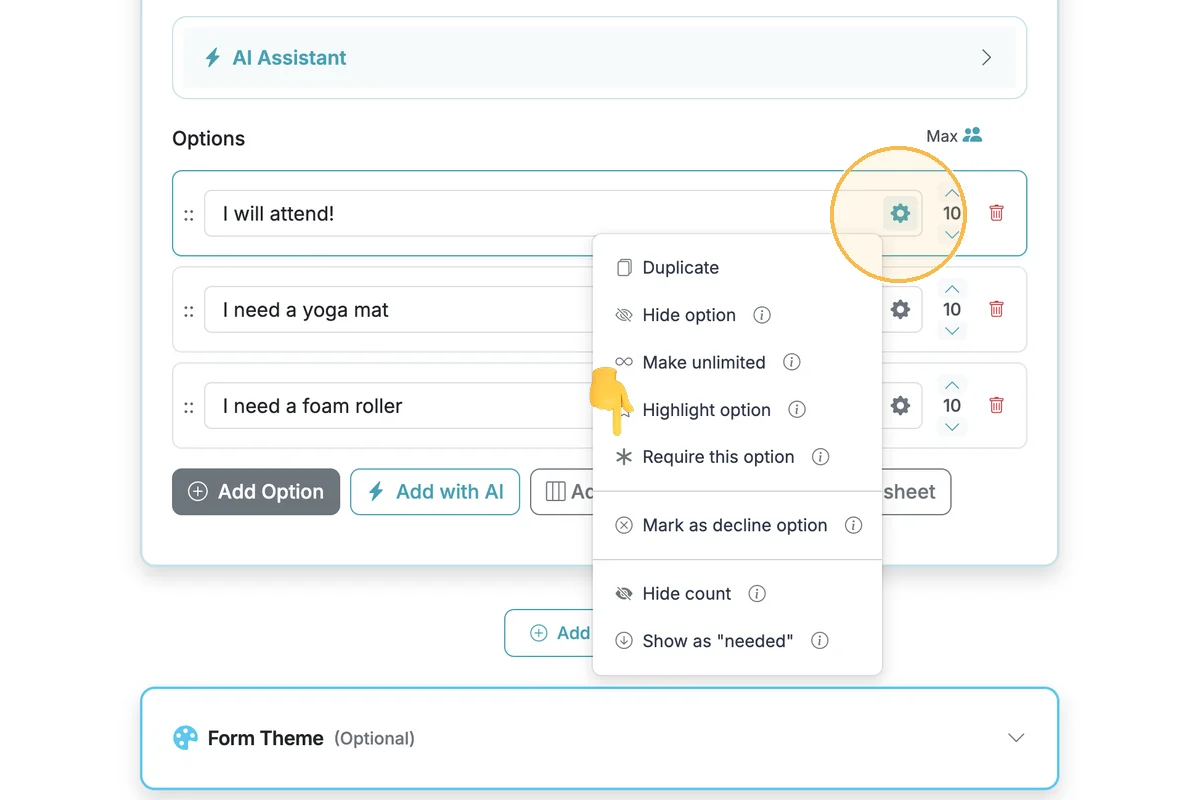
Scroll down to the Signup Options and click the gear icon on the individual option you want to configure. Select the 'Require this option' option to make an individual option required. This means all respondents MUST select this option to submit the form.
Step 3
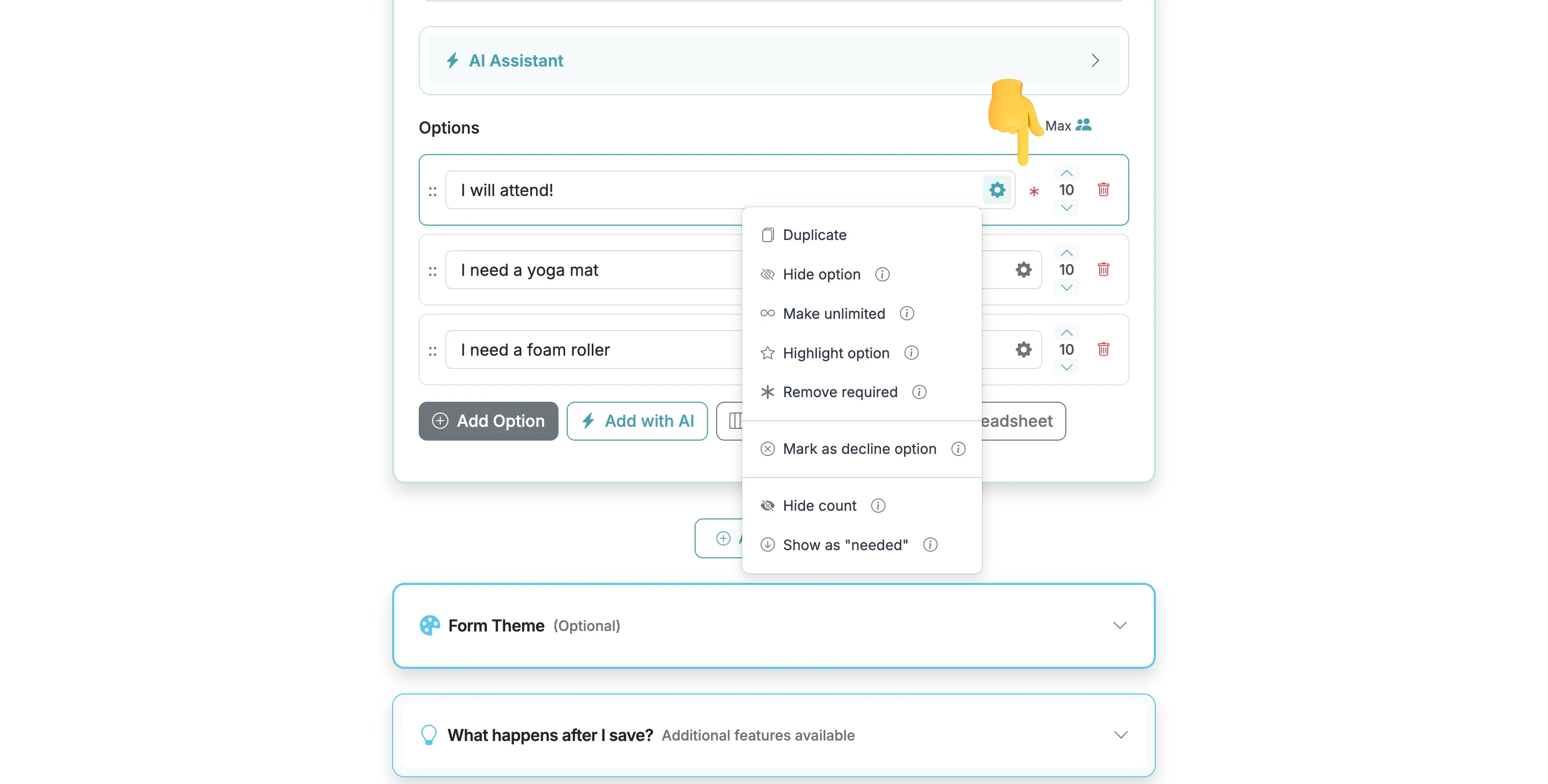
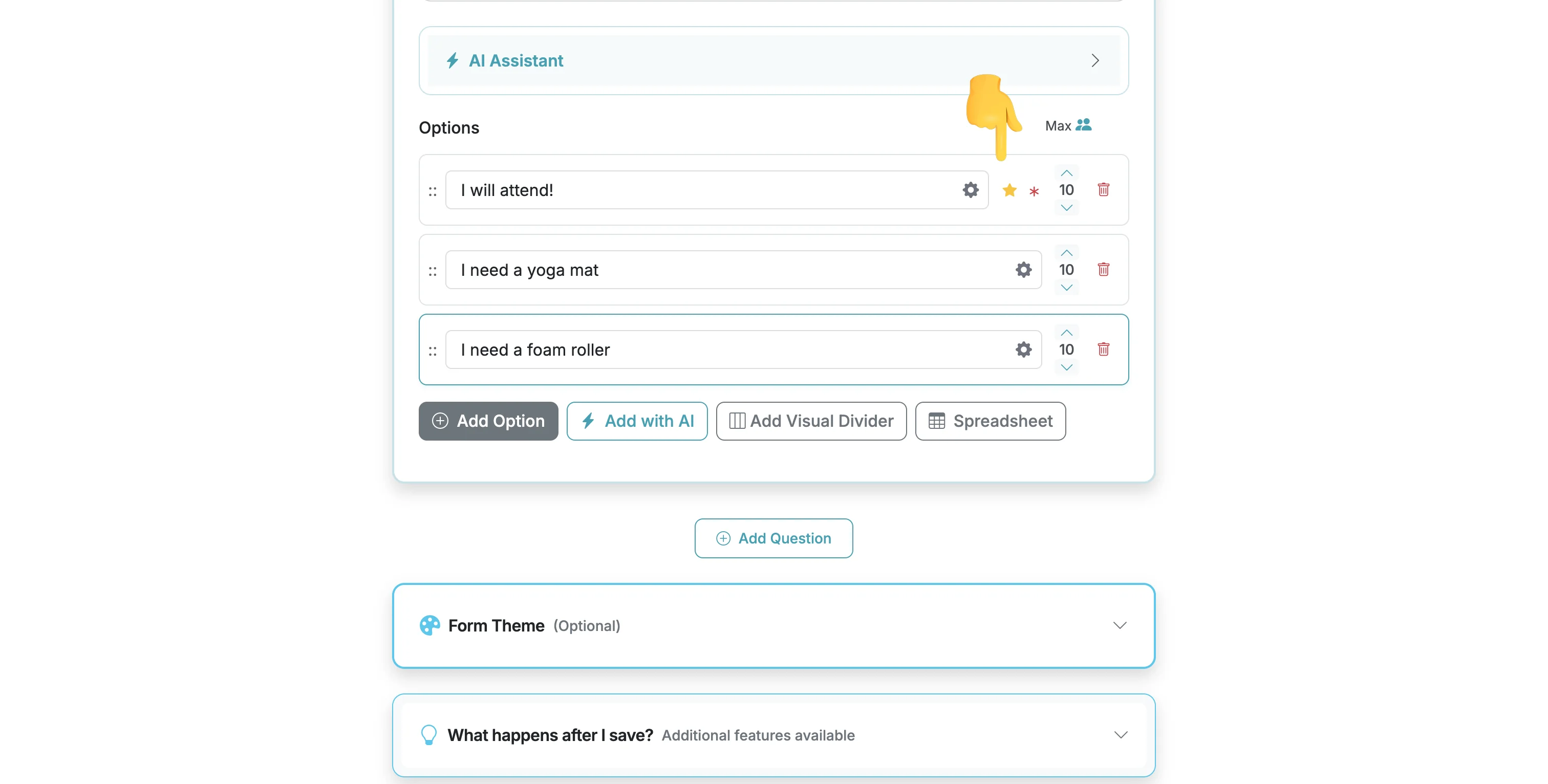
After you enable a required option, an asterisk will display next to the option.
Highlight a Specific Option
This feature allows you to visually highlight specific options on your form. This can be useful in combination with required options, or to distinguish a specific needed or unique option.
Step 4
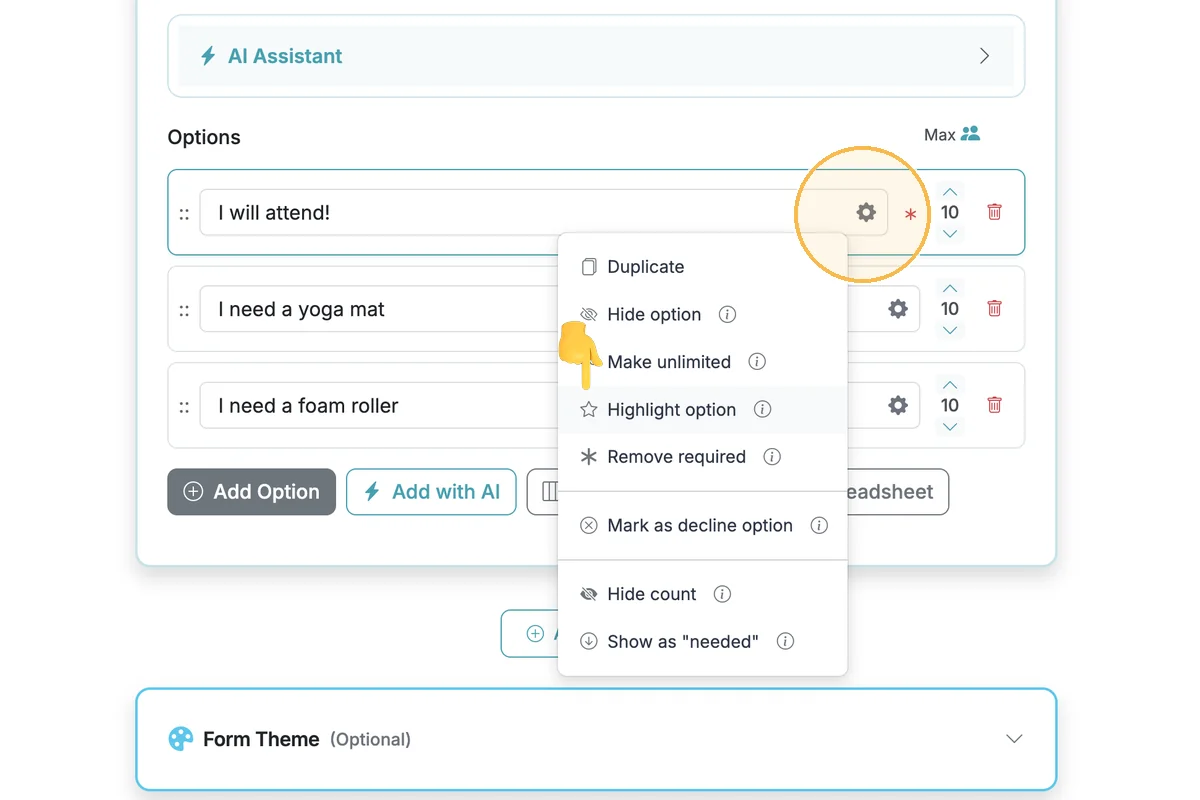
Click on the individual option gear icon. Select 'Highlight option'.
Step 5
Highlighted options will be indicated with a star icon next to the option label.
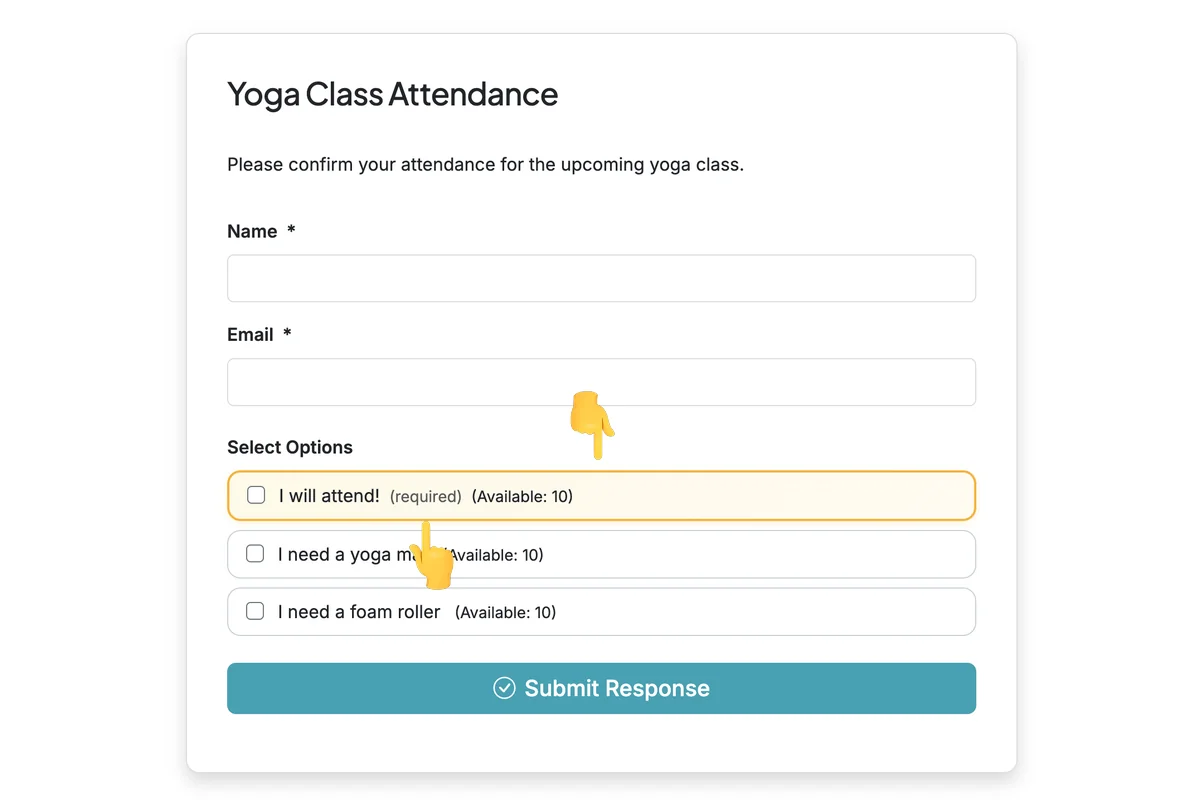
Respondent View: Required and Highlighted Option
Step 6
When an option is highlighted, respondents will see it visually distinguished with a highlight. When an option is required, respondents will see the "required" text next to the option label.
Total Steps: 6
Steps generated by StepHopper, a product of Grasshopper Signup - Create interactive step-by-step guides