How to Print or Download Responses
Learn how to print a printer-friendly summary of responses or download responses to an Excel/CSV file.
This guide will walk you through how to print or download the responses for your form.
Step 1
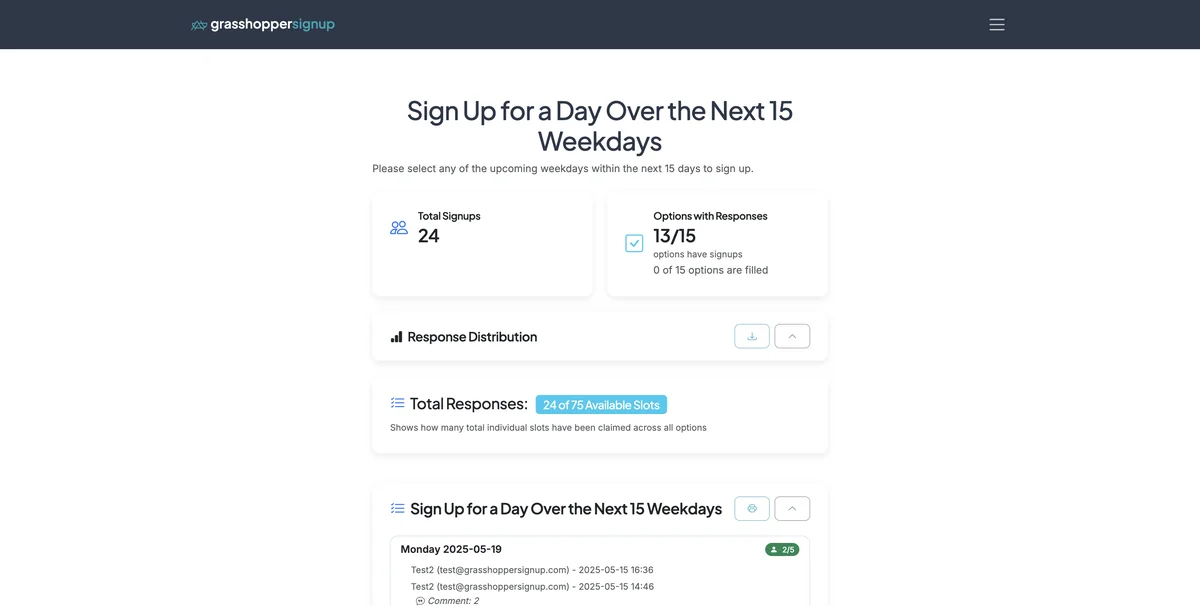
Visit the Responses page for your form.
Step 2
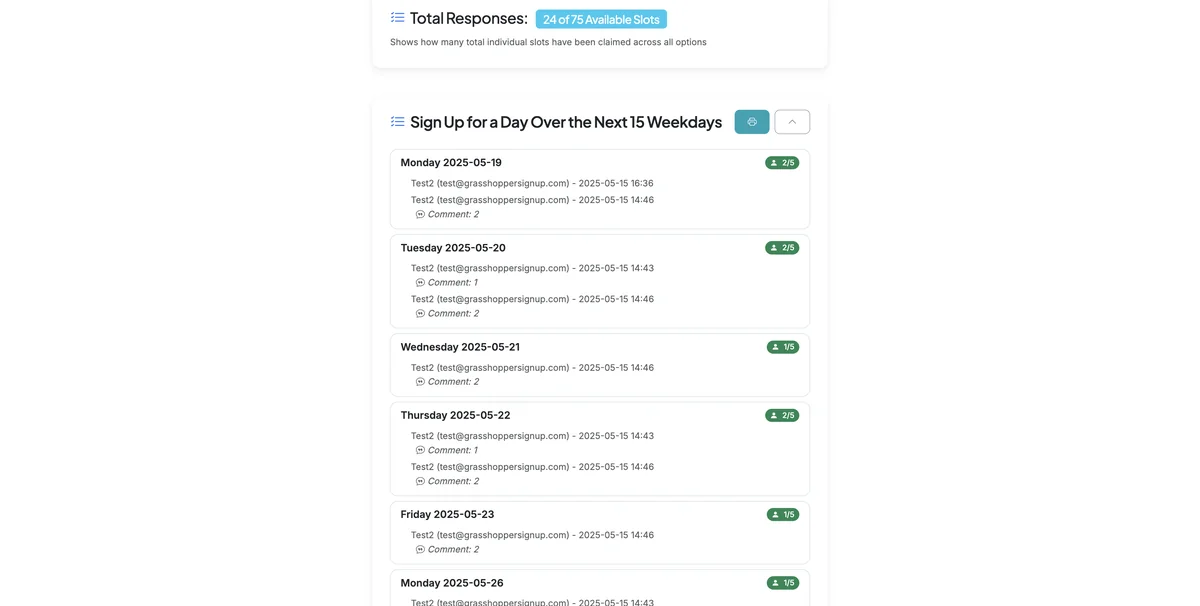
Scroll down to the combined response summary.
Step 3
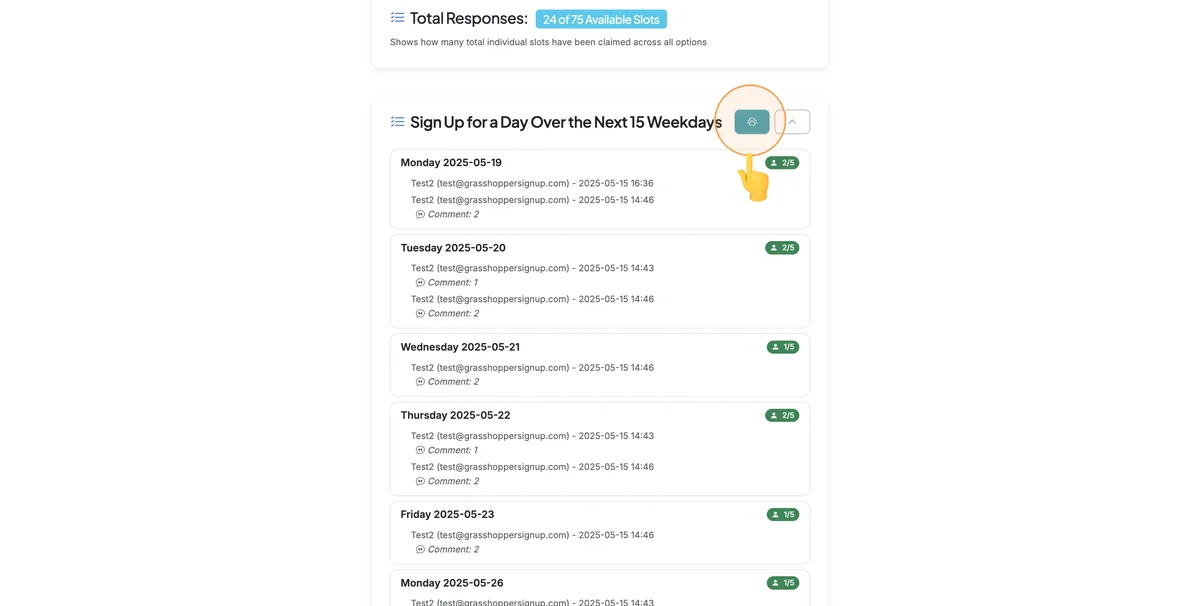
Click on the Print icon/button.
Step 4
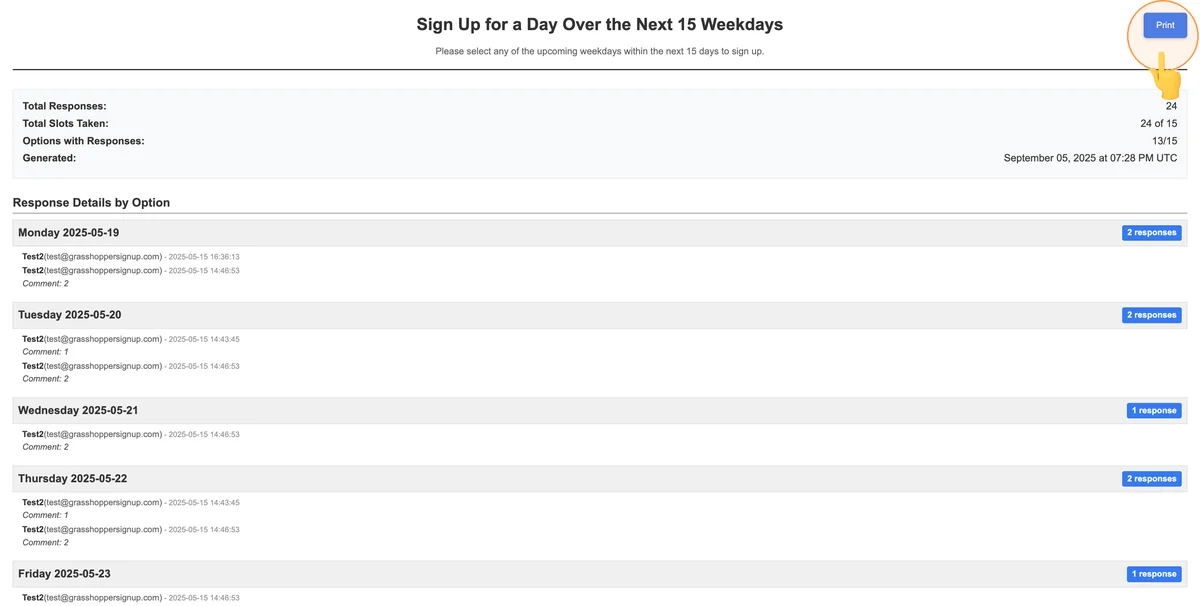
Clicking print in the prior step will open a printer friendly response summary that you can print.
Step 5
To Download your responses, scroll to the Response Details section on the Responses page.
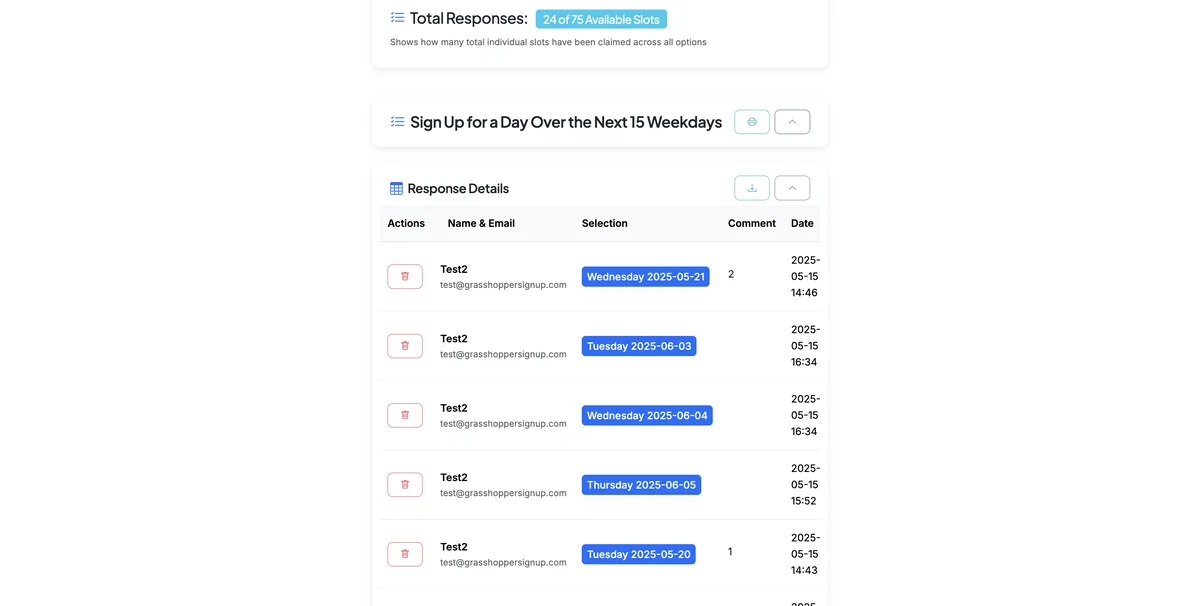
Step 6
Click the download button to download a csv file that includes all response details.
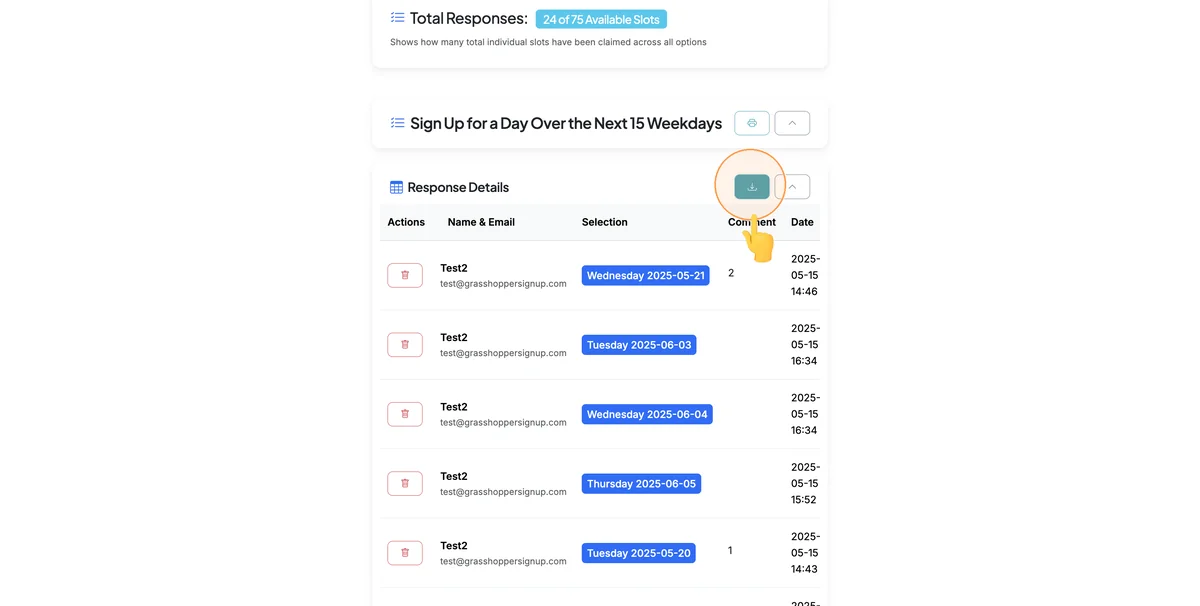
The CSV file includes:
- Participant details: Names and email addresses
- Selections: Which options each person chose
- Timestamps: When each response was submitted
- Comments: Any additional details provided by respondents
- Additional fields: Custom fields you added to your form
You can open the CSV file in Excel, Google Sheets, or any spreadsheet application for further analysis, filtering, or record keeping.
Total Steps: 6
Steps generated by StepHopper - Create interactive step-by-step guides