How to Schedule Parent-Teacher Conferences with Multiple Teachers
Use the conference scheduler to let each family book times with several teachers on one form, with one family per teacher per time and no double-booking.
Schedule Conferences with Many Teachers on One Form
The conference scheduler turns a signup form into a grid of times and teachers. Each family chooses the teachers they need to see, then picks one open time with each. Every teacher can meet one family per time, a family can never be in two places at once, and you get a ready-to-print schedule for every teacher. It is free to use and works just as well for advisors, coaches or any meetings where people book time with several hosts.
Sections in This Guide:
- TURN ON THE CONFERENCE SCHEDULER
- ADD YOUR TEACHERS
- ADD YOUR TIMES
- GIVE A TEACHER DIFFERENT TIMES
- CHOOSE YOUR SETTINGS AND SHARE
- BOOK MORE THAN ONE TIME WITH THE SAME TEACHER
- WHAT FAMILIES SEE
- SEE AND DOWNLOAD THE SCHEDULE
- A FORM THAT ALREADY HAS SIGNUPS
- GOOD TO KNOW
TURN ON THE CONFERENCE SCHEDULER
Step 1: Open your form in the editor
From your Dashboard, click Edit on your conference form's card. If you are starting fresh, create a form such as "Fall Parent-Teacher Conferences" first.
Step 2: Find the Conference scheduler switch
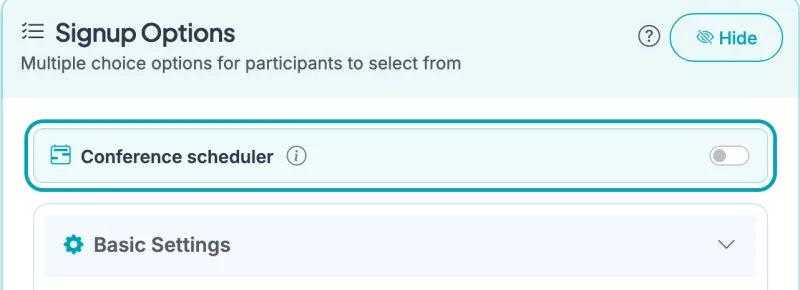
In the Signup Options card, a one-line Conference scheduler row sits just above Basic Settings. It appears when your form's title or description mentions parent-teacher conferences, conferences or PTC. If you don't see it, add "Parent-Teacher Conferences" to your title.
Step 3: Turn it on
Click the switch at the right of the row. A panel opens with three steps: Teachers, Times and Settings.
Step 4: Tidy up the form (if asked)
If your form already asks for a student name, or its name field just says "Name", you'll see Tidy up this form for conferences. Click Make these changes to remove the separate student question and rename Name to Parent/guardian name. The scheduler asks which student each time is for, so a family with two children never has one child's name on every booking. Click Keep my form as is to skip it.
ADD YOUR TEACHERS
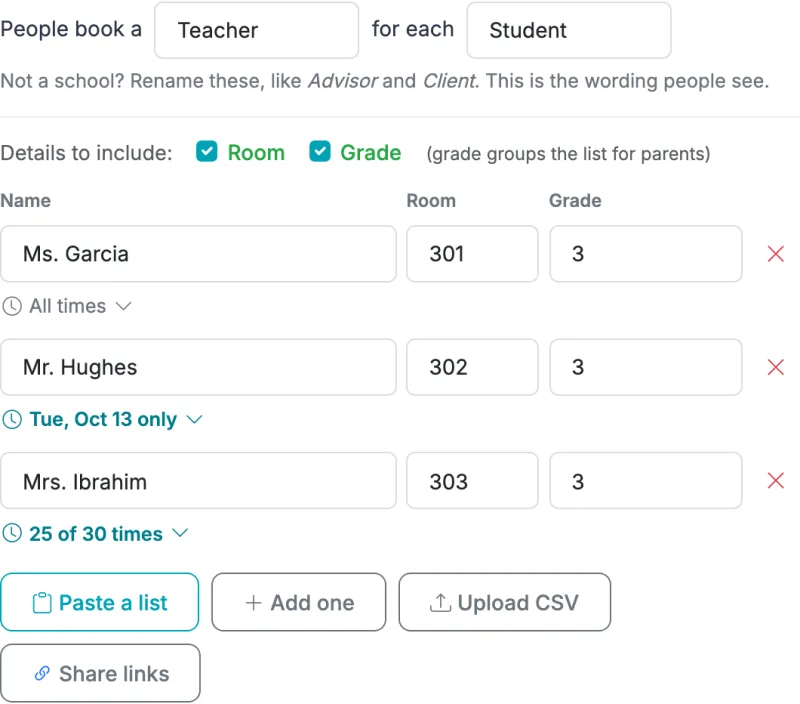
The Teachers step starts with the words families will see: People book a [Teacher] for each [Student]. Not a school? Rename them, for example Advisor and Client.
- Details to include: check Room and Grade to add those columns. Grade groups the list for families, in order from Pre-K and K up through 12, and a plain "3" shows as "Grade 3".
- Paste a list adds many teachers at once. Paste from a spreadsheet or type one per line, like Ms. Rodriguez, 12, 2nd grade.
- Add one adds a single row, and Upload CSV imports a file.
- Share links downloads a file with a link for each teacher. A teacher's link opens the form with that teacher already chosen, handy for a class newsletter. Save the form first so new teachers' links work.
You can have up to 100 teachers. Every teacher is offered every time, unless you give a teacher different times.
ADD YOUR TIMES
Your times are the regular options in the Signup Options card, for example every 15 minutes from 3:30 to 7:00 PM. Every time needs a date and start time: that is what sends reminders and stops a family from booking two teachers at the same moment. The form won't save until every time has one.
- Type the date into the time, like Wed Oct 14 4:00 PM. The date is picked up automatically a moment after you stop typing.
- Already have times written out? The Times step shows how many still need a date. Click Analyze Options for Dates/Times (the same button as in Advanced Settings) to read them all at once. It uses AI, so double-check the dates it fills in.
- Or click the calendar icon on any time to set its date, start and length by hand.
If a time has no length, it gets the gap to the next time (15 minutes for times 15 minutes apart).
GIVE A TEACHER DIFFERENT TIMES
Some teachers aren't there for every conference time: a part-time teacher who only comes in Tuesday, a specialist who leaves at 5:00, or a teacher who meets families on a day nobody else does. Add every time anyone needs to Signup Options as usual, then choose which of those times each teacher has. Teachers you don't change keep every time.
Step 1: Find the teacher's times
In the Teachers step, each teacher has a small All times link next to or under their name. Once you change it, it shows what that teacher has, like Tue, Oct 13 only or 25 of 30 times, so you can check the whole list at a glance.
Step 2: Choose their days and times
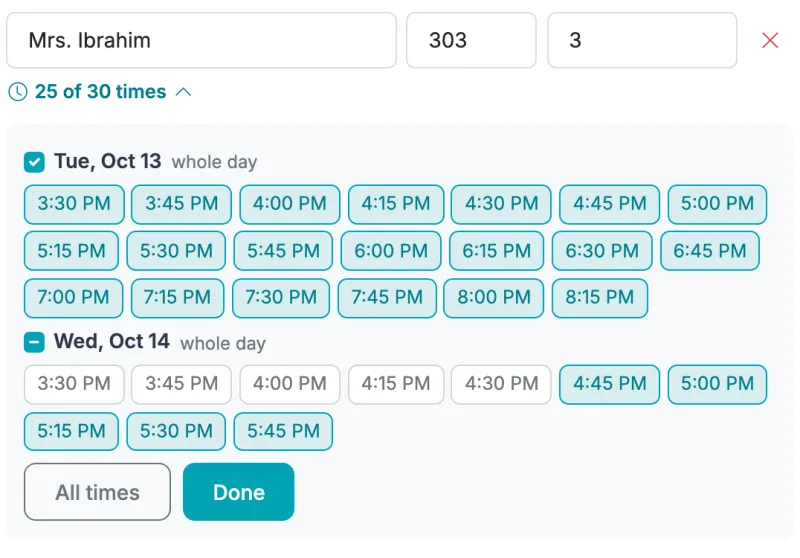
Click the link to open that teacher's times, grouped by day.
- Uncheck whole day next to a day to take the full day away, or check it to give it back.
- Click any single time to turn it off or on. Highlighted times are the ones the teacher has.
- All times puts the teacher back on every time. Done closes the list.
Step 3: Save the form
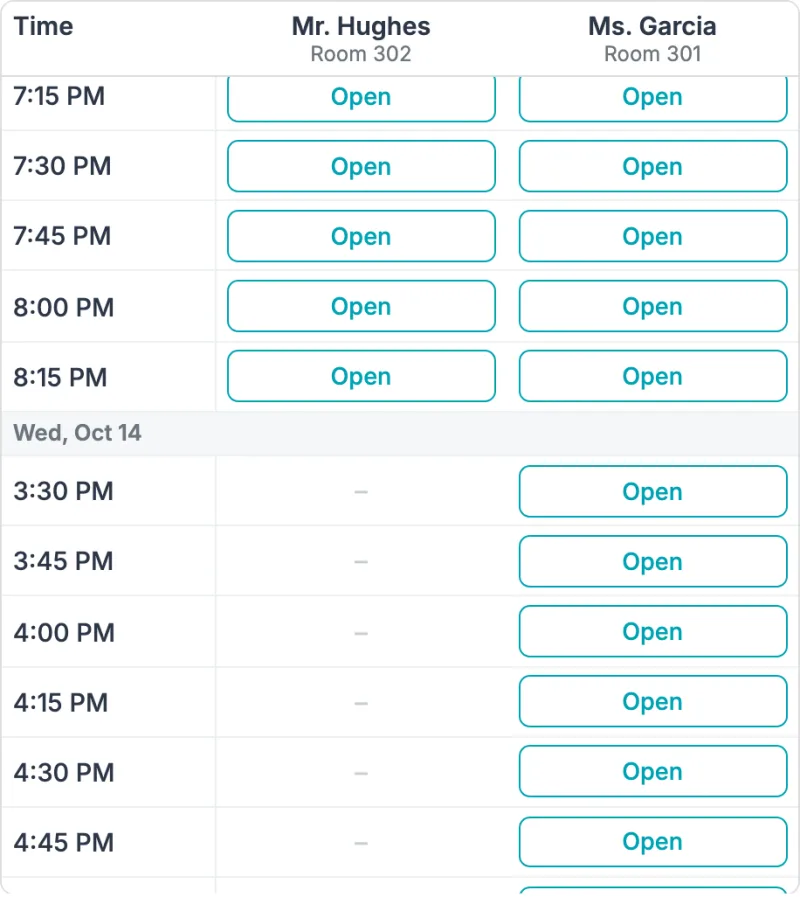
Click Save & Configure Form Settings. Families see a dash in that teacher's column for the times they don't have, and can't book them.
A day only one teacher has: add that day's times to Signup Options, open each of the other teachers' times and uncheck that day's whole day box. Times you add later go to every teacher still on All times, but not to teachers you've already given their own times.
CHOOSE YOUR SETTINGS AND SHARE
The Settings step has these choices:
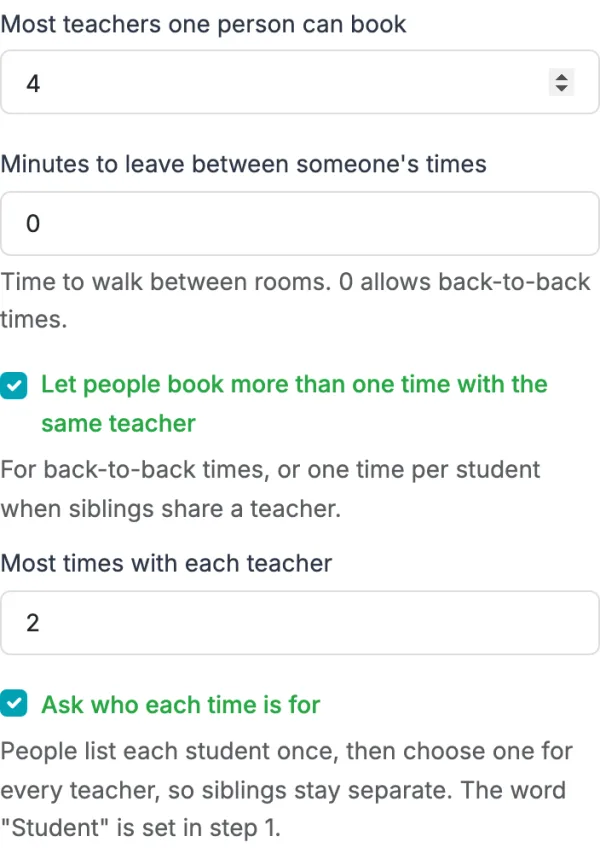
- Most teachers one person can book: 4 by default, up to 10.
- Minutes to leave between someone's times: time to walk between rooms. 0 allows back-to-back times.
- Let people book more than one time with the same teacher: off by default. See Book more than one time with the same teacher.
- Ask who each time is for: on by default. Families list their children once and choose one for each time.
Click Save & Configure Form Settings, then share your form link like any other form.
BOOK MORE THAN ONE TIME WITH THE SAME TEACHER
By default a family books one time with each teacher. Turn this on when families need more: a longer meeting made of two back-to-back times, or siblings who share a teacher (a 5th grader and an 8th grader with the same science teacher), each with their own time.
Step 1: Open the Settings step
From your Dashboard, click Edit on your conference form's card. In the Conference scheduler panel, click step 3, Settings.
Step 2: Turn it on and set the limit
Check Let people book more than one time with the same teacher, just below Minutes to leave between someone's times. A Most times with each teacher box appears: 2 by default. It is per family, so one family can't take more than this many of a teacher's times, even if they come back and book again with the same email.
Step 3: Save the form
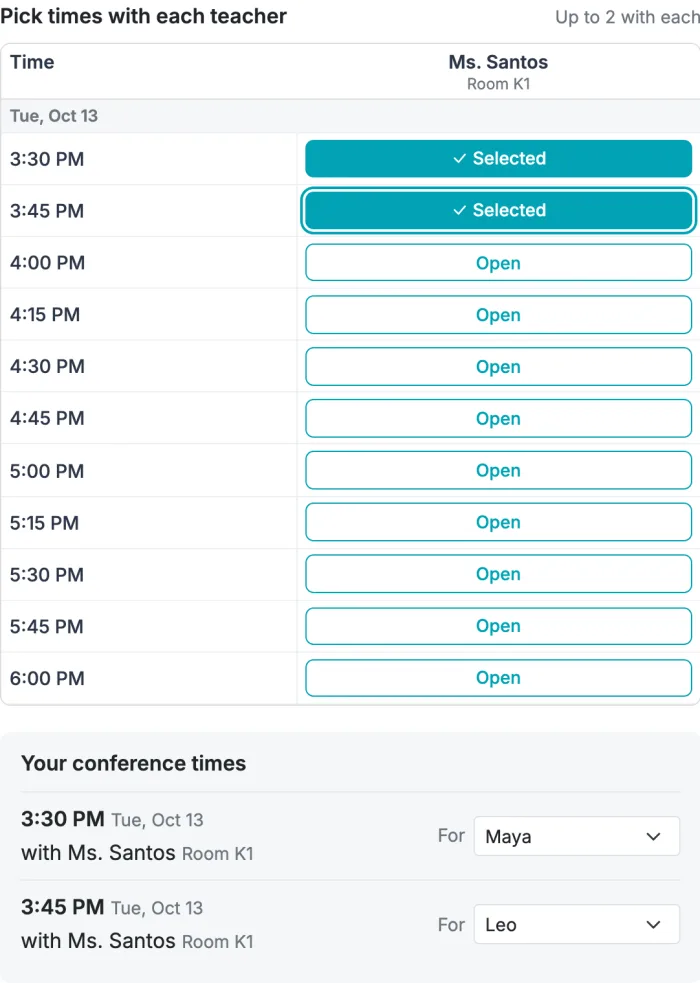
Click Save & Configure Form Settings. Families now see Pick times with each teacher, with Up to 2 with each beside it, and can tap a second open time in a teacher's column. With two or more children, each time has its own For menu, so each child gets their own booking.
What changes
- Back-to-back works even with walking time.Minutes to leave between someone's times only applies between different teachers: two times with the same teacher are in the same room.
- The overall limit still applies. In one booking, every time counts toward Most teachers one person can book, so raise it if families will book several times with a few teachers.
- Each time is its own booking in the conference grid, the Excel schedules, emails and reminders, labeled with the child it is for.
- Turning it off keeps the bookings families already made.
WHAT FAMILIES SEE
- Your students: they type each child's name, with Add another student for siblings.
- Choose your teachers: they tap the teachers they need. With more than 12 teachers, the list folds into one row per grade (tap a grade to open it), and a search box finds anyone by name.
- Pick a time with each teacher: a grid shows each chosen teacher's times as Open, Taken (someone else has it) or Busy (it overlaps another time they picked). A dash means that teacher isn't available at that time. On a phone, a hint appears when they need to swipe to see more teachers.
- For: with two or more children, each booked time asks which child it is for.
The grid updates while they choose, so a time someone else just booked turns Taken. A teacher with no open times shows Full. The confirmation email lists each time with the teacher, room and child, and families can change their times later the same way as on any Grasshopper form.
SEE AND DOWNLOAD THE SCHEDULE
From your Dashboard, click Responses on the form's card. The Conference grid at the top shows every time and teacher with who booked each spot.
- Use the All teachers menu to show one teacher's schedule. The list below and the CSV follow your choice.
- Download schedules gives you an Excel file with the full grid plus a printable tab for each teacher. This is the one to hand out.
- Raw data (CSV) is one row per booking, for spreadsheets and imports.
Deleting a booking from the responses page opens that time up again for other families.
A FORM THAT ALREADY HAS SIGNUPS
A form that is already collecting regular signups can't switch in place, because those signups have no teacher. When you turn on the switch, it offers Make a conference copy instead: a new form with the same times, questions and look, ready for your teachers. Your original form and its signups stay exactly as they are. Not now leaves everything unchanged.
GOOD TO KNOW
- You can turn it off until the first booking. After a family books, the form stays a conference scheduler so no booking loses its teacher. To stop taking bookings, close the form instead.
- Settings that don't fit are turned off: waitlists, payments, Pick for me, quantity, public response lists and Google Calendar sync. They appear greyed out on the form's Settings page.
- Reminders work as usual, one for each booked time.
- Removing a teacher who has bookings keeps those bookings on your responses page; families just can't book that teacher anymore.
- It's free. The usual 30-response limit applies to viewing responses and downloads, as on any form.