Creating Forms in Non-English Languages
Learn how to customize labels and create forms in languages other than English using our flexible customization options.
Grasshopper Signup is English-based, but has many customization options to help forms that are created in non-English languages. You can customize the labels for all aspects of the response page for a form. The AI generation is designed to provide outputs using the language provided in the inputs. This guide will show you how to locate the key label options. There are some aspects like Thank You confirmation pages and emails that do not have language customization settings (yet).
Sections in This Guide
ADJUSTING FORM LABELS
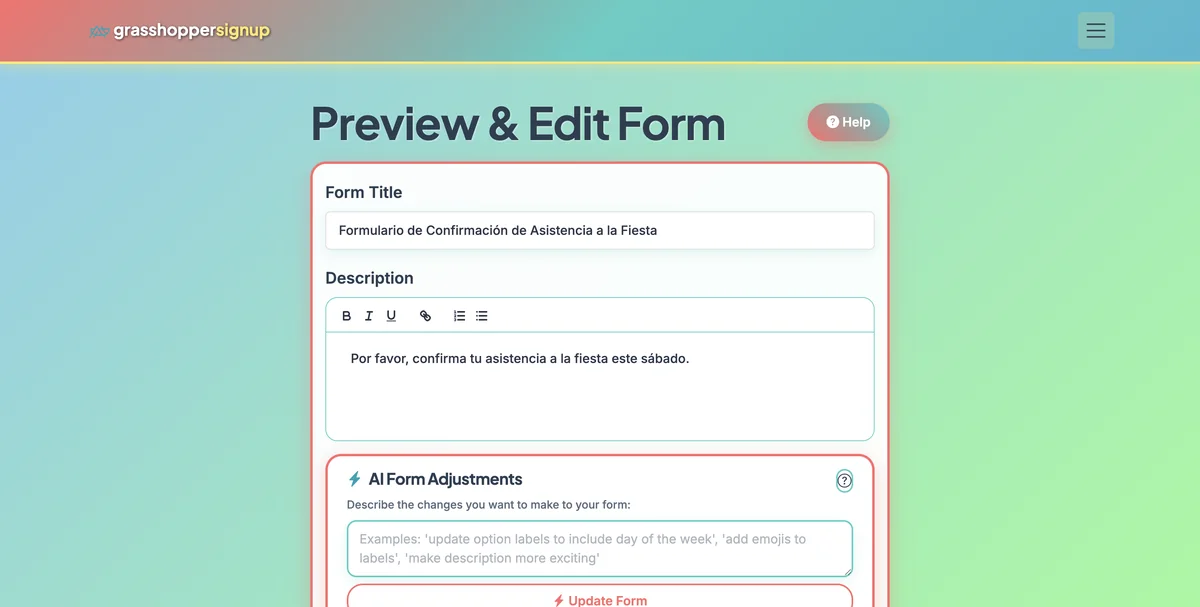
Step 1
Start on the Edit page of your form.
Step 2
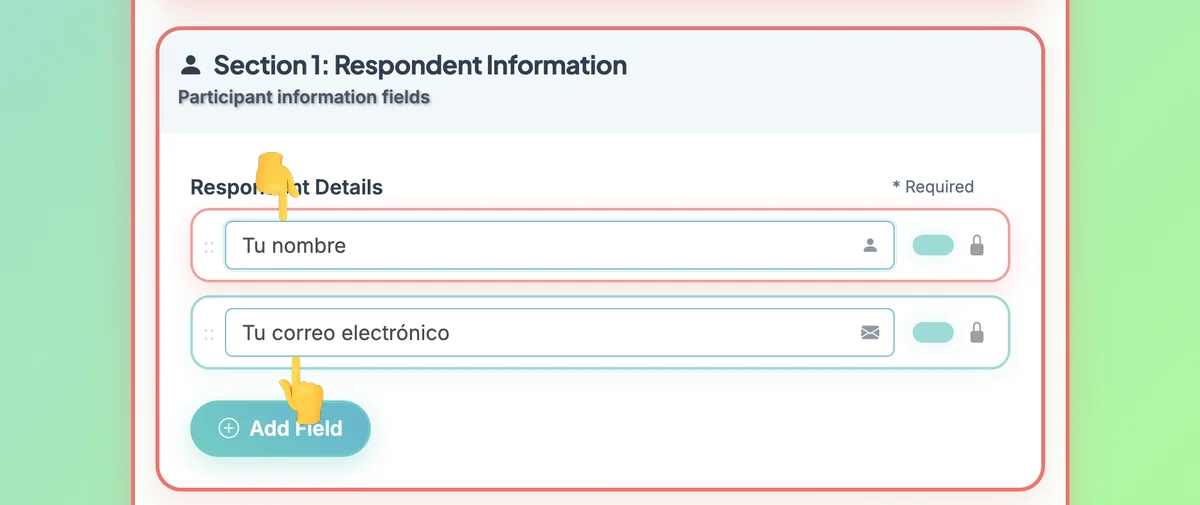
On the Respondent Information, you can customize the text for Name and Email. NOTE: These two fields must collect Name and Email.
Step 3
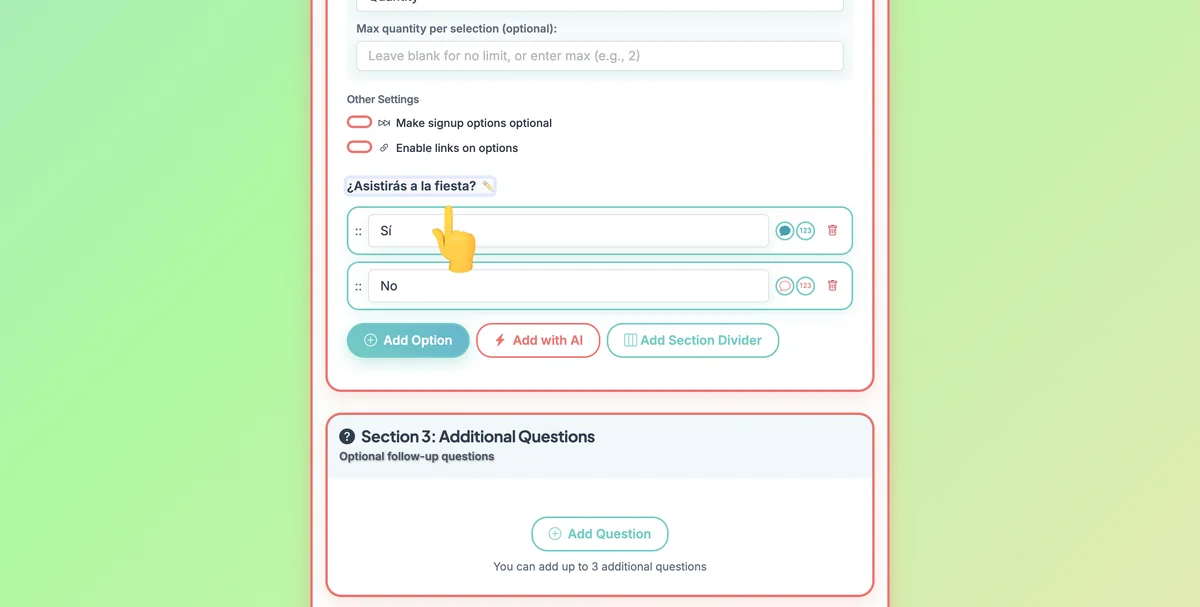
In the Section 2: Signup Options. You can select the text for "Options" and edit the label of this section.
CUSTOMIZE THE FORM SUBMIT BUTTON TEXT
Step 1
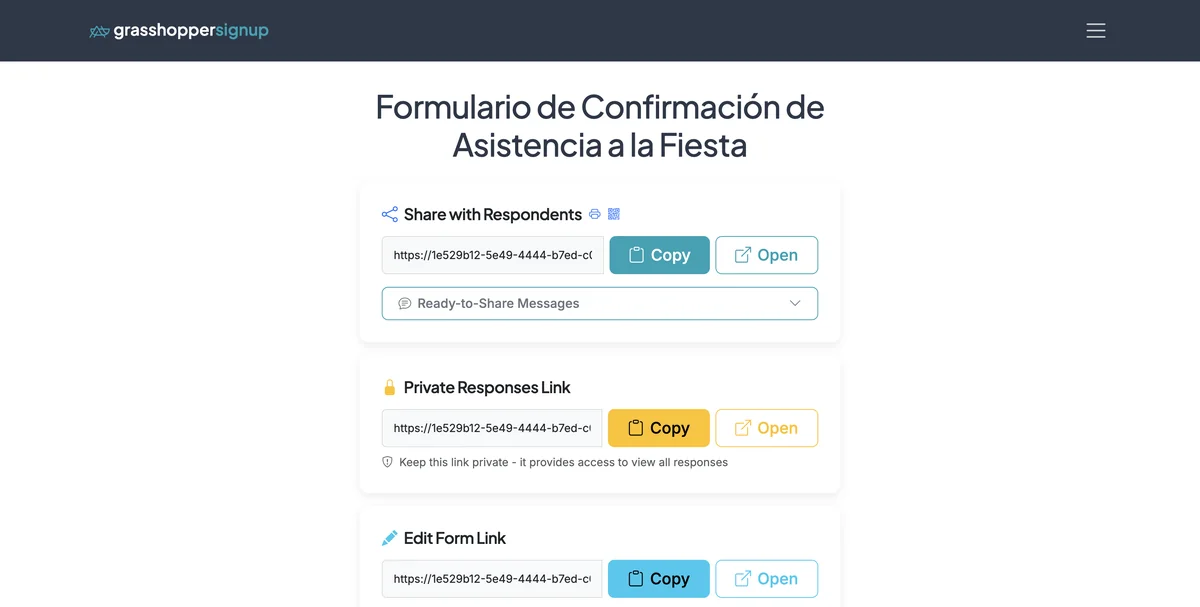
Start on the Form Options page.
Step 2
Scroll down to the 'Submit Form Button Options' section. In this section you can customize the text label shown on the Submit button for your form.
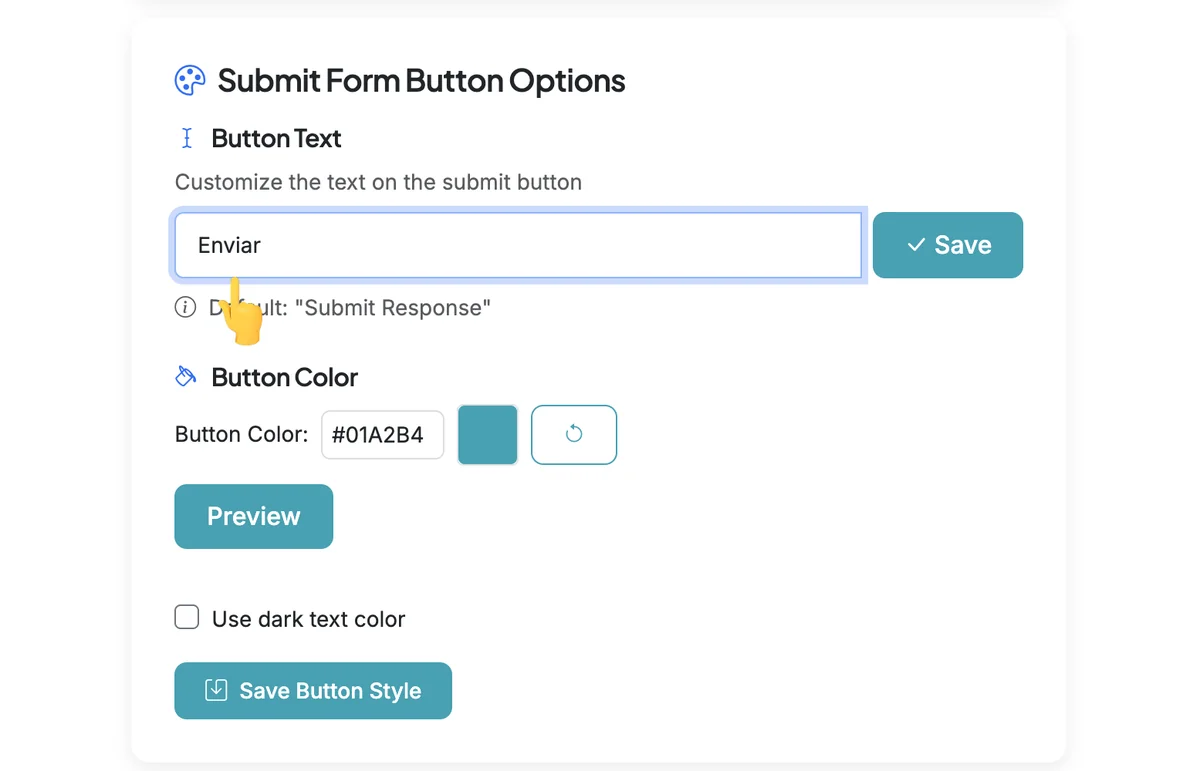
Step 3
Check out the Form Gallery for more examples: https://grasshoppersignup.com/gallery
Or check out this Spanish language form here: https://grasshoppersignup.com/respond/8120cd6b-dcf4-4a35-b58d-f1350c95bb4c
Key customization options:
- Name and Email labels: Customize the field labels for respondent information
- Options section label: Change "Options" to any text in your language
- Submit button text: Customize the form submission button label
- AI language matching: AI generation automatically detects and uses your input language
Total Steps: 6
Steps generated by StepHopper, a product of Grasshopper Signup - Create interactive step-by-step guides