How to Manage Form Notification Settings
Learn how to disable form creator email notifications or enable notifications for form collaborators when responses are submitted.
You can disable form creator email notifications, or add additional email addresses to be notified when responses are submitted to your form.
Sections in This Guide
- DISABLE FORM OWNER/CREATOR RESPONSE EMAIL NOTIFICATIONS
- SHARING YOUR FORM: Forms must be shared to enable notifications for form collaborators.
- MANAGE NOTIFICATION SETTINGS FOR FORM COLLABORATORS: By default, form collaborators do NOT receive form response email notifications. You can enable notifications using Notification Settings.
DISABLE FORM OWNER/CREATOR RESPONSE EMAIL NOTIFICATIONS
Step 1
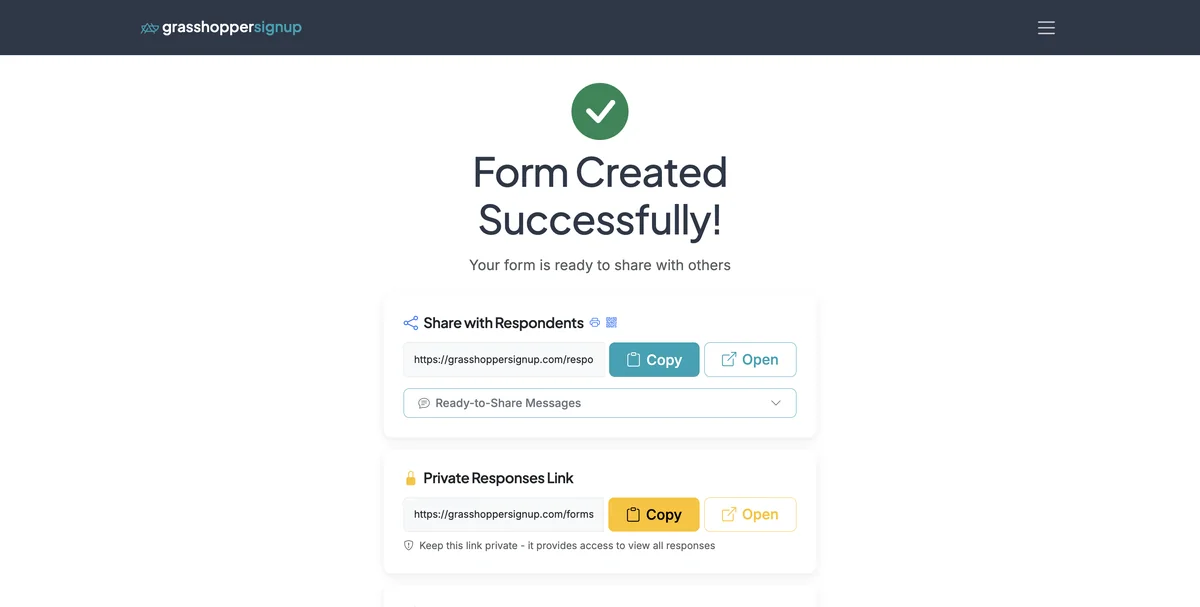
Start on the Options page for your form.
Step 2
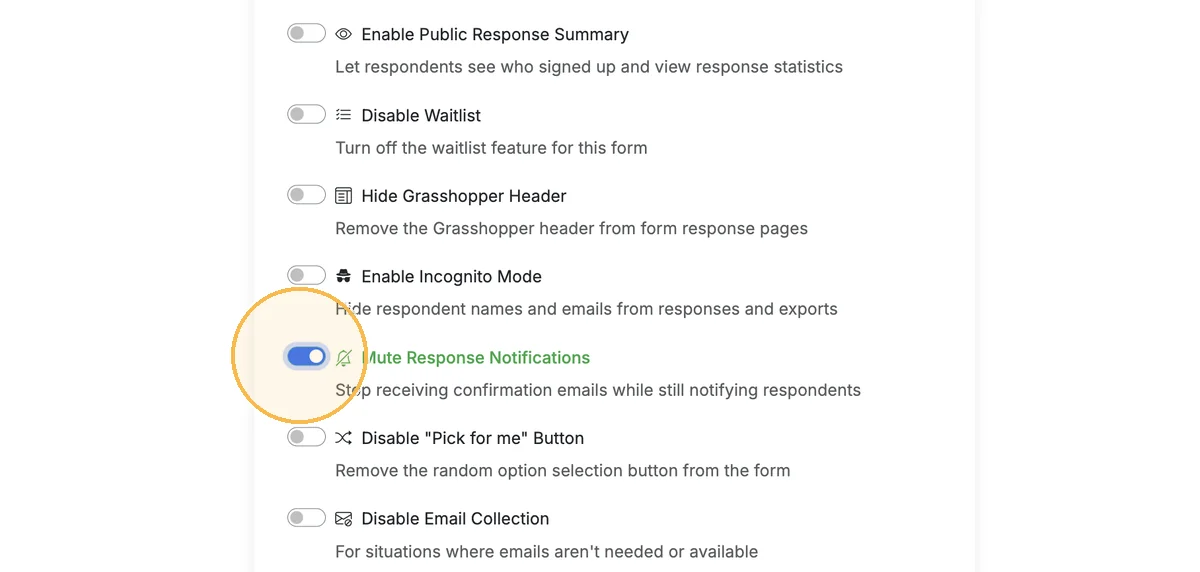
Scroll down to Form Settings and enable 'Mute Response Notifications' to disable email notifications sent to form creators (including any shared form collaborators). Confirmation emails will still be sent to respondents.
SHARING YOUR FORM
Forms must be shared to enable notifications for form collaborators.
Step 1
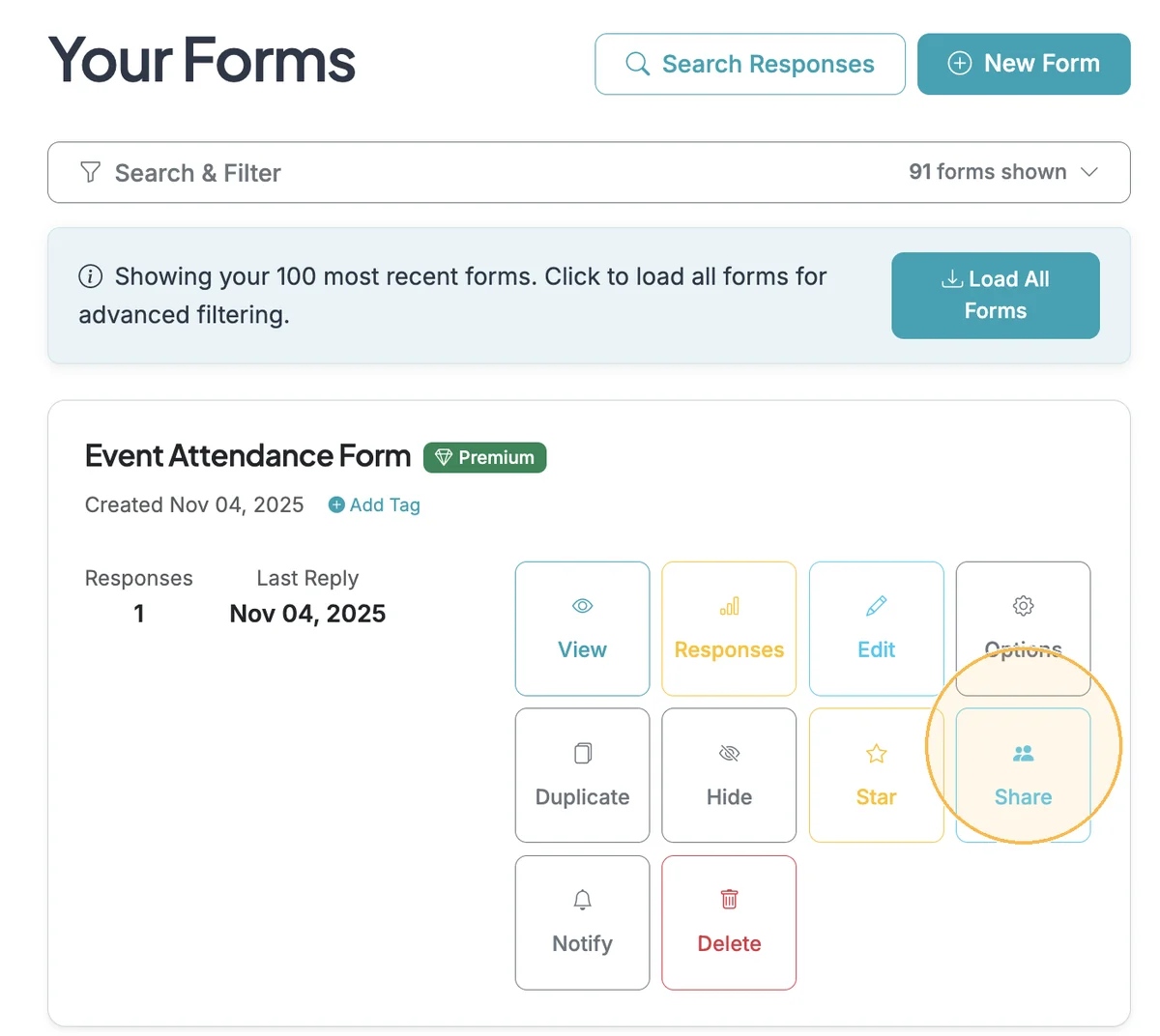
Login to your Dashboard and Share your form with any collaborators.
Step 2
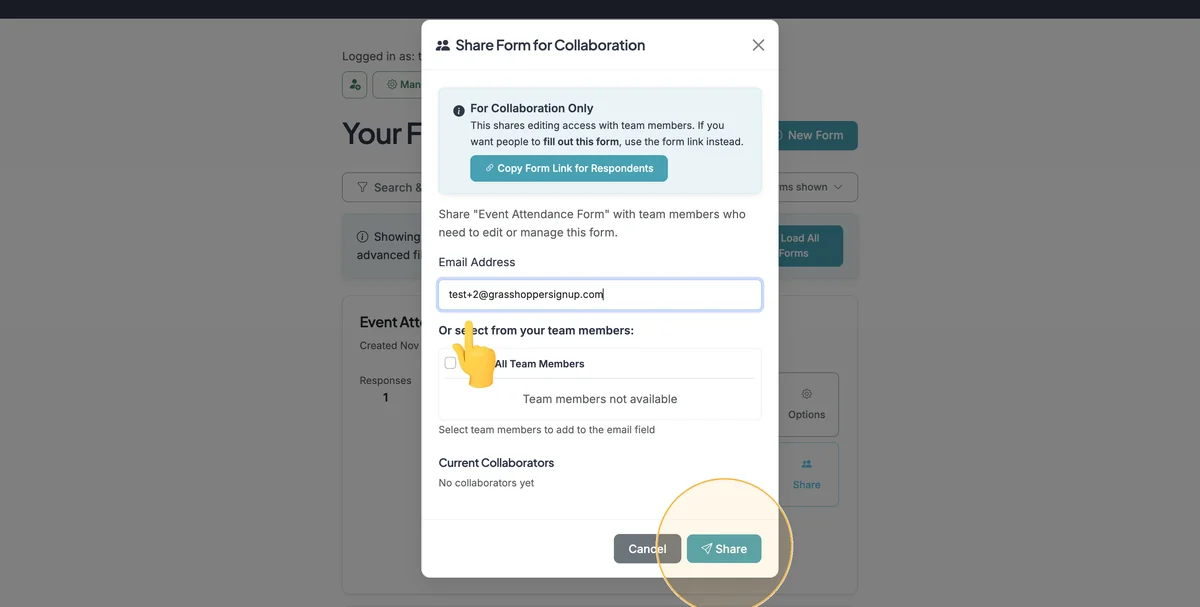
Add collaborators and click 'Share' to share your form.
MANAGE NOTIFICATION SETTINGS FOR FORM COLLABORATORS
By default, form collaborators do NOT receive form response email notifications. You can enable notifications using Notification Settings.
Step 1
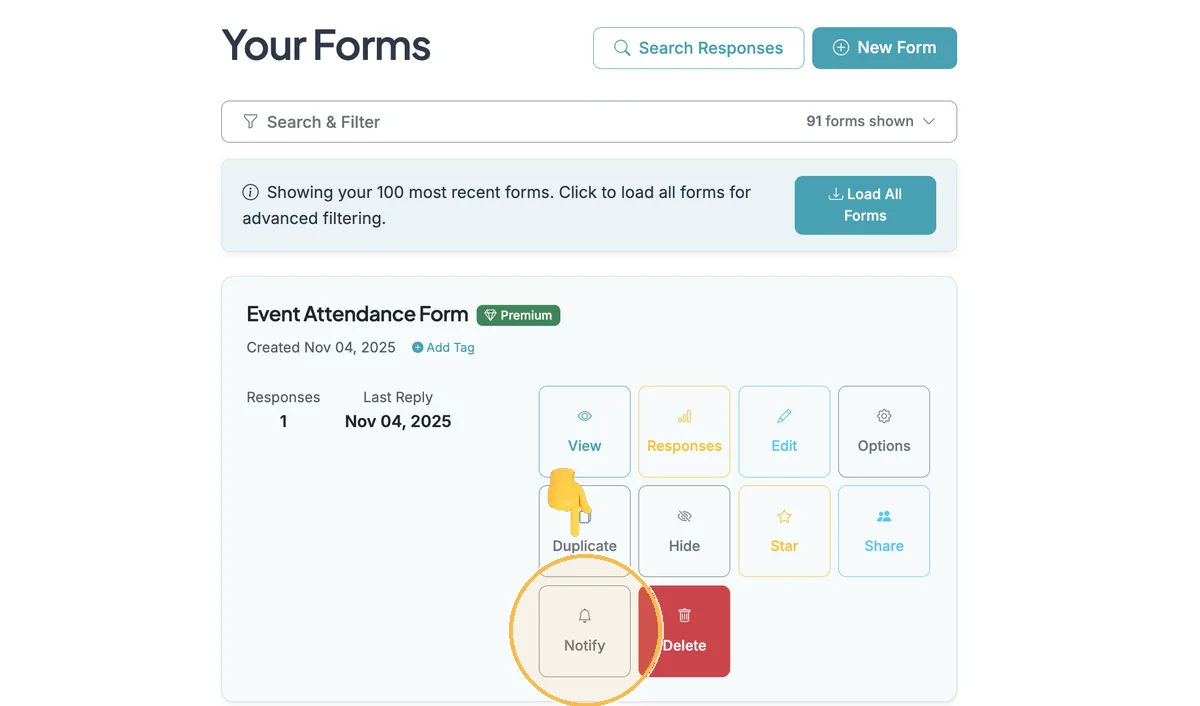
On your Dashboard, click 'Notify' to adjust notification settings for form collaborators.
Step 2
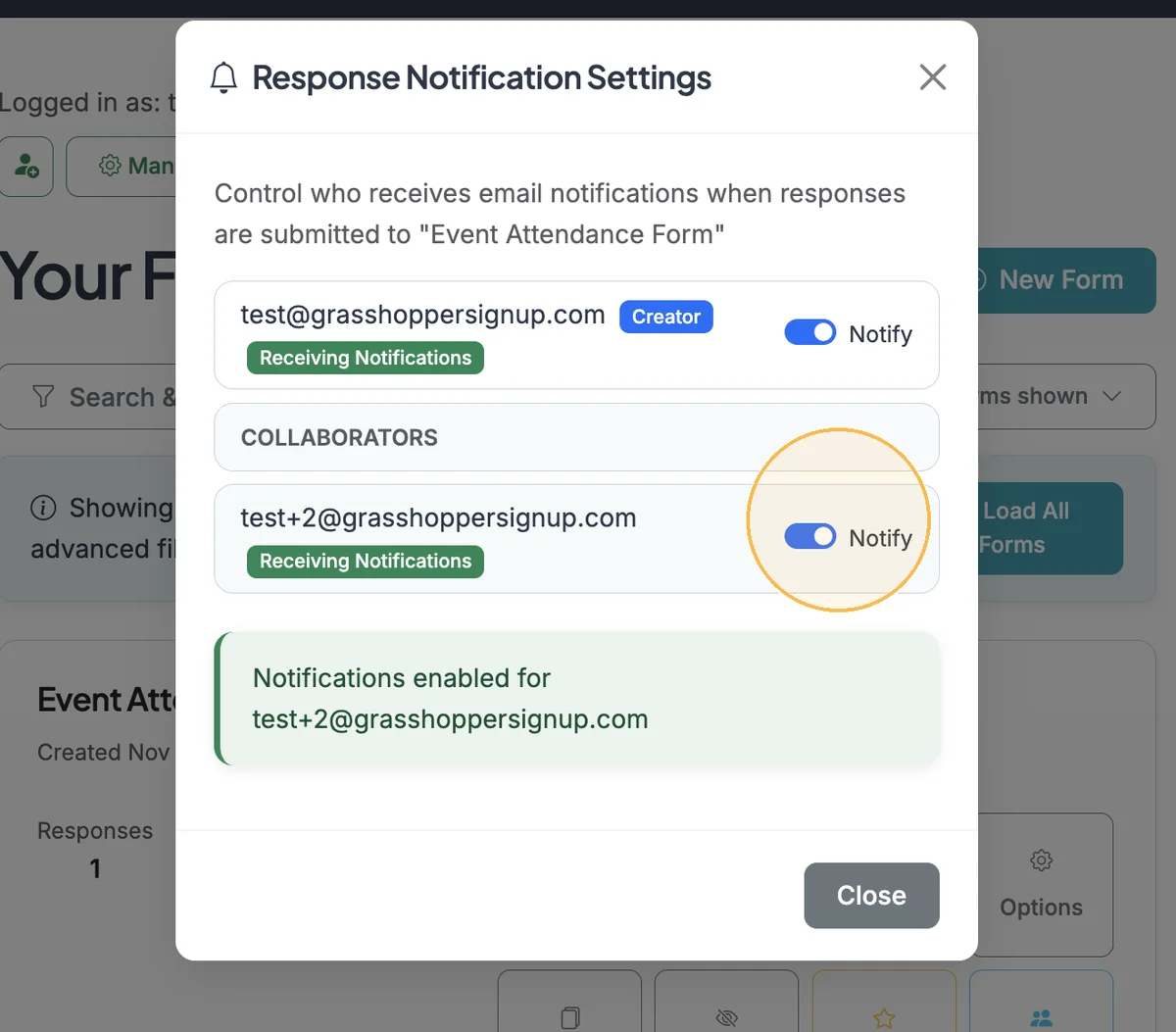
Notifications for collaborators are OFF by default. In the Notification Settings, you can turn notifications ON for any form collaborators. Enabling notifications will send users response confirmations when form responses are submitted. Collaborators will also be able to manage their own notification settings in their Dashboard.
Total Steps: 6
Steps generated by StepHopper, a product of Grasshopper Signup - Create interactive step-by-step guides