Hide past/previous dates
You can use date/times settings to hide past dates so that respondents only see available options with dates/times in the future.
You can use date/times settings to hide past dates so that respondents only see available options with dates/times in the future.
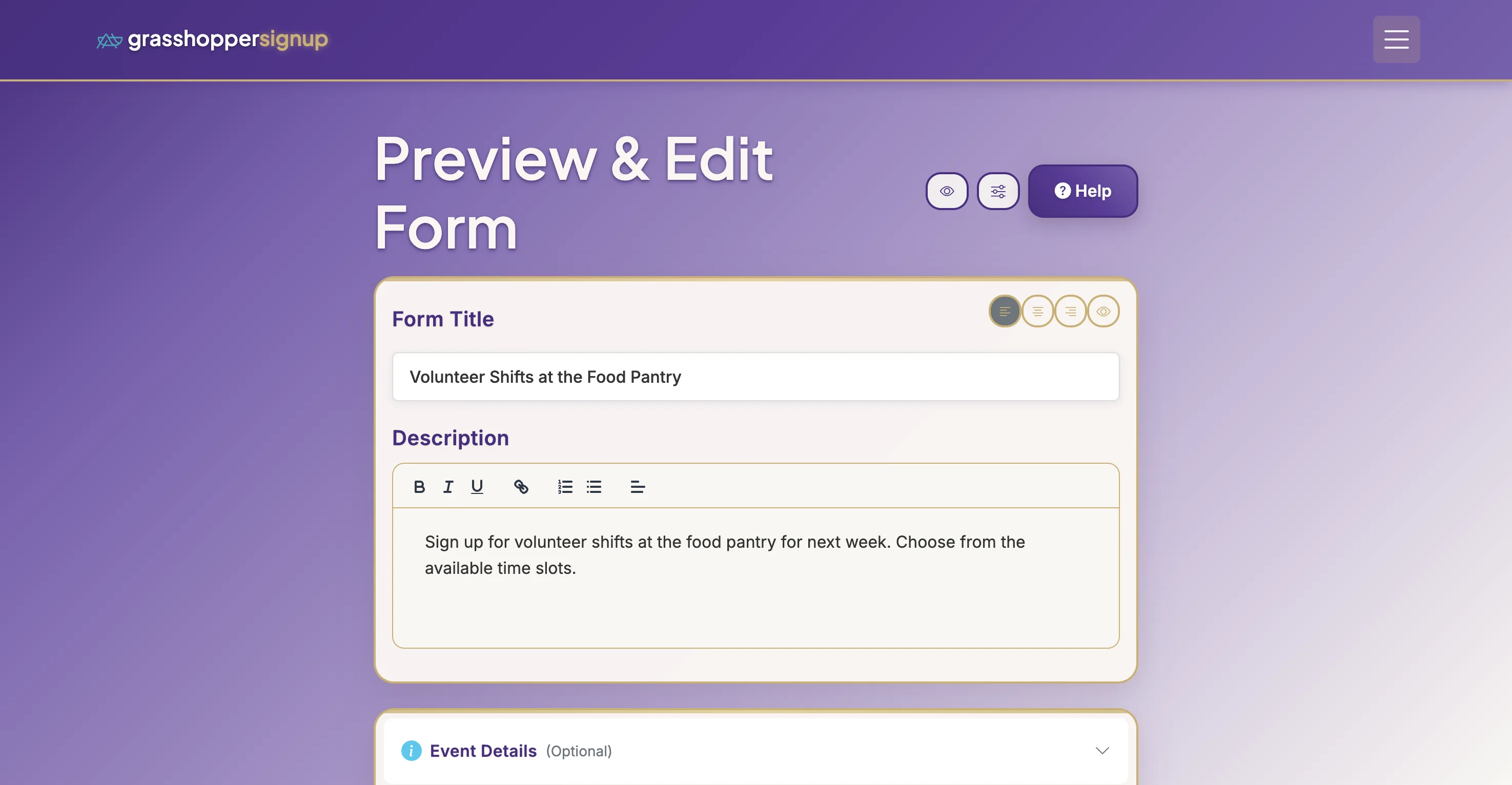
Step 1
Start on the Edit page of your form.
Step 2
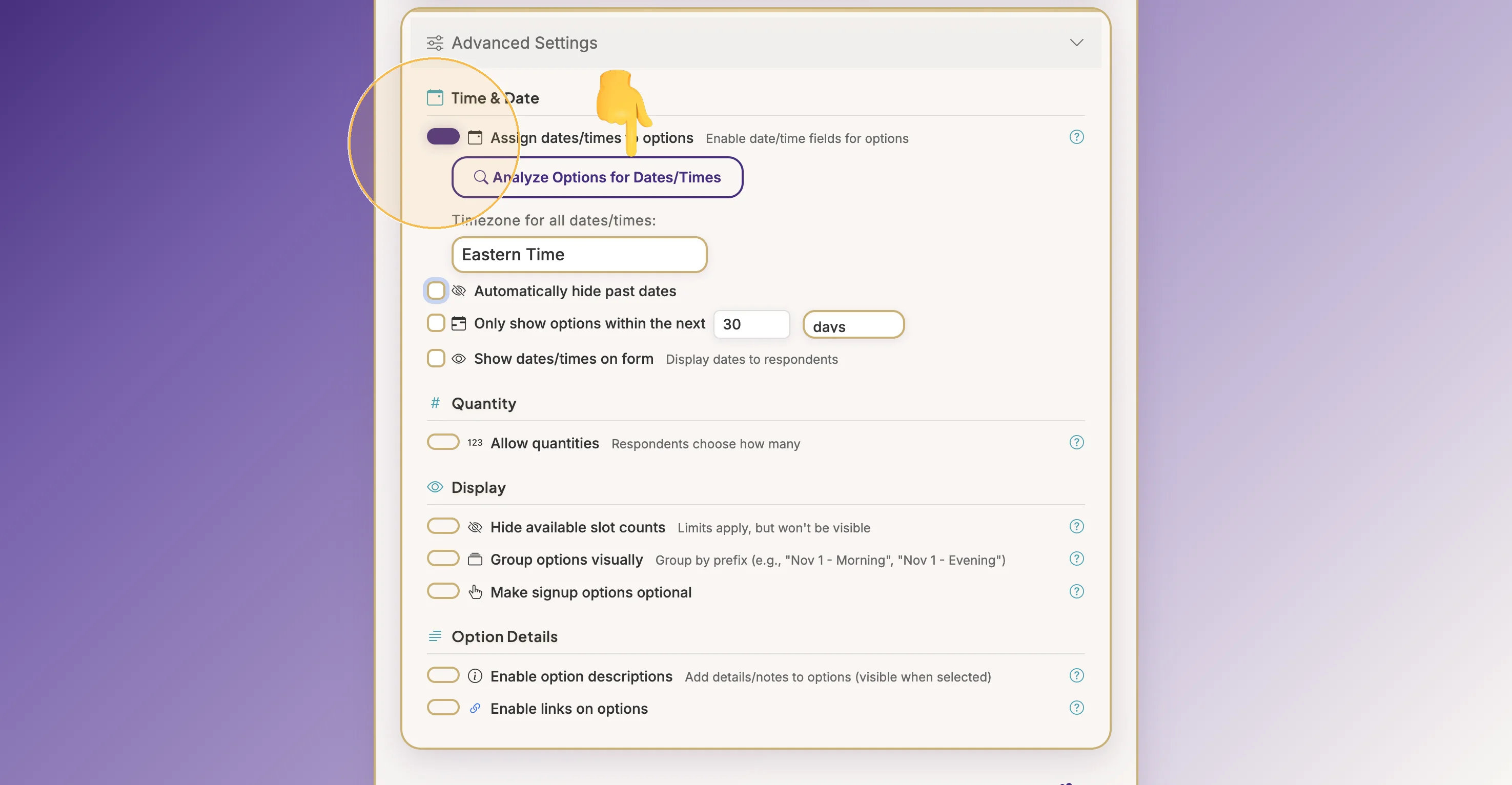
Expand 'Advanced Settings' and enable the 'Assign dates/times to options' toggle. This will allow you to assign date/time attributes to your option. Use the 'Analyze Options for Dates/Times' function or set the dates/times manually in the options below.
Step 3
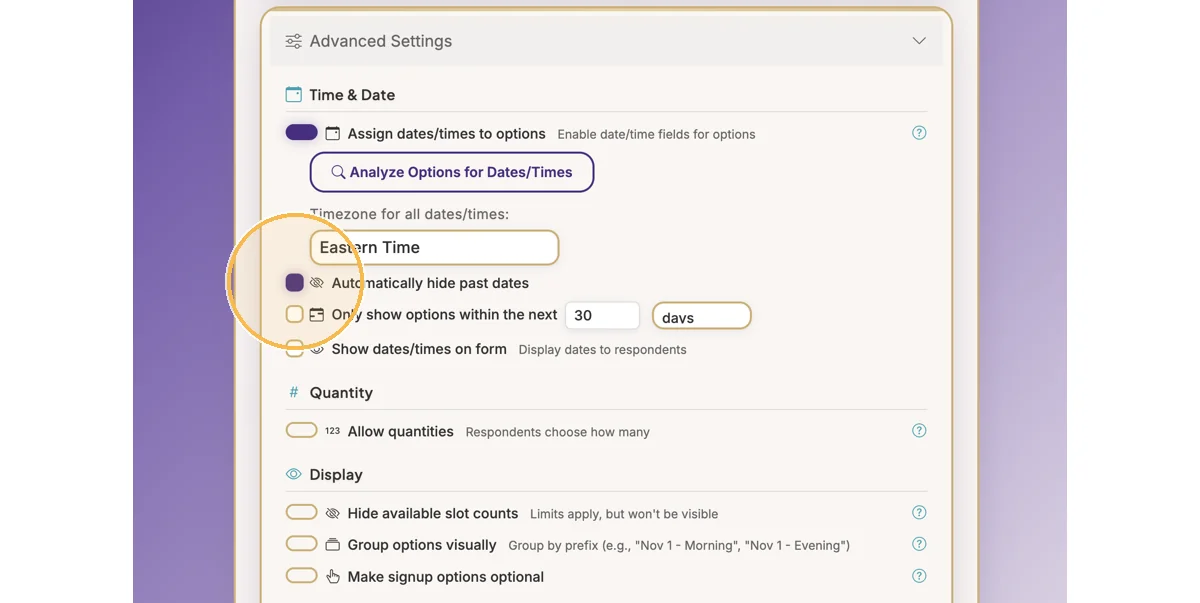
Enable the 'Automatically hide past dates' option to hide past dates.
Step 4
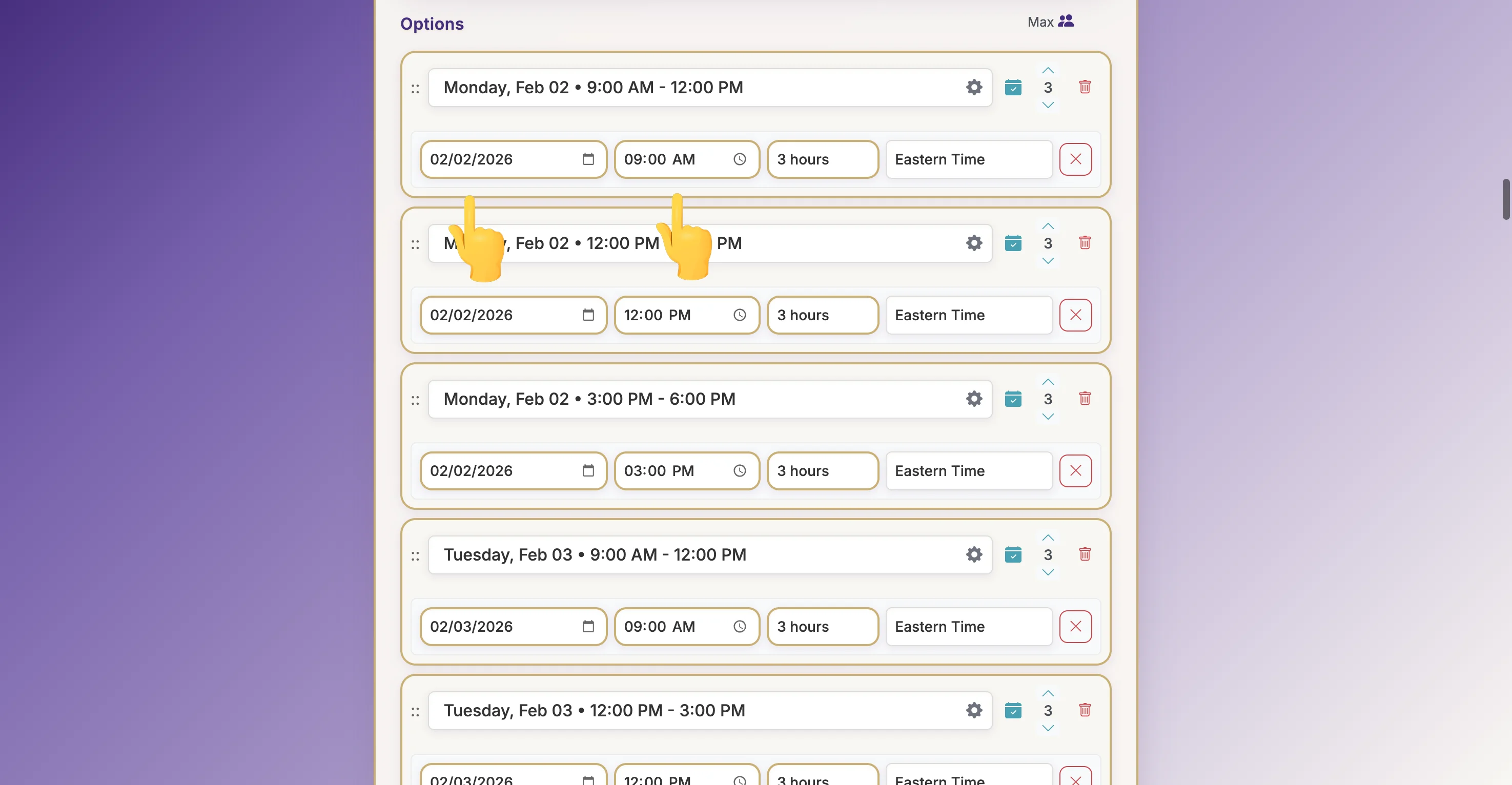
Ensure all of your options have date/time attributes. Make sure to Save your form after adding dates/times and enabling the hide past dates/times setting.
Step 5
Click on 'Volunteer Shifts at the Food P'
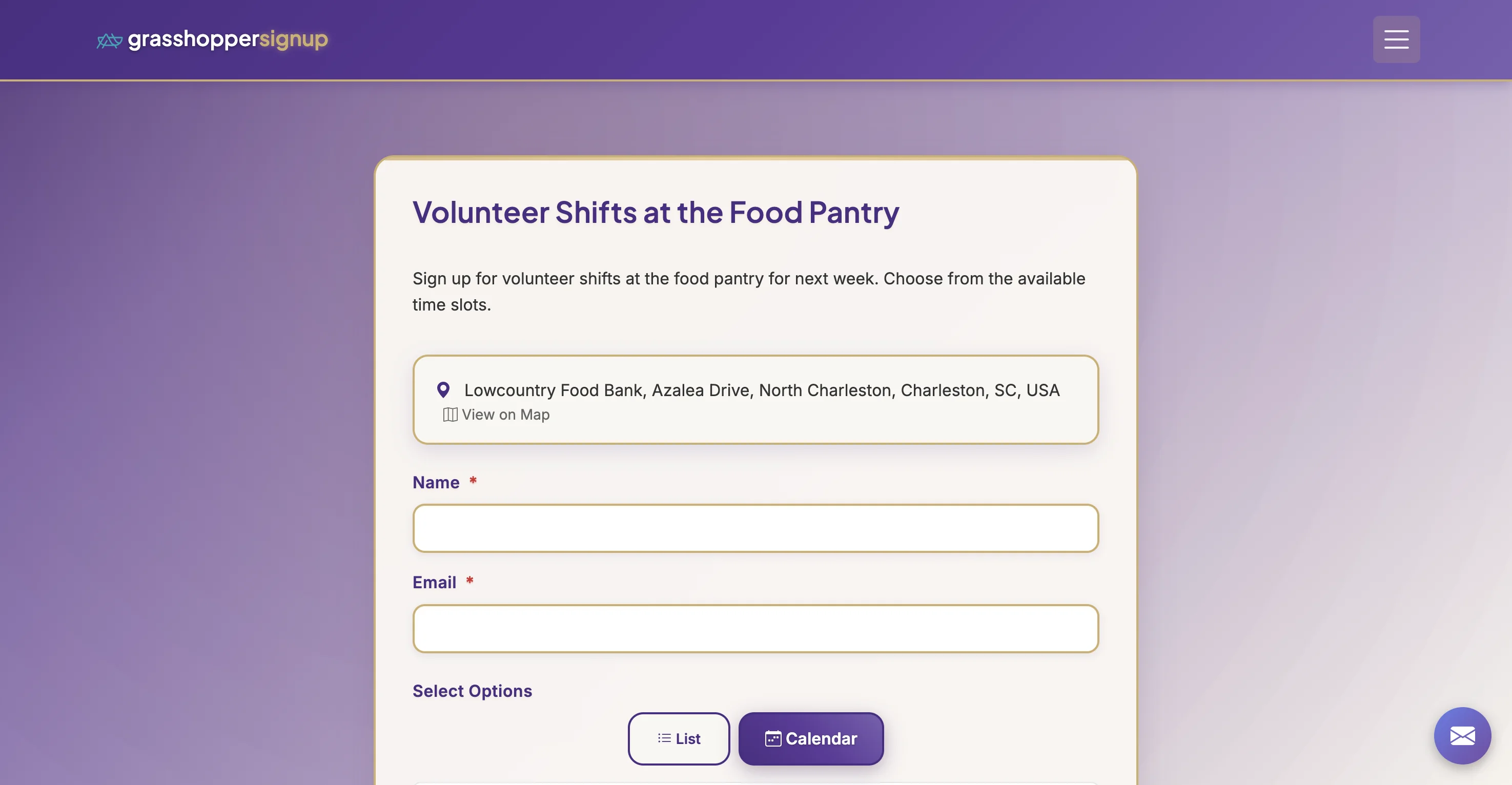
Step 6
When respondents view your form, they will only see dates/times in the future. Below is a form using calendar view (available on the Form Settings page).
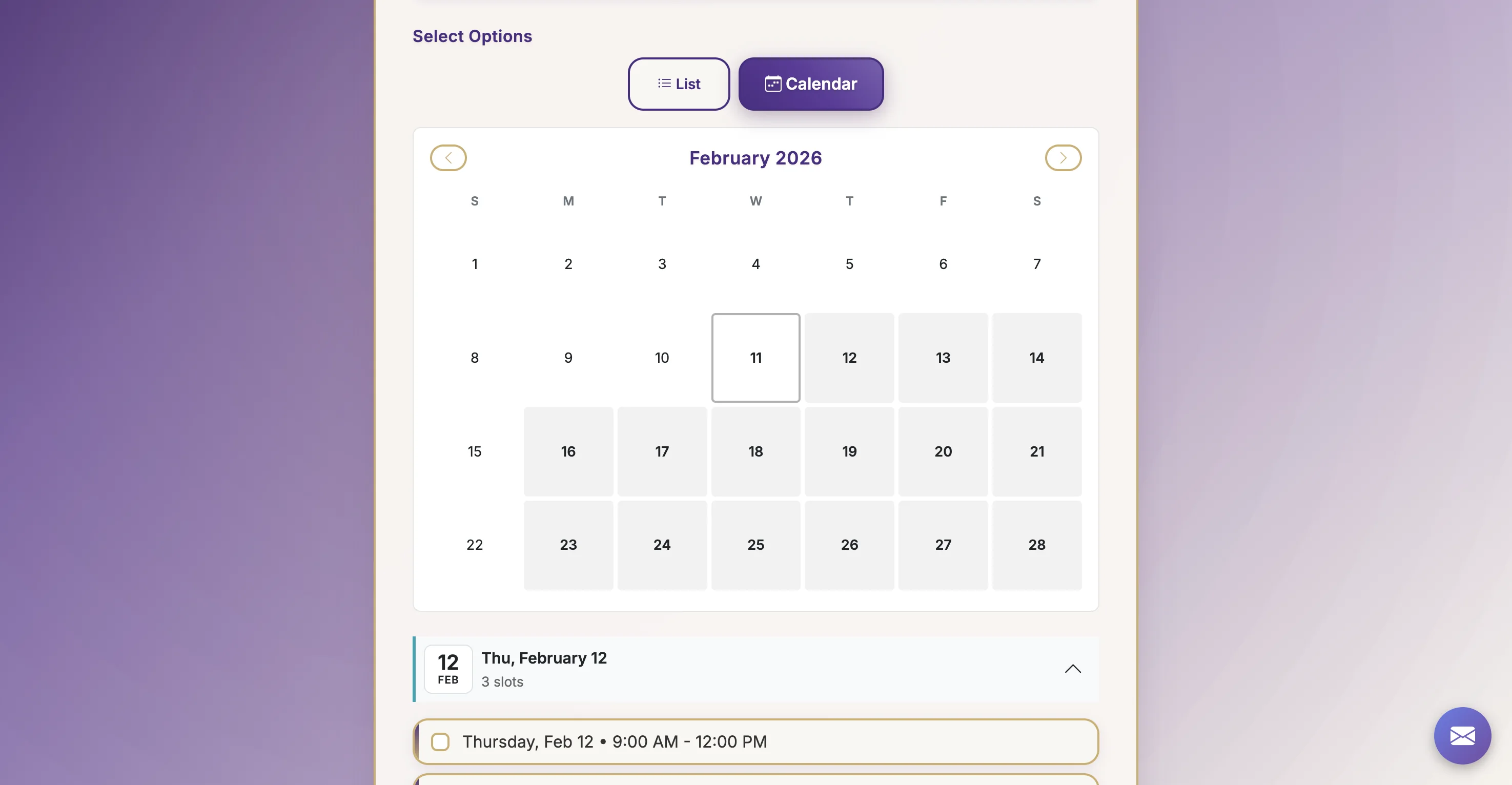
Step 7
When respondents view your form, they will only see dates/times in the future.
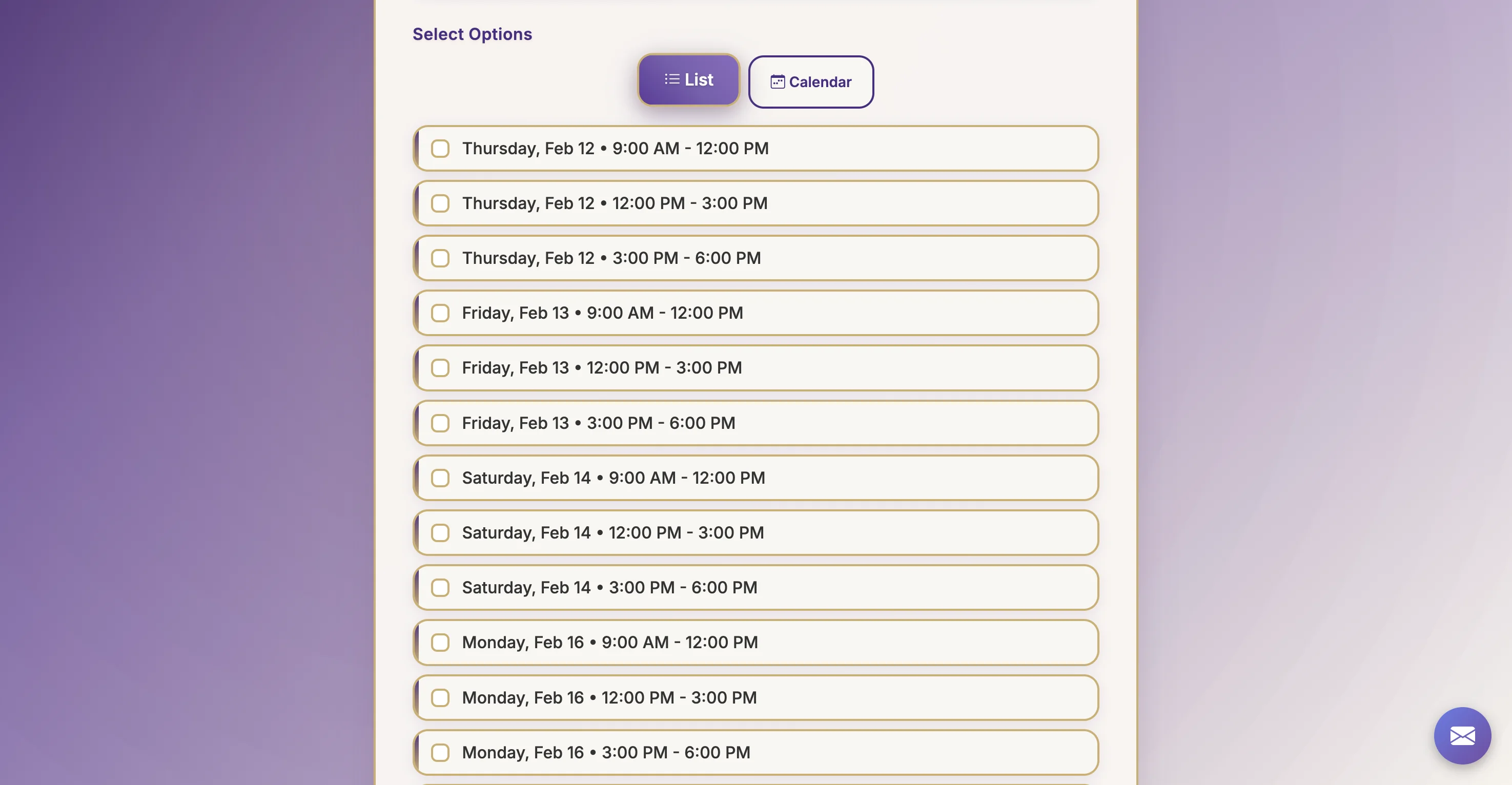
Total Steps: 7
Steps generated by StepHopper, a product of Grasshopper Signup - Create interactive step-by-step guides