How to Use Form Themes
Learn how to customize your form's appearance by selecting from available themes for a personalized or seasonal look.
This guide shows how to customize your form's appearance by selecting from Form Themes, and applying color and theme options for a personalized or seasonal look.
Step 1
Start on the Edit page of your form.
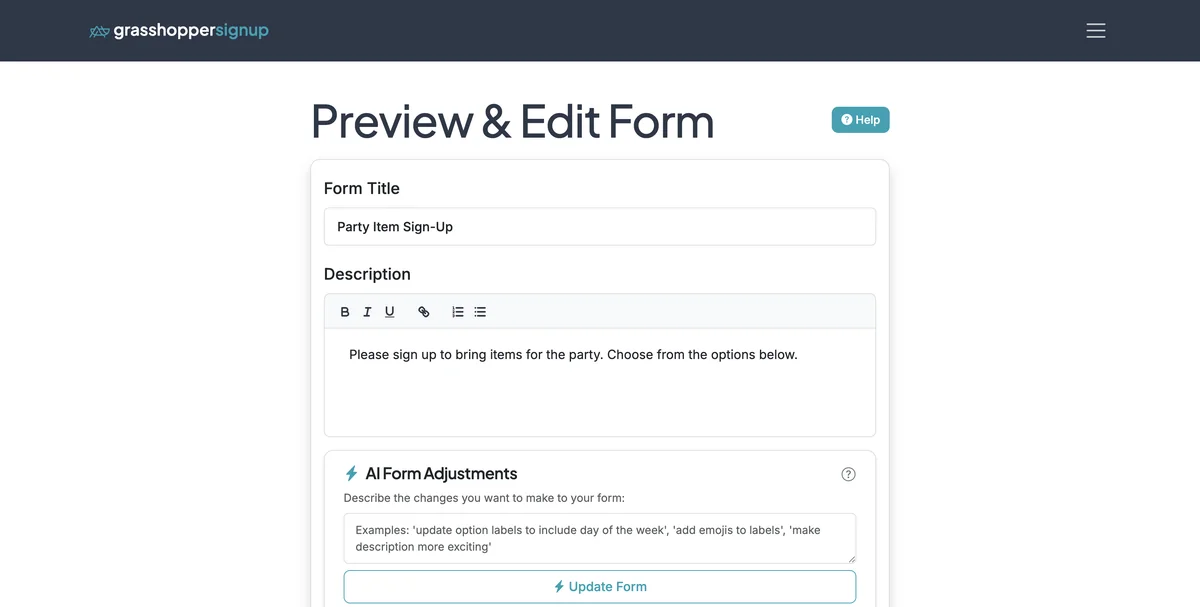
Step 2
Scroll down to the Form Theme section.
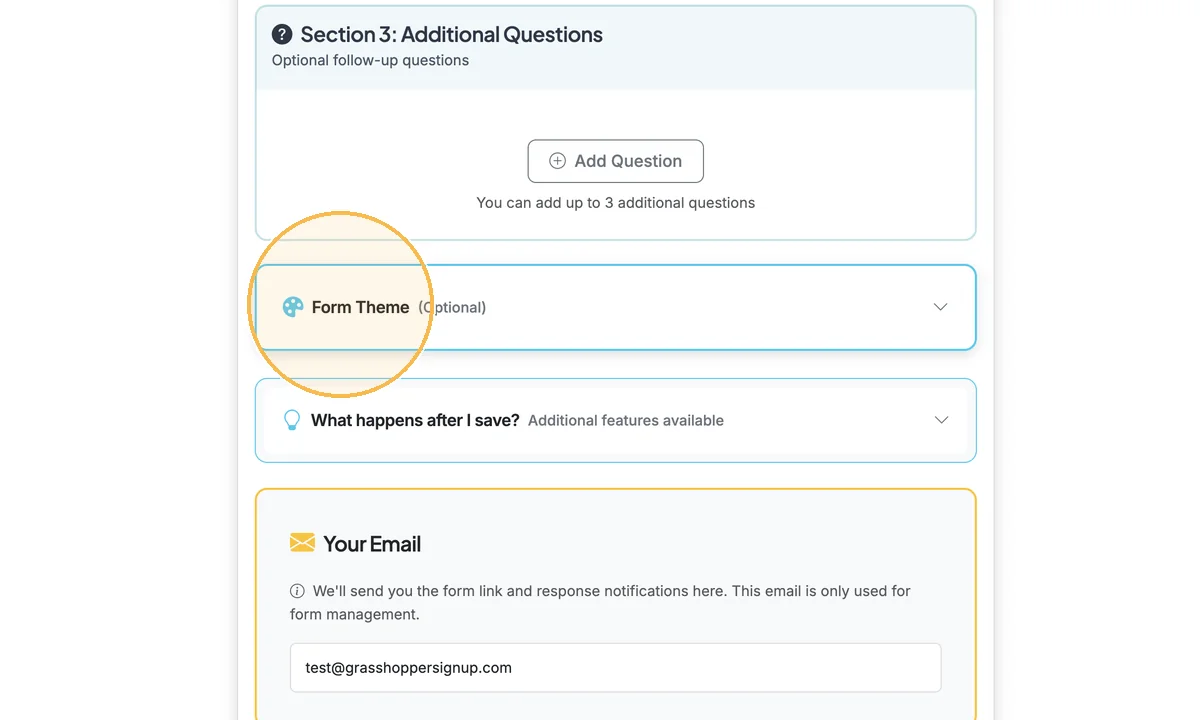
Step 3
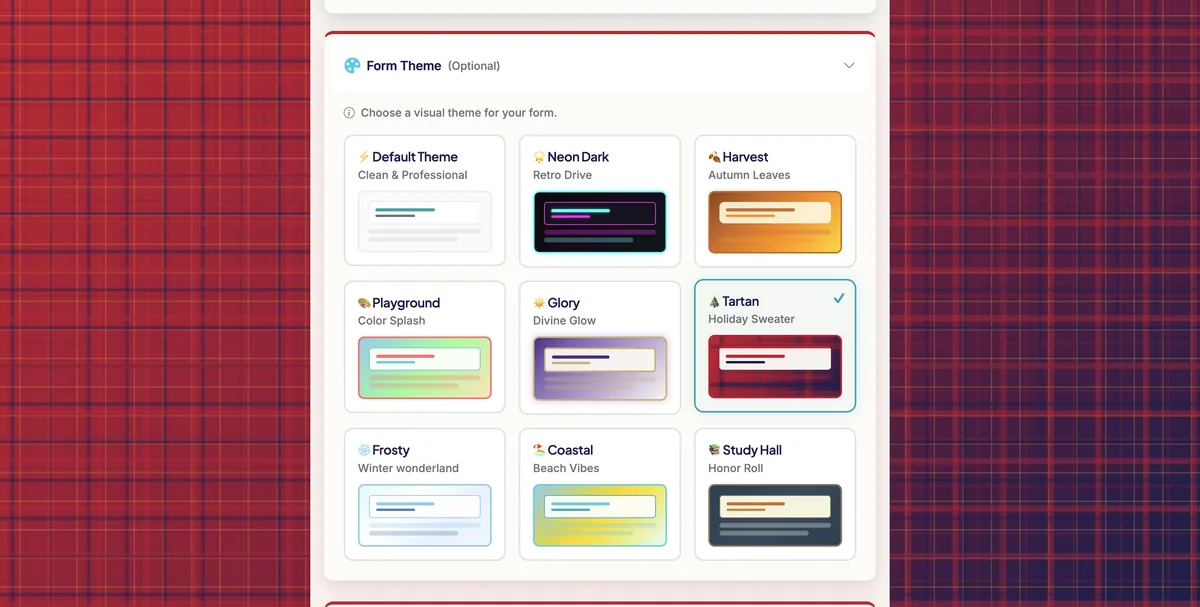
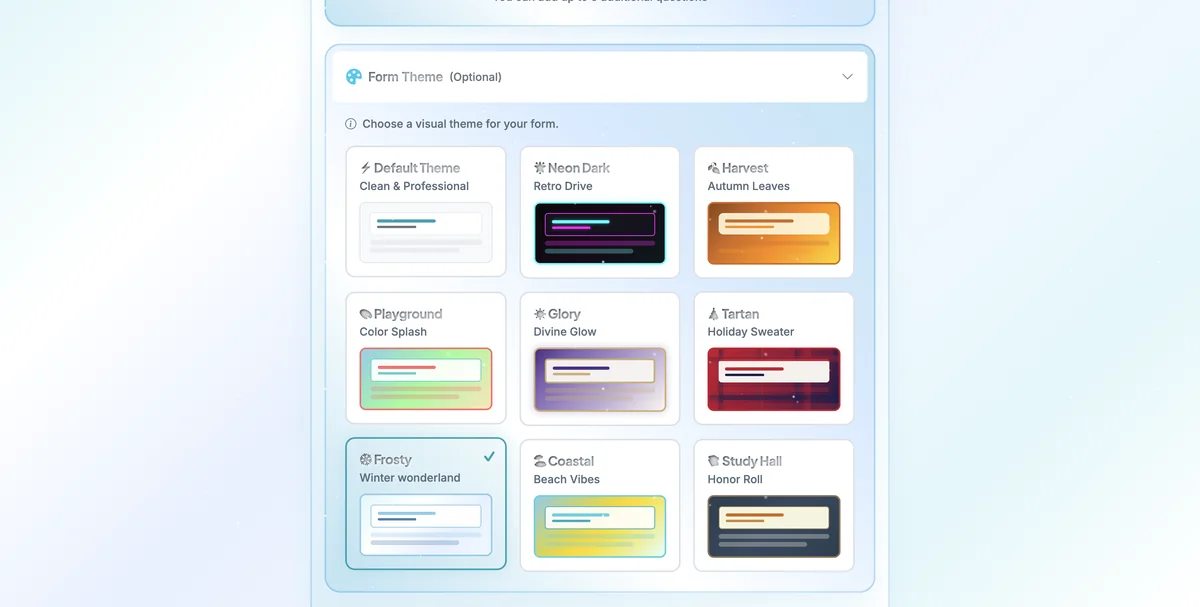
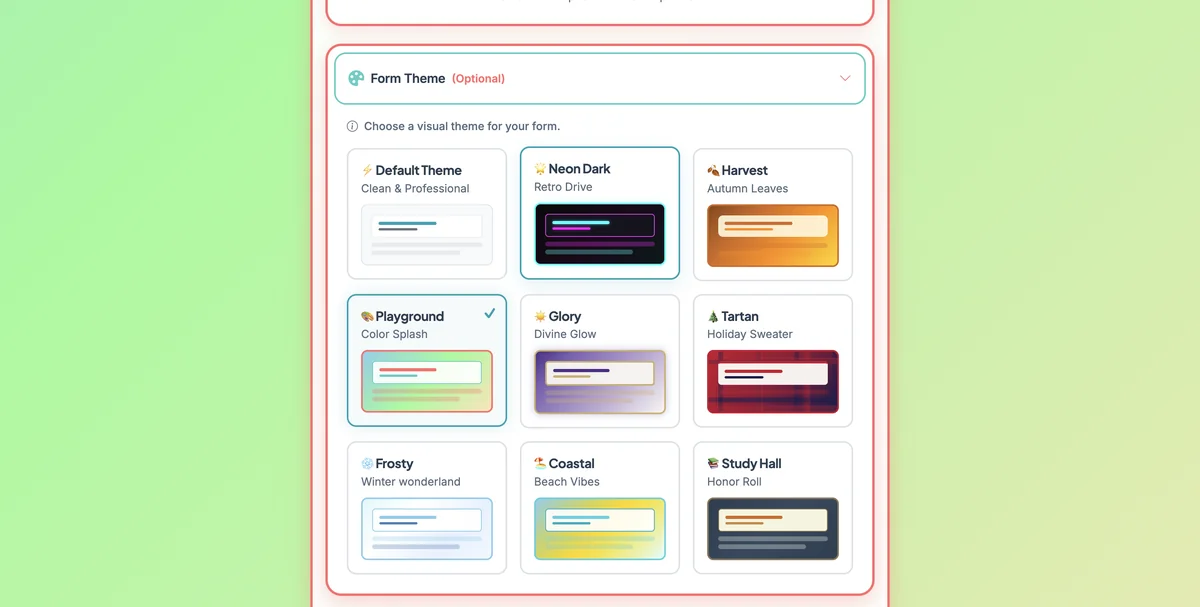
Select from available themes. Themes will be applied immediately so you can check out the look and feel of each unique theme. Themes are frequently added and rotated, so don't hesitate to reach out if you have ideas or requests for new themes.
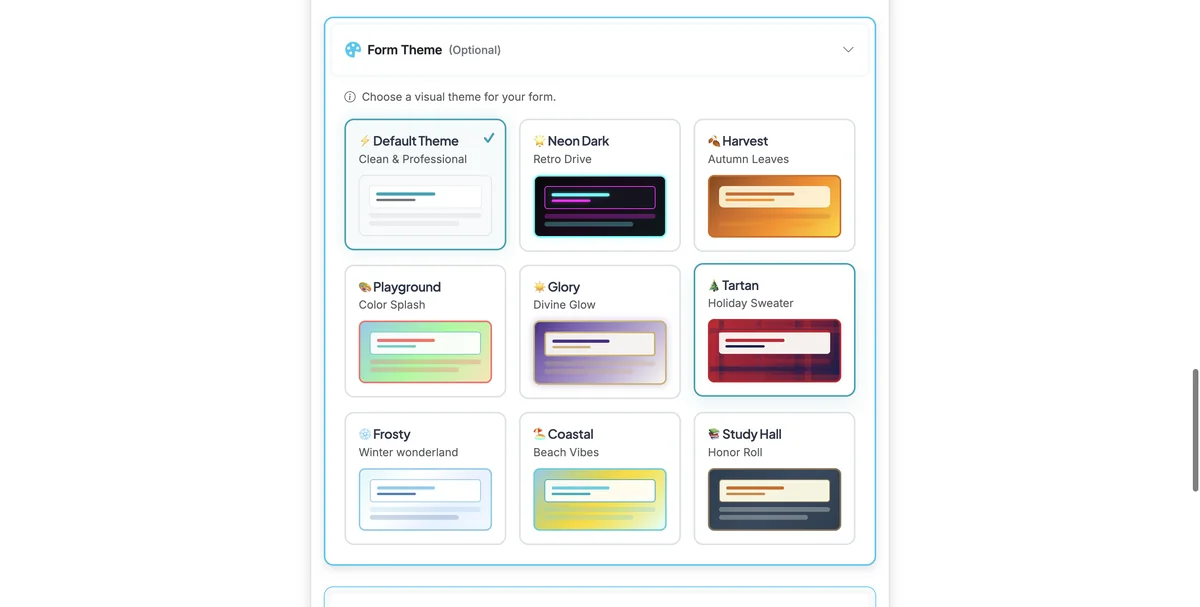
Step 4
Example: ☀️ Glory - Divine Glow
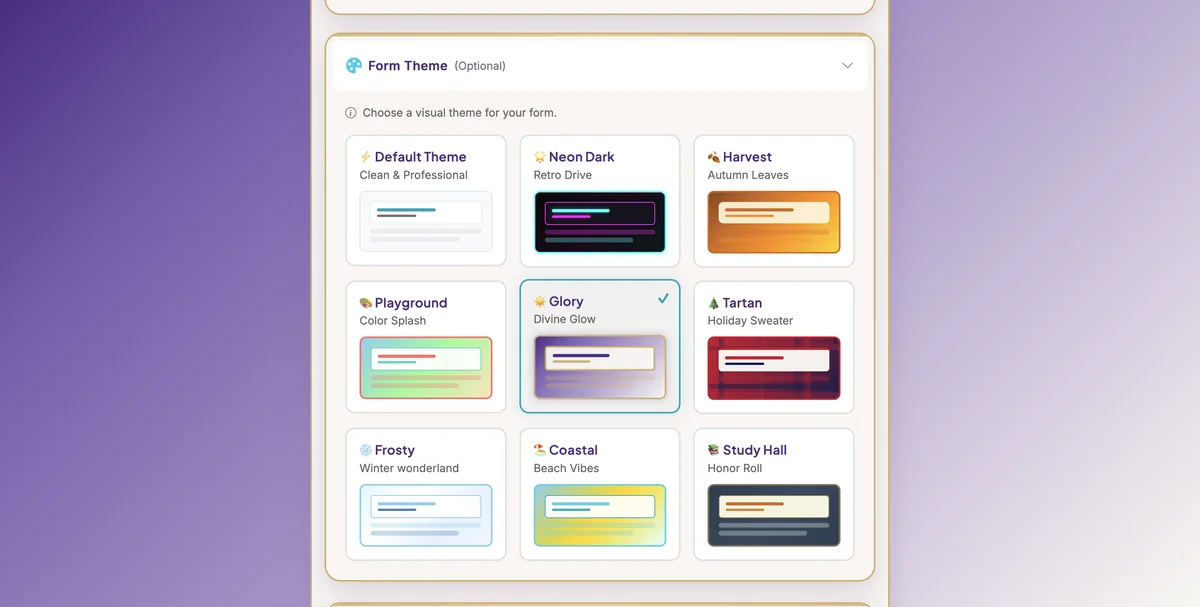
Step 5
Example: 🎄 Tartan - Holiday Sweater
Step 6
Example: ❄️ Frosty - Winter Wonderland
Step 7
Example: 🎨 Playground - Color Splash
Step 8
Example: 🌟 Neon Dark - Retro Drive

Step 9
Themes are frequently added and rotated, so don't hesitate to reach out if you have ideas or requests for new themes.
Benefits of using form themes:
- Instant preview: See changes in real-time as you select different themes
- Seasonal options: Match your form to holidays and special occasions
- Professional appearance: Pre-designed themes ensure a polished look
- No design skills needed: Simply select a theme and it's applied automatically
Total Steps: 9
Steps generated by StepHopper, a product of Grasshopper Signup - Create interactive step-by-step guides