Allow respondents to upload a file (image, video, document, etc.)
Learn how to add a File Upload question to your form as an Additional Question, allowing respondents to upload files with their response.
You can add a File Upload question to your form as an Additional Question. This allows respondents to upload files to submit with their response.
Step 1
Respondents can upload PDFs and most other common file types including Word, Excel, PowerPoint, images (JPG, PNG, GIF, SVG), audio (MP3, WAV), video (MP4, MOV), and data files (CSV, JSON). Respondents can upload up to 3 files, with each file up to 100 MB in size.
Step 2
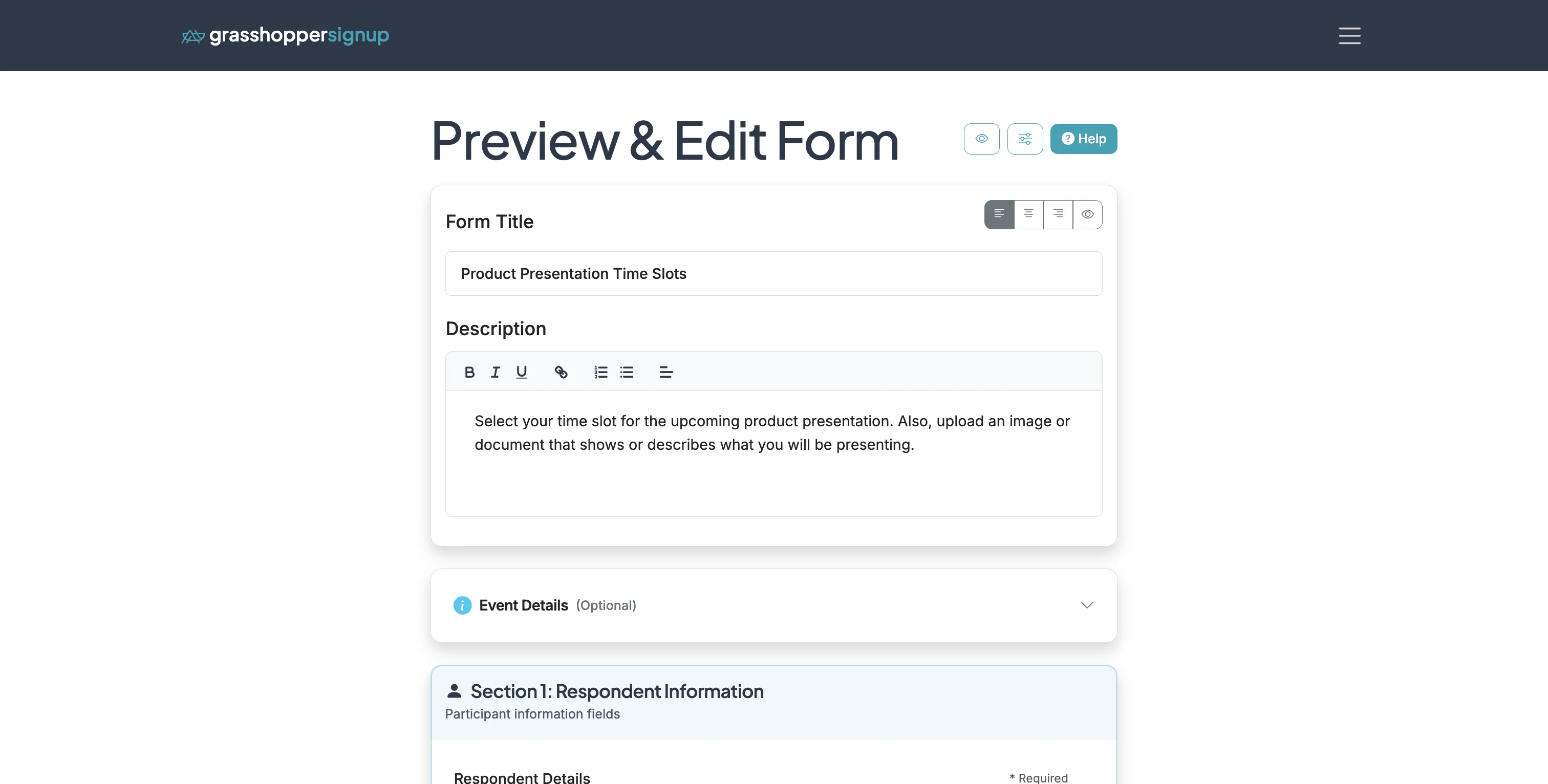
Start on the Edit page of your form.
Step 3
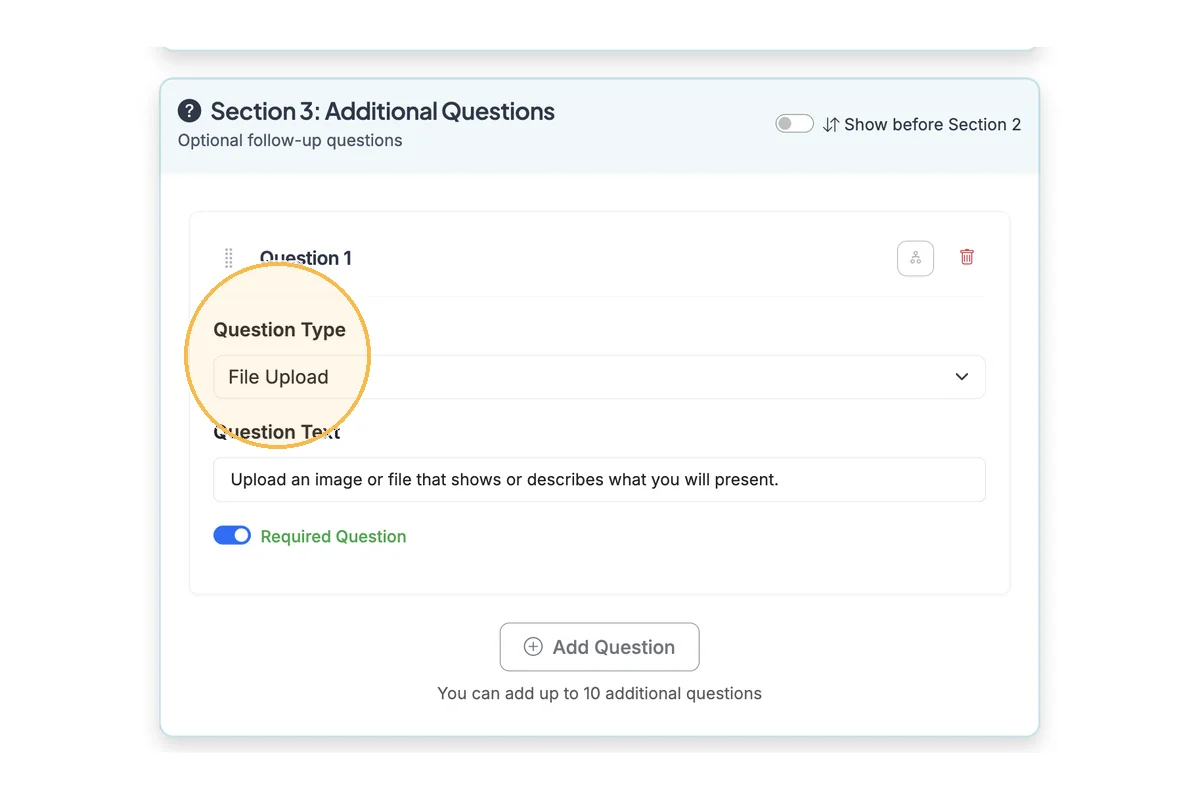
Scroll down to Section 3 for Additional Questions. Add an additional question. Set the Question Type to 'File Upload'.
Step 4
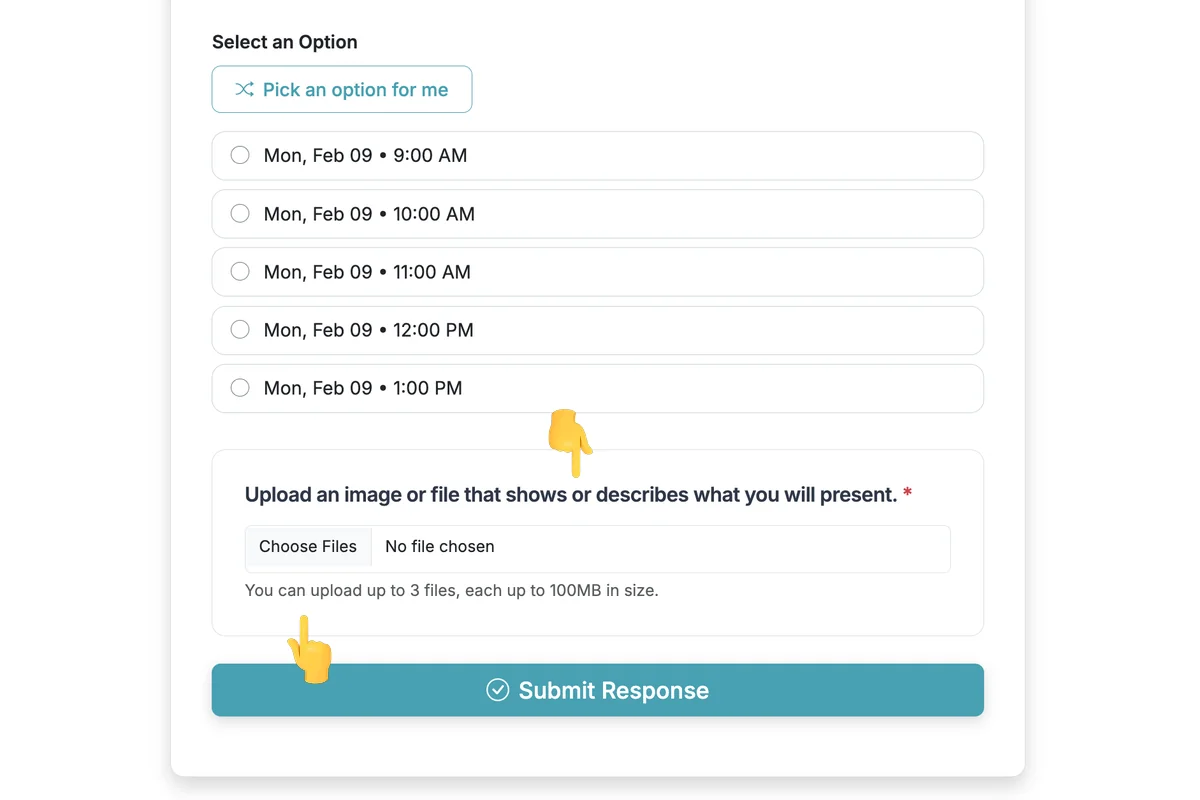
Respondents will be able to add files (up to 3) that will be saved to their response and viewable on the Responses page for your form.
Total Steps: 4
Steps generated by StepHopper, a product of Grasshopper Signup - Create interactive step-by-step guides