How to Enforce a Maximum on Quantity Selection
Learn how to set a maximum limit when allowing respondents to select quantities to control participation limits for events or contributions.
This guide explains how to enforce a maximum value when allowing respondents to select a quantity. This feature helps in situations where you may want to limit the number of guests someone can bring to an event, or items someone can contribute to a selection to ensure more respondents have an opportunity to participate.
Step 1
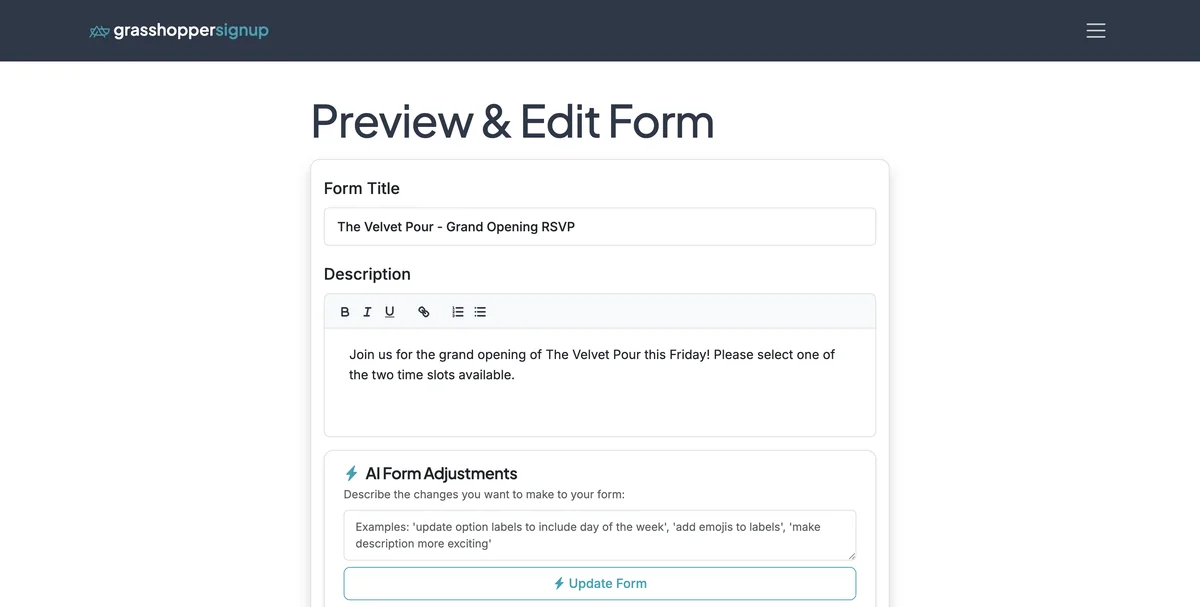
Start in the Edit page of your form.
Step 2
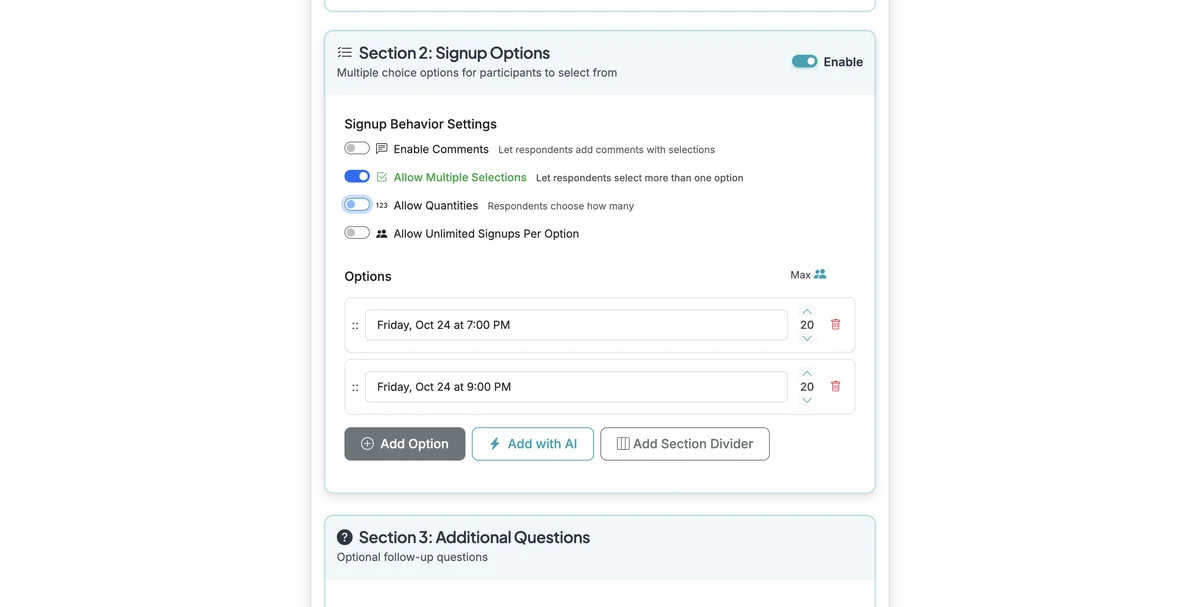
Click on input
Step 3
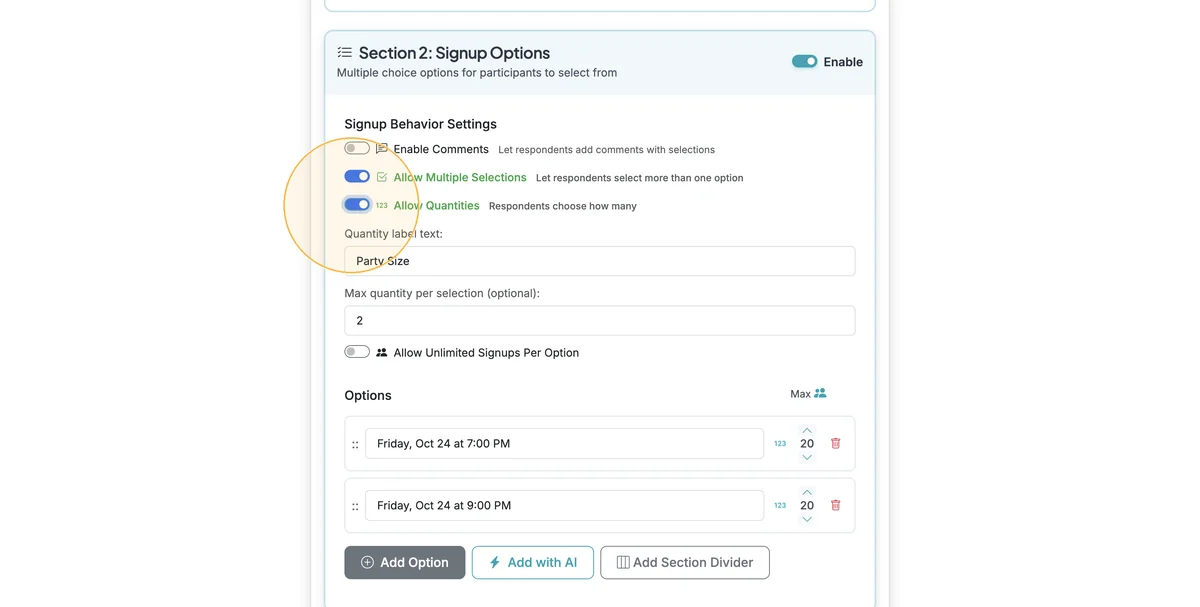
Turn on the "Allow Quantities" toggle.
Step 4
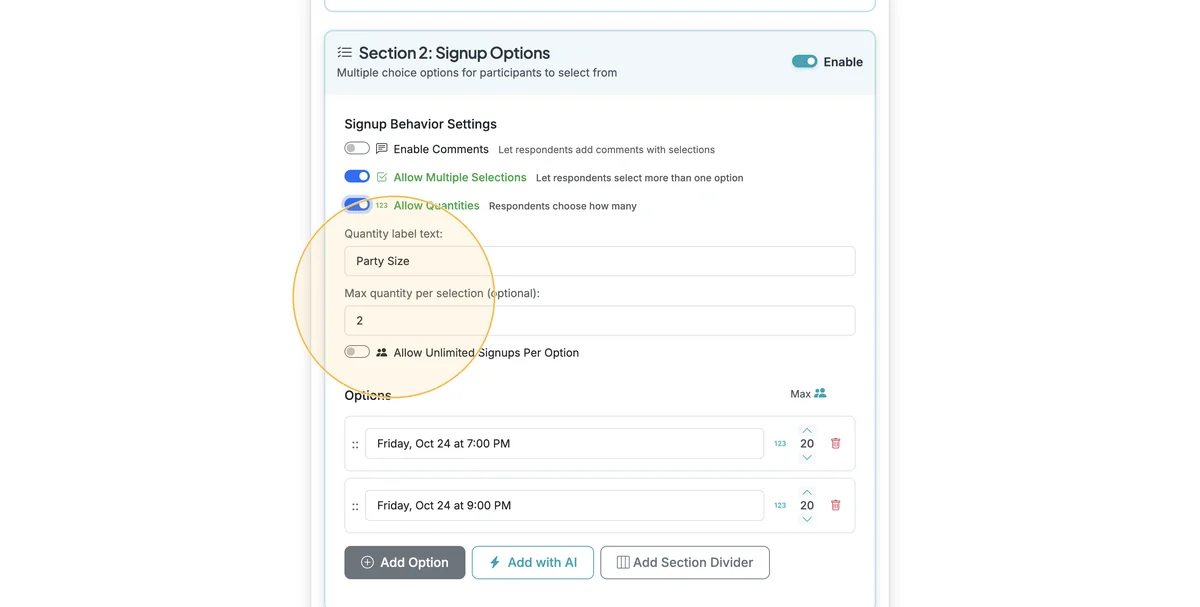
When you Allow Quantities, you can set the help text label that respondents will see as well as set a Max quantity per selection (leave this blank if you do not want to specify a Max).
Step 5
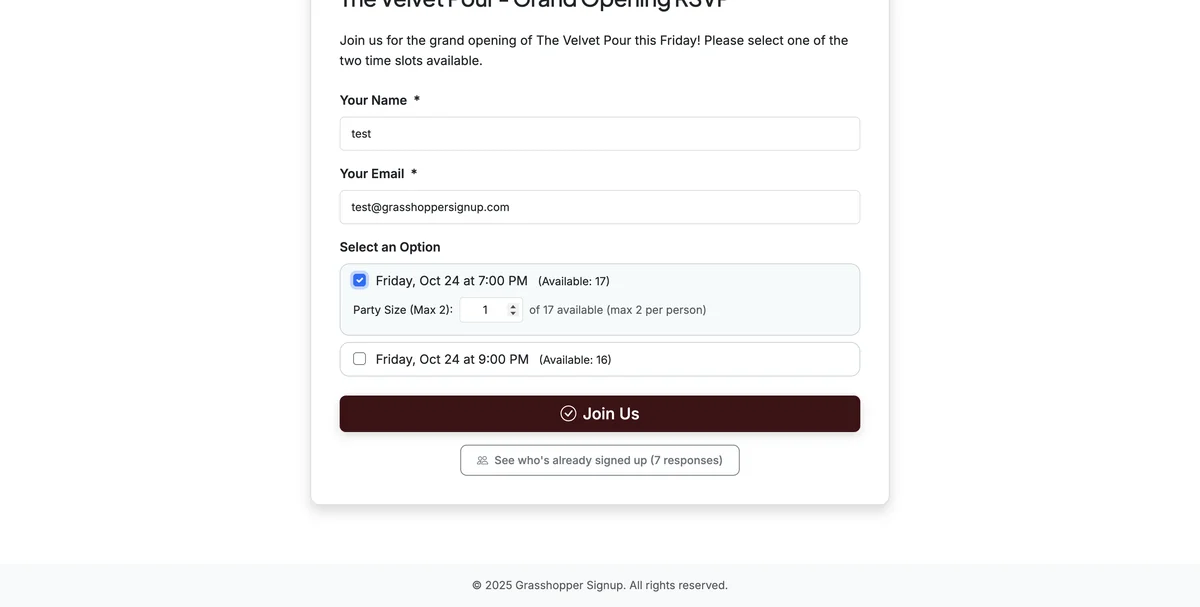
When respondents complete your form, they will see the max shown on the quantity selection.
Step 6
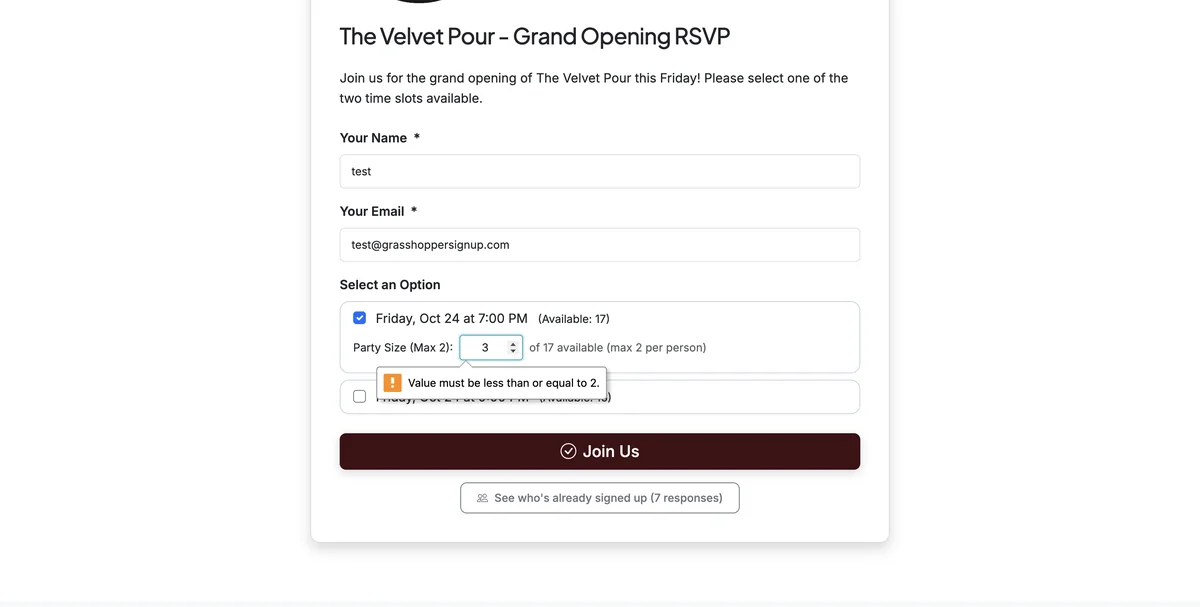
Form validation prevents submitting more than the Max quantity allowed.
Step 7
See a form that has enabled quantity selection with maximum enforcement in action here: https://grasshoppersignup.com/respond/5f248932-7bf0-4a1d-8ad2-202954eb2c87
Benefits of enforcing maximum quantities:
- Fair distribution: Ensures more people can participate by limiting individual contributions
- Event capacity control: Manage total attendees by limiting guests per registration
- Resource management: Prevent any single person from claiming too many items or slots
- Automatic validation: The form prevents submissions that exceed your maximum
Total Steps: 7
Steps generated by StepHopper - Create interactive step-by-step guides