How to Enable Payment Methods
Learn how to add payment collection options (Venmo, PayPal, CashApp, Zeffy, Zelle, and custom payment methods) to your signup forms.
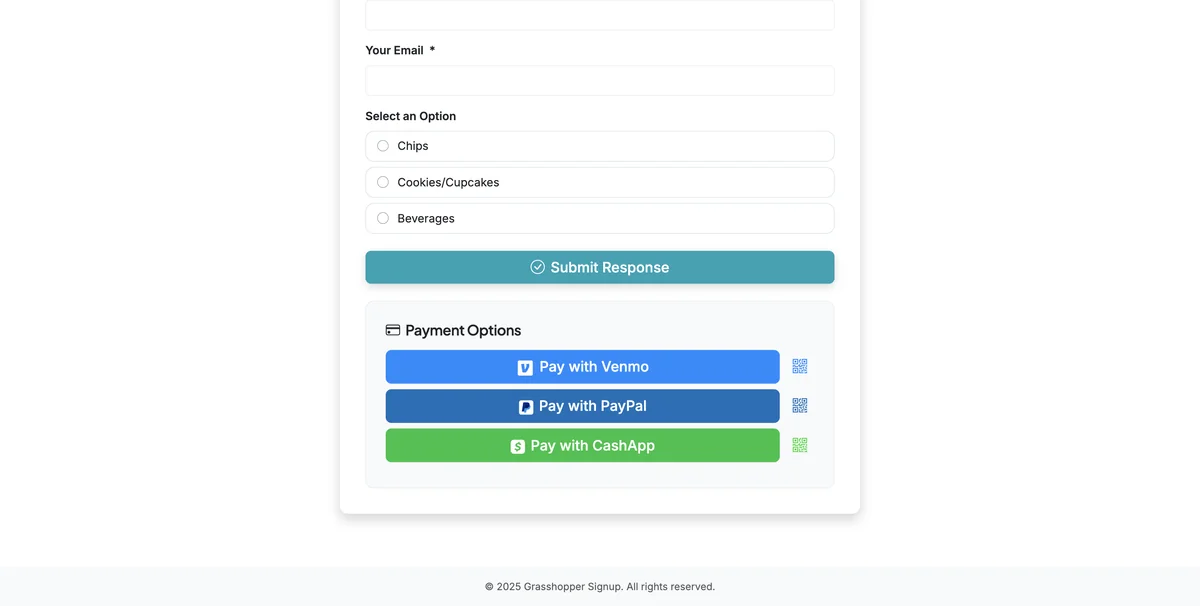
This guide will walk you through how to Enable Payment Methods on your form that your respondents can use when completing the form. Payment buttons are displayed at the bottom of the form but payment is not required to submit a form.
Step 1
Go to the Form Options page for your form.
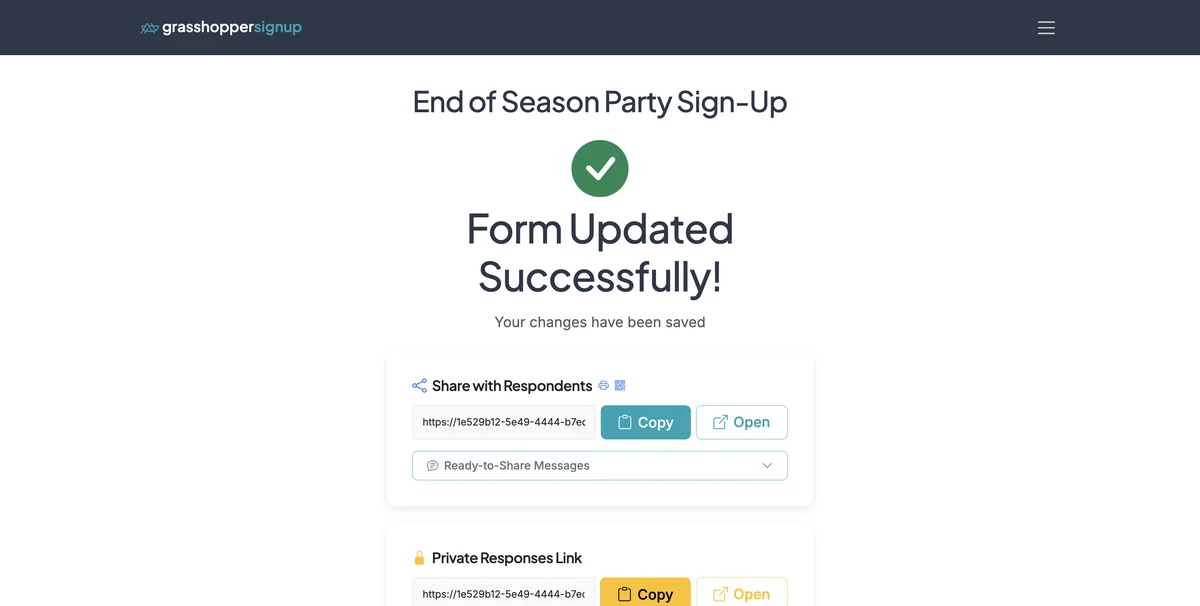
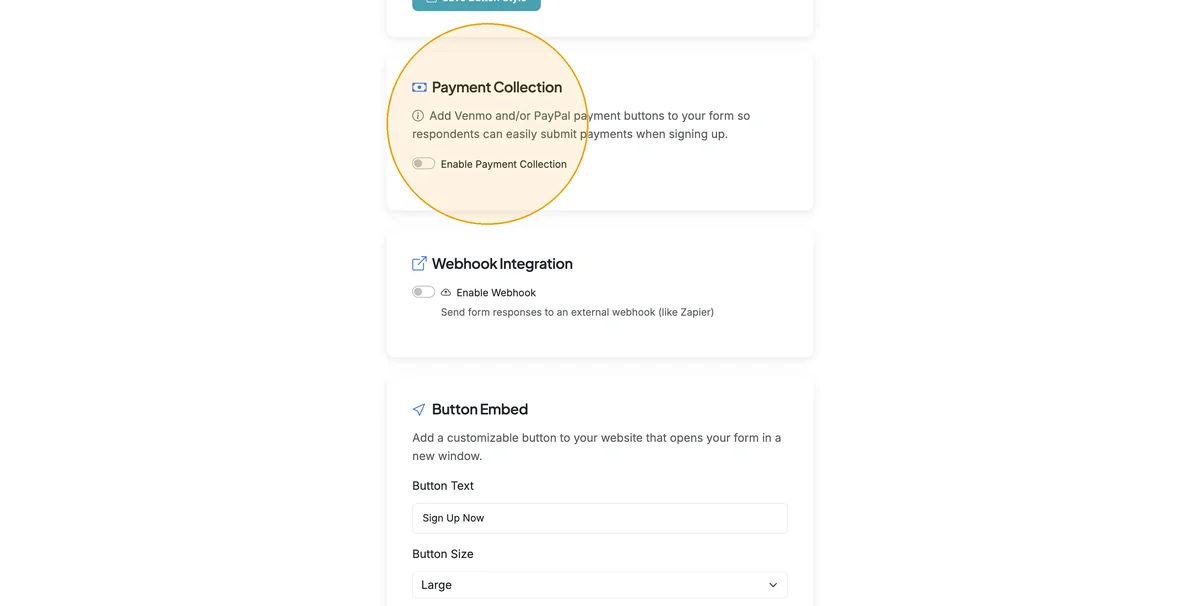
Step 2
Scroll down to the Payment Collection section
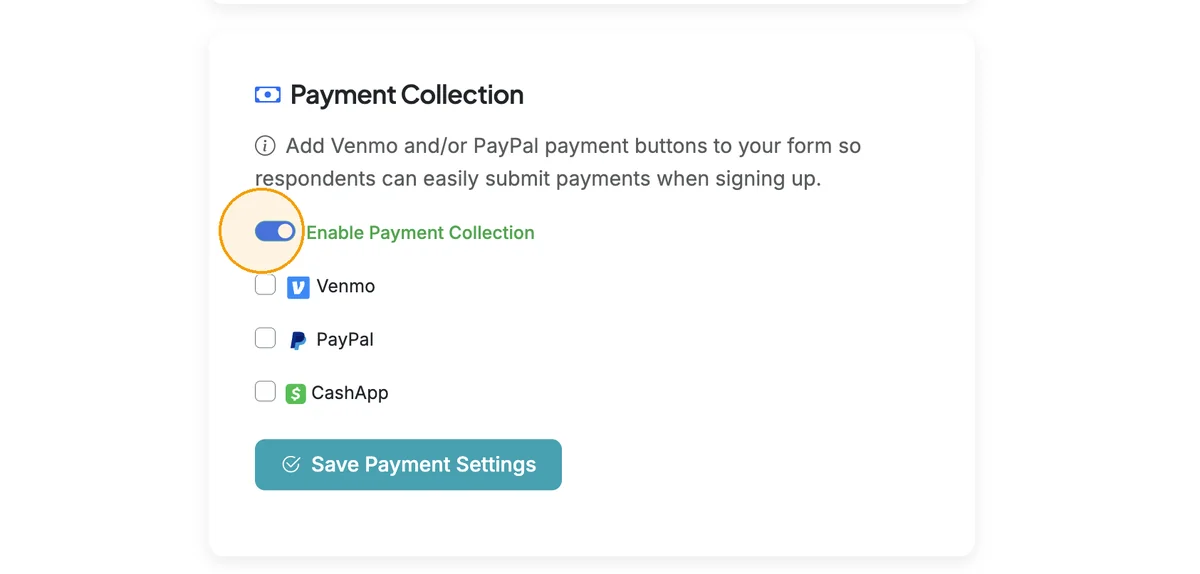
Step 3
Click the toggle to Enable Payment Collection
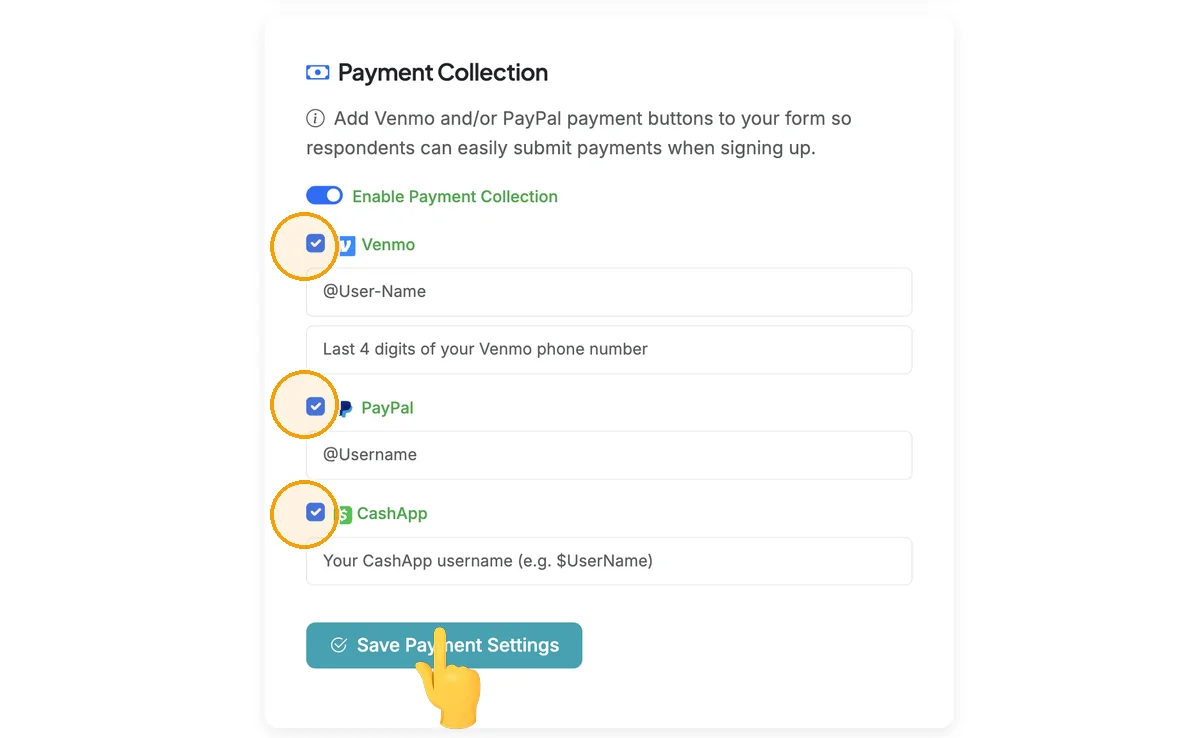
Step 4
Select the payment methods you would like to provide. Enter username information for each method you select. For Venmo, adding the last 4 digits of your mobile phone is optional. Then click 'Save Payment Methods'.
Step 5
When you or your respondents view your form, the payment methods you added will be displayed at the bottom of the form.
Zelle
Zelle has no direct payment link, so the Pay with Zelle button opens a popup with your details instead of redirecting to an app. To enable it, check the Zelle box in the Payment Collection section and fill in:
- Recipient name on Zelle account (e.g. "Jane Smith"): shown to the payer so they know they're sending to the right person.
- Phone or Email: pick the identifier type associated with your Zelle account.
- Phone number or email on the Zelle account: the actual phone or email Zelle will look up.
- Optional memo instructions: e.g. "Include child's name" or "Reference your sign-up date" so you can match the payment to the response.
The popup shown to respondents includes a Copy button next to your phone or email so they can paste it into their bank's Zelle screen without retyping.
Other / custom payment method
Use this for any payment method without a direct link, like Wise, Apple Cash, "drop off cash," or a bank transfer. Check the Other / custom payment method box and fill in:
- Button label: what shows on the payment button (e.g. "Wise", "Apple Cash", "Drop off cash").
- Payment instructions: a free-form text block shown in the popup. Line breaks are preserved.
- Optional: handle, account, or email: if you include this, the popup shows it with a Copy button so the respondent can paste it.
Important: Zelle and Other payments can't be auto-confirmed
For Venmo, PayPal, CashApp, Zeffy, Zelle, and Other payment methods, Grasshopper Signup does not receive a confirmation when a respondent actually completes the payment. The buttons surface payment information; you'll need to verify on your end (in your Venmo/Zelle/bank app) that the money arrived. If you need automatic payment confirmation tied to the response, use Stripe Payments instead.
Note: If You're Also Using Stripe Payments
If you have Stripe connected and have enabled Require payment before submission in the Stripe Payments card, the Payment Collection card will be locked and these toggles will be disabled. This is intentional: respondents complete payment through Stripe at submit time, so showing additional Venmo/PayPal/CashApp/Zeffy/Zelle buttons would tell them to pay twice. To use these payment buttons instead, turn off Require payment before submission in the Stripe Payments card. Your saved usernames, URLs, and Zelle/Other settings are kept and will reappear automatically.
Total Steps: 5
Steps generated by StepHopper - Create interactive step-by-step guides