Duplicate/Copy a Form
Learn how to duplicate any form from your dashboard, including templates and shared forms.
You can duplicate/copy any form from by logging in and clicking 'Duplicate' on any form in your dashboard. When you create a form and save it with your email address, that form will automatically be linked to your account. You can also duplicate templates and forms that are shared with you.
What Doesn't Get Copied
When duplicating a form, the following items are NOT copied to the new form: Form password & privacy settings, Reminder settings, Custom email messages, Google Calendar sync settings, Option dates/times, Template status (becomes regular form), Responses
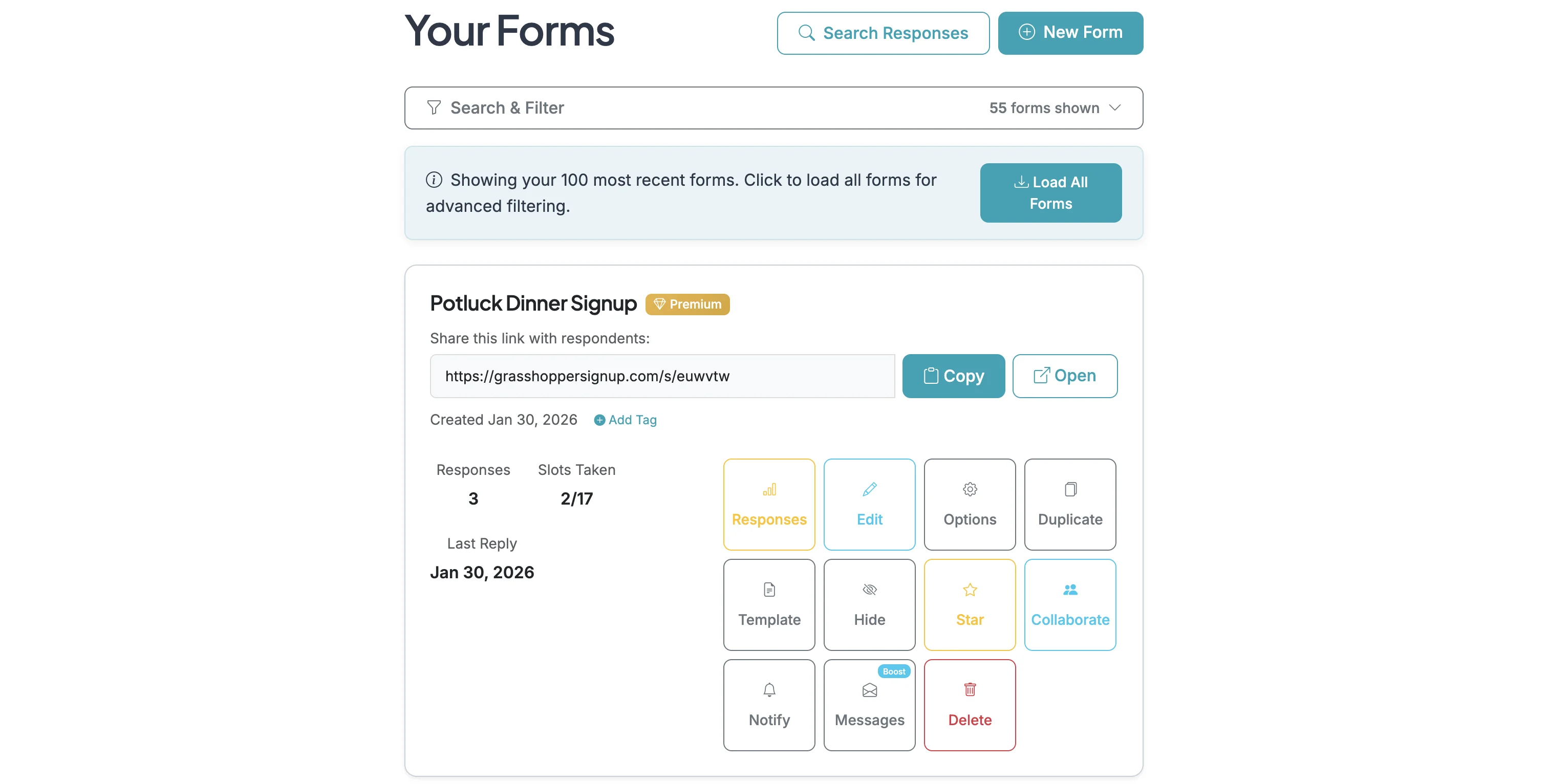
Step 1
Login to your account and start on the Dashboard page.
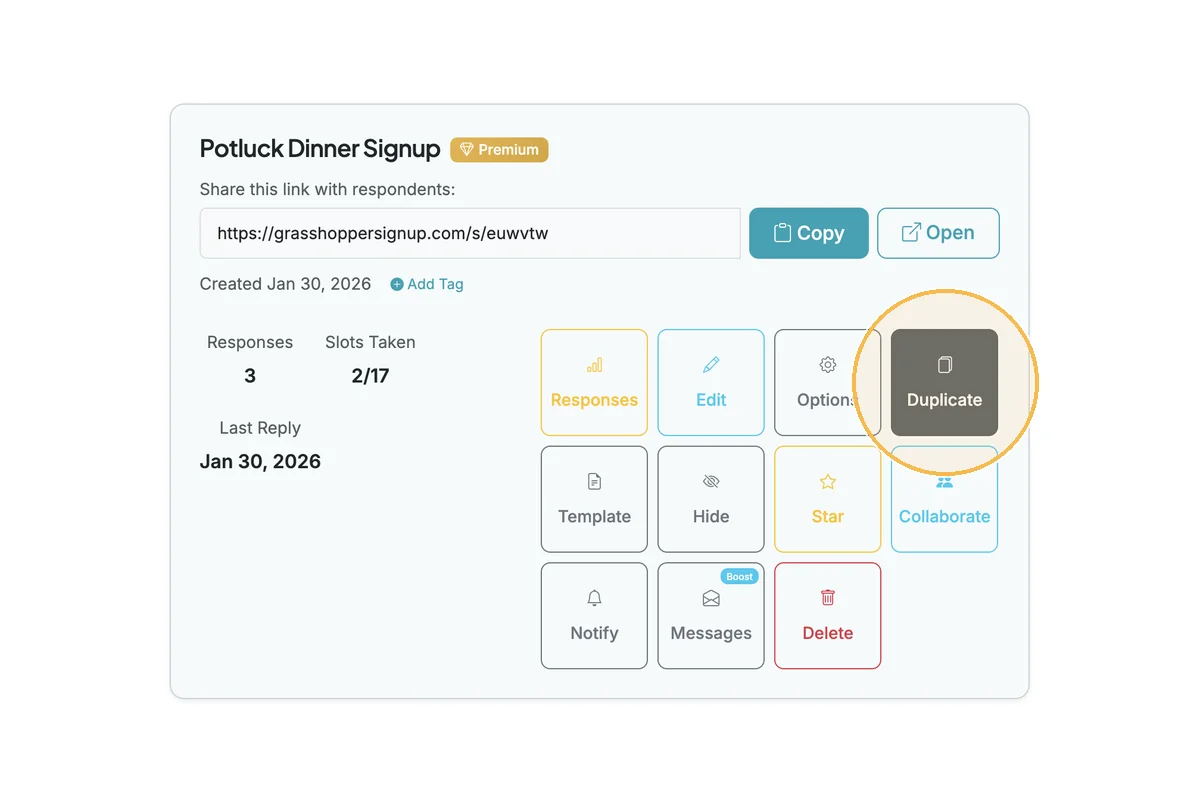
Step 2
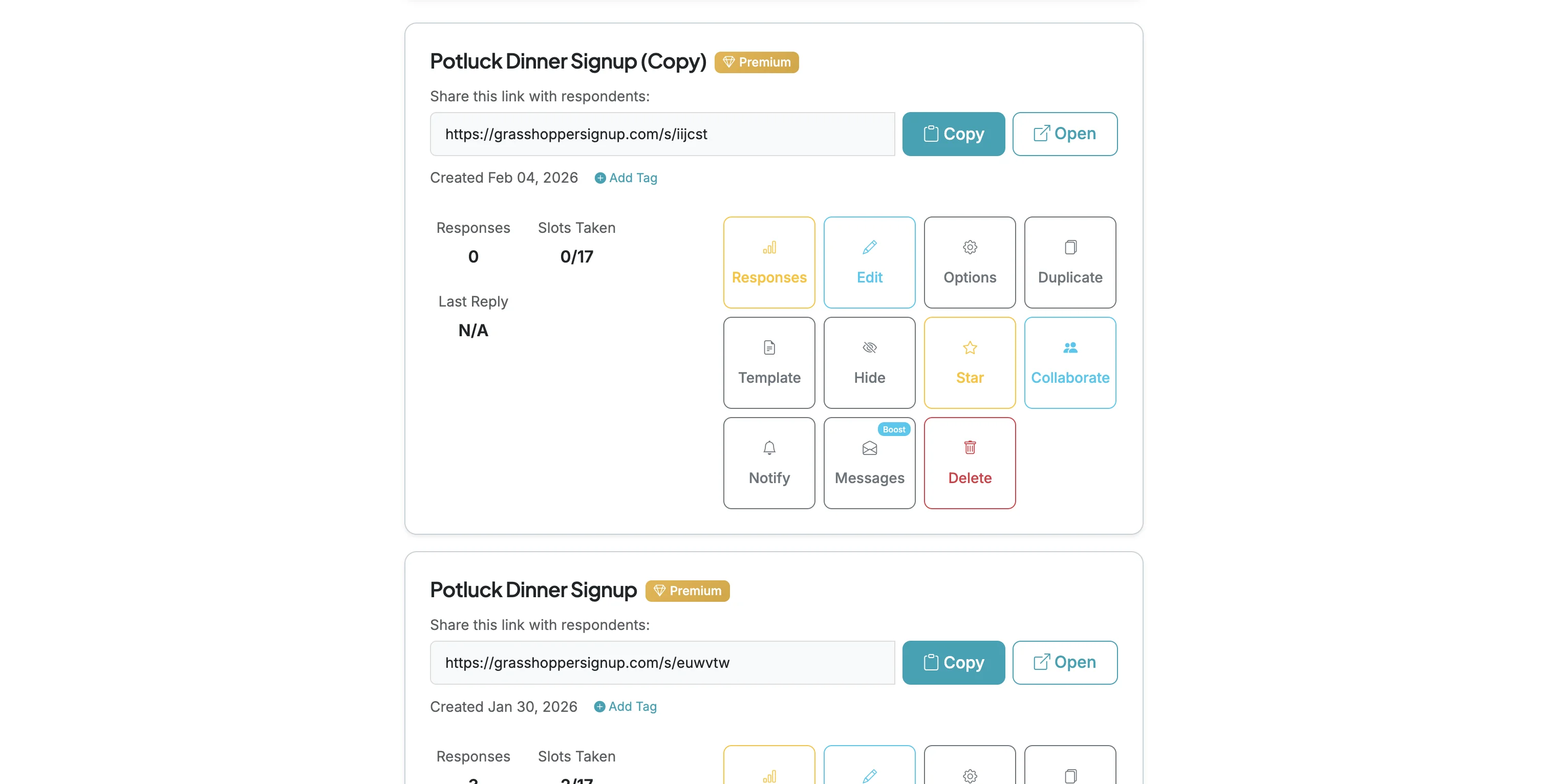
Identify the form you want to duplicate and click the 'Duplicate' button.
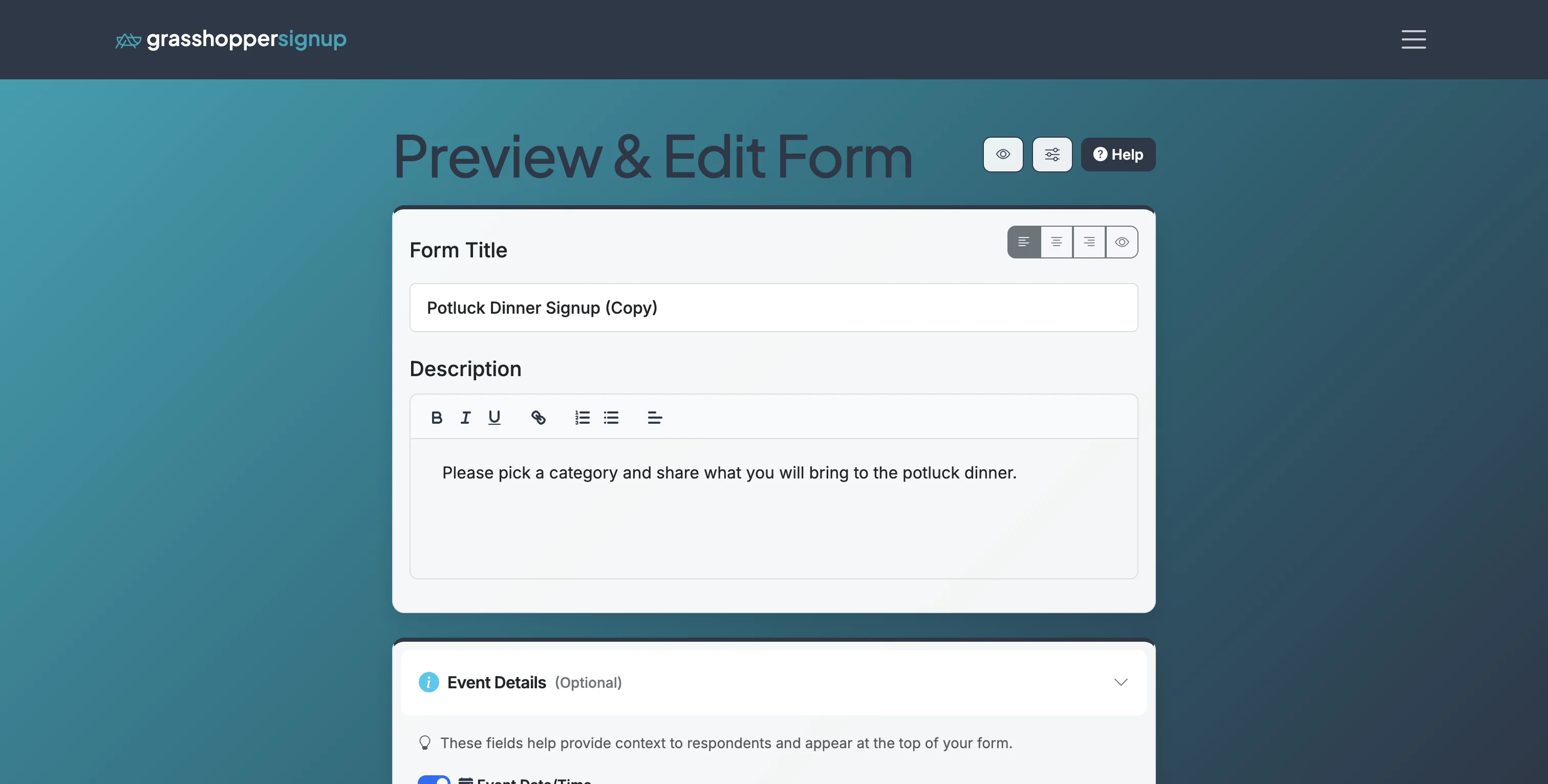
Step 3
This will duplicate the form and take you directly into the editor for that form.
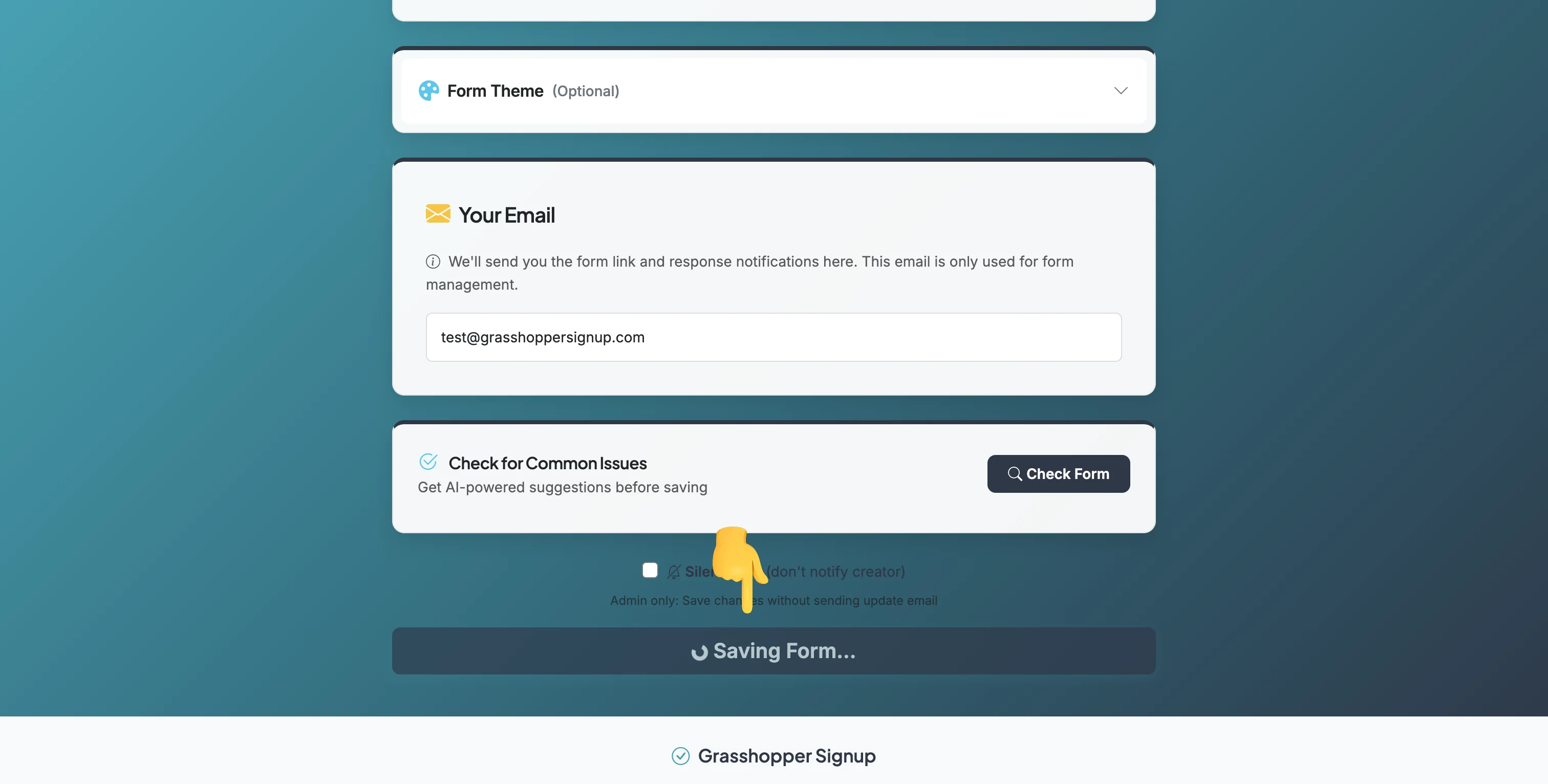
Step 4
Make any edits you'd like to your form and then click 'Save Form' at the bottom of the Edit page.
Step 5
When you visit your dashboard you will be able to find your duplicated/copied form. "(Copy)" is appended to the title of any duplicated form. You can remove or update the title when editing the form.
Total Steps: 5
Steps generated by StepHopper, a product of Grasshopper Signup - Create interactive step-by-step guides