Create Pages for Multiple Forms
Learn how to create Pages that host multiple forms. Pages can be shared as a link or embedded on a website.
You can create Pages that host multiple forms. Pages can be shared as a link or embedded on a website.
Step 1
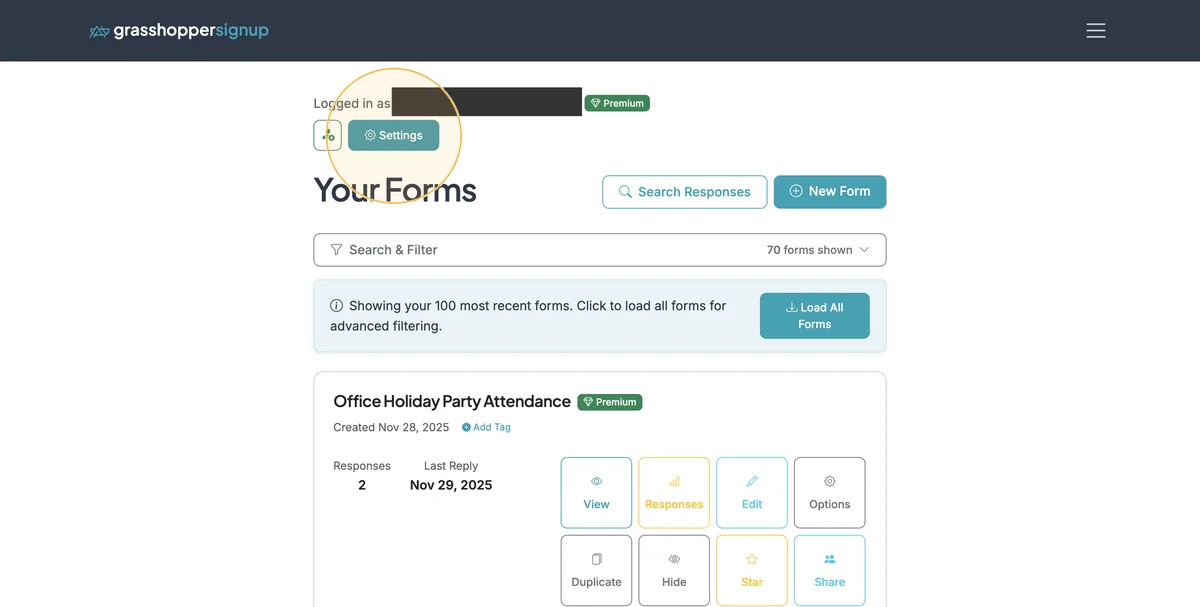
From your Dashboard, go to the 'Settings' page.
Step 2
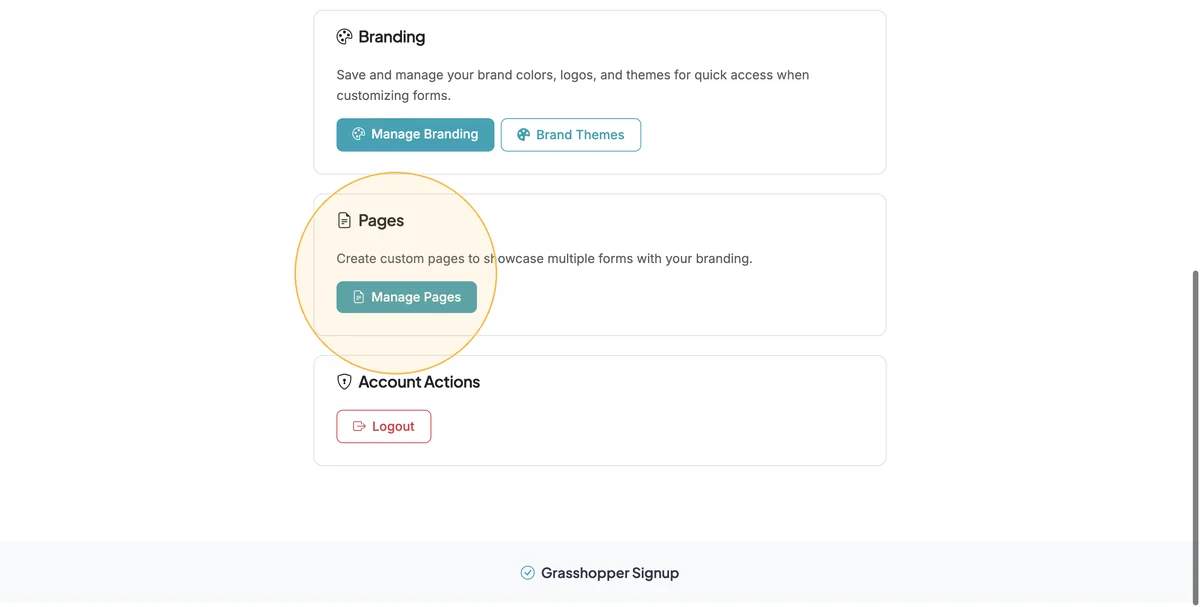
Scroll down to the 'Pages' section and select 'Manage Pages'
Step 3
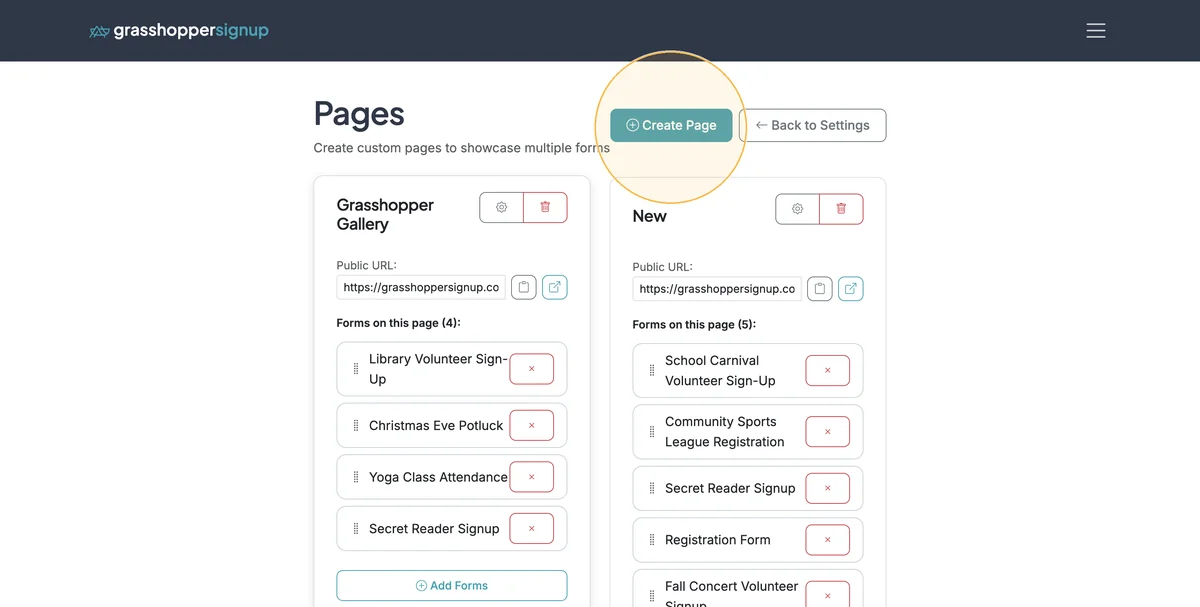
On Pages, you can manage existing Pages or create a new Page.
Step 4
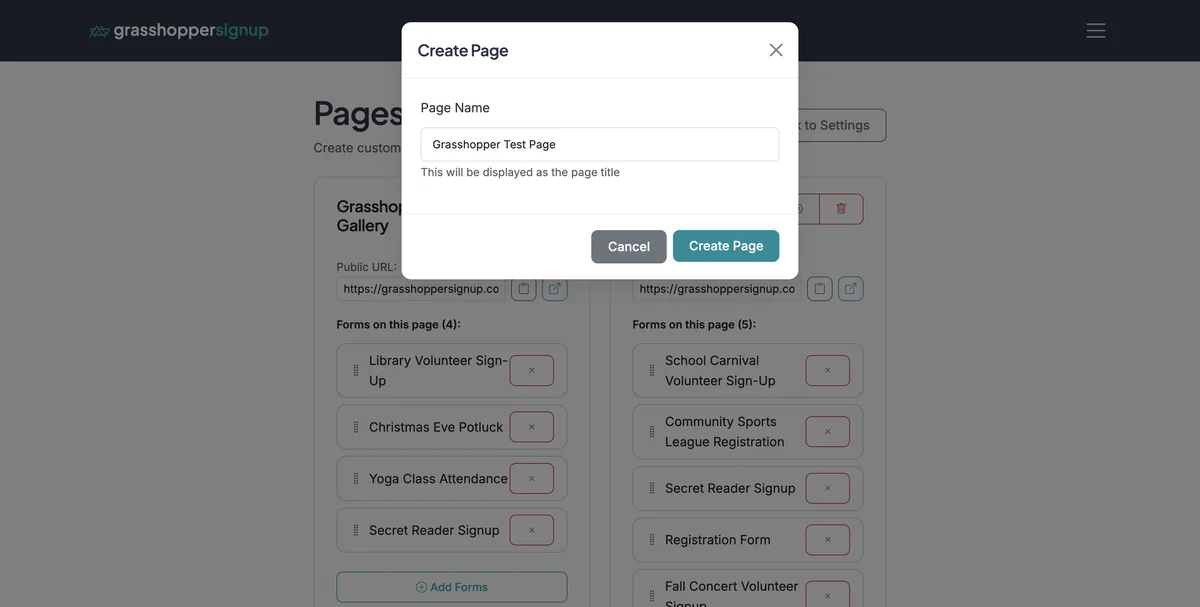
Name your page (this will be the header/title of your page).
Step 5
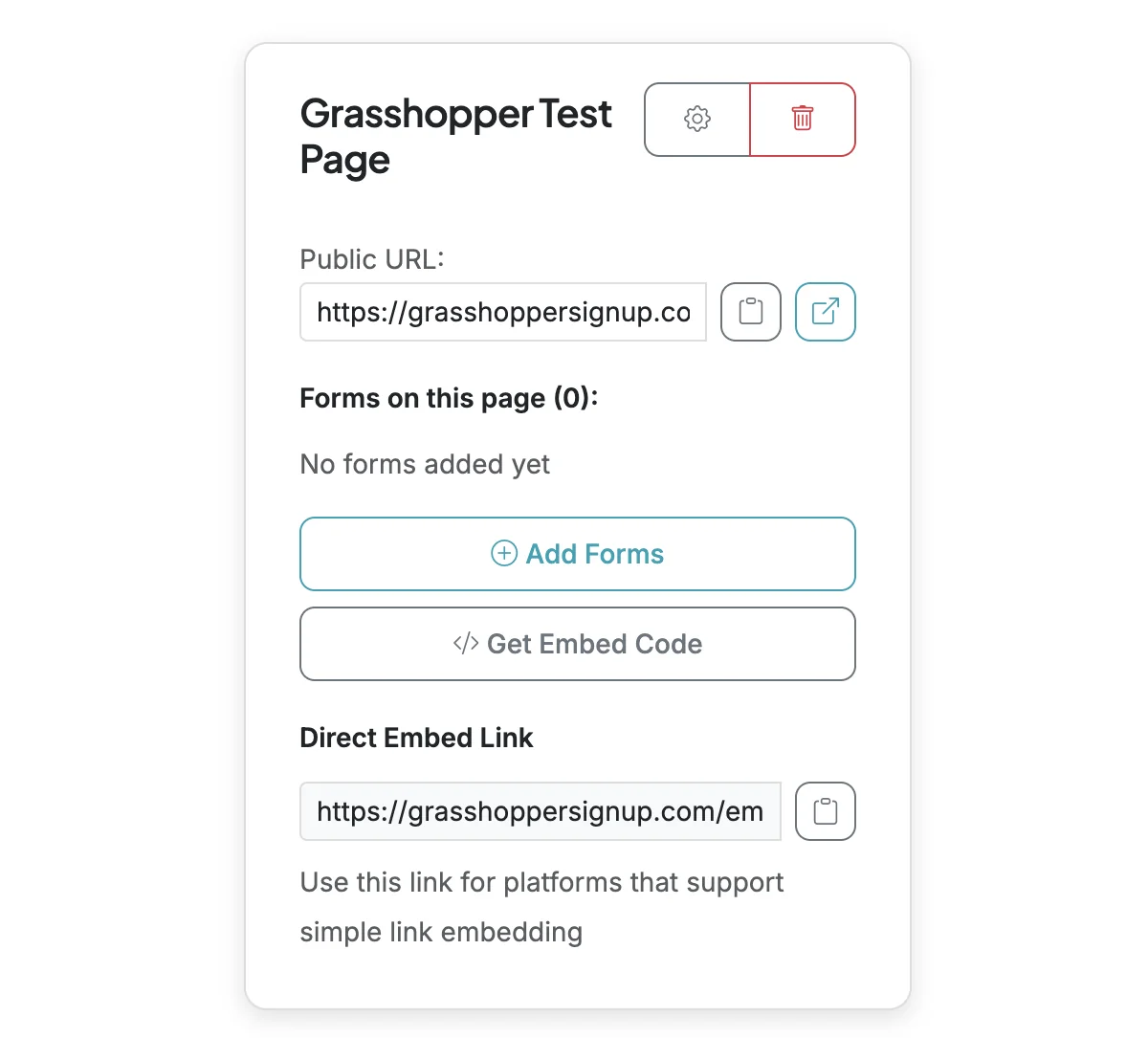
When you create a new page, you have various options to configure the page, add forms, and share the page.
Step 6
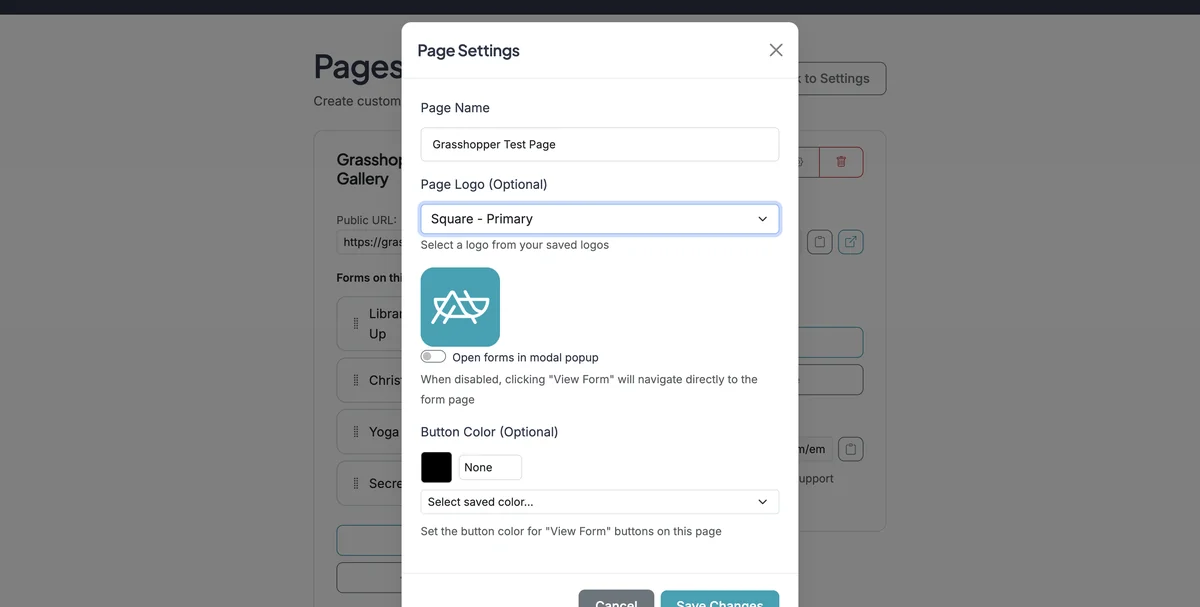
Page Settings (gear icon) allows you to set a logo for the page using your brand logos, set the button color for forms on the page using your brand colors, and provides an option to open forms in a modal or as a new page.
Step 7
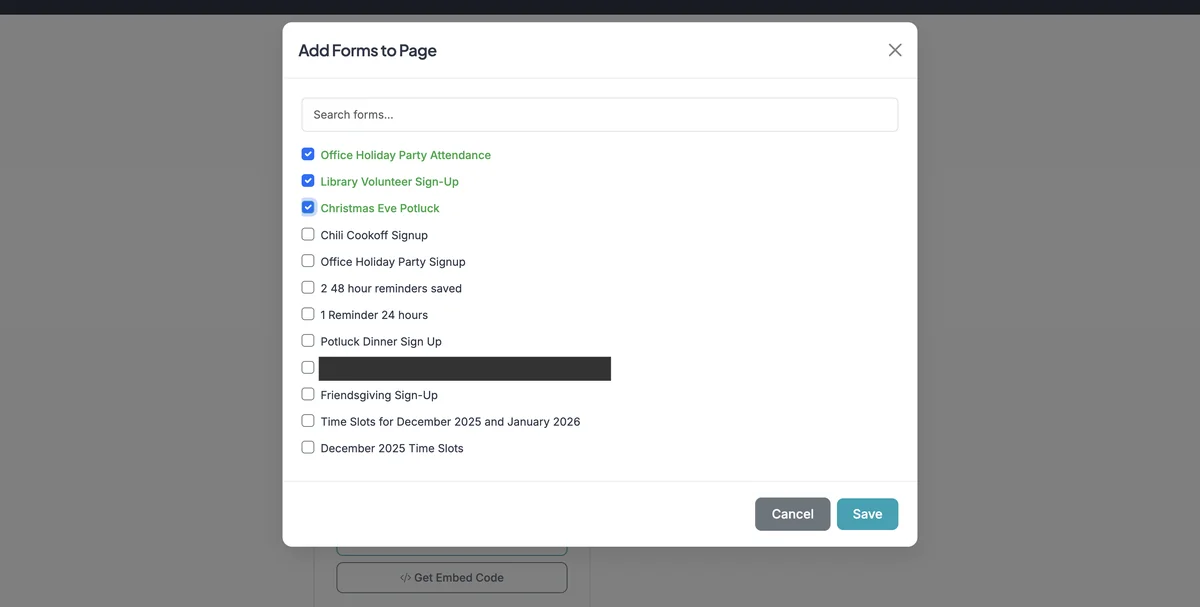
Click 'Add Forms' to add forms to your page. This will provide a list of forms from your account that you can add to a Page.
Step 8
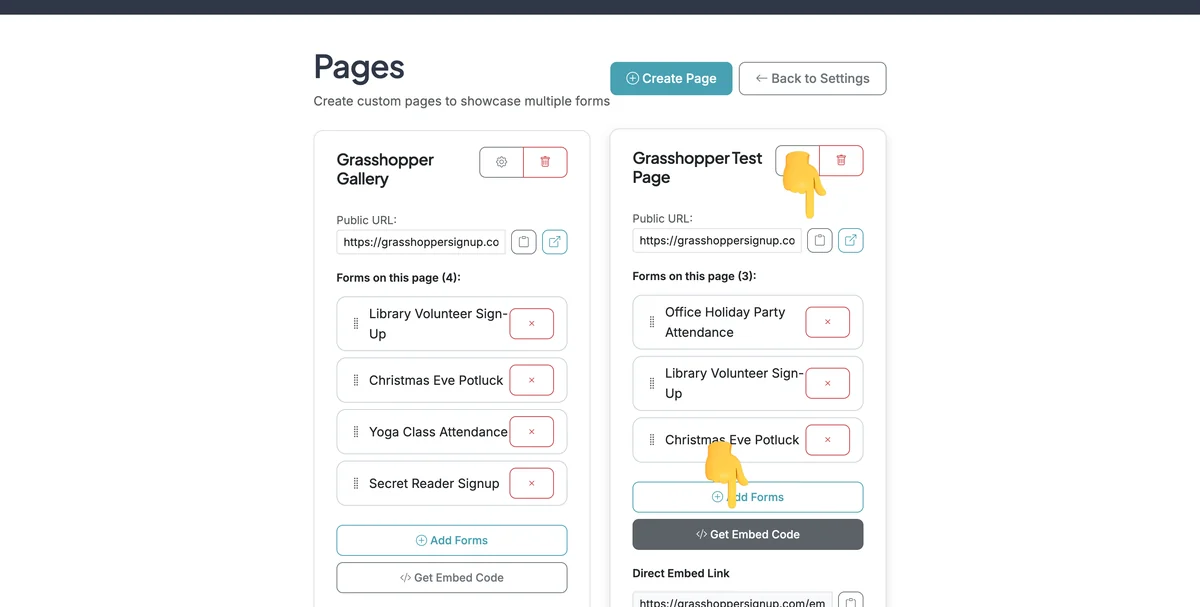
After you add forms, you can copy a link to your page or get the embed code for your page to embed in a website.
Step 9
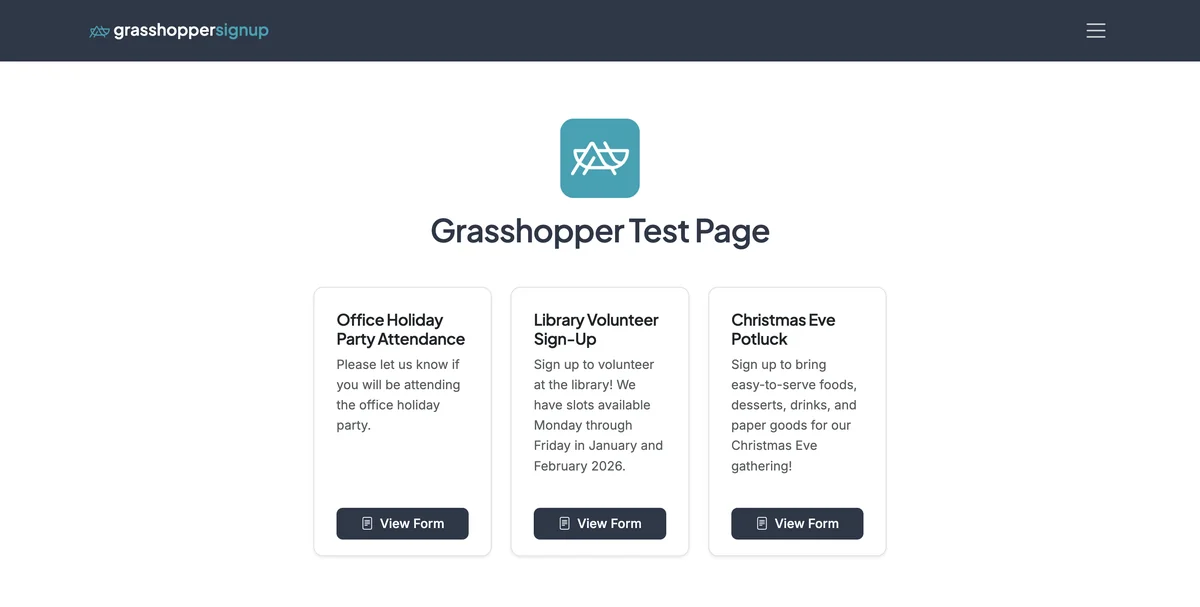
This is an example of a Page (created in the steps above) that can be shared.
Step 10
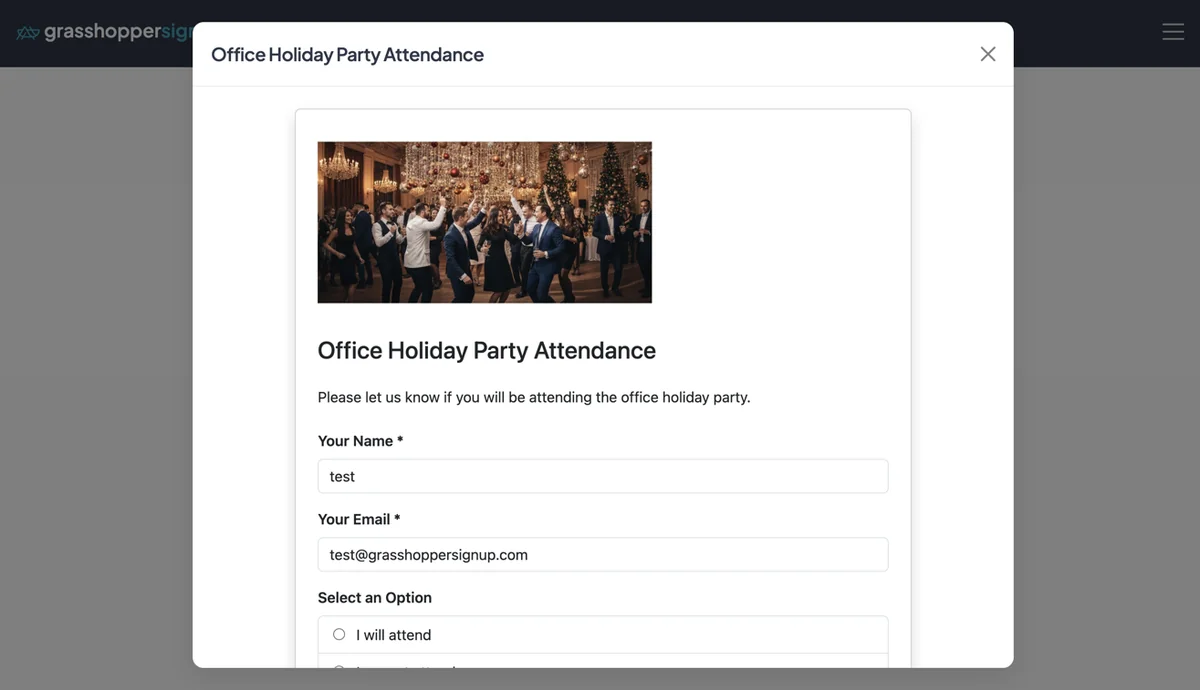
If you selected 'Open forms in modal popup' in the Page settings, forms will open in a modal directly on your Page.
Benefits of using Pages:
- Centralized access: Display multiple related forms in one place
- Easy sharing: Share a single link that provides access to all your forms
- Professional branding: Add your logo and customize button colors to match your brand
- Flexible display: Choose between modal popups or new page navigation for forms
- Website integration: Embed entire Pages on your website with a single embed code
Total Steps: 10
Steps generated by StepHopper, a product of Grasshopper Signup - Create interactive step-by-step guides