How to Collect Star Ratings on Your Form
Add an optional 1-5 star rating to any option so respondents can rate each choice they select.
Collect Star Ratings on Your Form
You can add a 1-5 star rating to any option on your form, so respondents rate each option they select (for example, rating classes, sessions, or dishes). It's free, set per option, and optional for respondents. Ratings show up on your Responses page and in your CSV export. The setting lives inside each option's gear menu, so it's a little tucked away — the steps below show exactly where.
Step 1: Open your form editor
Go to your Dashboard and click Edit on the form you want to update, then scroll down to the Options section.
Step 2: Open an option's gear menu
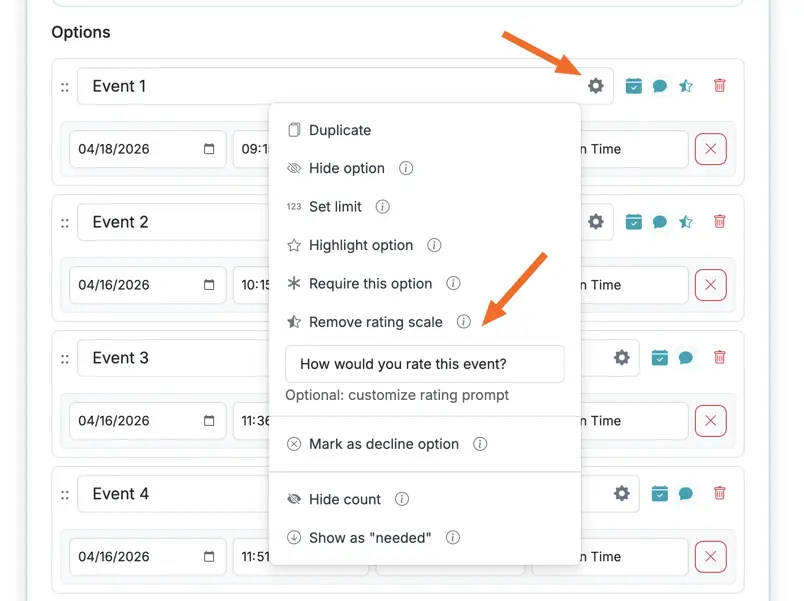
On the option you want rated, click the gear icon to the right of the option text to open its settings menu.
Step 3: Click "Add rating scale"
In the menu, click Add rating scale. A text box appears where you can optionally customize the prompt shown above the stars (it defaults to "Your rating"). Leave it blank to use the default, or type your own — for example, "How would you rate this event?"
Step 4: Repeat for other options and save
Add the rating scale to each option you want rated. A small star badge appears on options that have it. Save your form when you're done. To turn it off later, open the same gear menu and click Remove rating scale.
Step 5: How respondents give a rating
On the live form, when someone selects an option that has a rating scale, a row of five stars appears beneath it. They click a star (1-5) to rate. Rating is optional, so they can still submit without choosing one.
Step 6: View your ratings
Click Responses on the form's card in your Dashboard. Each response shows its rating (for example, Rating: 4/5). Ratings are also included as a Rating column when you export your responses to CSV.
Good to know
- Ratings are per option and optional — a blank rating just means that respondent didn't rate that option.
- Turning on ratings does not change spot counts or availability in any way.
- If you duplicate an option, its rating setting and prompt come along with the copy.