Change or Fix Your Form's Timezone
How to set the correct timezone for your form so dates, times, deadlines, and reminders show in the right timezone.
Change or Fix Your Form's Timezone
Your form has a timezone that's used whenever a time matters: option dates and times, your submission deadline, and reminder emails. When you create a form we try to detect your timezone automatically, but if it isn't right (for example, a reminder shows Eastern Time when you're not on the East Coast), you can set it yourself in either of two places on your form's Edit page.
You only need to set it in one place. If you use both dates/times and a submission deadline, make sure they match.
Option 1: Dates/times timezone (Advanced Options)
On the Edit page, open Advanced Options and turn on Assign dates/times to options. A Timezone for all dates/times selector appears. Choose your timezone there.

Option 2: Submission deadline timezone
On the Edit page, turn on Submission Deadline. Next to the deadline you'll find a Timezone selector. Choose your timezone there.
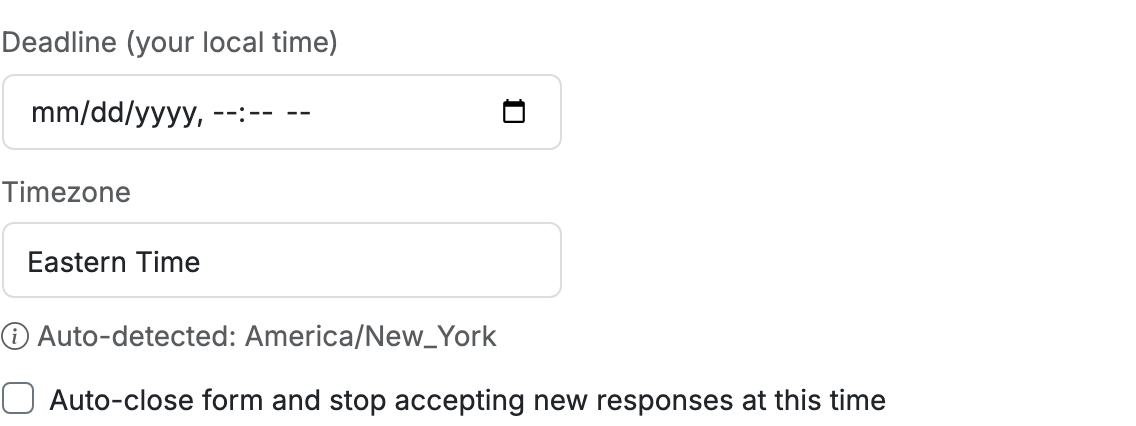
You can turn the toggle back off
These toggles are just the way to reach the timezone setting. If you're not actually using dates/times or a submission deadline, you can switch the toggle back off after you've set the timezone. The timezone you chose is kept with your form, and new reminders and any times shown on your form will use it.
Why does my reminder show a locked timezone?
When an option has a date/time, or you've set a submission deadline, reminders lock to that event's timezone so the reminder matches the event. If the locked timezone is wrong, it means your form's timezone needs correcting. Fix it using either option above and save the form, and the reminder will follow.