Add a PIN to secure form responses
You can add a password to the form response pages in the form of a 4-digit PIN to ensure access to take a form is only permitted for those who have the PIN.
You can add a password to the form response pages in the form of a 4-digit PIN to ensure access to take a form is only permitted for those who have the PIN.
Step 1
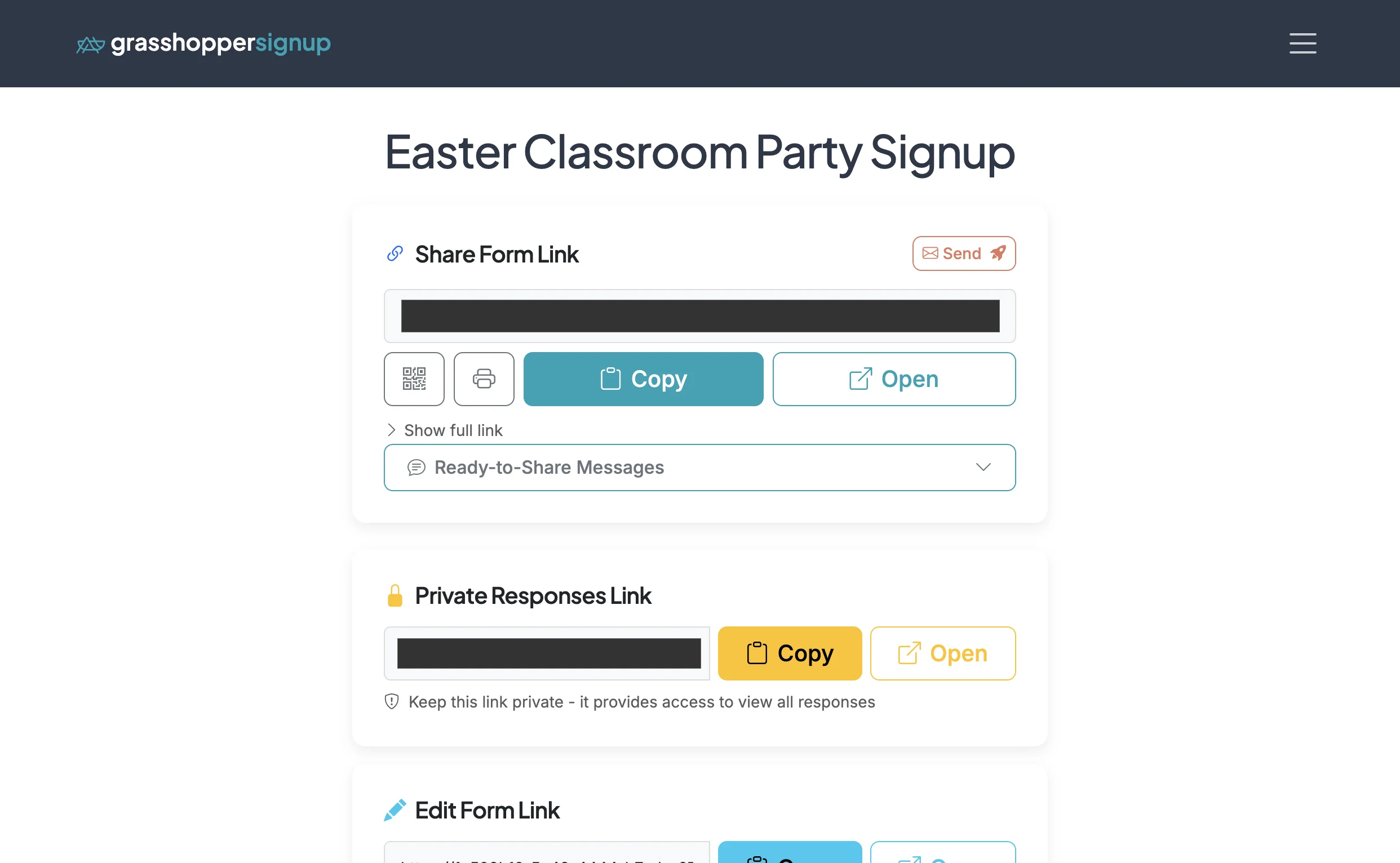
Start on the Form Options page of your form.
Step 2
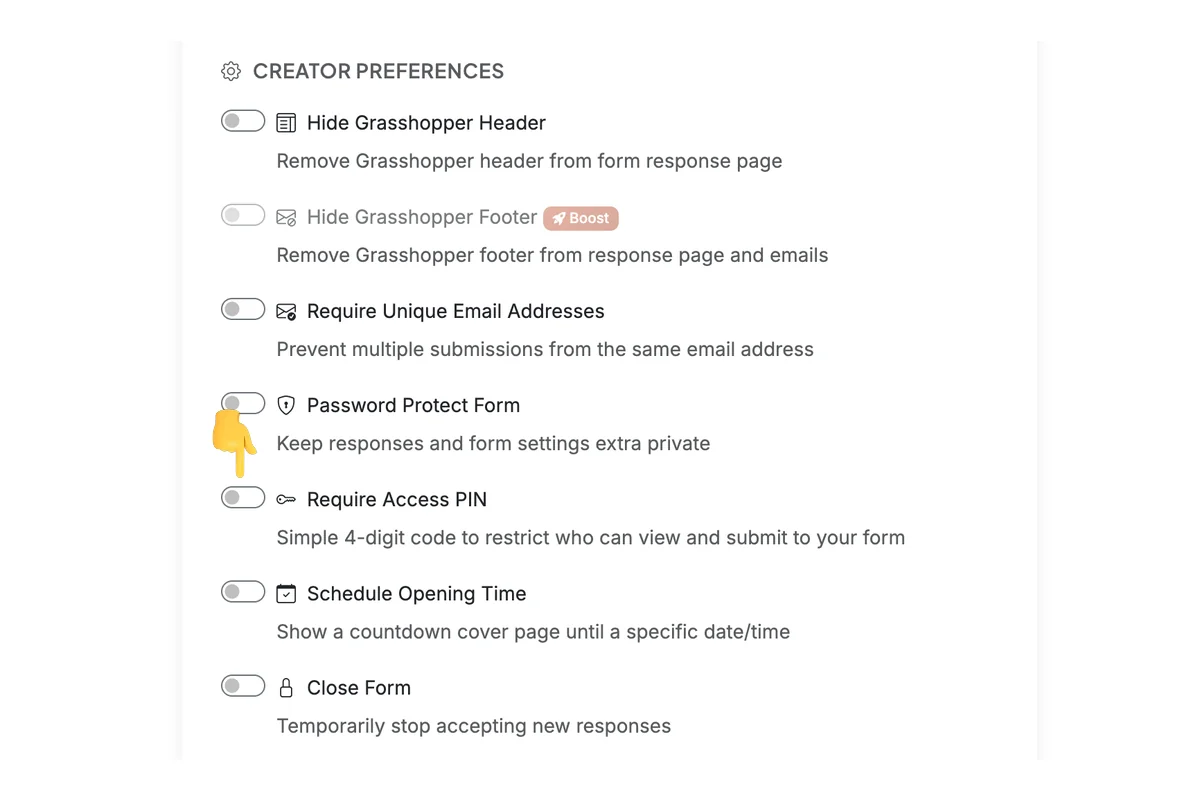
Scroll down to the Creator Preferences section and find the 'Require Access PIN' toggle.
Step 3
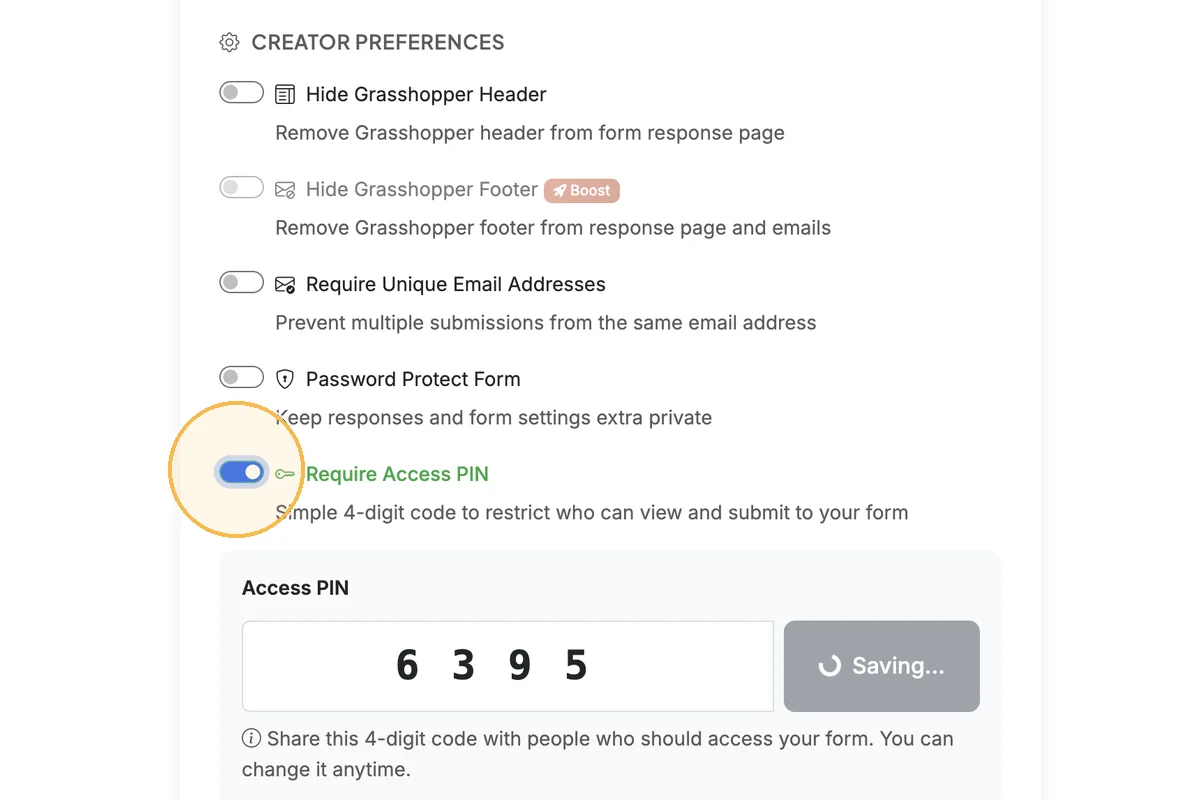
When you enable the toggle for 'Require Access PIN', a PIN will automatically be generated for you and saved. You can also modify this PIN (see next step).
Step 4
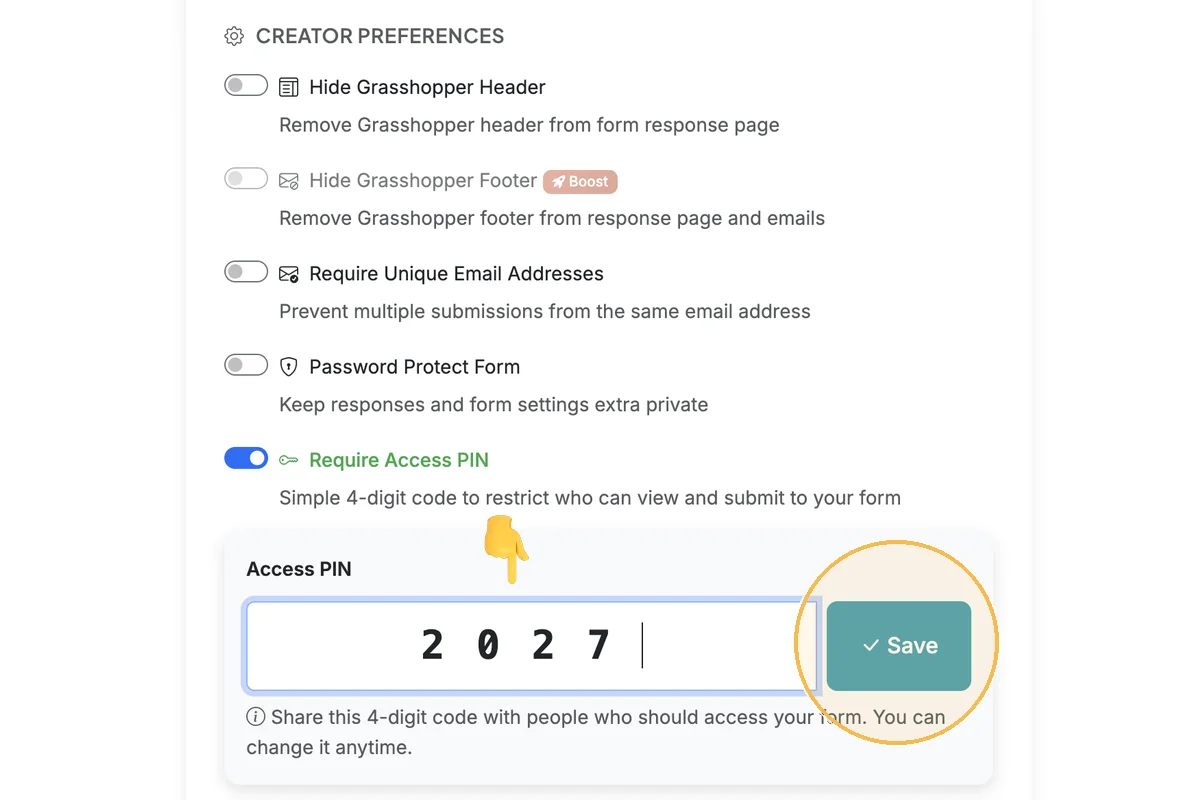
To modify the PIN, update the PIN using 4 digits, and click 'Save'.
Step 5
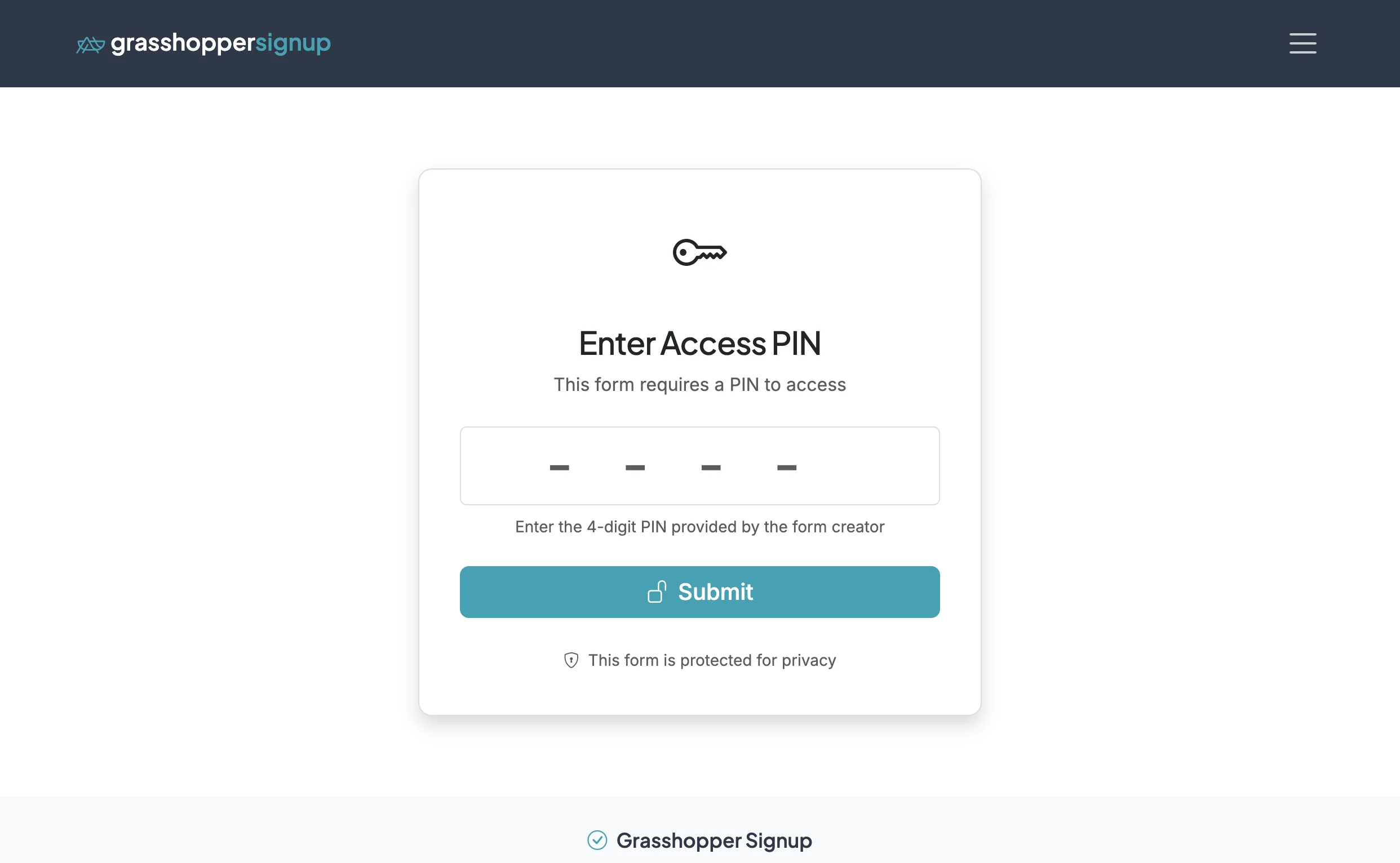
When respondents visit your form, they will be prompted to enter the access PIN to view and submit the form.
Step 6
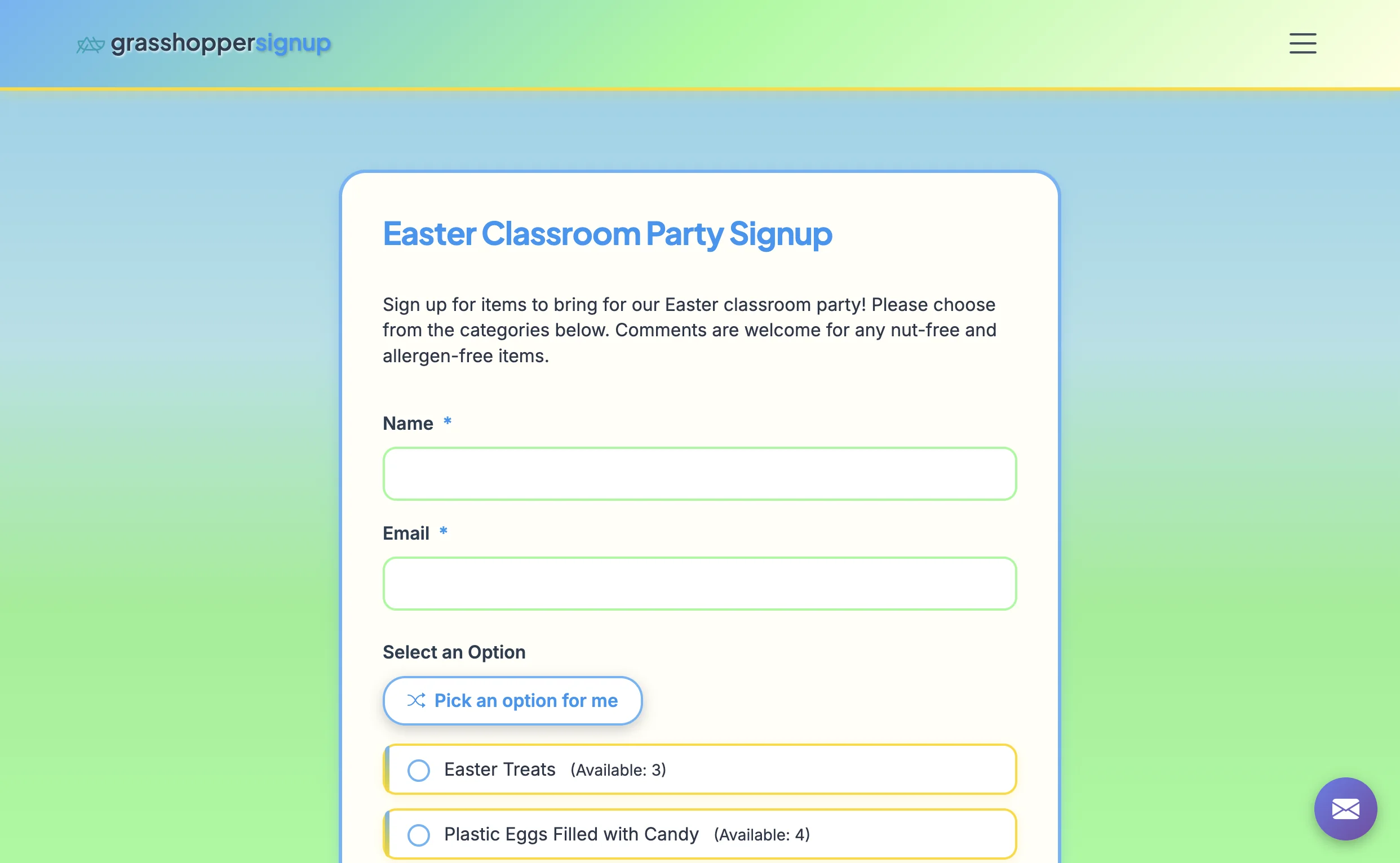
After the PIN is successfully submitted, the form will be viewable and can be submitted.
Total Steps: 6
Steps generated by StepHopper, a product of Grasshopper Signup - Create interactive step-by-step guides