Add an Image Block to Your Form
Learn how to add an image block to your form using the Text/Image Block question type.
You can add an image in your form using the Text/Image Block question type when you add an additional question.
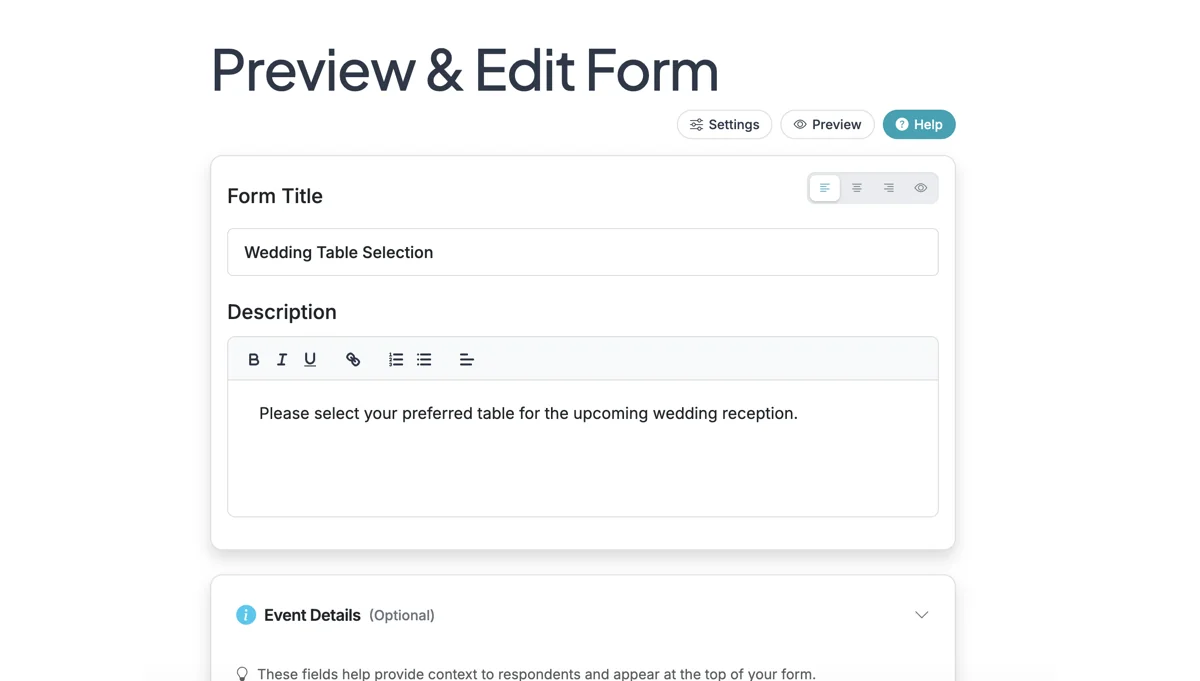
Step 1
Start on the Edit page of your form.
Step 2
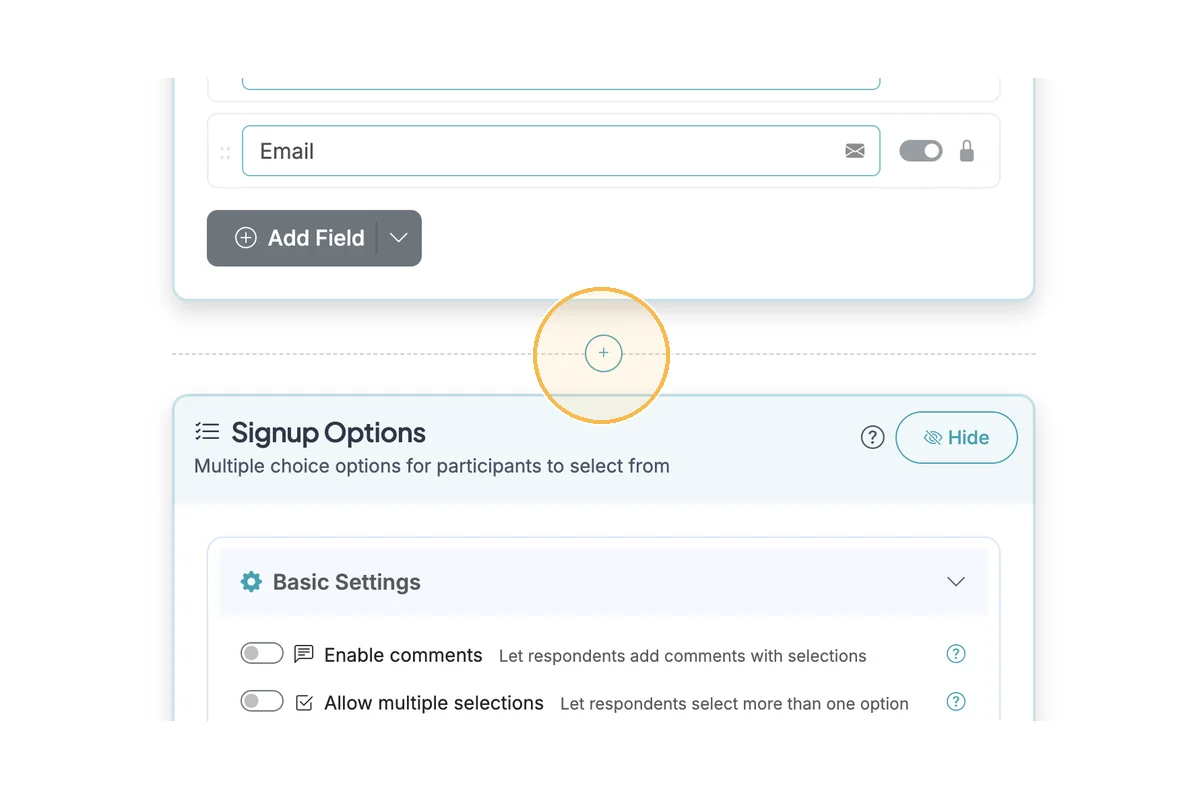
Click the + or Add Question button (above or below the Signup Options) to add an additional question.
Step 3
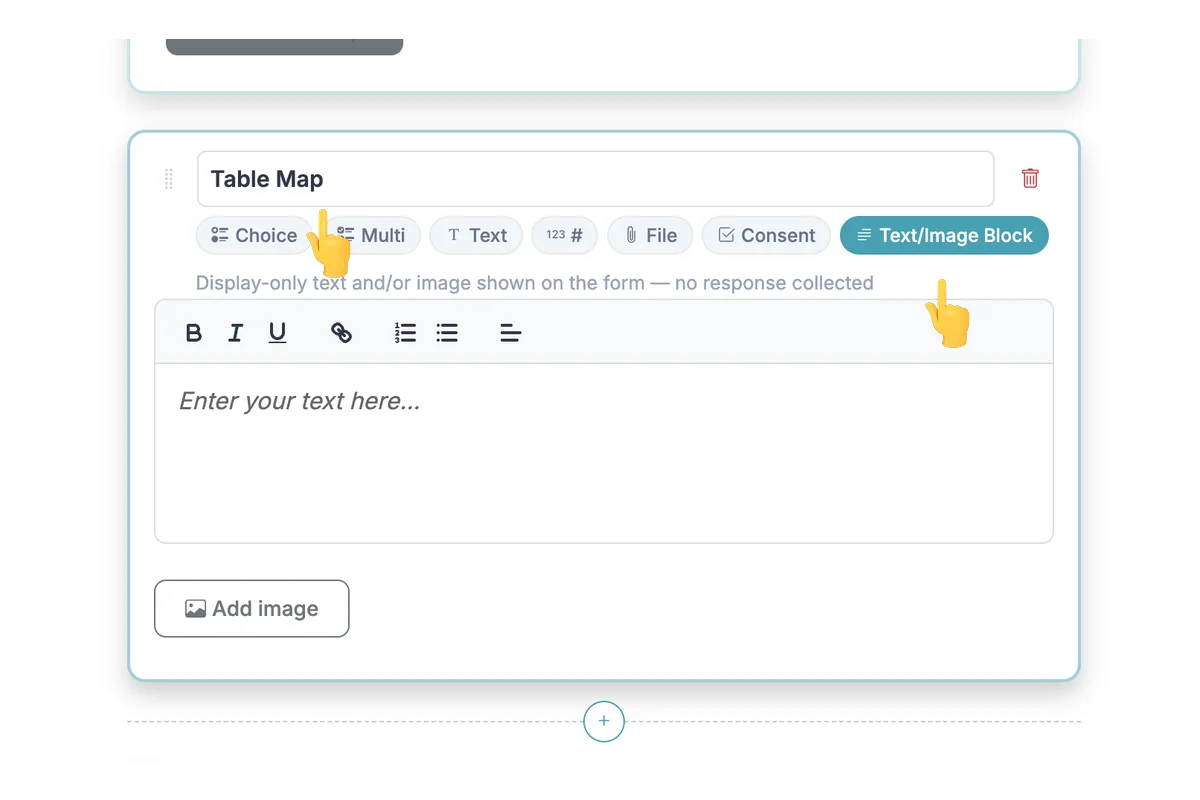
Select the 'Text/Image Block' question type. Optionally, add a title (or leave it blank if you don't want a title). Optionally, add text in the text box if you want to display a caption under the image.
Step 4
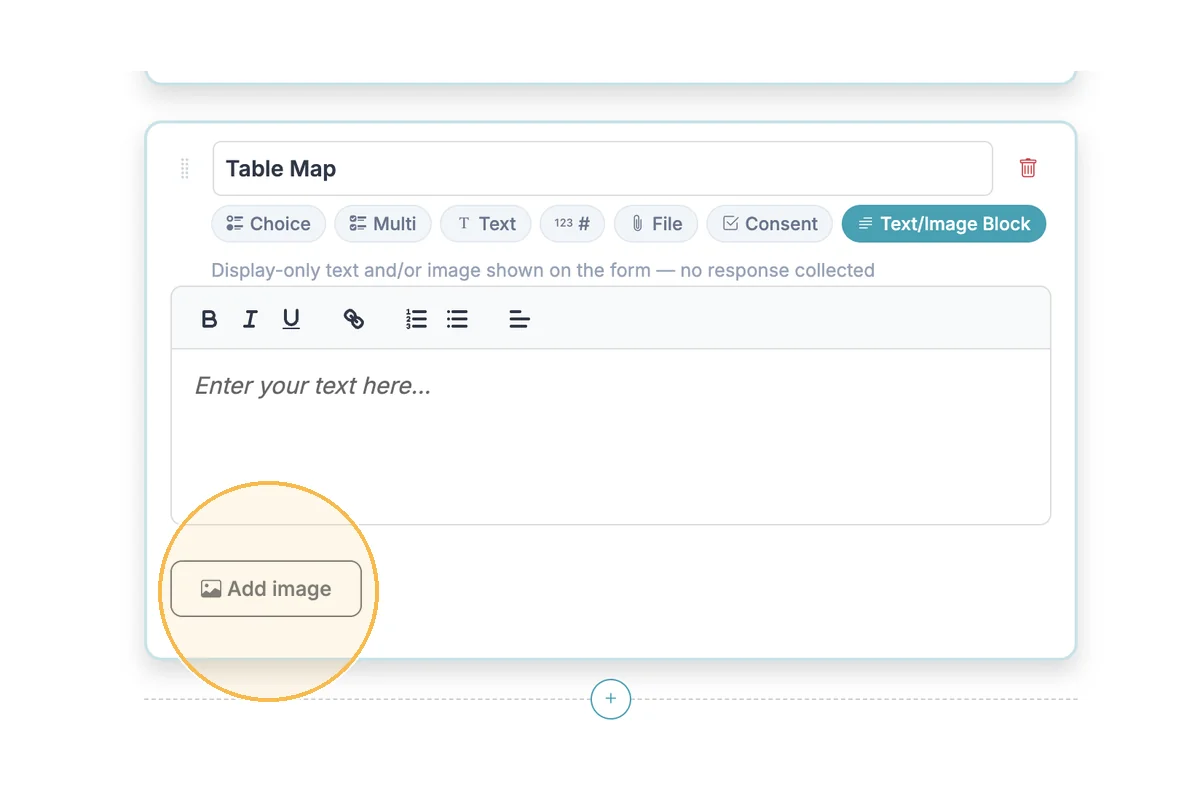
Click 'Add image' and upload your image.
Step 5
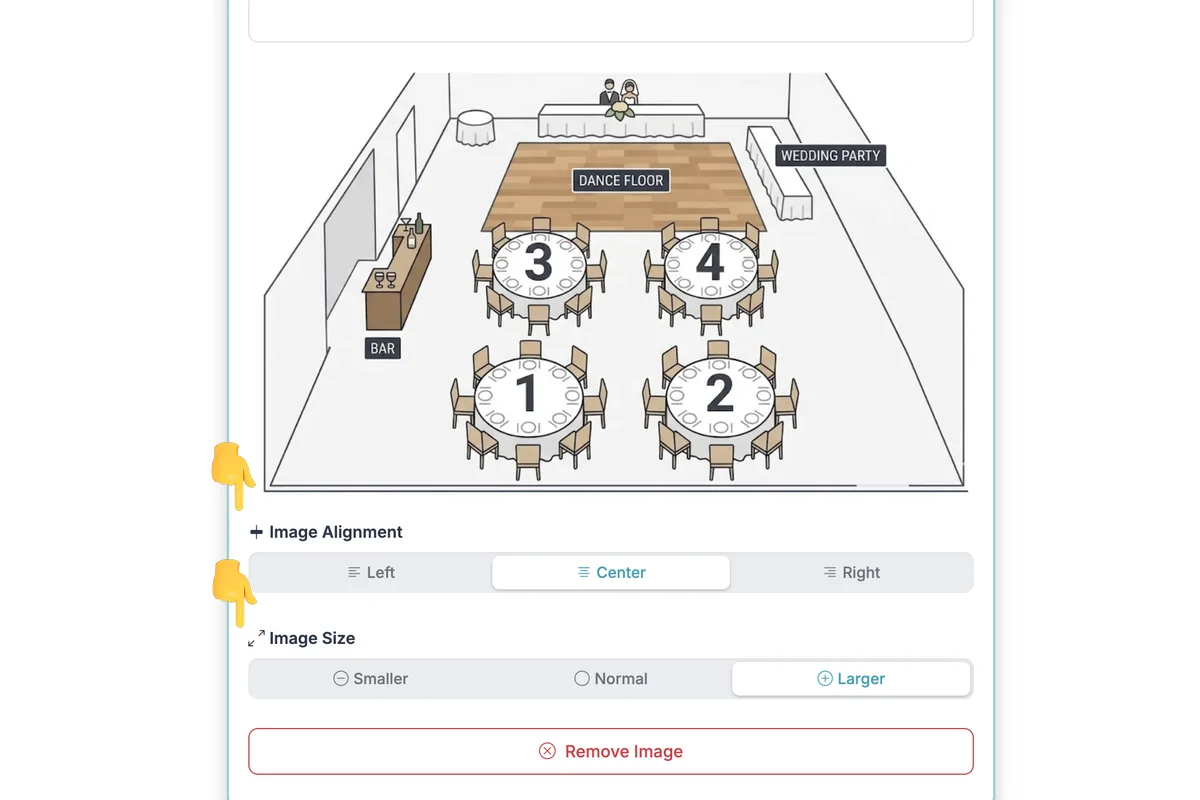
After an image is uploaded, you will see Alignment and Size controls.
Step 6
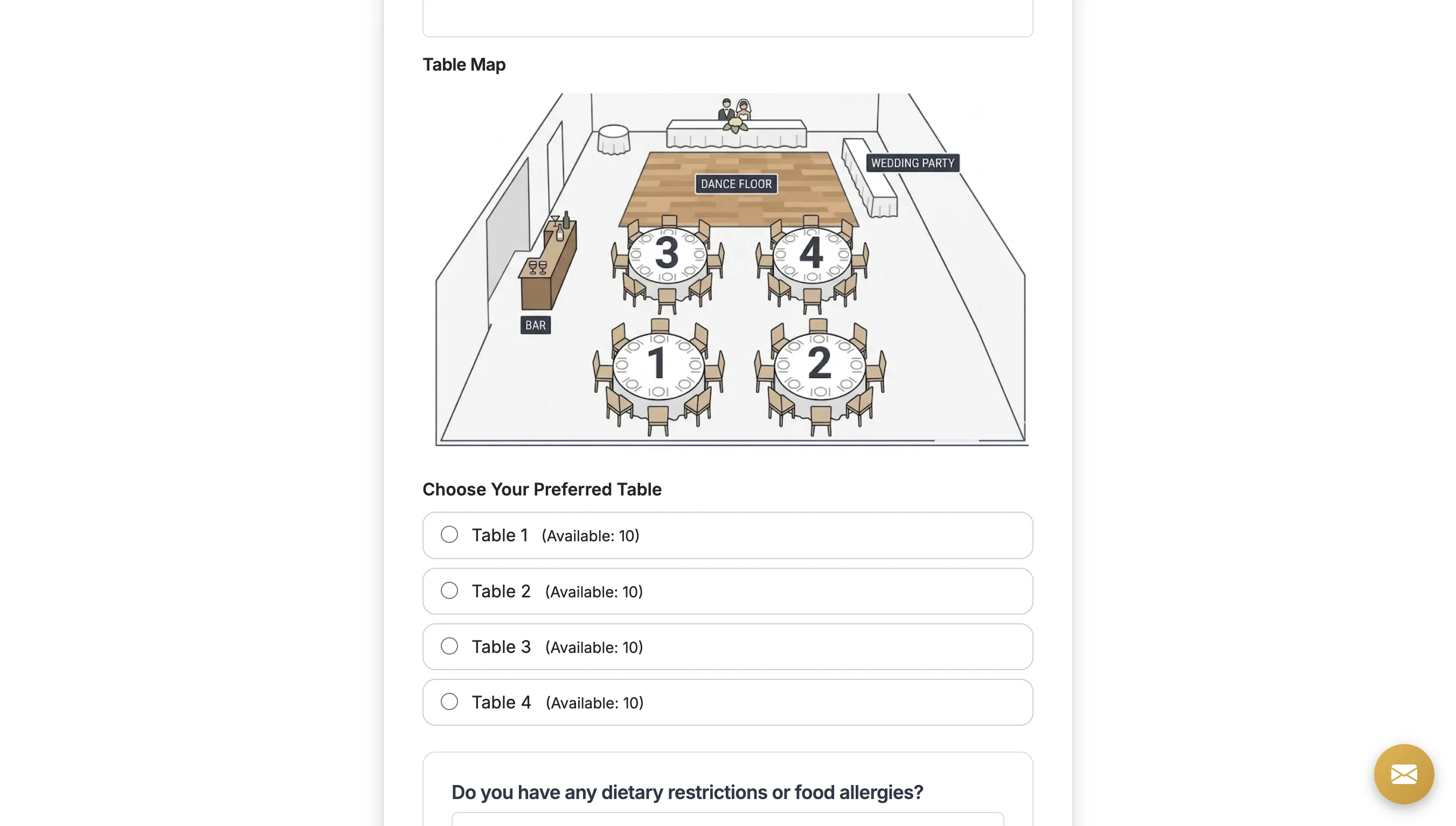
After you save your form, you can preview the form to see the image displayed on the form for respondents.
Total Steps: 6
Steps generated by StepHopper, a product of Grasshopper Signup - Create interactive step-by-step guides