Add clickable links in your form description
Learn how to add clickable links in your form description using the text editor link function, including links to email addresses.
You can add clickable links in your form description to help provide additional information. Use the text editor link function to make your text/URL clickable. You can also include links to email addresses that will create a new email message.
Sections in This Guide
ADDING LINKS IN THE FORM DESCRIPTION
Step 1
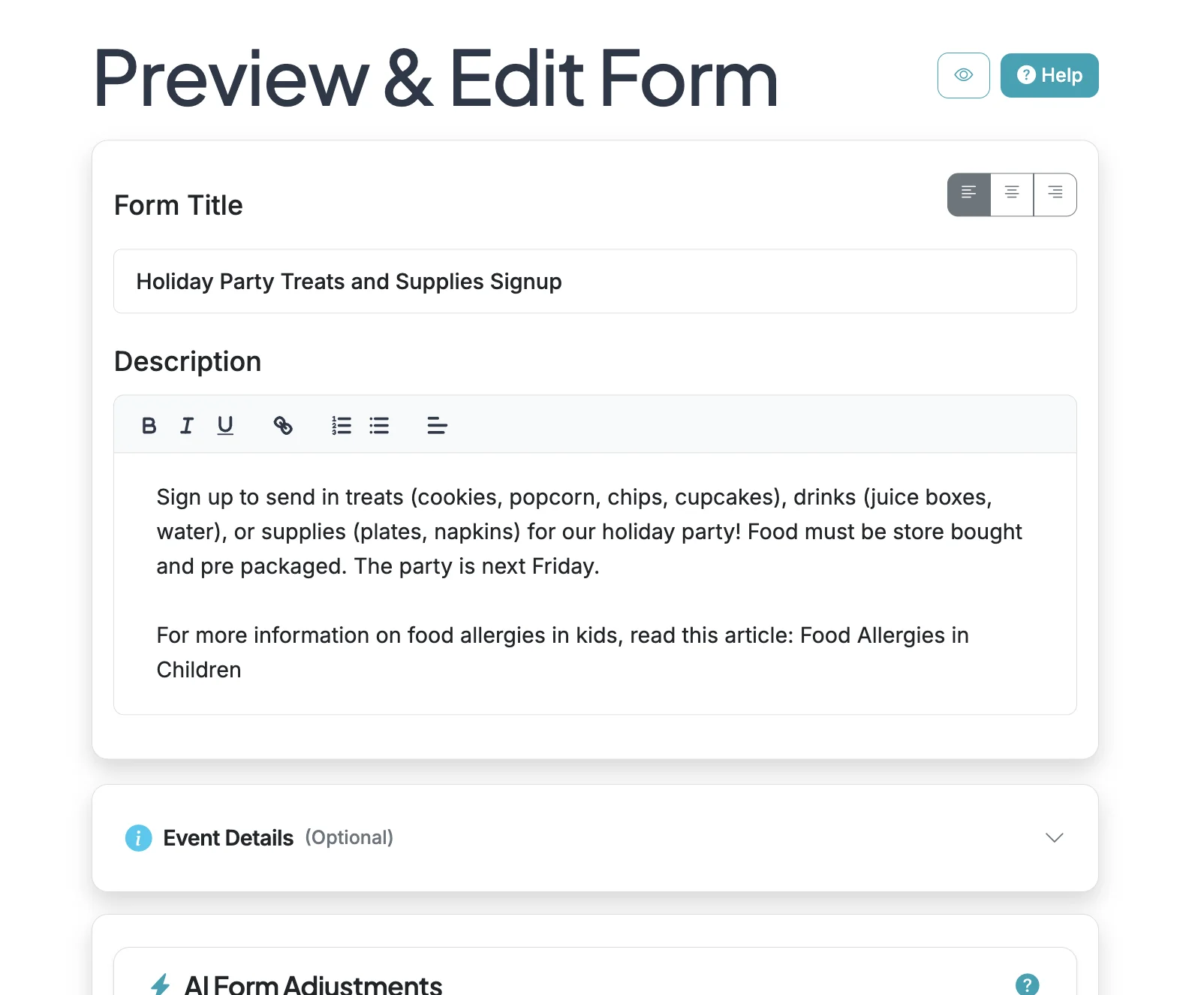
Start on the Edit page for your form.
Step 2
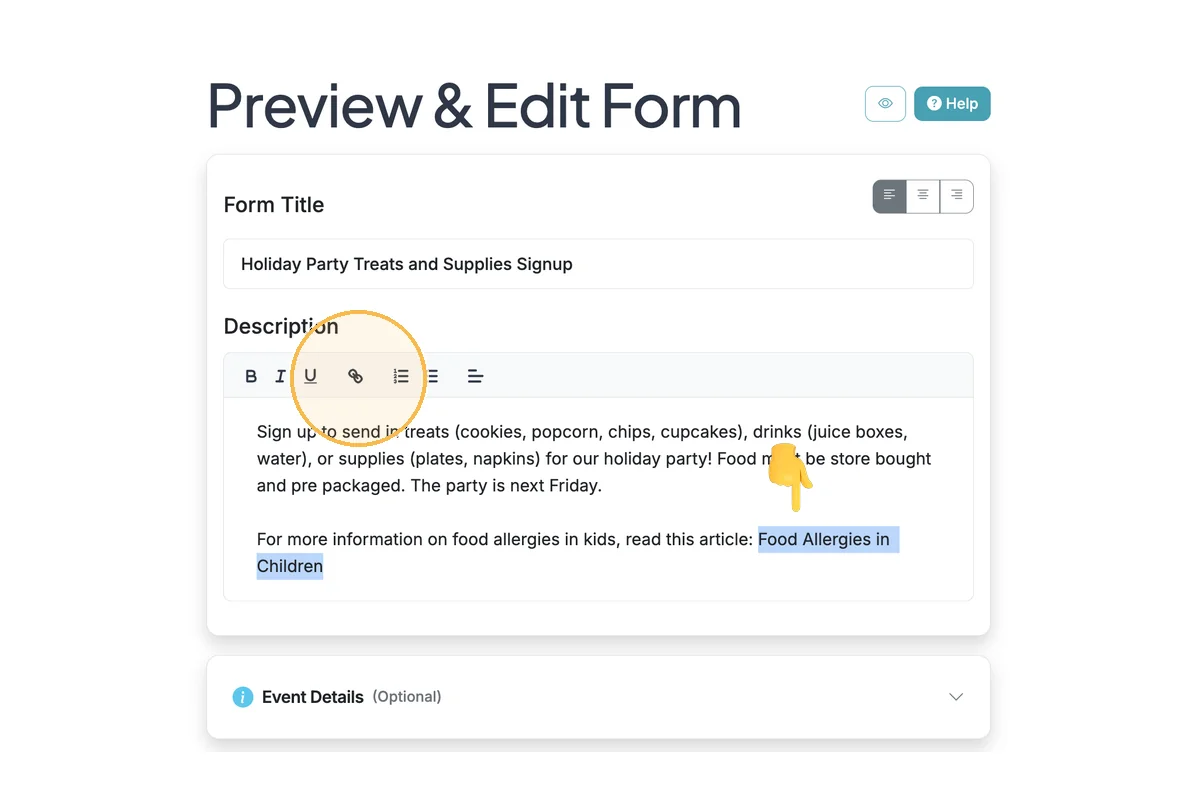
Highlight the text you want to link. Then click the link icon in the text editor functions.
Step 3
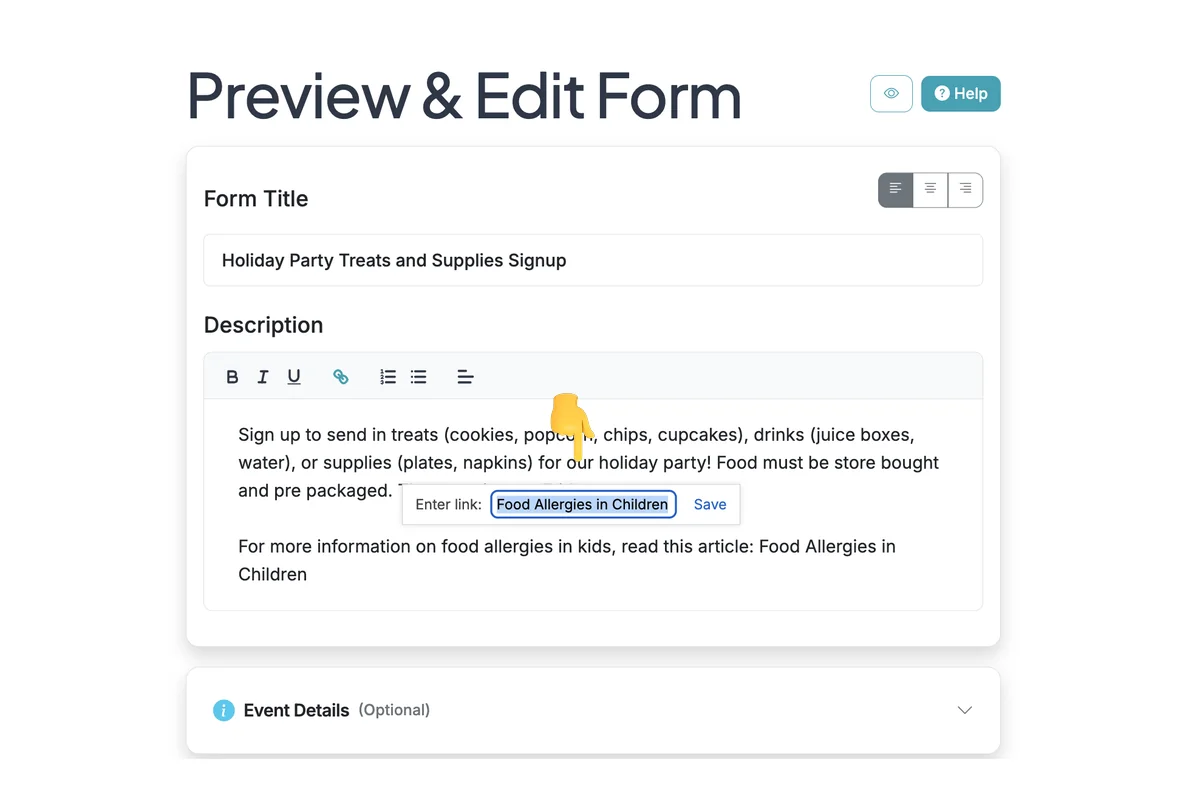
Paste in your link and click 'Save'.
Step 4
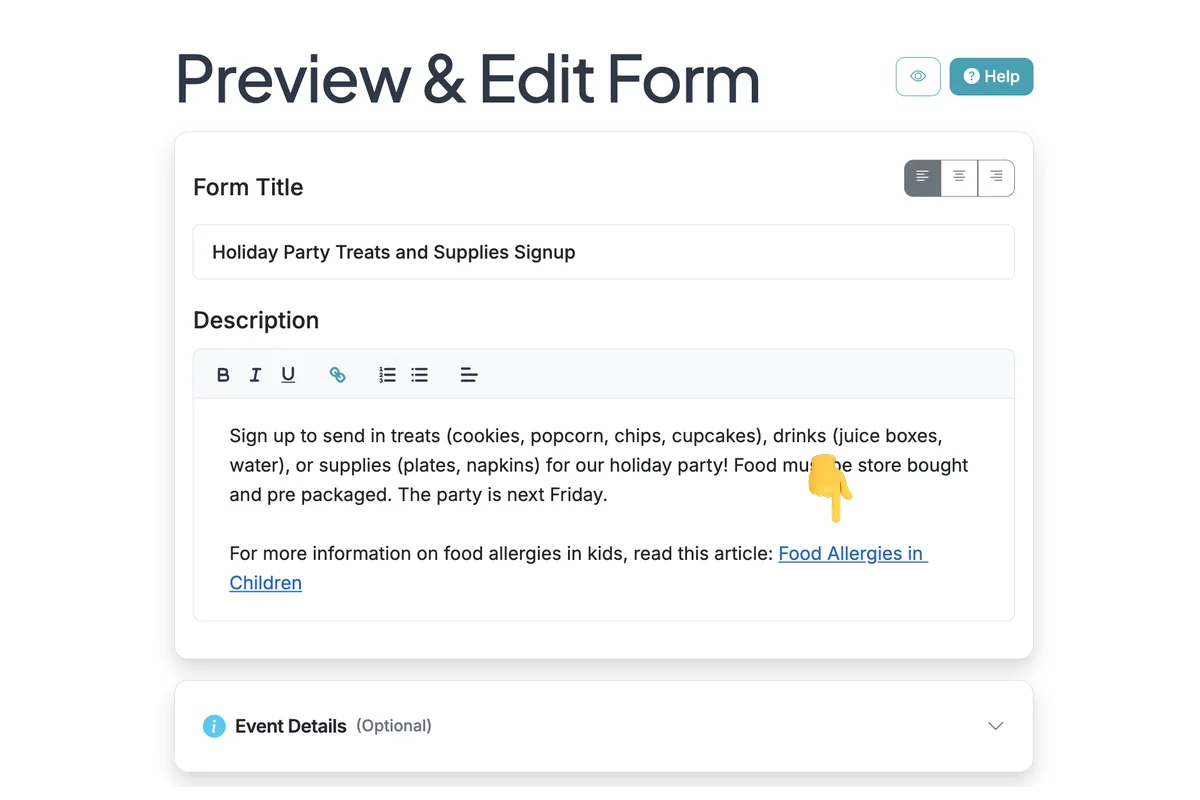
Now your link will be clickable. Remember to Save your form to apply the updates.
ADDING A LINK TO AN EMAIL ADDRESS
Step 1
To link to an email address, highlight the text you want to use as the anchor for the link. Then use the syntax: mailto:[email protected]. To have the link open an email to Grasshopper Support, we would use the link: mailto:[email protected].
Total Steps: 5
Steps generated by StepHopper, a product of Grasshopper Signup - Create interactive step-by-step guides