Group Options Visually
Learn how to group options visually using a specific structure on option labels to organize large forms for better respondent navigation.
You can group options visually by using a specific structure on option labels. This guide explains how to use that structure, how to enable grouping, and how to provide a prompt for AI so that it generates options that are set up for grouping.
Step 1
To create a form that includes a large number of dates/times or other options, provide a detailed description when you are creating your form. The AI generation can recognize many patterns and generate options with grouping enabled to create your form and organize it in a manageable way for respondents.
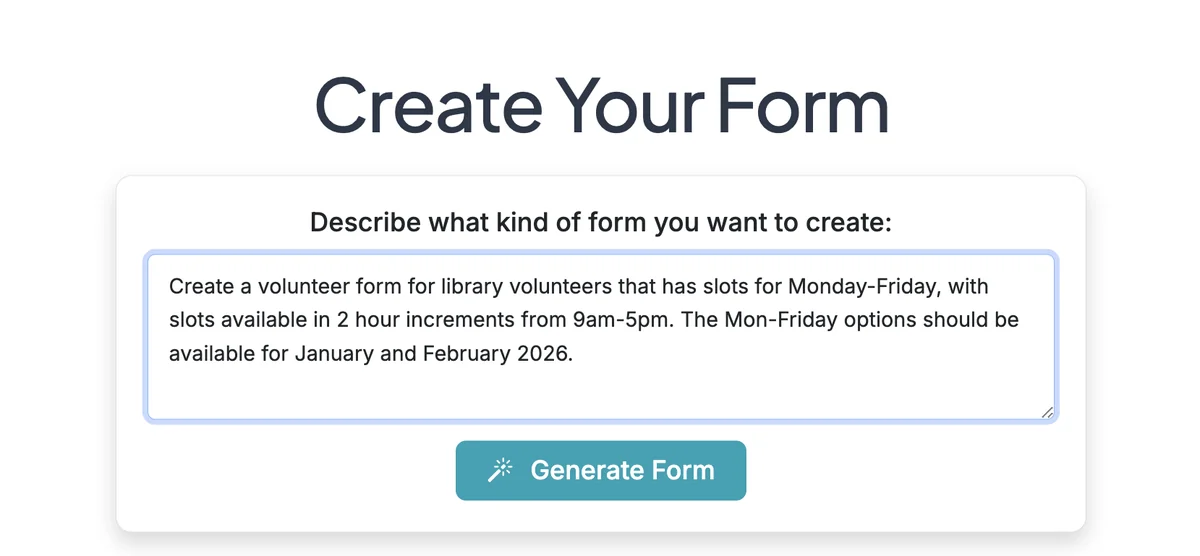
Step 2
When the AI generates a form with a large number of options that can be grouped, it will automatically turn on 'Group options visually' and 'Collapse groups by default'. It will also setup the option labels in a way they can be grouped. The labels will include a prefix, followed by a space then a dash or bullet, then a suffix, like: "Thu, Jan 01 • 11:00 AM". This allows similar items to be grouped.
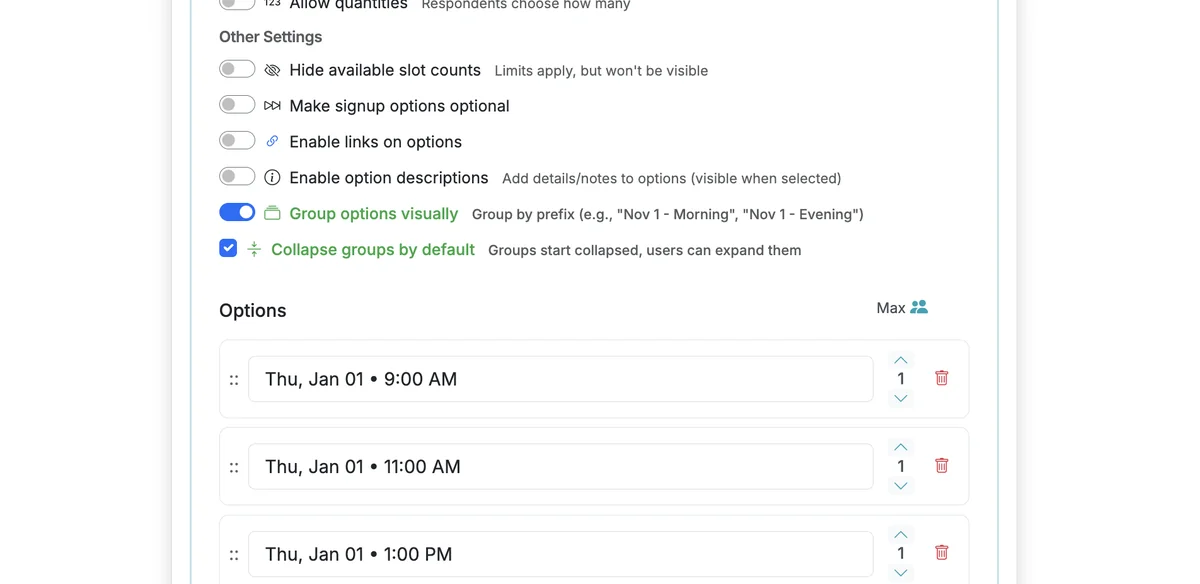
Step 3
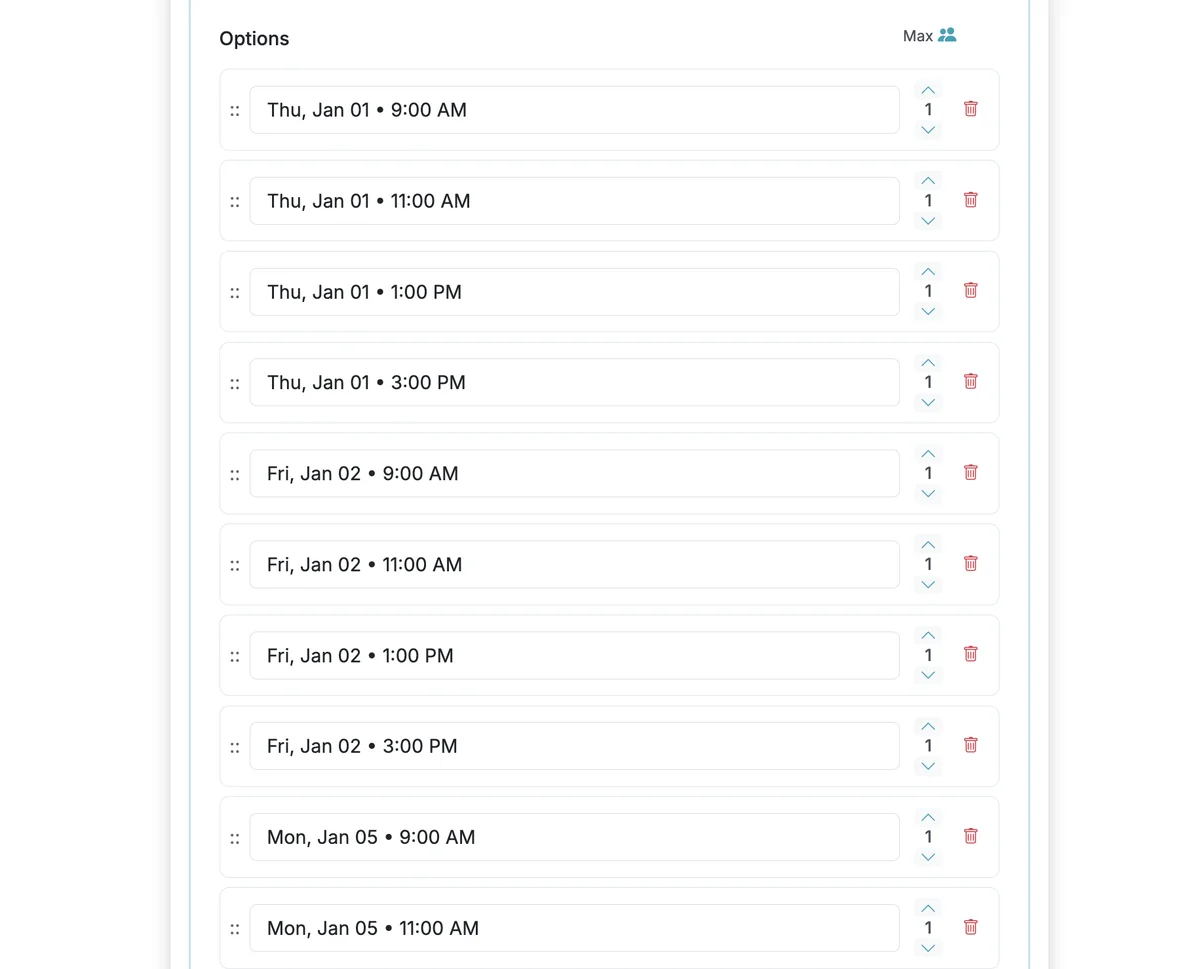
Grouping will ONLY work if you use a syntax that includes similar prefixes and then a separator that is " • " or " - ". See the next step for an example that includes a prefix and separator followed by a suffix that can be grouped.
Step 4
This is an example of option labels that have a prefix, separator, and suffix that will work with grouping. Options with the same prefix can be grouped so they appear as an expandable option on the response page shared with form respondents.
Step 5
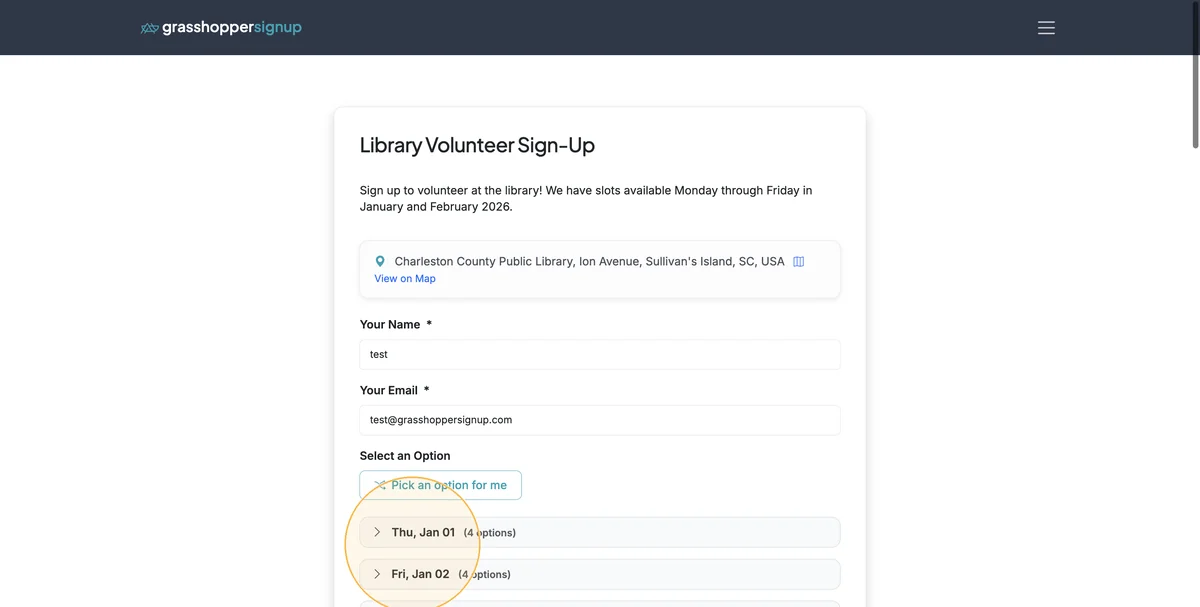
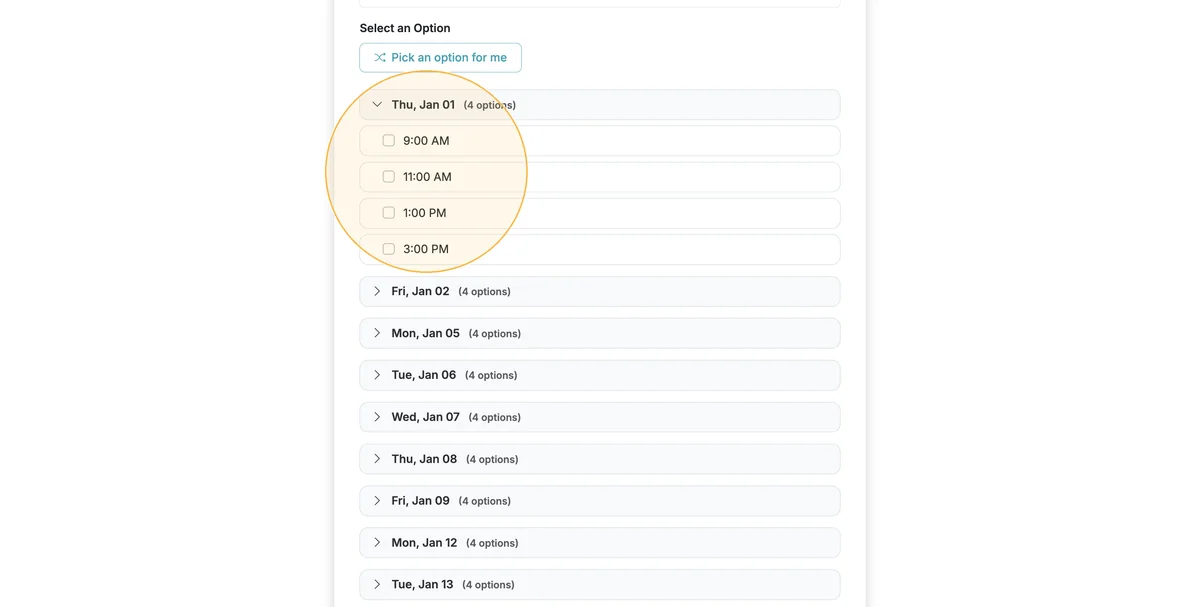
When grouping is enabled, your shareable form page will group similar options using the prefix.
Step 6
Grouping can provide a very helpful way for respondents to navigate a form that has a large number of available options.
Step 7
You can view a form with grouping enabled here: https://grasshoppersignup.com/respond/c32e5c62-f1c8-4c2e-a10b-55dfeaa7cf4d
Key points about visual grouping:
- Automatic AI detection: AI recognizes when to enable grouping for forms with many options
- Required syntax: Use "prefix • suffix" or "prefix - suffix" format for grouping to work
- Collapsible groups: Groups can be collapsed by default to reduce visual clutter
- Better navigation: Makes forms with many time slots, dates, or options easier to browse
- Perfect for schedules: Ideal for volunteer signups, appointment bookings, and event registrations
Total Steps: 7
Steps generated by StepHopper, a product of Grasshopper Signup - Create interactive step-by-step guides