How to Share Public Results
Enable public responses on your form and choose where they appear: a button at the bottom, name pills inline with each option, or both. Optionally show each person's comment under their name.
You can enable shared responses to let respondents see who else has signed up. This is useful for potlucks (so people can see what others are bringing), volunteer signups (to show which slots are filling), or any signup where social proof helps drive participation. You also choose where the responses appear on the form: a button at the bottom that opens a grouped list, name pills shown inline with each option, or both together. With names inline, you can also show each person's comment right under their name (for example, what they are bringing to a meal train).
Sections in This Guide
- ENABLE PUBLIC RESPONSES
- CHOOSE WHERE RESPONSES SHOW: Bottom, Inline, or Both.
- BOTTOM PLACEMENT (default)
- INLINE PLACEMENT
- SHOW COMMENTS UNDER EACH SLOT: Names and comments together.
- BOTH PLACEMENTS
- PUBLIC SUMMARY PAGE
ENABLE PUBLIC RESPONSES
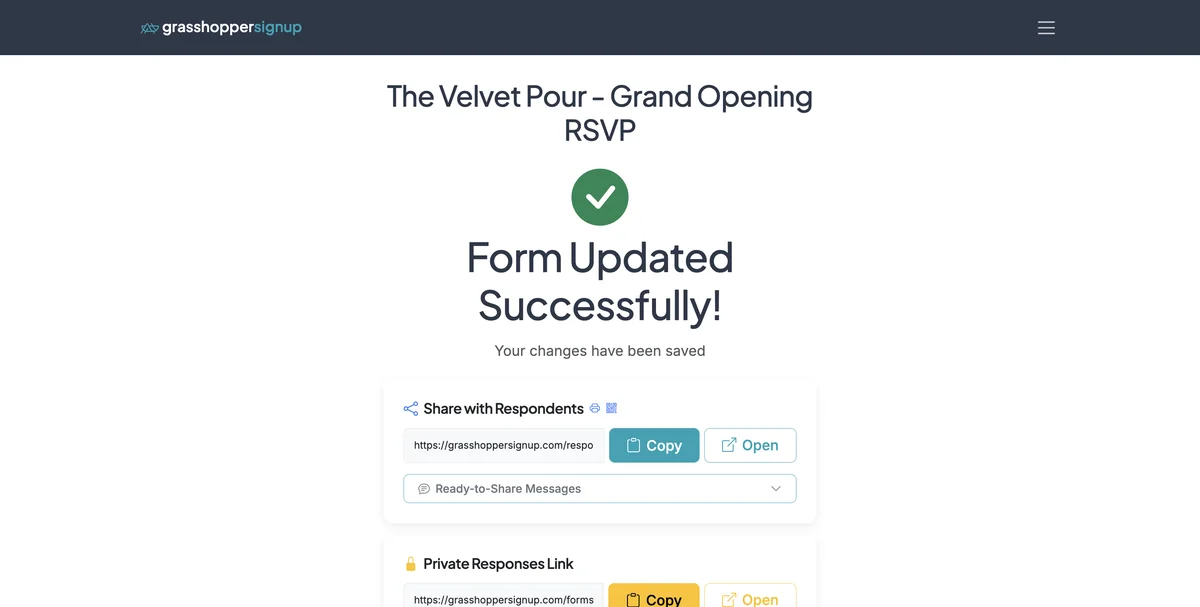
Start on your Dashboard and click Options on the form you want to update.
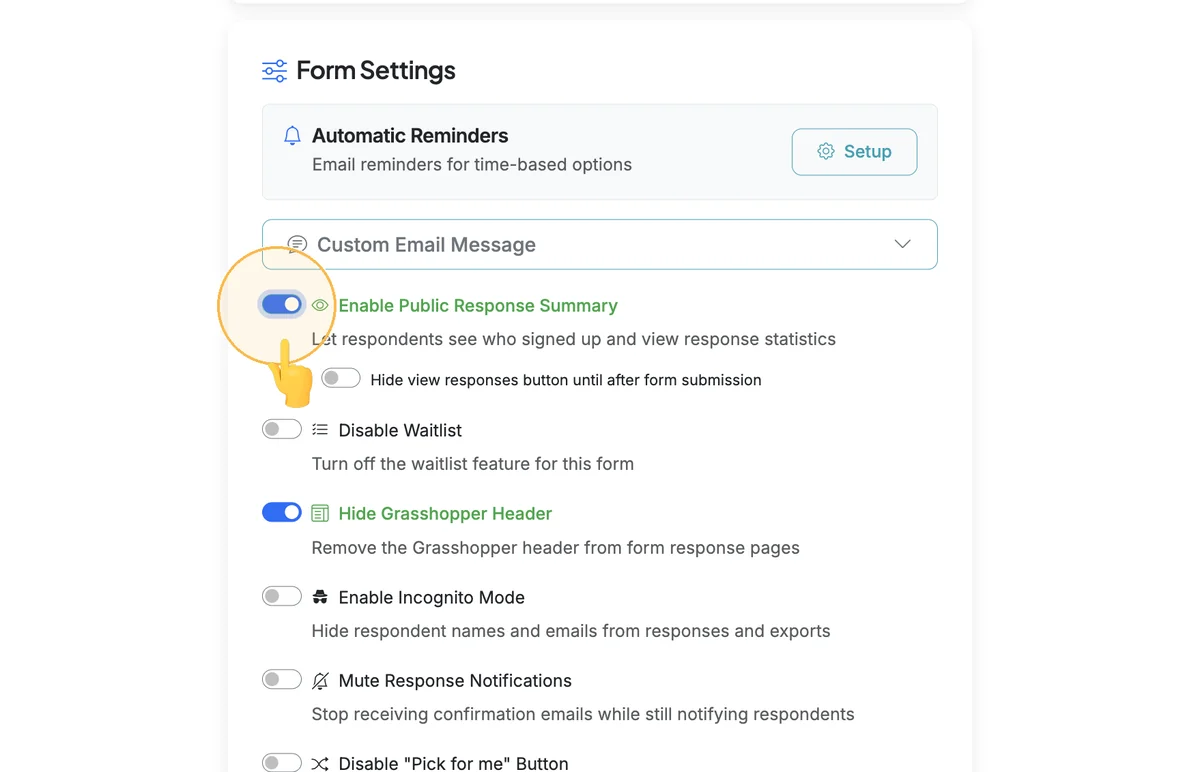
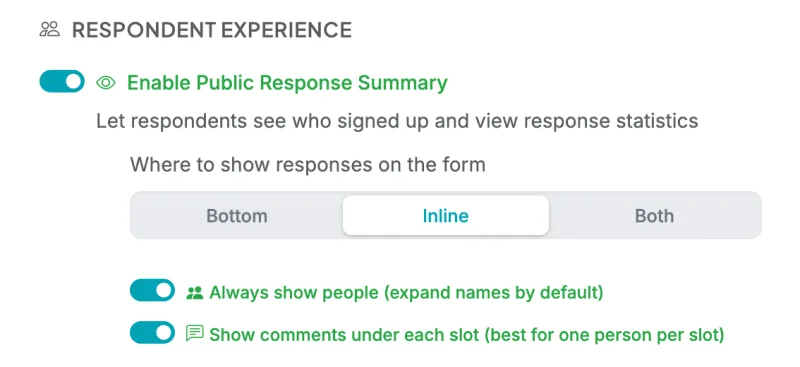
Scroll to the RESPONDENT EXPERIENCE subsection inside the Form Settings card and turn on Enable Public Response Summary.
CHOOSE WHERE RESPONSES SHOW
Once Public Response Summary is on, a placement picker appears: Where to show responses on the form. Pick one:
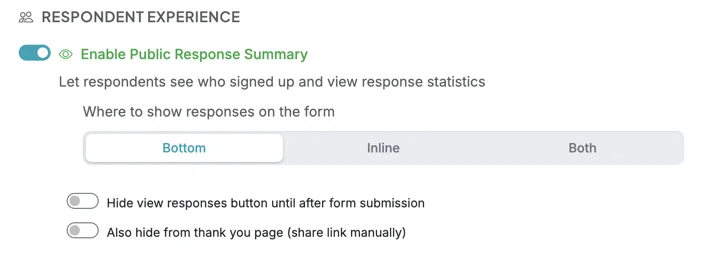
- Bottom (default): A "See who's already signed up" button appears at the bottom of the form. Tapping it expands a grouped list of responses by option, plus a link to the full public summary page. Stays out of the way until a respondent asks for it.
- Inline: A Show People button appears at the top of the option list (next to Show taken if hidden full options exist). Tapping it reveals respondent name pills directly beneath each option that has signups. Best when respondents are choosing based on who else is doing what (potlucks, volunteer slots, group activities).
- Both: Both placements are active. The Show People button toggles the inline pills, and the bottom button expands the full grouped list.
Two sub-toggles ("Hide view responses button until after form submission" and "Also hide from thank you page") only apply when the placement is Bottom. They hide automatically when you pick Inline or Both.
When you pick Inline or Both, two different sub-toggles appear instead: Always show people (expand names by default), which shows the names without respondents having to tap Show People, and Show comments under each slot, covered below.
BOTTOM PLACEMENT (default)
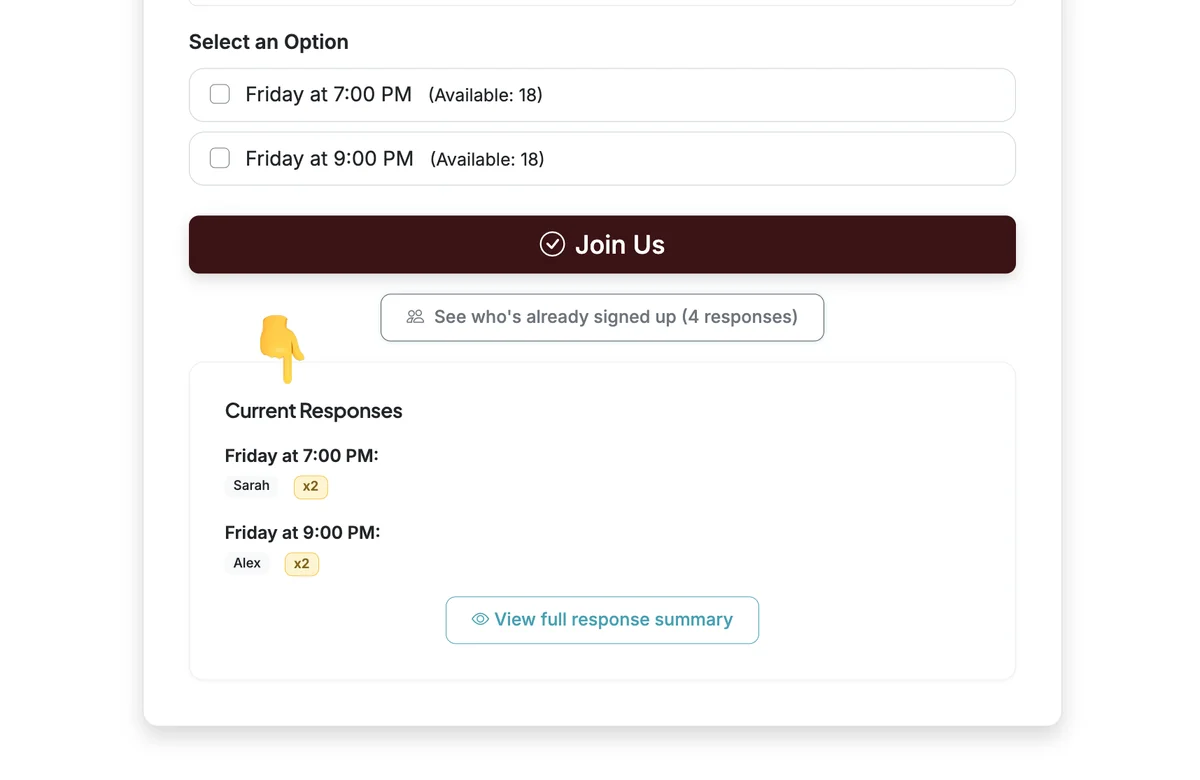
When placement is Bottom, respondents see a button below the option list:
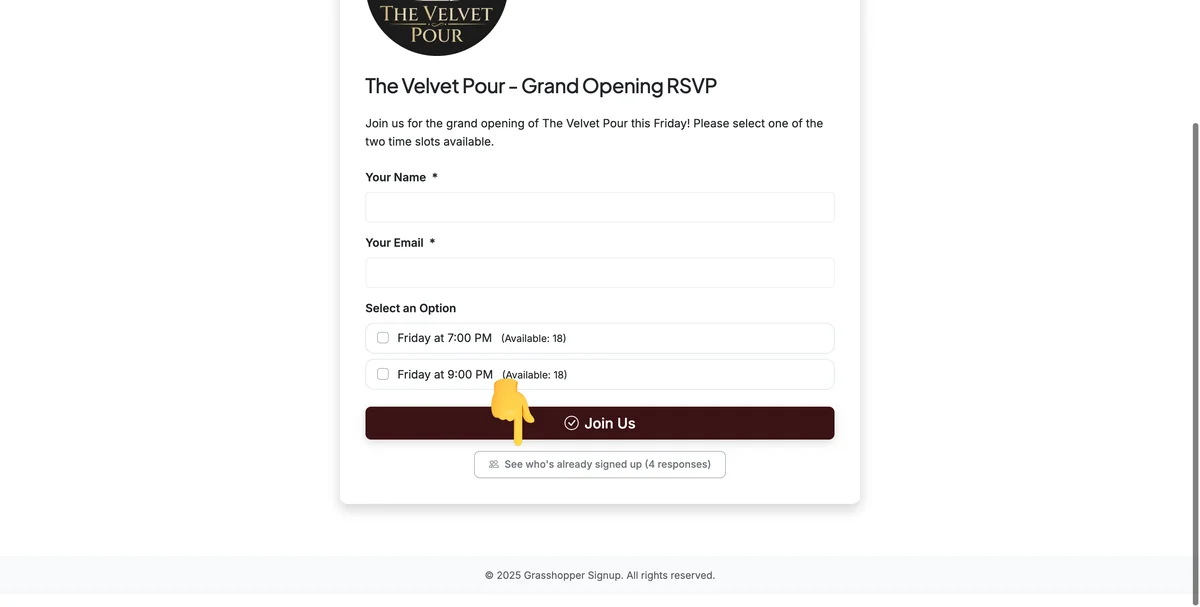
Clicking See who's already signed up expands a card grouping responses by option, with a link to the full public summary page (the same link is also sent in each respondent's confirmation email).
INLINE PLACEMENT
When placement is Inline, the bottom button is replaced by a Show People toggle button at the top right of the option list. The button starts collapsed so the form looks clean by default.
When a respondent taps it:
- The button label flips to Hide People and fills with your form's primary color.
- Subtle name pills appear under every option that has signups, listing who picked it. Repeat selections (when "Allow Multiple" is on) collapse to a single pill with a count badge (e.g.
Sarah ×2). - If a respondent used incognito mode, their pill shows Anonymous instead of a name.
- Tapping the button again hides the pills.
By default, inline mode shows names only. To show comments too, turn on Show comments under each slot (next section).
SHOW COMMENTS UNDER EACH SLOT
If your form collects comments, you can show each person's comment right under their name on the option they picked. This is great for meal trains, potlucks and volunteer slots, where people want to see at a glance who took each slot and what they are bringing, without scrolling to a list at the bottom.
In the same RESPONDENT EXPERIENCE subsection, set Where to show responses on the form to Inline (or Both), then turn on Show comments under each slot (best for one person per slot). Turning on Always show people as well means respondents see the names and comments right away.
Respondents then see each name with its comment on the line below:
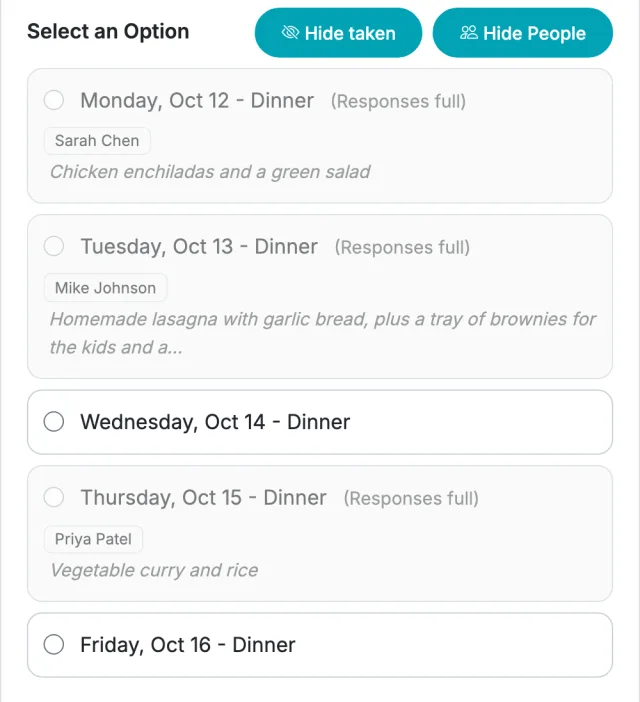
- Long comments are shortened to about 80 characters with "…" so the form stays tidy on phones. The full comment still appears in the bottom list (with Both), on the public summary page and in your Responses page.
- Best for one or a few people per slot. If a slot has many signups, every person gets their own line, so the form gets long. For big slots, leave this off and use Both so comments stay in the bottom list.
- Privacy settings still apply. Incognito respondents still show as Anonymous, and Strict Privacy Mode hides names and comments under the options.
To show comments under each slot without the bottom list, pick Inline. To keep the bottom list too, pick Both.
BOTH PLACEMENTS
Pick Both when you want maximum visibility: for example, a potluck where guests want to see at a glance who's bringing each dish AND the full list of comments ("I'll bring extra napkins"). The Show People button at the top toggles inline pills; the bottom button expands the grouped list with comments. Turn on Show comments under each slot if you also want the comments next to the names.
PUBLIC SUMMARY PAGE
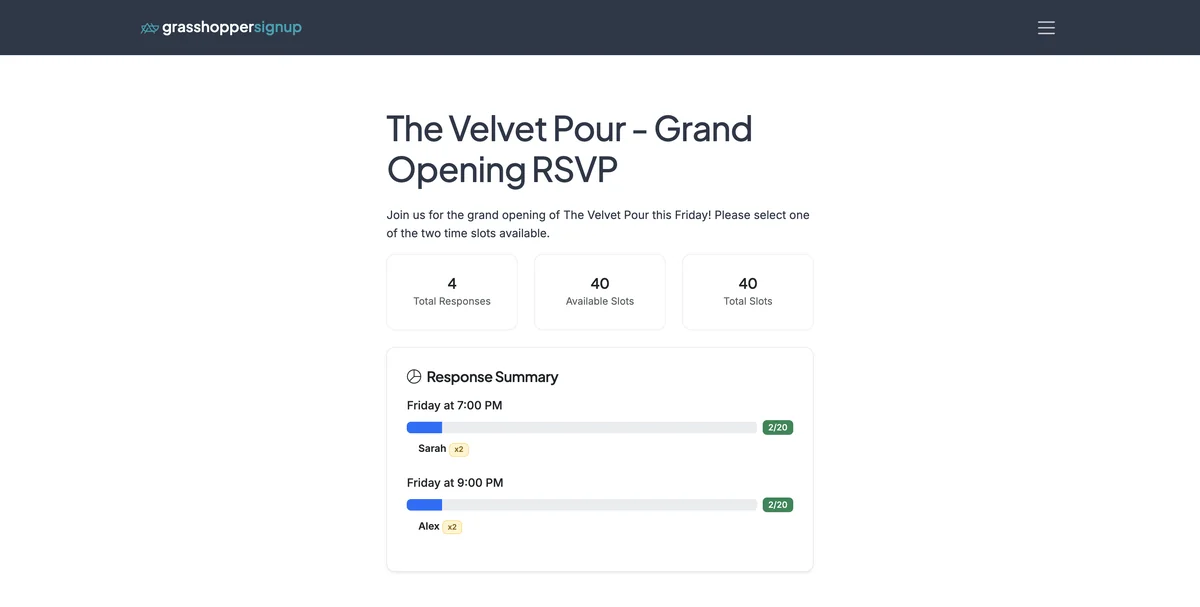
Regardless of placement, every form with Public Responses enabled has a standalone summary page. The View full response summary link inside the bottom-collapse view goes there, and the URL is also included in each respondent's confirmation email so they can share it.
The summary page shows response counts, fill rates, and respondent names (unless the form uses incognito mode, which replaces names with "Anonymous").
Steps originally generated by StepHopper, a product of Grasshopper Signup - Create interactive step-by-step guides